
1. Ọja Ipariview
The TP-Link Archer TX50E is a high-performance AX3000 Wi-Fi 6 Bluetooth 5.3 PCIe Adapter designed for desktop PCs. It leverages the latest Wi-Fi 6 standard to deliver extreme speeds, ultra-low latency, and uninterrupted connectivity, making it suitable for demanding applications like immersive gaming and VR. The adapter features a customized heat sink and gold-plated contactors for enhanced stability and longevity.
Awọn ẹya pataki:
- Wi-Fi 6 Performance: Delivers speeds up to 2.4 Gbps (2402 Mbps on 5 GHz + 574 Mbps on 2.4 GHz) with 1024-QAM and 160 MHz bandwidth.
- Irẹwẹsi Irẹlẹ: Revolutionary OFDMA and MU-MIMO technologies reduce lag for responsive gaming and VR experiences.
- Bluetooth 5.3: Achieves 2× faster speeds and 4× broader coverage than Bluetooth 4.2, enabling seamless connection with various peripherals.
- Ibora ti o gbooro: Equipped with two high-gain antennas to extend Wi-Fi range.
- Kọ Ere: Features a customized heat sink for efficient thermal dissipation and gold-plated contactors for improved stability and oxidation resistance.
- Ilọsiwaju Aabo: Supports WPA3, the latest network security standard, for enhanced network protection.
2. Package Awọn akoonu
Daju pe gbogbo awọn nkan wa ninu apo rẹ:

Image: TP-Link Archer TX50E retail box showing the adapter and included accessories.
- TP-Link Archer TX50E Wi-Fi 6 Bluetooth 5.3 PCIe Adapter
- Two High-Gain Antennas
- Okun USB Bluetooth
- CD orisun
- Awọn ọna fifi sori Itọsọna
- Kekere-Profile akọmọ
3. Hardware fifi sori
Ṣaaju ki o to bẹrẹ:
- Ensure your computer is powered off and unplugged from the power source.
- Ground yourself to discharge any static electricity before handling components.
- Refer to your computer's manual for specific instructions on opening the case.
Fifi sori Igbesẹ-Igbese:
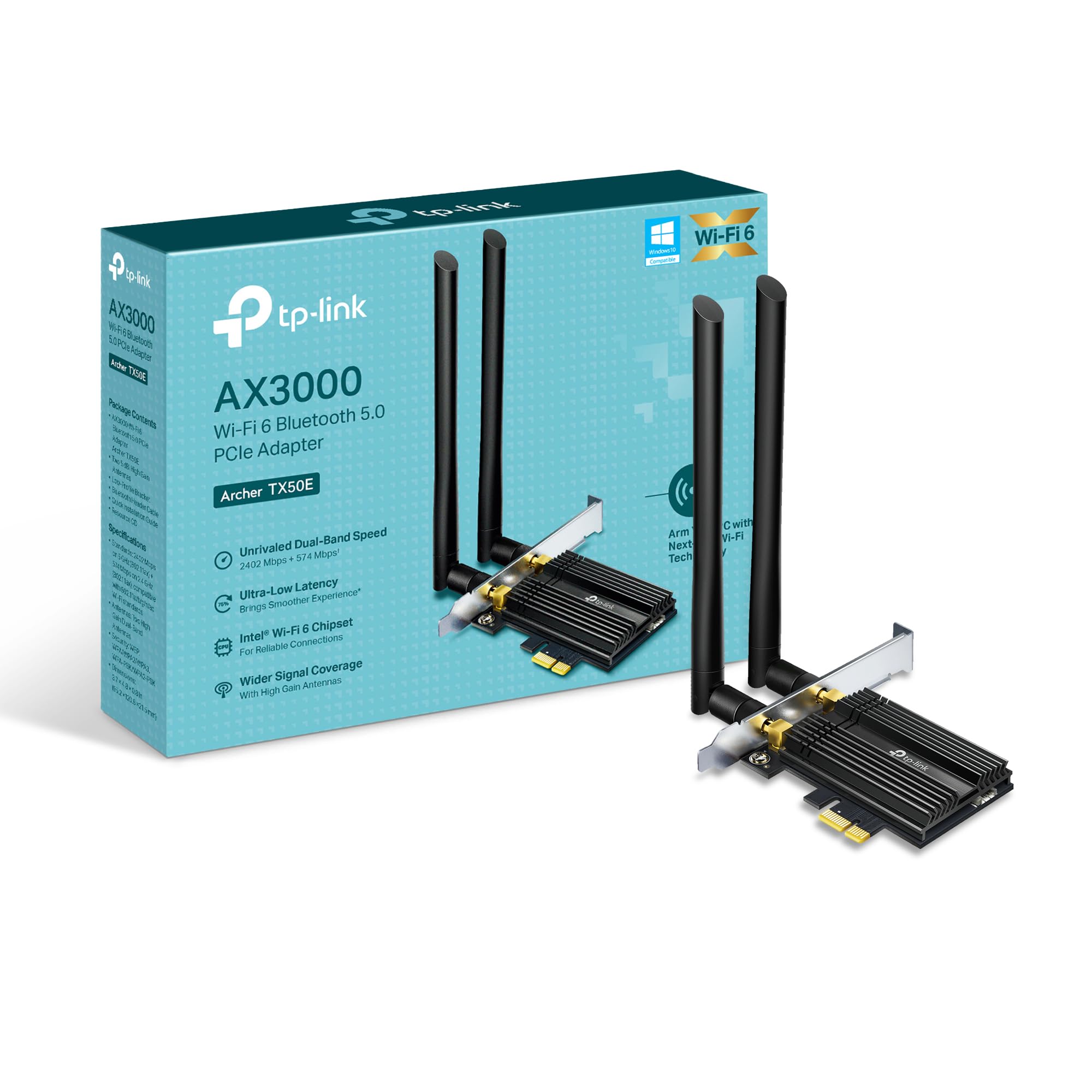
Aworan: Iwaju view of the TP-Link Archer TX50E adapter with antennas.
- Paa ati Yọọ: Turn off your computer and unplug the power cable from the wall outlet.
- Ṣí àpótí PC: Yọ ẹgbẹ ẹgbẹ ti ọran kọnputa rẹ lati wọle si modaboudu.
- Connect Bluetooth USB Cable: Connect the provided Bluetooth USB cable to the adapter's Bluetooth header.
- Locate Slots: Identify an available PCI Express X1 slot on your motherboard and an F_USB connector (usually labeled USB910 or similar).
- Fi Adapter sii: Carefully insert the Archer TX50E adapter into the chosen PCIe X1 slot. Ensure it is seated firmly.
- So okun USB pọ: Connect the other end of the Bluetooth USB cable to the F_USB connector on your motherboard. This connection is essential for Bluetooth functionality.
- Secure Adapter and Antennas: Secure the adapter with a screw to the computer case. Then, connect the two high-gain antennas to the adapter's connectors. Adjust their position for optimal signal reception.
- Ti Àpò PC Pa: Rọpo ẹgbẹ ẹgbẹ ti ọran kọnputa rẹ.
- Agbara Tan: Plug the power cable back into the wall outlet and turn on your computer.
Itọsọna fifi sori wiwo:
Video: A step-by-step guide demonstrating the physical installation of the TP-Link Archer TX50E PCIe adapter into a desktop computer.
4. Fifi sori awakọ
After hardware installation, you need to install the Wi-Fi and Bluetooth drivers for the adapter to function correctly. Akiyesi: Do NOT run the Bluetooth and Wi-Fi driver installers at the same time.
Step-by-Step Driver Installation:
- Insert CD or Download Drivers: Insert the provided resource CD into your computer's CD/DVD drive. If your computer does not have a CD/DVD drive, download the latest drivers from the official TP-Link website (search for Archer TX50E).
- Run Autorun: Once the CD is inserted, an Autorun window should appear. Click to run `Autorun.exe`. If it doesn't appear, navigate to 'This PC' or 'My Computer', open your CD/DVD drive, and manually run `Autorun.exe`.
- Install Wi-Fi Drivers: In the TP-Link driver installation utility, select the option to install the Wi-Fi drivers. Follow the on-screen instructions to complete the installation. You may need to restart your computer after this step.
- Install Bluetooth Drivers: After the Wi-Fi drivers are installed and your computer has restarted (if prompted), run the `Autorun.exe` again or manually launch the Bluetooth driver installer. Follow the on-screen instructions to complete the Bluetooth driver installation. Another restart may be required.
For a visual guide on driver installation, please refer to the setup video provided in the Hardware Installation section.
5. Awọn ilana Iṣiṣẹ
Nsopọ si Wi-Fi:
- After successful driver installation, click the Wi-Fi icon in your system tray (usually in the bottom-right corner of your screen).
- Atokọ awọn nẹtiwọki alailowaya ti o wa yoo han. Yan nẹtiwọki ti o fẹ.
- Click 'Connect' and enter the network security key (password) if prompted.
- Kọ̀ǹpútà rẹ yẹ kí ó ti so mọ́ nẹ́tíwọ́ọ̀kì Wi-Fi báyìí.
Sisopọ Awọn ẹrọ Bluetooth:
- Ensure your Bluetooth device is in pairing mode (refer to your device's manual).
- On your computer, go to 'Settings' > 'Devices' > 'Bluetooth & other devices'.
- Tan Bluetooth tí kò bá ti ṣiṣẹ́ tẹ́lẹ̀.
- Tẹ 'Fi Bluetooth tabi ẹrọ miiran kun' ki o si yan 'Bluetooth'.
- Yan ẹrọ rẹ lati inu akojọ naa ki o tẹle eyikeyi awọn ilana loju iboju lati pari ilana isopọmọ.
6. Laasigbotitusita
If you encounter issues with your Archer TX50E adapter, try the following common troubleshooting steps:
- Ko si Wi-Fi Asopọmọra:
- Ensure the adapter is correctly seated in the PCIe slot.
- Verify that the antennas are securely connected.
- Check Device Manager to ensure Wi-Fi drivers are installed and the device is recognized without errors.
- Try updating or reinstalling the Wi-Fi drivers.
- Tun kọmputa rẹ ati olulana alailowaya rẹ bẹrẹ.
- Bluetooth Not Working:
- Confirm the Bluetooth USB cable is properly connected to both the adapter and the motherboard's F_USB header.
- Check Device Manager to ensure Bluetooth drivers are installed and the device is recognized without errors.
- Verify that Bluetooth is enabled in your computer's settings.
- Try updating or reinstalling the Bluetooth drivers.
- Slow Speeds or Intermittent Connection:
- Ensure your router supports Wi-Fi 6 (802.11ax) for optimal performance.
- Adjust the position of the antennas for better signal reception.
- Move your computer closer to the router or reduce obstacles between them.
- Ṣayẹwo fun kikọlu lati awọn ẹrọ itanna miiran.
- Ṣe àtúnṣe firmware ti olulana rẹ.
If these steps do not resolve your issue, please contact TP-Link Technical Support.
7. Imọ ni pato
| Ẹya ara ẹrọ | Sipesifikesonu |
|---|---|
| Awoṣe | Tafatafa TX50E |
| Boṣewa alailowaya | Wi-Fi 6 (802.11ax/ac/b/g/n) |
| Ẹya Bluetooth | Bluetooth 5.3 |
| Ni wiwo | PCI Express |
| Data Gbigbe Oṣuwọn | Up to 2402 Mbps (5 GHz), 574 Mbps (2.4 GHz) |
| Awọn ọna System Support | Windows 11, 10 (64-bit) |
| Aabo | WPA3 |
| Awọn iwọn (L x W x H) | 9.53 x 12.09 x 2.16 cm |
| Iwọn Nkan | 90.72 g (0.2 iwon) |
| Ni wiwo Hardware | Bluetooth |
| Awọn ẹrọ ibaramu | Ojú-iṣẹ, Kọǹpútà alágbèéká |
8. Atilẹyin ọja ati imọ Support
TP-Link n funni ni 2-odun atilẹyin ọja for this product. Additionally, free 24/7 imọ support wa lati ran ọ lọwọ pẹlu eyikeyi awọn ibeere tabi awọn iṣoro ti o le pade.
For further assistance, please visit the official TP-Link support webojula tabi kan si wọn onibara iṣẹ taara.