
Ọrọ Iṣaaju
This manual provides detailed instructions for the installation, operation, and maintenance of your BINIZE Double Din Car Stereo. Please read this manual thoroughly before using the product to ensure proper functionality and to prevent damage. Keep this manual for future reference.
Ọja Pariview
The BINIZE Double Din Car Stereo is a 10.1-inch multimedia player running on an Android 13 system. It offers a range of features designed to enhance your in-car entertainment and navigation experience.
Awọn ẹya pataki:
- 10.1-inch capacitive touch screen with 1024x600 resolution.
- Android 13 Operating System with Quad-core Coretex-A7 processor (up to 1.3GHz).
- 2GB Ramu + 32GB ibi ipamọ inu.
- Wireless CarPlay and Android Auto support.
- Wired MirrorLink for Android and iOS devices.
- Bluetooth tí a ṣe sínú rẹ̀ fún pípè láìsí ọwọ́ àti sísan ohùn.
- Integrated GPS receiver for online and offline navigation.
- FM Radio tuner.
- Support for AUX, front, and rear camera inputs.
- Steering Wheel Control compatibility (manual learning required).
- Built-in Wi-Fi receiver and support for 4G communication (via external dongle, not included).
- Expandable options for OBD and tire pressure monitoring (accessories sold separately).

Figure 1: BINIZE Double Din Car Stereo Front View pẹlu bọtini awọn ẹya ara ẹrọ afihan.
Eto ati fifi sori
Proper installation is crucial for the optimal performance of your car stereo. If you are unfamiliar with car audio wiring and installation, professional assistance is recommended.
Awọn iwọn ti ara:
The unit measures approximately 251mm (width) x 146mm (height) x 56mm (depth). Ensure your vehicle's dashboard opening is compatible with these dimensions.
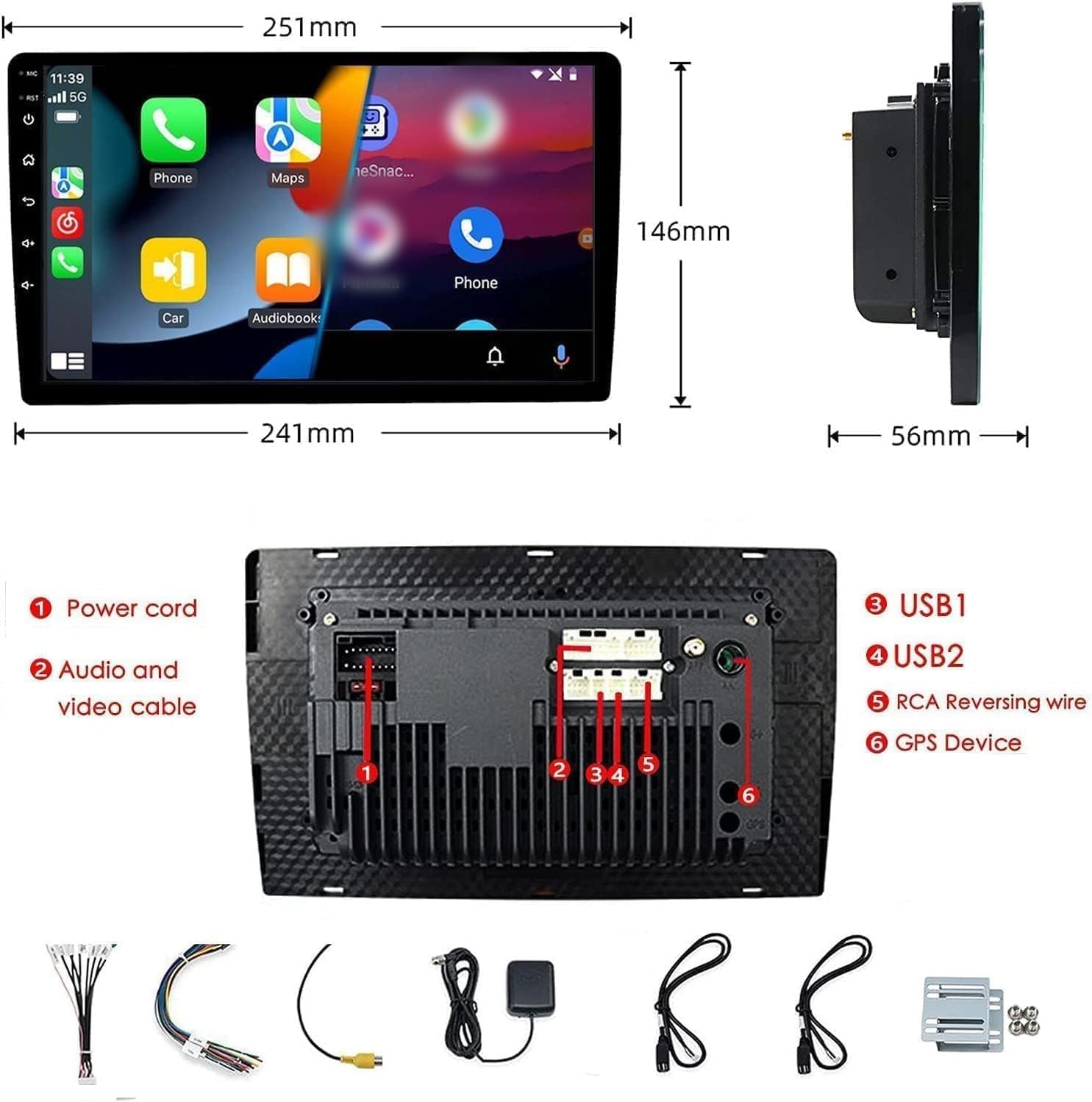
Figure 2: Unit dimensions and rear panel connection points.
Awọn isopọ onirin:
Wo àwòrán wáyà tí a fi kún un fún àwọn ìsopọ̀ pàtó kan. Àwọn ìsopọ̀ pàtàkì ní:
- Okun Agbara: So pọ mọ ipese agbara ọkọ ayọkẹlẹ (12V nigbagbogbo, ẹya ẹrọ 12V, ilẹ).
- Audio and Video Cable: For external audio/video devices.
- USB Ports (USB1, USB2): For media playback, phone charging, and wired CarPlay/Android Auto.
- RCA Reversing Wire: Connect to the backup camera trigger wire.
- GPS Device: Connect the external GPS antenna for navigation functionality.
- Steering Wheel Control Wires (Key/SW): For integrating with vehicle's steering wheel controls.
Rii daju pe gbogbo awọn asopọ wa ni aabo ati ni idayatọ daradara lati ṣe idiwọ awọn iyika kukuru.
Awọn ilana Iṣiṣẹ
Titan/Apapa:
The unit will power on automatically when the vehicle's ignition is turned on. To manually power off or restart, use the power button on the front panel.
Isẹ iboju Fọwọkan:
Navigate the interface by tapping, swiping, and pinching on the 10.1-inch capacitive touch screen, similar to a smartphone or tablet.
Redio FM:
Access the FM Radio application from the main menu. You can scan for stations, save presets, and adjust volume. The unit supports standard FM frequencies.

olusin 3: FM Radio ni wiwo.
Mimuuṣiṣẹpọ Bluetooth:
- Rii daju pe Bluetooth ti ṣiṣẹ lori foonu alagbeka rẹ.
- Lori sitẹrio ọkọ ayọkẹlẹ, ṣii ohun elo Bluetooth.
- Wa fun available devices on your phone and select "BINIZE" or a similar device name.
- Jẹrisi koodu sisopọ lori awọn ẹrọ mejeeji ti o ba ṣetan.
- Nígbà tí o bá ti so pọ̀ mọ́ ara rẹ, o lè ṣe àwọn ìpè láìfọwọ́kàn àti sísọ̀rọ̀ ohùn.
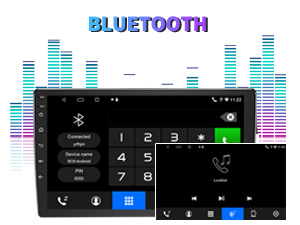
Figure 4: Bluetooth pairing screen.
Iṣakoso kẹkẹ idari:
To use your vehicle's steering wheel controls, manual learning is required. Access the Steering Wheel Control settings in the system menu and follow the on-screen instructions to map your vehicle's buttons to the stereo functions.
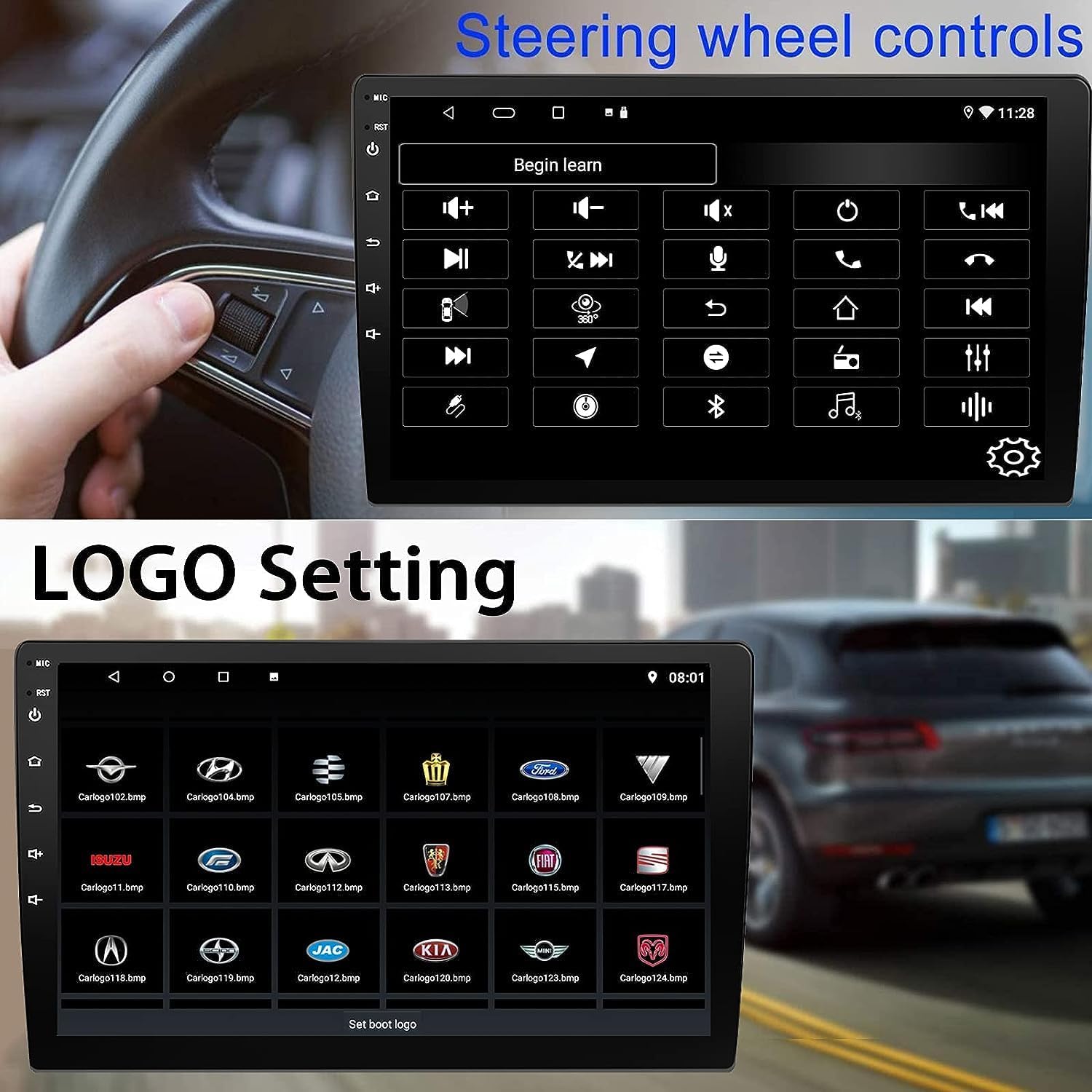
Àwòrán 5: Ìbòjú ìṣètò Ìṣàkóso Kẹ̀kẹ́ Ìdarí.
Connectivity: CarPlay, Android Auto, and MirrorLink
CarPlay Alailowaya:
Connect your iPhone wirelessly to access CarPlay features such as navigation, music, messages, and calls directly on the stereo display. Ensure Wi-Fi and Bluetooth are enabled on your iPhone.
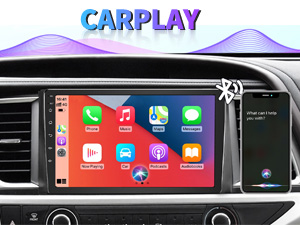
Figure 6: Wireless CarPlay interface.
Alailowaya Android Auto:
Connect your Android phone wirelessly to use Android Auto for navigation, communication, and entertainment apps. Ensure Wi-Fi and Bluetooth are enabled on your Android device.

Figure 7: Wireless Android Auto interface.
Dígíráàmù:
MirrorLink allows you to display your smartphone's screen directly onto the car stereo. This feature works with both Android and iOS devices via a wired connection. Note that CarPlay/Android Auto and MirrorLink cannot be used simultaneously.

Figure 8: MirrorLink feature displaying a phone screen on the stereo.
Lilọ kiri
The car stereo features an integrated GPS receiver, supporting both online and offline navigation. Connect to Wi-Fi or a mobile hotspot to use online navigation apps. For offline navigation, you may need to download map data.

Figure 9: GPS navigation map display.
Iṣagbewọle kamẹra
Kamẹra Afẹyinti:
The unit supports backup camera input. When properly connected, the display will automatically switch to the rear view when the vehicle is put into reverse, providing parking assistance with guidelines.
Iwaju View Kamẹra:
The stereo also supports front view camera input, allowing for enhanced visibility when maneuvering in tight spaces.

Figure 10: Backup camera and front view camera displays.
Itoju
To ensure the longevity and optimal performance of your BINIZE car stereo, follow these maintenance guidelines:
- Ninu iboju: Lo aṣọ rirọ, ti ko ni awọ lati nu iboju ifọwọkan naa pẹlu rọra. Fun awọn eeru lile, fi diẹ gbẹ.ampen awọn asọ pẹlu omi tabi a iboju-ailewu regede. Yago fun awọn kẹmika lile tabi awọn ohun elo abrasive.
- Isọsọ gbogboogbo: Keep the unit and surrounding areas free from dust and debris. Use a soft brush or compressed air to clean vents and button areas.
- Awọn imudojuiwọn sọfitiwia: Periodically check for available software updates through the system settings to ensure you have the latest features and performance improvements.
- Yago fun Awọn iwọn otutu to gaju: Do not expose the unit to extreme heat or cold for extended periods, as this can affect its electronic components.
Laasigbotitusita
Tí o bá ní ìṣòro pẹ̀lú sitẹrio ọkọ̀ ayọ́kẹ́lẹ́ rẹ, wo àwọn ìṣòro àti ìdáhùn tó wọ́pọ̀ wọ̀nyí:
| Isoro | Owun to le Fa | Ojutu |
|---|---|---|
| Ẹka ko ni agbara lori. | Incorrect wiring; Blown fuse; Vehicle power issue. | Check power connections and vehicle fuses. Ensure constant 12V and accessory 12V are correctly wired. |
| Ko si ohun. | Iwọn didun kere ju; A mu odi ṣiṣẹ; iṣoro okun waya agbọrọsọ. | Mu iwọn didun pọ si. Ṣayẹwo boya odi n ṣiṣẹ. Ṣayẹwo awọn asopọ agbọrọsọ. |
| CarPlay/Android Auto kò sopọ̀ mọ́ra láìsí aláilowaya. | Bluetooth/Wi-Fi off on phone; Pairing issue; Software glitch. | Ensure phone's Bluetooth and Wi-Fi are on. Try re-pairing the device. Restart both phone and stereo. Some users reported needing to open phone's Bluetooth settings each time. |
| Screen too bright/dim at night. | Eto ifihan ko iṣapeye. | Adjust brightness settings in the display menu. Consider using a screen dimming app if available. |
| Kámẹ́rà àtìlẹ́yìn kò hàn. | Camera not connected; RCA reversing wire not connected or faulty. | Check camera and RCA reversing wire connections. Ensure the camera is powered. |
Awọn pato
| Ẹya ara ẹrọ | Ẹ̀kúnrẹ́rẹ́ |
|---|---|
| Brand | BINIZE |
| Nọmba awoṣe | Binize |
| Eto isesise | Android 13 |
| Iwon iboju | 10.1 inches (26 cm onirọsẹ ti o han) |
| Ipinnu | 1024x600 |
| isise | Quad-core Coretex-A7, 1.3GHz |
| Iranti (Ramu) | 2GB |
| Ibi ipamọ (ROM) | 32GB |
| Asopọmọra | Bluetooth, Wi-Fi, USB, Auxiliary |
| Pataki Awọn ẹya ara ẹrọ | Wireless CarPlay, Wireless Android Auto, MirrorLink, GPS Navigation, Touchscreen, Built-In Bluetooth |
| Ipo Ijade Ohun | Sitẹrio ( Iṣeto Ikanni Ohun Yika 2.0) |
| Iwọn Nkan | 2.94 iwon |
| Àwọ̀ | Dudu |
Atilẹyin ọja ati Support
Alaye Atilẹyin ọja:
The BINIZE Double Din Car Stereo comes with a 1-odun atilẹyin ọja lati ọjọ ti o ra. Atilẹyin ọja yi ni wiwa awọn abawọn iṣelọpọ ati ailagbara labẹ lilo deede. Jọwọ ṣe idaduro ẹri rira rẹ fun awọn iṣeduro atilẹyin ọja.
Oluranlowo lati tun nkan se:
For any technical assistance, questions, or issues not covered in this manual, please contact our professional technical support team. You can reach us via Amazon email for 24/7 online technical support. Our team is available to assist with system upgrades and parts replacement.
We are committed to providing enthusiastic customer service and ensuring your satisfaction with the BINIZE product.