
1. Ifihan
The Plugable USB-C Hub 7-in-1 is a versatile multiport adapter designed to expand the connectivity of your USB-C or Thunderbolt 3/4 enabled laptop, tablet, or smartphone. This compact and driverless hub provides essential ports for enhanced productivity and convenience.
It features a 4K HDMI display output, three USB 3.0 ports for high-speed data transfer, dedicated SD and microSD card readers, and a USB-C Power Delivery charging port, allowing you to charge your host device while using the hub.

Image: The Plugable USB-C 7-in-1 Hub showcasing its various connectivity options with connected peripherals.
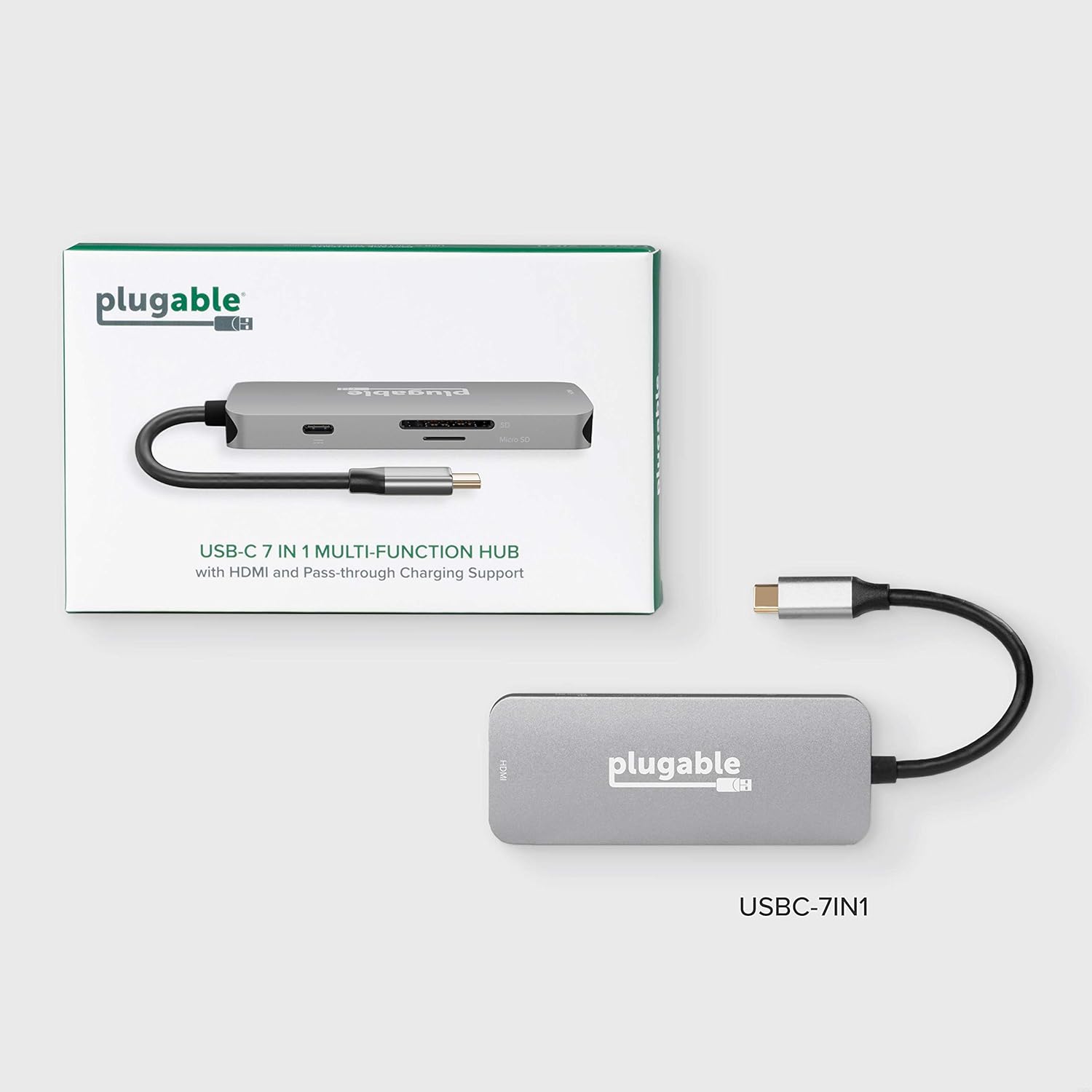
Image: The compact design of the Plugable USB-C Hub, highlighting its portability for on-the-go use.
2. Eto ati Asopọ
Follow these steps to set up your Plugable USB-C Hub:
- Sopọ si Ẹrọ Gbalejo: Plug the integrated USB-C cable from the hub into an available USB-C or Thunderbolt 3/4 port on your laptop, tablet, or smartphone. The hub is driverless and should be recognized automatically by your operating system (Windows, macOS, ChromeOS, etc.).
- Agbára Sopọ̀ (Àṣàyàn): If your host device requires charging or if you are connecting power-intensive peripherals, connect your original USB-C power adapter to the USB-C Power Delivery (PD) port on the hub. The hub supports up to 100W pass-through charging.
- Sopọ HDMI Ifihan: Connect an HDMI cable from your monitor or TV to the HDMI port on the hub. Ensure your display is set to the correct input source. The hub supports resolutions up to 4K at 30Hz. For 4K 60Hz, your host device must support DisplayPort 1.4.
- So awọn ẹrọ USB pọ: Plug your USB peripherals (e.g., mouse, keyboard, external hard drive, USB flash drives) into the three USB 3.0 ports on the hub. These ports offer data transfer speeds up to 5Gbps.
- Fi awọn kaadi iranti sii: Insert your SD or microSD cards into the corresponding slots on the hub for data access.

Image: A detailed diagram illustrating the various ports available on the Plugable USB-C 7-in-1 Hub.

Image: Illustration of the pass-through USB-C charging feature, allowing your laptop to charge while connected to the hub.
3. Awọn ilana Iṣiṣẹ
Once connected, the Plugable USB-C Hub operates seamlessly with your device. Here are key functionalities:
- HDMI Display Output: Use the HDMI port to extend or mirror your desktop to an external display. This is ideal for presentations, multitasking, or enjoying media on a larger screen. Ensure your display settings are configured correctly in your operating system.
- USB 3.0 Data Gbigbe: The three USB 3.0 ports provide high-speed data transfer for external storage devices, ensuring quick file transfers. They are also suitable for connecting standard USB peripherals like keyboards, mice, and webawọn kamẹra.
- SD and MicroSD Card Readers: Access photos, videos, and other files directly from your camera's memory cards. The hub supports simultaneous reading of both SD and microSD cards.
- Ifijiṣẹ Agbara: The USB-C PD port allows your laptop to receive power through the hub, eliminating the need for a separate power connection to your laptop's dedicated charging port.
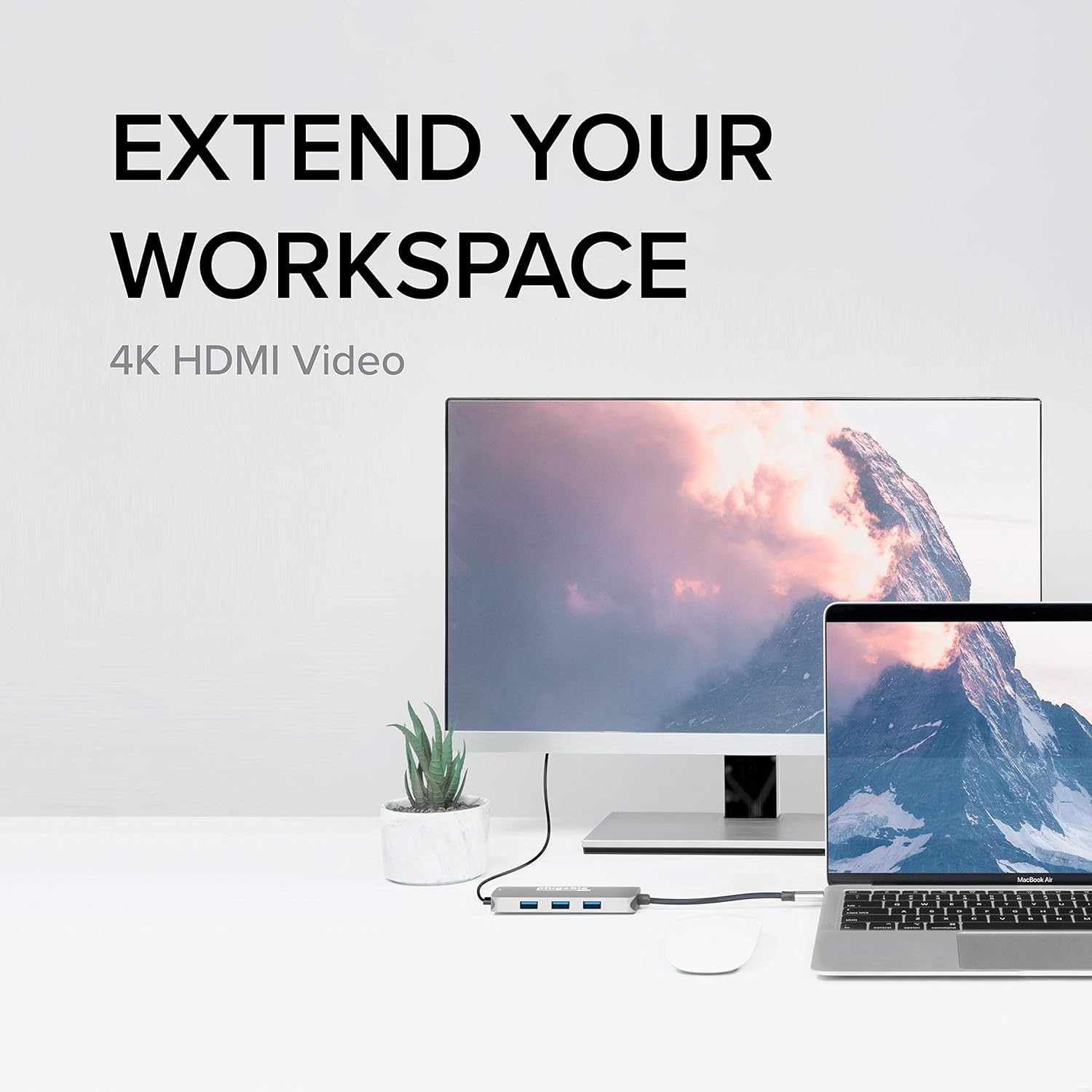
Image: The hub enabling an extended workspace by connecting a laptop to an external 4K HDMI monitor.
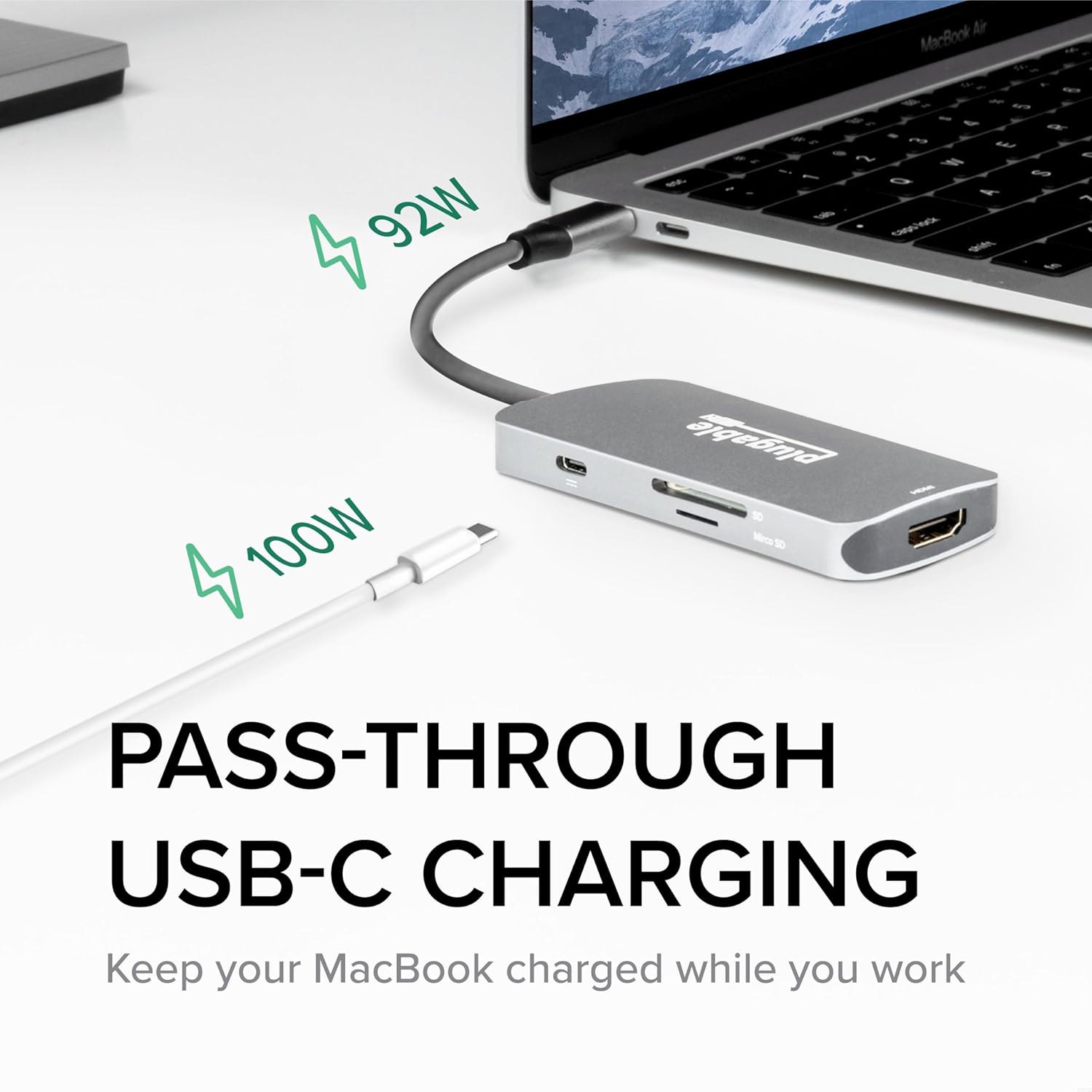
Image: The three USB 3.0 ports on the hub, capable of 5Gbps data transfer speeds, shown with USB drives connected.
4. Itọju
To ensure the longevity and optimal performance of your Plugable USB-C Hub, follow these simple maintenance guidelines:
- Ninu: Use a soft, dry, lint-free cloth to gently wipe the surface of the hub. Avoid using liquid cleaners, aerosols, or abrasive materials, as these can damage the device.
- Ibi ipamọ: Nigbati o ko ba wa ni lilo, tọju ibudo naa ni itura, aye gbigbẹ kuro lati orun taara ati awọn iwọn otutu to gaju.
- Mimu: Avoid dropping the hub or subjecting it to strong impacts. Do not bend or excessively pull the integrated USB-C cable.
- Afẹfẹ: Ensure the hub has adequate ventilation, especially during prolonged use, to prevent overheating.
5. Laasigbotitusita
If you encounter issues with your Plugable USB-C Hub, refer to the following common troubleshooting tips:
- Ko si Ijade ifihan nipasẹ HDMI:
- Rii daju pe okun HDMI ti sopọ ni aabo si ibudo mejeeji ati atẹle naa.
- Verify that your monitor is set to the correct HDMI input source.
- Check your computer's display settings to ensure the external display is detected and configured (e.g., extended, mirrored).
- If attempting 4K 60Hz, confirm your host device supports DisplayPort 1.4 over USB-C. The hub supports 4K 30Hz universally.
- Try a different HDMI cable or monitor to rule out external component issues.
- Awọn ẹrọ USB ko mọ:
- Ensure the USB device is fully inserted into the hub's port.
- Try connecting the USB device to a different port on the hub or directly to your computer to confirm functionality.
- For some older USB-A 2.0 devices, if connectivity is intermittent, try flipping the USB-A plug's orientation. This is a known characteristic of some USB-A/USB-C connections.
- If using power-intensive USB devices (e.g., external hard drives), ensure your host device is connected to power via the hub's PD port.
- Awọn ọran gbigba agbara:
- Verify that your USB-C power adapter is connected to the hub's PD port and is functioning correctly.
- Rí i dájú pé ohun tí a fi ń ṣe agbára rẹ fún ọ ní omi tó tótage for your laptop and connected devices.
- Asopọmọra igba diẹ:
- Ensure the hub's integrated USB-C cable is firmly seated in your host device's port.
- Gbìyànjú láti yọ ibùdó náà kúrò kí o sì tún so mọ́ ọn.
- Tun ẹrọ ogun rẹ bẹrẹ.
If these steps do not resolve your issue, please refer to the "Warranty and Support" section for further assistance.
6. Awọn pato
| Ẹya ara ẹrọ | Ẹ̀kúnrẹ́rẹ́ |
|---|---|
| Nọmba awoṣe | USBC-7IN1 |
| Ọja Mefa | 6.3 x 3.94 x 0.71 inches |
| Iwọn Nkan | 3.52 iwon |
| HDMI Ijade | Up to 4K 30Hz (4K 60Hz with DisplayPort 1.4 host) |
| Awọn ibudo USB | 3 x USB 3.0 (5Gbps data transfer) |
| Awọn oluka kaadi | SD and microSD |
| USB-C Power Ifijiṣẹ | Up to 100W pass-through charging |
| Ni wiwo Hardware | USB Iru C |
| Awọn ẹrọ ibaramu | USB-C Chromebooks, Thunderbolt 3/4 MacBooks (M1/M2/M3 and Intel-based), USB-C Microsoft Surface line, HP Spectre x360, Dell XPS, Lenovo Thinkpad T series, Huawei Matebook Pro, LG Gram, Samsung Galaxy TabPro S, iPhone 15 Pro/Plus/Max |
| Olupese | Plugable |
| Ilu isenbale | China |
7. Atilẹyin ọja ati Support
Plugable stands behind the quality of its products. The Plugable USB-C Hub 7-in-1 is backed by a 2-odun atilẹyin ọja.
For technical assistance, troubleshooting, or warranty claims, please contact Plugable's NA-Based Technical Support team. You can find contact information and additional resources on the official Plugable webojula:
Visit Plugable Support Webojula
Plugable is committed to providing excellent customer service and support, as evidenced by positive customer feedback regarding their responsiveness and willingness to assist with product issues.