
1. Ifihan
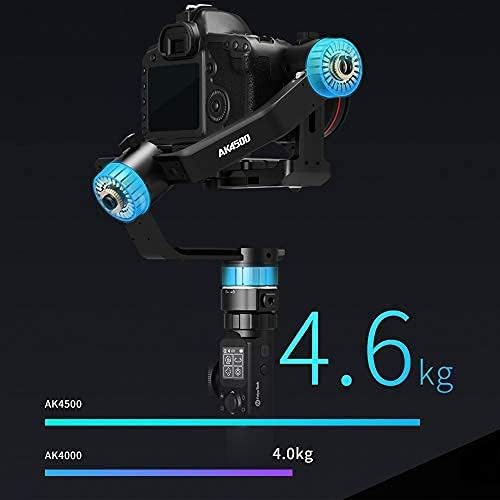
The FeiyuTech AK4500 is a high-performance, lightweight handheld gimbal designed for DSRL and mirrorless cameras. Constructed from ultra-light aluminum alloy, it offers a maximum payload capacity of 10.1 lbs (4.6 kg), making it compatible with a wide range of professional camera setups. Its innovative design features a versatile handle, an intuitive LCD touchscreen for control, and a quick-release plate system for efficient setup.


Awọn ẹya pataki:
- Lightweight & Powerful: Ultra-light aluminum alloy construction with a 10.1 lb (4.6 kg) maximum payload.
- Manfrotto PL501 & Arca-Swiss Compatible: Fixed mounting plate supports both Manfrotto and Arca-Swiss style quick release plates.
- Intuitive LCD Touchscreen: Control all operations and settings directly from the screen without a phone app.
- Versatile Handle Design: Detachable structure allows for various shooting configurations and extended reach with an extension rod.
- 1/4"-20 Mounting Holes: Multiple threaded holes for attaching accessories like extension rods, follow focus, and remote controls.
Ọja Pariview Fidio:
Fidio 1: Ifihan fidio ifihanasing the FeiyuTech AK4500's design, features, and various applications.
2. Eto ati iwontunwosi
Proper setup and balancing are crucial for optimal performance of your FeiyuTech AK4500 gimbal. Follow these steps carefully to ensure your camera is securely mounted and perfectly balanced.
2.1. Battery and Tripod Installation
- Open the battery compartment at the bottom of the gimbal handle.
- Insert the provided batteries, ensuring correct polarity.
- Pa yara batiri naa ni aabo.
- Attach the mini tripod to the 1/4"-20 threaded hole at the bottom of the handle.
2.2. Unlocking the Axes
The gimbal features three-axis locks to secure the arms during transport. Before mounting your camera, unlock all three axes.
- Locate the small lock switches on each of the three axes (tilt, roll, pan).
- Slide each switch to the unlocked position.
- Gently move the gimbal arms to ensure they move freely.
2.3. Iṣagbesori kamẹra
- Attach the quick release plate to the bottom of your camera using the provided screw. Ensure it is tightened securely.
- Slide the camera with the attached quick release plate onto the gimbal's mounting base.
- Secure the quick release plate by engaging its locking mechanism.

2.4. Iwontunwosi Gimbal
Balancing the gimbal is essential for smooth operation and to prevent motor strain. Each axis must be balanced individually.
- Ìwọ̀ntúnwọ̀nsì Àyíká Títẹ̀:
- Unlock the tilt axis.
- Point the camera lens upwards. If the camera leans forward or backward, loosen the screw on the tilt arm and adjust the camera's position until it remains stable when pointing upwards.
- Tighten the screw to secure the position.
- Ìwọ̀ntúnwọ̀nsì Ìyípo Ààyè:
- Unlock the roll axis.
- Observe if the camera leans left or right. Loosen the screw on the roll arm and adjust the camera's horizontal position until it remains stable without leaning.
- Mu dabaru.
- Ìwọ̀ntúnwọ̀nsì Àpá Pan:
- Unlock the pan axis.
- Hold the gimbal horizontally. If the camera rotates on its own, loosen the screw on the pan arm and adjust the arm's position until the camera remains stable in any horizontal orientation.
- Mu dabaru.
The gimbal is correctly balanced when the camera remains stable in any angle on all three axes without motor assistance.
Camera Installation and Balancing Video:
Video 2: A detailed step-by-step guide on how to install and balance your camera on the FeiyuTech AK4500 gimbal.
3. Ṣiṣẹ Gimbal
The FeiyuTech AK4500 offers various modes and controls to enhance your videography. Familiarize yourself with the LCD touchscreen and physical controls for seamless operation.
3.1. LCD Touchscreen Controls
The gimbal features an industry-first LCD touchscreen, allowing direct control over settings and modes without needing a smartphone app.

- Lilọ kiri: Swipe left/right to access different menus (e.g., Camera settings, Focus/Zoom, Gimbal mode, System setup, Axial).
- Atunse paramita: Use the control wheel and touch interface to adjust settings like ISO, aperture, shutter speed (if supported by camera via cable).
- Aṣayan Ipo: Easily switch between various shooting modes.
3.2. Shooting Modes and Functions
- Yiyi-laifọwọyi: For precise, repeatable movements.
- Àkókò Ìṣípopo: Program complex motion paths for time-lapse photography.
- Portrait/Landscape Switch: One-click switching for vertical or horizontal video.
- Somatosensory Design: Control the gimbal's movement using a remote handle with motion sensors.
Motion Time-lapse Setup Video:
Video 3: Instructions on how to set up and execute a motion time-lapse sequence using the AK4500 gimbal.
3.3. Connectivity and Accessories
- USB Cable Control: Control picture-taking and recording with compatible Sony, Canon, Nikon, and Panasonic cameras.
- Iṣakoso Wi-Fi: Connect the gimbal with your camera via the Feiyu On app and Wi-Fi for photo/video, zoom, and follow focus control (if supported by camera).
- Apẹrẹ Modulu: The detachable structure allows for various configurations, including dual handle grip, versatile handle, and extension rod for diverse shooting needs.

4. Itọju
To ensure the longevity and optimal performance of your FeiyuTech AK4500 gimbal, regular maintenance is recommended.
- Ninu: Use a soft, dry cloth to wipe down the gimbal after each use. Avoid using harsh chemicals or abrasive materials.
- Ibi ipamọ: Store the gimbal in its protective case in a cool, dry place when not in use. Ensure all axes are locked to prevent damage during transport.
- Itọju Batiri: Remove batteries if the gimbal will not be used for an extended period. Store batteries in a cool, dry place and recharge them periodically to maintain their health.
- Awọn imudojuiwọn famuwia: Periodically check the official FeiyuTech website for any available firmware updates to ensure your gimbal has the latest features and bug fixes.
5. Laasigbotitusita
If you encounter issues with your FeiyuTech AK4500 gimbal, refer to the following common troubleshooting steps:
- Gimbal is unstable or vibrating:
- Ensure the camera is perfectly balanced on all three axes. Refer to Section 2.4 for detailed balancing instructions.
- Check that all axis locks are fully disengaged.
- Verify that the camera's weight is within the gimbal's payload capacity (max 10.1 lbs / 4.6 kg).
- Camera not responding to controls:
- Ensure the camera is properly connected via USB cable or Wi-Fi.
- Check camera compatibility with the gimbal's control features.
- Restart both the camera and the gimbal.
- Awọn iṣoro agbara:
- Rí i dájú pé àwọn batiri ti gba agbára tán pátápátá àti pé wọ́n ti fi wọ́n sí i dáadáa.
- Check for any visible damage to the battery compartment or charging port.
- LCD touchscreen unresponsive:
- Restart the gimbal.
- Ensure the screen is clean and free from moisture or debris.
For further assistance, please contact FeiyuTech customer support.
6. Awọn pato
| Ẹya ara ẹrọ | Ẹ̀kúnrẹ́rẹ́ |
|---|---|
| Brand | FeiyuTech |
| Awoṣe | AK4500 (Manufacturer Part Number: FYTAK45EBLK01) |
| Àwọ̀ | Dudu |
| Iwọn Nkan | 3.5 iwon |
| Iṣeduro iwuwo ti o pọju | 10.1 iwon (4.6 kg) |
| Awọn ẹrọ ibaramu | Camera (DSLR, Mirrorless) |
| Compatible Camcorder Models | SONY FDR-X3000R, SONY HDR-AS50R (and other DSLR/Mirrorless cameras) |
7. Atilẹyin ọja ati Support
For warranty information, technical support, or service inquiries, please visit the official FeiyuTech webojula tabi kan si wọn onibara iṣẹ Eka. Tọju iwe-ẹri rira rẹ bi ẹri rira fun awọn iṣeduro atilẹyin ọja.
FeiyuTech Official Webojula: www.feiyu-tech.com