
1. Ifihan
This manual provides instructions for the i-tec USB C Dual Monitor Docking Station (Model C31DUALDPDOCKPD). This docking station is designed to expand the connectivity of your USB-C or Thunderbolt 3 enabled laptop, tablet, or smartphone, allowing for dual external monitor support, multiple USB peripheral connections, Gigabit Ethernet, and power delivery up to 100W.

Image 1.1: i-tec USB C Dual Monitor Docking Station.
2. Ọja Ipariview
The i-tec USB C Dual Monitor Docking Station offers a comprehensive set of ports for enhanced productivity and connectivity.
2.1. Ìṣètò Ibudo

Image 2.1: Front Panel Ports (USB-C 3.1 Gen 2, USB 3.0, Audio/Mic Jack).

Image 2.2: Rear Panel Ports (2x DisplayPort, Gigabit Ethernet, USB-C Power Delivery, Kensington Lock Slot).
2.2. All Connections Diagram

Image 2.3: Comprehensive diagram of all ports and their functions.
3. Awọn ilana iṣeto
Follow these steps to set up your i-tec USB C Dual Monitor Docking Station.
- Sopọ Agbara (Aṣayan ṣugbọn a ṣe iṣeduro): Connect your original USB-C charger (up to 100W) to the USB-C Power Delivery (USB-C PD) port on the docking station. This provides power to the docking station and charges your connected laptop. If not using a power adapter, some USB 3.0 and USB-C data ports may not function optimally with high-power devices.
- Sopọ si Ẹrọ Gbalejo: Use the integrated USB-C cable to connect the docking station to your laptop's USB-C or Thunderbolt 3 port.
- Connect External Monitors: Connect your monitors to the two DisplayPort outputs on the docking station.
- Windows/Ubuntu: Supports up to two 4K/60Hz external monitors with extended or mirrored display modes.
- MacOS: Supports up to one 4K/60Hz external monitor. When connecting two monitors, both will display the same image due to macOS not supporting Multi-Stream Transport (MST) technology.
- Awọn Agbeegbe Sopọ: Connect your USB devices (keyboard, mouse, external drives) to the available USB 3.0 and USB 2.0 ports. Connect your Ethernet cable to the Gigabit Ethernet (LAN) port for a wired network connection. Connect headphones or a microphone to the combined audio/mic jack.
Video 3.1: Official i-tec USB C Dual Monitor Docking Station setup and feature overview. This video demonstrates the connection process and various functionalities of the docking station.
4. Awọn ilana Iṣiṣẹ
4.1. Bọtini agbara
The docking station features a power button on the top panel. Press and hold the power button for approximately 2 seconds to turn the unit on or off. This delay prevents accidental shutdowns.
4.2. Ṣíṣeto Àfihàn
After connecting external monitors, configure your display settings through your operating system. Options typically include:
- Tesiwaju: Each monitor displays a separate desktop, expanding your workspace.
- Mirror/Duplicate: All monitors display the same content.
- Second Screen Only: Only the external monitor(s) display content, with the laptop screen turned off.
4.3. Iṣẹ́ gbigba agbara
When a compatible USB-C charger is connected to the docking station's USB-C PD port, the docking station will pass through up to 100W of power to charge your connected laptop. Additionally, the USB-C 3.1 Gen 2 port on the front panel supports fast charging for smartphones and tablets.
5. Ibamu
The docking station is compatible with devices featuring a USB-C or Thunderbolt 3 port that supports video output (DisplayPort Alternate Mode).
5.1. Awọn ọna ṣiṣe atilẹyin
- Windows 10 ati nigbamii
- macOS X and later
- Android
- ChromeOS
- Lainos
5.2. Display Output Limitations

Image 5.1: Display output capabilities across different operating systems.
Akiyesi fun awọn olumulo macOS: macOS does not support Multi-Stream Transport (MST) technology. This means that when two monitors are connected to the docking station on a macOS device, both monitors will display the same image (mirroring), not an extended desktop across two separate displays. For extended desktop functionality on macOS, only one external monitor can be used with the docking station.
5.3. VESA Mounting Support
The docking station features VESA support, allowing for vertical installation behind a VESA compatible monitor. This helps in creating a clean and organized workspace.

Image 5.2: Docking station mounted behind a VESA compatible monitor for a clean desk setup.
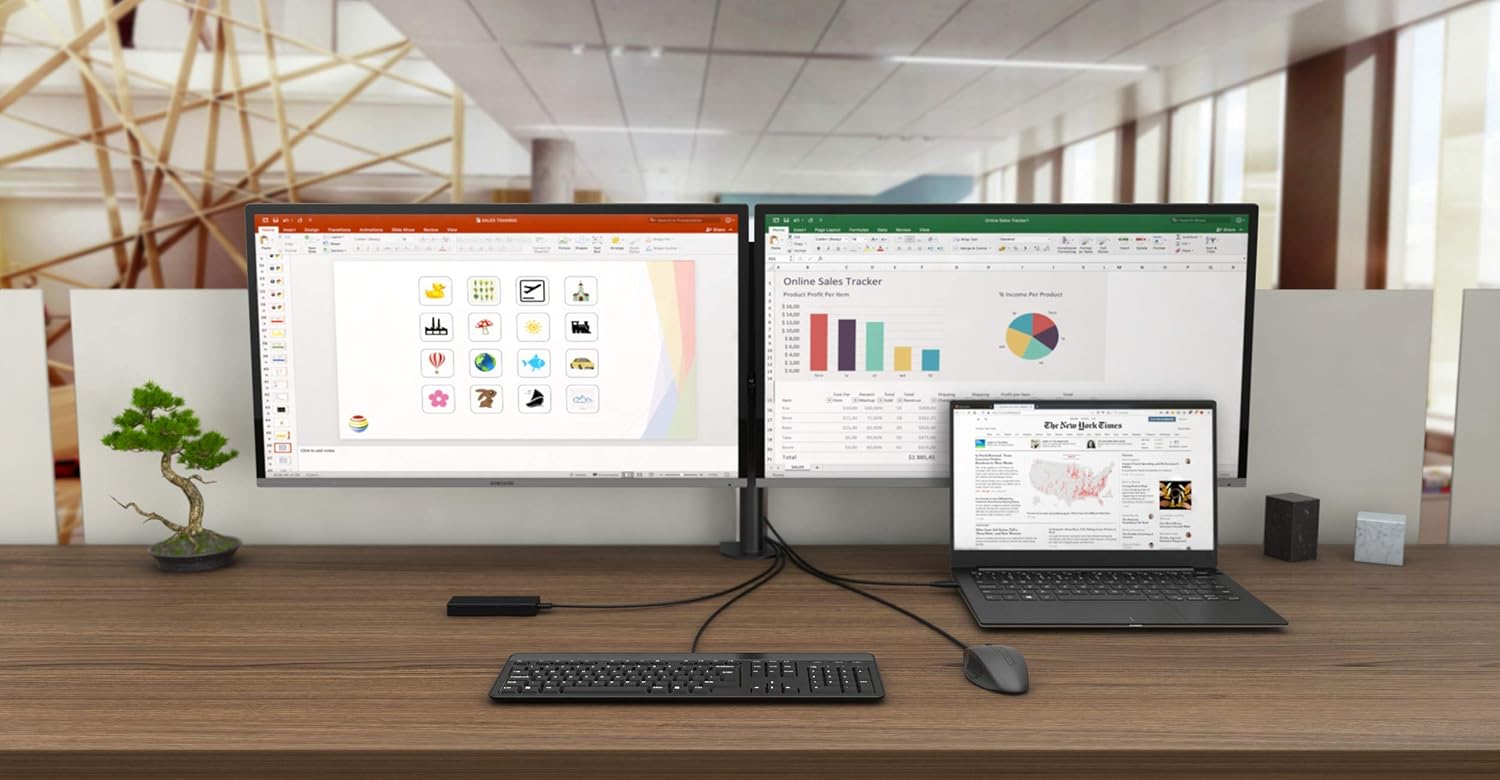
Aworan 5.3: Example of a complete workstation setup utilizing the docking station.
6. Itọju
To ensure optimal performance and longevity of your docking station, follow these maintenance guidelines:
- Jeki ẹrọ naa ni agbegbe gbigbẹ, kuro lati orun taara ati awọn iwọn otutu to gaju.
- Yago fun fifi ẹrọ naa han si omi tabi awọn olomi miiran.
- Nu ẹrọ naa pẹlu asọ ti o tutu, ti o gbẹ. Maṣe lo awọn kẹmika ti o lewu tabi awọn afọmọ abrasive.
- Rii daju pe fentilesonu to dara ni ayika ibudo ibi iduro lati ṣe idiwọ igbona.
7. Laasigbotitusita
Ti o ba pade awọn ọran pẹlu ibudo docking rẹ, tọka si awọn iṣoro ati awọn solusan ti o wọpọ wọnyi:
- Ko si Abajade Ifihan:
- Rii daju pe ibudo USB-C kọǹpútà alágbèéká rẹ ṣe atilẹyin Ipo Alternate DisplayPort.
- Verify that the DisplayPort cables are securely connected to both the docking station and the monitors.
- Check your operating system's display settings to ensure external monitors are detected and configured correctly.
- If using macOS, remember that only one external monitor will extend the desktop; two monitors will mirror.
- USB Devices Not Functioning:
- Ensure the docking station is connected to a power adapter, especially for high-power USB devices like external SSDs. Without a power adapter, USB 3.0 and USB-C data ports may have limited functionality.
- Gbiyanju lati so ẹrọ USB pọ si ibudo ti o yatọ lori ibudo docking.
- Ensure device drivers are up to date on your host system.
- Ko si Isopọ Nẹtiwọọki:
- Rii daju pe okun Ethernet ti sopọ ni aabo si mejeeji ibudo docking ati olulana/modẹmu rẹ.
- Ṣayẹwo awọn eto nẹtiwọki rẹ lori ẹrọ agbalejo rẹ.
- Kọǹpútà alágbèéká Ko Ngba agbara:
- Ensure your original USB-C charger is connected to the USB-C PD port on the docking station.
- Ṣe idaniloju ibudo USB-C laptop rẹ ṣe atilẹyin Ifijiṣẹ Agbara.
8. Awọn pato
| Brand | i-tec |
| Awoṣe | C31DUALDPDOCKPD |
| Ni wiwo Hardware | Thunderbolt 3, USB Type C |
| Awọn ẹrọ ibaramu | Devices with USB-C or Thunderbolt-3 ports |
| Ijade fidio | 2x DisplayPort (up to 4K/60Hz each) |
| Awọn ibudo USB | 3x USB 3.1, 1x USB-C 3.1 (Gen 2), 2x USB 2.0 |
| Àjọlò | Gigabit Ethernet RJ-45 (10/100/1000 Mbps) |
| Ohun | Combined Audio/Microphone Jack |
| Ifijiṣẹ Agbara | Up to 100W (via USB-C PD port) |
| Aabo | Kensington Titiipa Iho |
| Awọn iwọn (L x W x H) | 4.45" x 1.57" x 4.45" (11.3cm x 4cm x 11.3cm) |
| Iwọn | 245 giramu |
9. Atilẹyin ọja ati Support
i-tec products are covered by a manufacturer's warranty. For detailed warranty information, please refer to the warranty card included with your product or visit the official i-tec webojula.
9.1. Imọ Support
For technical assistance, product inquiries, or further support, please contact i-tec customer service:
- Webojula: www.i-tec.pro
- Imeeli: atilẹyin@itecproduct.com
- Foonu: +420 596 637 125