
1. Ifihan
This manual provides essential information for setting up, operating, maintaining, and troubleshooting your AVITA Essential NE14A2INC433-MB laptop. Please read this manual thoroughly before using your device to ensure proper functionality and longevity.
2. Ọja Ipariview
The AVITA Essential NE14A2INC433-MB is a thin and light 14-inch laptop designed for everyday use. It features an aluminum body and a unique cloth design on the palm rest.

Figure 2.1: AVITA Essential Laptop (Matt Black) with screen and keyboard visible.
2.1 Ifihan Awọn ẹya ara ẹrọ
The laptop is equipped with a 14-inch Full HD (1920x1080) anti-glare IPS display. The ultra-narrow bezels provide an immersive viewiriri iriri.

Figure 2.2: Close-up of the AVITA Essential display, showcasing the FHD IPS Anti-Glare Panel and 4mm Narrow Bezels.
2.2 Awọn ibudo ati Asopọmọra
The AVITA Essential laptop offers various ports for connectivity, including two USB 3.0 Type A ports, one full-size HDMI port, and a Micro SD card reader.
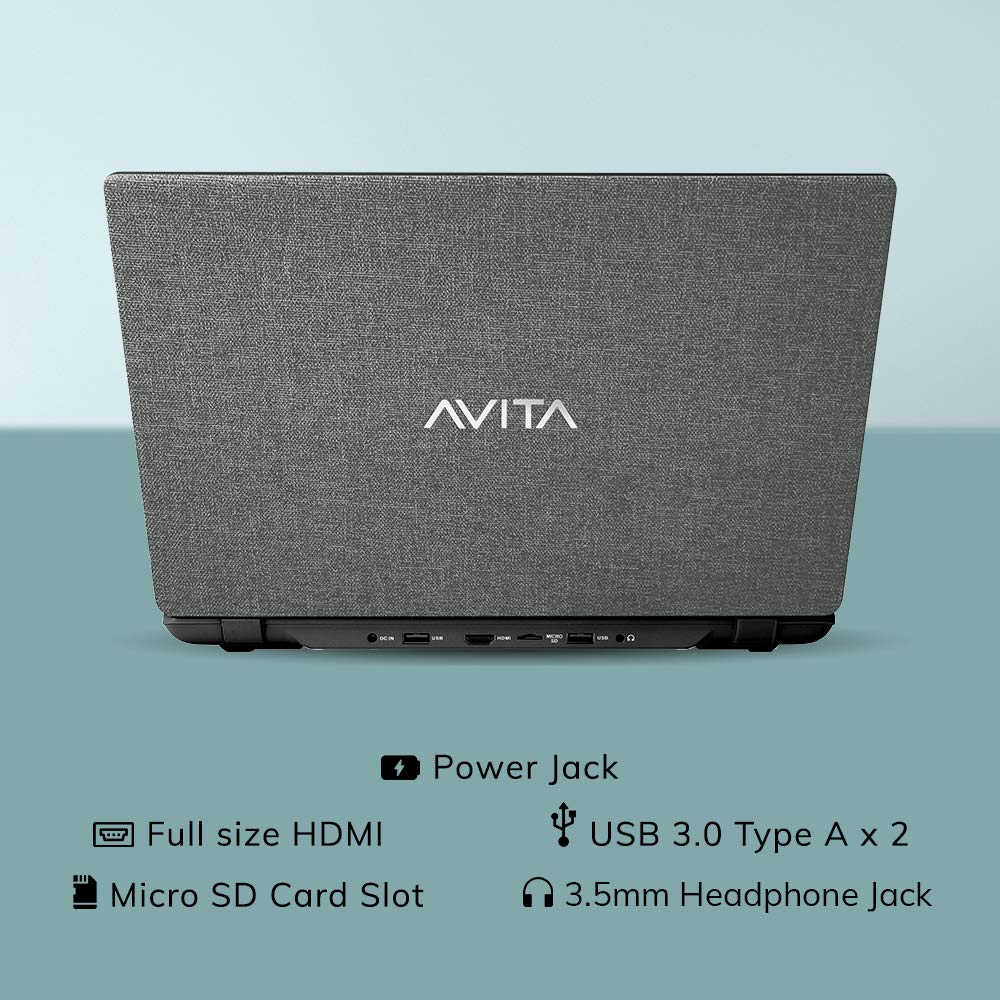
olusin 2.3: Ẹyìn view of the laptop detailing the available ports for external devices and power.
2.3 Keyboard and Webkamẹra
The laptop features a full-size island-style keyboard for comfortable typing and an integrated webKame.awo-ori fun apejọ fidio.

olusin 2.4: Top-isalẹ view of the laptop's island-style keyboard and integrated webKame.awo-ori.
2.4 Apẹrẹ
The AVITA Essential boasts a unique cloth design, contributing to its aesthetic appeal.

Figure 2.5: The laptop in a closed position, highlighting its distinctive cloth design.
3. Eto
- Unboxing: Carefully remove the laptop and all accessories from the packaging. Ensure all items listed in the "What's in the Box" section are present.
- Idiyele Ibẹrẹ: Connect the AC adapter to the laptop's power jack and then to a power outlet. Allow the laptop to charge for at least 30 minutes before the first use, or until the battery indicator shows a sufficient charge.
- Agbara Tan: Open the laptop lid and press the power button. The laptop will begin the initial boot process.
- Windows 10 Home in S Mode Setup: Follow the on-screen instructions to complete the Windows 10 Home in S Mode setup. This includes selecting your region, language, connecting to a Wi-Fi network, and creating a user account.
- Awọn imudojuiwọn sọfitiwia: After initial setup, connect to the internet and allow Windows to download and install any available updates. This ensures optimal performance and security.
4. Awọn ilana Iṣiṣẹ
4.1 Windows 10 Home in S Mode
Your AVITA Essential laptop comes with Windows 10 Home in S Mode, which is designed for security and performance. In S Mode, you can only install apps from the Microsoft Store and must use Microsoft Edge for safe browsing. You can switch out of S Mode to regular Windows 10 Home at any time, but you cannot switch back.
The laptop is eligible for a free upgrade to Windows 11 when available. The upgrade rollout plan is scheduled to begin late in 2021 and continue into 2022, with specific timing varying by device.
4.2 Išẹ ati Ibi ipamọ
Powered by an Intel Celeron N4000 processor and 4GB DDR4 RAM, combined with a 128GB SSD, the laptop offers responsive performance for daily tasks. The Solid State Drive (SSD) ensures faster boot times and quicker application loading compared to traditional hard disk drives.
Video 4.1: This video highlights key features of the AVITA Essential laptop, including its FHD IPS display, narrow bezels, island-style keyboard, integrated webcam, and fast SSD storage. It demonstrates the laptop's sleek design and quick performance for everyday computing tasks.
Video 4.2: This video illustrates the benefits of a modern PC with Windows 10 and an SSD, emphasizing thin and light design, faster startups, improved efficiency, longer battery life, and enhanced durability and security due to fewer moving parts.
5. Itọju
- Ninu: Lo asọ ti ko ni lint lati nu iboju ati ita. Fun agidi smudges, die-die dampen awọn asọ pẹlu omi tabi a iboju-ailewu regede. Yago fun awọn kẹmika lile.
- Itọju Batiri: To maximize battery life, avoid fully discharging the battery frequently. It is recommended to keep the battery charged between 20% and 80%. Store the laptop in a cool, dry place when not in use for extended periods.
- Awọn imudojuiwọn sọfitiwia: Ṣayẹwo nigbagbogbo fun ati fi ẹrọ ṣiṣe sori ẹrọ ati awọn imudojuiwọn awakọ lati rii daju iṣẹ ṣiṣe ati aabo to dara julọ.
- Isakoso Ibi ipamọ: Lorekore tunview ki o si pa kobojumu files to free up storage space on the 128GB SSD. Consider using external storage or cloud services for large files.
- Afẹfẹ: Ensure the laptop's vents are not obstructed to prevent overheating. Use the laptop on a hard, flat surface rather than soft furnishings.
6. Laasigbotitusita
6.1 Wọpọ Oran ati Solusan
- Kọǹpútà alágbèéká Ko N ṣiṣẹ:
- Rii daju pe ohun ti nmu badọgba AC ti sopọ ni aabo si kọnputa mejeeji ati iṣan agbara iṣẹ kan.
- Rii daju pe iṣan agbara n ṣiṣẹ nipa pilogi sinu ẹrọ miiran.
- If the battery is completely drained, allow it to charge for some time before attempting to power on.
- Iṣẹ ṣiṣe ti o lọra:
- Pa awọn ohun elo ti ko wulo ti nṣiṣẹ ni abẹlẹ.
- Ṣayẹwo fun ati fi sori ẹrọ eyikeyi awọn imudojuiwọn Windows ni isunmọtosi.
- Rii daju pe aaye ọfẹ to to lori SSD.
- Ṣiṣe ayẹwo eto kan fun malware tabi awọn ọlọjẹ.
- Awọn ọran Asopọmọra Wi-Fi:
- Tun Wi-Fi olulana rẹ ati kọǹpútà alágbèéká bẹrẹ.
- Ṣayẹwo boya Wi-Fi ti ṣiṣẹ ni awọn eto Windows.
- Update Wi-Fi drivers from the AVITA support webojula.
- Windows 10 S Mode App Restrictions:
- Remember that in S Mode, only apps from the Microsoft Store can be installed.
- If you need to install apps from other sources, you must switch out of S Mode. This is a one-way process.
7. Awọn pato
| Ẹya ara ẹrọ | Ẹ̀kúnrẹ́rẹ́ |
|---|---|
| Brand | AVITA |
| Orukọ awoṣe | Pataki |
| Nọmba awoṣe | NE14A2INC433-MB |
| Iwon iboju | 14 inches (35cm) |
| Ipinnu Ifihan | 1920 x 1080 (HD ni kikun) |
| Ifihan Iru | FHD Anti-Glare IPS LED |
| isise | Intel Celeron N4000 (1.10 GHz base, 2.60 GHz Max) |
| Ramu Memory | 4 GB DDR4 |
| Ibi ipamọ | 128 GB SSD |
| Eto isesise | Windows 10 Ile ni Ipo S |
| Awọn aworan | Intel Integrated UHD Graphics 600 |
| Igbesi aye batiri | Up to 6 Hours (as per MobileMark) |
| Iwọn | 1.37 kg |
| Awọn ibudo | 2x USB 3.0 Type A, 1x Full Size HDMI, Micro SD Card Reader |
| Alailowaya Asopọmọra | 802.11 b/g/n/ac Wi-Fi, Bluetooth 4.0 |
| Webkamẹra | Integrated Front Camera |
8. Atilẹyin ọja ati Support
8.1 atilẹyin ọja Alaye
Your AVITA Essential laptop comes with an 18+6 months onsite domestic warranty from AVITA. This warranty covers manufacturing defects and does not cover physical damage. For detailed terms and conditions, please refer to the warranty section provided with your product or visit the official AVITA support webojula.
8.2 Kini ni Apoti
Lẹhin ṣiṣi silẹ, o yẹ ki o wa awọn nkan wọnyi:
- AVITA Essential Laptop
- AC Adapter
- Itọsọna olumulo
- Awọn iwe afọwọkọ