
1. Ifihan
This manual provides detailed instructions for the setup, operation, maintenance, and troubleshooting of your FILCO Majestouch Minila R Convertible mechanical keyboard. Please read this manual thoroughly before using the product to ensure proper functionality and longevity.
The FILCO Majestouch Minila R Convertible is a compact 60% mechanical keyboard featuring Cherry MX Red switches and durable double-shot PBT keycaps. It offers versatile connectivity options, supporting both wired USB and wireless Bluetooth 5.1 connections.
2. Package Awọn akoonu
Ṣaaju ki o to tẹsiwaju pẹlu iṣeto naa, jọwọ rii daju pe gbogbo awọn ohun kan wa ninu package naa:
- FILCO Majestouch Minila R Convertible Keyboard
- Okun USB
- Keycap Puller
- Replacement Keycaps (e.g., Esc, Del, Ctrl, Win)
- Awọn batiri 2 x AA (ti fi sii tẹlẹ tabi pẹlu lọtọ)
- Afowoyi Olumulo (iwe-ipamọ yii)

Image: The retail packaging box for the FILCO Majestouch Minila R Convertible keyboard, displaying the product name and key features like Bluetooth and MX switches.
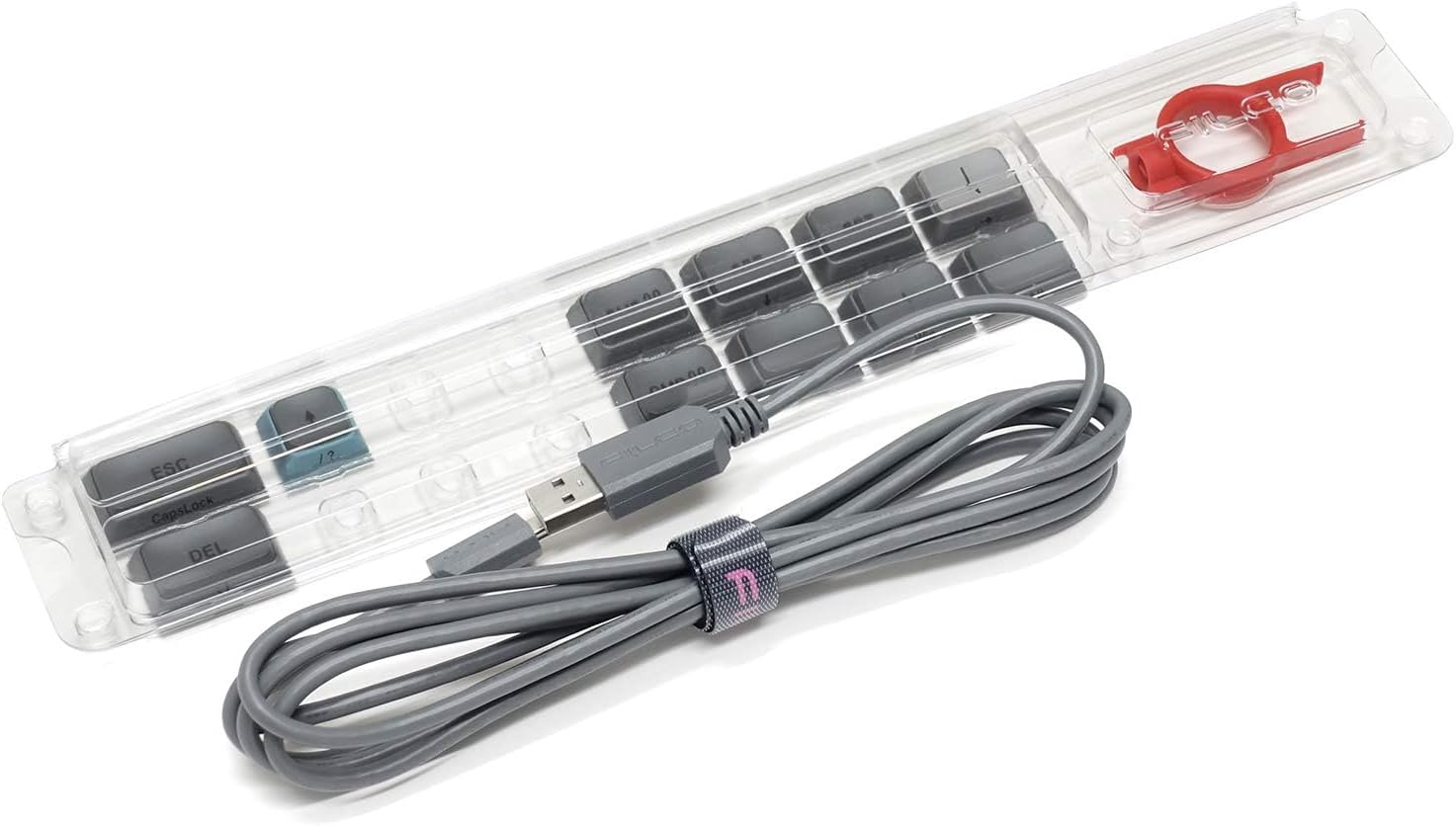
Image: A clear plastic tray containing the gray USB cable, a red keycap puller, and several gray replacement keycaps (e.g., Esc, Del, Ctrl, Win).
3. Eto
3.1 Fifi sori batiri
The keyboard operates wirelessly using two AA batteries. These are typically included with your purchase. To install or replace batteries:
- Wa yara batiri ni apa isalẹ ti keyboard.
- Ṣii ideri iyẹwu batiri naa.
- Fi awọn batiri AA meji sii, ni idaniloju polarity ti o pe (+/-).
- Pa ideri batiri naa ni aabo.
3.2 Asopọ Onirin
For a wired connection, use the provided USB cable:
- Connect the smaller end of the USB cable to the USB port on the back of the keyboard.
- So opin nla ti okun USB pọ si ibudo USB ti o wa lori kọnputa rẹ.
- Awọn bọtini itẹwe yoo jẹ idanimọ laifọwọyi nipasẹ ẹrọ iṣẹ rẹ.
3.3 Bluetooth Asopọ
The keyboard supports Bluetooth 5.1 for wireless connectivity. It can pair with up to four devices.
- Ensure the keyboard is powered on and in wireless mode (refer to Section 4.1).
- Tẹ mọlẹ Fn key and one of the Bluetooth device keys (1, 2, 3, or 4) for approximately 3 seconds until the corresponding LED indicator above the number key flashes rapidly. This indicates pairing mode.
- Lórí ẹ̀rọ rẹ (kọ̀ǹpútà, fóònù alágbèéká, tábìlẹ́ẹ̀tì), ṣí àwọn ètò Bluetooth kí o sì wá àwọn ẹ̀rọ tuntun.
- Select "FILCO Minila R Convertible" from the list of available devices.
- Tí a bá ní kí o ṣe bẹ́ẹ̀, tẹ koodu ìsopọ̀ tí a fihàn lórí ìbòjú rẹ nípa lílo keyboard kí o sì tẹ Wọle.
- Once paired, the LED indicator will stop flashing and remain solid for a few seconds, then turn off. The keyboard is now connected.
- Repeat these steps for up to four different devices, assigning each to a different Bluetooth device key (1-4).
4. Awọn ilana Iṣiṣẹ
4.1 Switching Between Wired and Wireless Modes
To switch between wired and wireless (Bluetooth) modes, use the switch located on the underside or back of the keyboard. Ensure the keyboard is in the correct mode for your desired connection type.
4.2 Switching Between Paired Bluetooth Devices
To switch between previously paired Bluetooth devices, simply press the Fn key along with the corresponding Bluetooth device key (1, 2, 3, or 4) that the device is assigned to. The keyboard will attempt to connect to that device.
4.3 Using Function Keys and Special Commands
Due to its 60% compact layout, many standard keys (like F1-F12, navigation keys, etc.) are accessed via the Fn (Function) key combinations. Refer to the keycap legends for specific functions. Typically, these are printed on the front or side of the keycaps.

Àwòrán: Àwòrán kíkún láti òkè sí ìsàlẹ̀ view of the FILCO Majestouch Minila R Convertible keyboard, showcasing its compact 60% layout with Sky Grey and light blue keycaps.
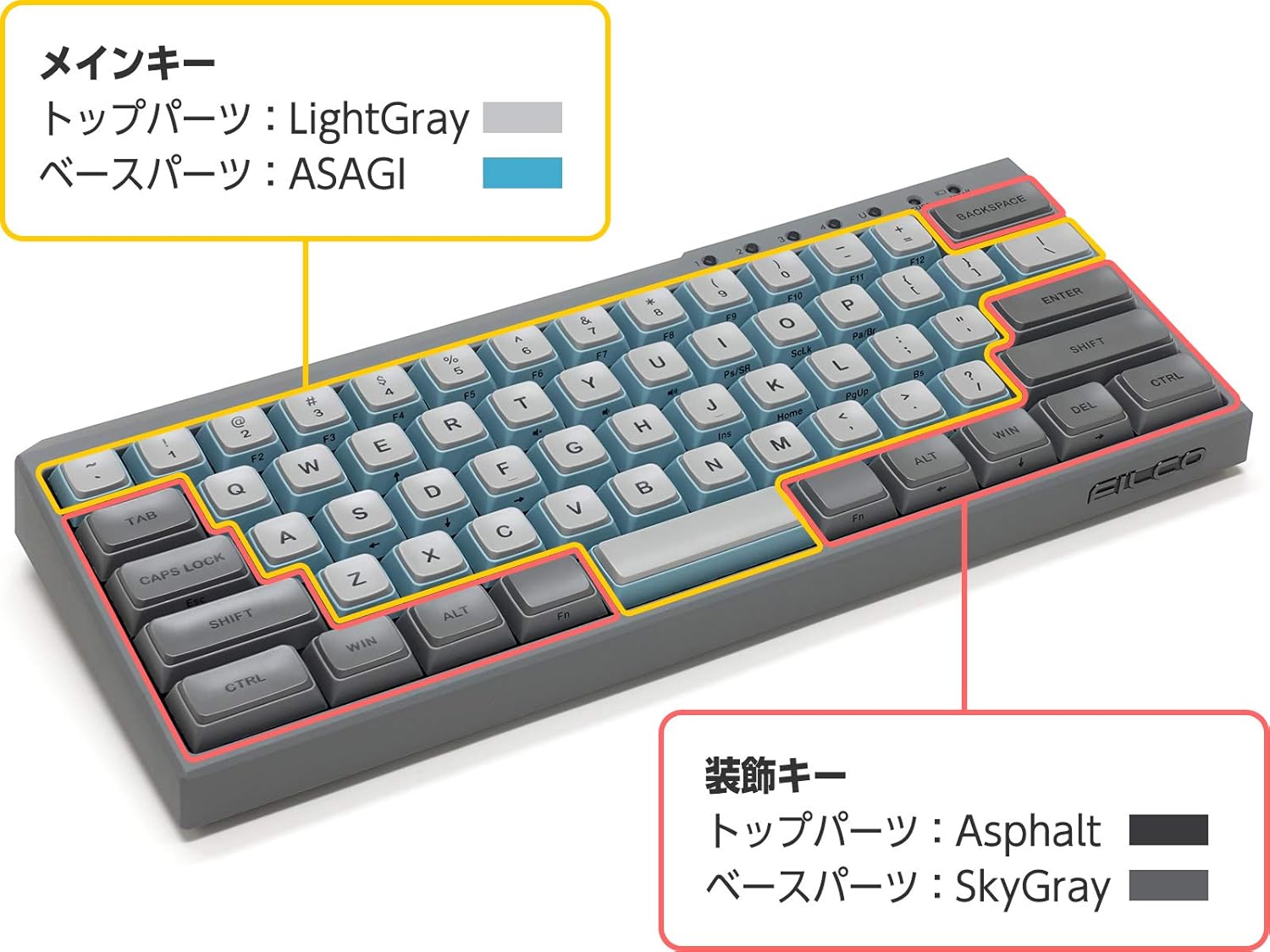
Image: A diagram of the keyboard layout, highlighting the main keys in light gray and light blue, and accent keys (like Ctrl, Win, Alt) in a darker gray. This illustrates the keycap color scheme.

Aworan: A sunmọ-soke view of the top-right section of the keyboard, showing the 'scroll' and 'caps' lock indicator lights, and the number keys 1, 2, 3, 4, which also serve as Bluetooth device indicators.

Aworan: A ẹgbẹ view of the keyboard, prominently featuring the metallic FILCO logo embedded on the gray casing.
5. Itọju
5.1 Ninu Keyboard
Lati ṣetọju iṣẹ ti o dara julọ ati irisi:
- Disconnect the keyboard from your computer (wired) or turn off (wireless).
- Lo asọ asọ, ti ko ni lint die-die dampti a fi omi kun tabi ojutu mimọ kekere lati nu awọn bọtini bọtini ati casing.
- Fun eruku ati idoti laarin awọn bọtini bọtini, lo afẹfẹ fisinuirindigbindigbin.
- Yẹra fun lilo awọn kẹmika lile, awọn nkanmimu, tabi awọn ohun elo abrasive.
5.2 Keycap Yiyọ ati Rirọpo
The keyboard features durable PBT double-shot keycaps. You can remove and replace keycaps using the included keycap puller:
- Fi ìfàmọ́ra gbé ohun tí a fi ń fa bọ́tìnnì sí orí ìbòrí tí o fẹ́ yọ kúrò.
- Apply even pressure and pull upwards until the keycap detaches from the switch stem.
- To replace, align the keycap with the switch stem and press down firmly until it clicks into place.

Aworan: A sunmọ-soke view of individual keycaps, showcasing their double-shot PBT construction. One keycap is shown from the top (letter 'A'), another from the bottom (showing the stem mount), and a larger keycap (Ctrl) is also visible.

Aworan: A alaye view of a Cherry MX Red mechanical switch, characterized by its red stem, indicating a linear, non-tactile, and non-clicky switch type.
6. Laasigbotitusita
Tí o bá ní ìṣòro pẹ̀lú keyboard rẹ, wo àwọn ojútùú tí ó wọ́pọ̀ wọ̀nyí:
- Kííbọọ̀dù Kò Dáhùn (Onífóònù):
Rí i dájú pé okùn USB náà so mọ́ keyboard àti kọ̀mpútà náà dáadáa. Gbìyànjú ibudo USB tàbí okùn USB mìíràn. Tun kọ̀mpútà rẹ bẹ̀rẹ̀. - Keyboard Not Responding (Wireless):
Check if the keyboard is powered on and has sufficient battery charge. Ensure the keyboard is in wireless mode. Re-pair the keyboard with your device (refer to Section 3.3). Ensure Bluetooth is enabled on your device. - Bluetooth Connection Drops Frequently:
Ensure the keyboard is within range of your device. Minimize interference from other wireless devices. Check and replace batteries if low. - Àwọn Kọ́kọ́rọ́ Pàtàkì Tí Kò Ṣiṣẹ́:
Remove the keycap and check for any debris obstructing the switch. Re-seat the keycap firmly. If the issue persists, contact support. - Àṣeyọrí Kọ́kọ́rọ́ tí kò tọ́:
Ensure the correct keyboard layout is selected in your operating system settings.
7. Awọn pato
| Orukọ awoṣe | FFBTR63MRL/ESG |
| Ọja Mefa | 4.92 x 11.81 x 1.38 inches |
| Iwọn Nkan | 1.63 iwon |
| Olupese | Filco |
| Awọn batiri | Awọn batiri AA 2 (pẹlu) |
| Awọn ẹrọ ibaramu | Foonuiyara, Kọǹpútà alágbèéká, Táblẹ́ẹ̀tì |
| Asopọmọra Technology | Bluetooth |
| Apejuwe Keyboard | Ẹ̀rọ |
| Niyanju Lilo | Business, Education, Everyday Use |
| Pataki Ẹya | Bluetooth, USB-A passthrough port (for wired connection) |
| Àwọ̀ | Cherry MX Red (switch type) |
| Ara | Igbalode |
| Ohun elo | Polybutylene Terephthalate (PBT) |
8. Atilẹyin ọja ati Support
8.1 atilẹyin ọja Alaye
FILCO products are manufactured to high-quality standards. For specific warranty terms and conditions, please refer to the warranty card included with your product or visit the official FILCO webojula. Jeki ẹri rira rẹ fun awọn iṣeduro atilẹyin ọja.
8.2 Onibara Support
If you require further assistance, have questions, or encounter issues not covered in this manual, please contact FILCO customer support through their official webaaye tabi alagbata lati ọdọ ẹniti o ti ra ọja naa.