
ProCase PC-08362688
ProCase Slim Case User Manual
Awoṣe: PC-08362688
1. Ifihan
This manual provides comprehensive instructions for the ProCase Slim Case, designed to protect and enhance the functionality of your compatible iPad Air model. Please read this manual thoroughly to ensure proper installation and utilization of all features.
2. Ibamu
The ProCase Slim Case is specifically designed for the following iPad Air models:
- iPad Air 11-inch 7th Generation (M3) 2025 (Model numbers: A3266, A3267, A3270)
- iPad Air 6th Generation 11-inch (M2) 2024 (Model numbers: A2902, A2903, A2904)
- iPad Air 5th Generation 10.9-inch 2022 (Model numbers: A2588, A2589, A2591)
- iPad Air 4th Generation 10.9-inch 2020 (Model numbers: A2324, A2072, A2316, A2325)
To verify your iPad model number, please check the back bottom of your device. This case is not compatible with any other iPad models.

Figure 2.1: iPad Model Compatibility Chart. This image displays a table listing compatible iPad Air models (11-inch M3 2025, 11-inch M2 2024, 10.9-inch 5th Gen 2022, 10.9-inch 4th Gen 2020) alongside their respective model numbers. A diagram below the table illustrates how to locate the model number on the back of your iPad for verification.
3. Awọn ẹya ara ẹrọ
- Built-in Pencil Holder: Securely stores your Apple Pencil (USB-C or 2nd Gen) and supports magnetic attachment and wireless charging. (Apple Pencil not included).
- Awọn gige ni pato: Allows full access to all ports, buttons, and features without removing the case.
- Lightweight & Shockproof: Constructed with quality ABS material back to add minimal bulk while providing protection against drops and scratches.
- Dual Standing Positions: Designed for adjusting your iPad into different viewawọn igun ing fun titẹ, viewing, or video calls.
- Iṣẹ́ Ìsùn/Jíjí Àdáni: Magnets secure the case closure and automatically put your iPad to sleep when closed and wake it when opened.
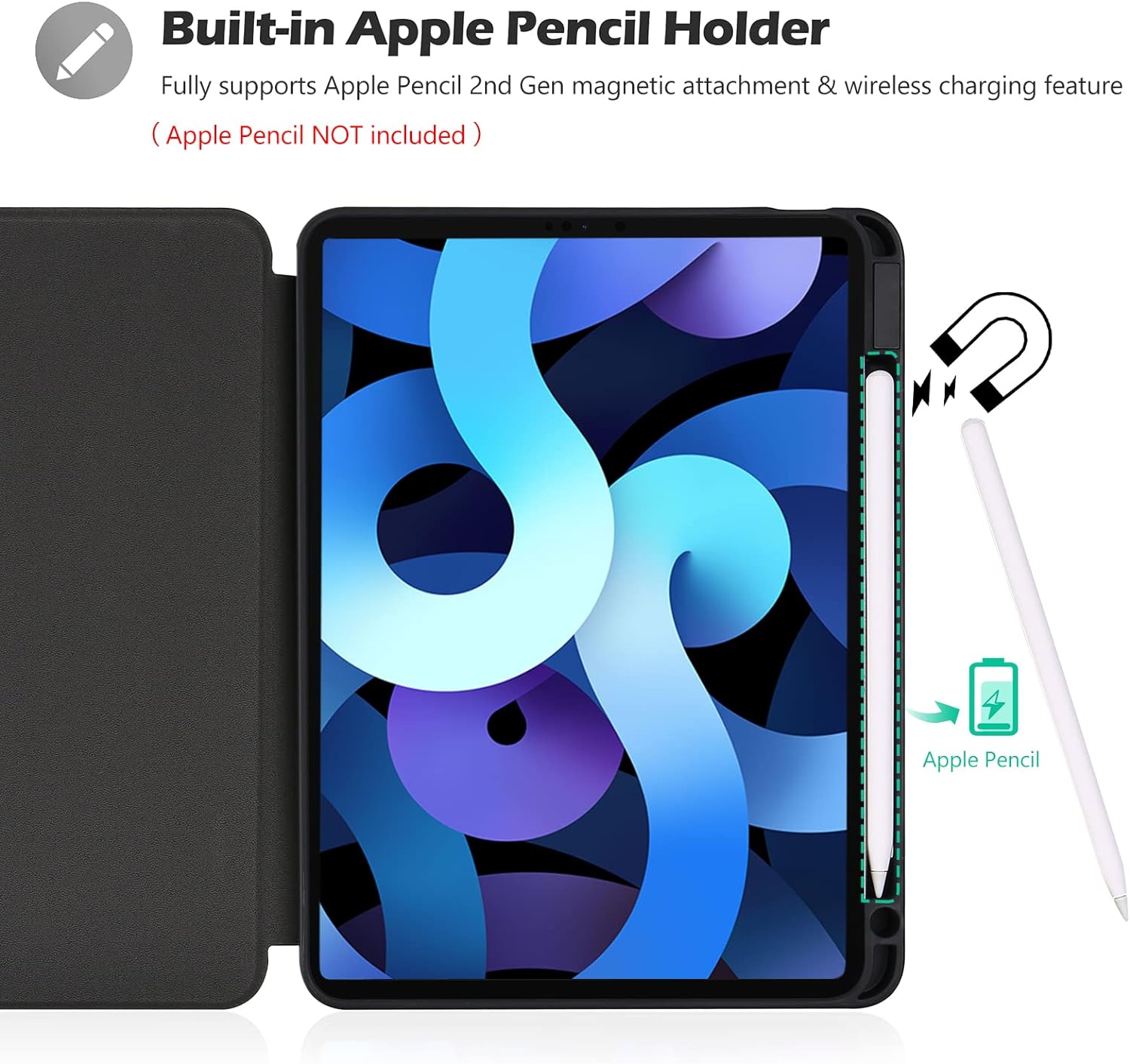
Figure 3.1: Built-in Apple Pencil Holder. This image highlights the integrated Apple Pencil holder within the case, demonstrating its compatibility with magnetic attachment and wireless charging for the Apple Pencil (2nd Gen or USB-C).

Figure 3.2: Auto Sleep/Wake Functionality. This image illustrates the case's auto sleep/wake feature, where closing the cover puts the iPad to sleep and opening it wakes the device, conserving battery life.

Figure 3.3: Shock & Drop Resistance. This image demonstrates the case's ability to protect the iPad from impacts, featuring a close-up of the slim yet robust back material and reinforced corners designed for shock absorption.

Figure 3.4: Precise Cutouts and Snug Fit. This image highlights the accurate cutouts for the iPad's camera, speakers, USB-C connector, and volume buttons, ensuring all features are accessible without removing the case. It also shows the snug fit of the iPad within the case.
4. Eto
Follow these steps to properly install your iPad into the ProCase Slim Case:
- Rí i dájú pé iPad rẹ mọ́ tónítóní, kò sì ní ìdọ̀tí kankan.
- Align the iPad with the case, starting with the side opposite the Apple Pencil holder.
- Gently press the iPad into the case, ensuring all corners snap securely into place. The flexible material allows for a snug fit.
- Before installing the case, complete the Touch ID settings if applicable to your iPad model.
Video 4.1: ProCase iPad Air 5 2022 / Air 4 Case Installation. This video demonstrates the process of installing an iPad Air 5th Gen (2022) or iPad Air 4th Gen (2020) into the ProCase Slim Case, highlighting how the iPad snaps securely into the protective shell.
5. Ṣiṣẹ́ Ọkọ̀ náà
5.1 Using the Stand Function
The front cover of the ProCase Slim Case can be folded into two different standing positions, providing versatile viewing angles for various activities such as watching videos, typing, or video calls.

Àwòrán 5.1: Méjì Viewing Angles. This image demonstrates how the case's front cover can be folded to create two distinct stand positions, offering different viewing angles for optimal user experience.
5.2 Auto Sleep/Wake
The case features a magnetic closure that automatically puts your iPad to sleep when the cover is closed and wakes it up when opened. This helps conserve battery life.
Video 5.2: ProCase Auto Sleep/Wake and Pencil Charging Demonstration. This video illustrates the auto sleep/wake functionality of the ProCase, showing the iPad screen turning on and off as the cover is opened and closed. It also demonstrates the Apple Pencil charging while attached to the case.
6. Itọju
To ensure the longevity and appearance of your ProCase Slim Case, follow these maintenance guidelines:
- Ninu: Pa ode nu pẹlu asọ, damp asọ. Yẹra fun awọn kẹmika lile tabi awọn olutọpa abrasive.
- Ibi ipamọ: Tọ́jú àpò náà sí ibi gbígbẹ tí ó tutù, tí kò sí ìmọ́lẹ̀ oòrùn tààrà nígbà tí o kò bá lò ó.
- Avoid Over-Stretching: While the case is flexible, avoid excessive bending or stretching of the material to prevent damage.
7. Laasigbotitusita
If you encounter any issues with your ProCase Slim Case, refer to the following common solutions:
- Ọran Ko baamu: Double-check your iPad model number against the compatibility list in Section 2. Ensure all corners of the iPad are properly seated within the case.
- Orun/Ji laifọwọyi ko ṣiṣẹ: Ensure the iPad is correctly aligned within the case and the cover is fully closed. Verify that the auto-lock/sleep feature is enabled in your iPad's settings.
- Apple Pencil Not Charging: Confirm the Apple Pencil is correctly placed in the designated holder and that your iPad model supports wireless charging for the Apple Pencil.
- Buttons or Ports Blocked: Ensure the iPad is fully seated in the case. The precise cutouts should allow full access. If not, re-adjust the iPad's position.
8. Awọn pato
| Ẹya ara ẹrọ | Ẹ̀kúnrẹ́rẹ́ |
|---|---|
| Brand | ProCase |
| Nọmba awoṣe | PC-08362688 |
| Awọn ẹrọ ibaramu | iPad Air 6 Gen 11 inch 2024, 5 10.9 2022, 4 2020 |
| Ohun elo | Quality ABS material (back) |
| Àwọ̀ | Dudu |
| Iwọn Nkan | 11.5 iwon |
| Ọja Mefa | 9.8 x 7.4 x 0.72 inches |
| Pataki Awọn ẹya ara ẹrọ | Built-in Pencil Holder, Auto Sleep/Wake, Dual Standing Positions, Shockproof |
9. Atilẹyin
For further assistance, product inquiries, or troubleshooting not covered in this manual, please visit the official ProCase website or contact their customer support. Refer to the product packaging or the ProCase brand store on Amazon for specific contact details.
ProCase Store Link: Visit the ProCase Store on Amazon
Awọn iwe aṣẹ ti o jọmọ - PC-08362688
 |
ProCase Wireless Keyboard User Guide - Setup, Features, and Troubleshooting Comprehensive user guide for the ProCase Wireless Keyboard (Model K960), detailing setup, pairing, usage, troubleshooting, product specifications, LED indicators, and charging instructions. |
 |
ProCase EM-5007B Hearing Protector Declaration of Conformity Official Declaration of Conformity for ProCase EM-5007B Ear-Muffs, confirming compliance with EU PPE Regulation 2016/425 and harmonized standard EN 352-1. Issued by Guangdong J&Y Industrial Co., Ltd. |
 |
LENRICH LBK129-22 Wireless Bluetooth Keyboard Case User Manual User manual for the LENRICH LBK129-22 wireless Bluetooth keyboard case, featuring a 7-color backlit trackpad and 360-degree rotation. Includes setup, usage, and troubleshooting for tablet PCs. |
 |
Eto Iṣowo Iṣowo Samusongi: Itọsọna Rẹ si Iṣowo Ni Awọn Ẹrọ Ṣe afẹri bii Eto Iṣowo Iṣowo Samusongi ṣe n ṣiṣẹ. Kọ ẹkọ nipa riraasing eligible devices, preparing your old smartphone, tablet, or smartwatch, understanding trade-in values, grading criteria, and payment methods. Contribute to a sustainable future by trading in your used electronics. |
 |
JGINYUE Motherboard User Manual and Specifications User manual for the JGINYUE motherboard by ERYING TECHNOLOGY, detailing warranty, interface descriptions, installation precautions, and technical specifications. |
 |
Ìwé Ìtọ́sọ́nà Olùlò Motherboard H81M-PRO-S1 MACHINIST Ìwé ìtọ́ni tó péye fún olùlò fún módàbọ́ọ̀dì MACHINST H81M-PRO-S1. Ìtọ́sọ́nà yìí bo àwọn àlàyé pàtó, ìlànà fífi àwọn ẹ̀yà ara sori ẹ̀rọ fún CPU, RAM, àti àwọn káàdì ìfẹ̀sí, àlàyé nípa àwọn asopọ̀ ẹ̀yìn àti inú, àti ìtọ́ni fún ṣíṣètò àti àtúntò BIOS. A ṣe é fún àwọn olùlò tí wọ́n nílò láti kó jọ tàbí ṣe àtúntò kọ̀ǹpútà wọn pẹ̀lú módàbọ́ọ̀dì yìí. |
Ask a question about this manual
Ask about setup, troubleshooting, compatibility, parts, safety, or missing instructions. Manuals+ will review the question and use this page’s manual context to help answer it.