
Ọrọ Iṣaaju
The Renkforce USB-C RF-DKS-650 is a versatile universal docking station designed to expand the connectivity of your laptop, convertible, or tablet equipped with a USB-C port. It enables multitasking by supporting up to four monitors simultaneously and offers a wide array of ports for various peripherals. The docking station is powered by the included AC/DC power adapter, ensuring stable performance for all connected devices.
To optimize cable management and maintain a tidy workspace, the 15 available ports are thoughtfully distributed across the front and rear panels. Thicker cables for monitors and power are typically connected to the rear, while frequently accessed devices like headsets, USB drives, or smartphones can be conveniently plugged into the front.
This docking station also includes a practical charging function for smartphones and other small devices. Please note that for charging your laptop via USB-C, a separate power supply with sufficient wattage (not included) is required.
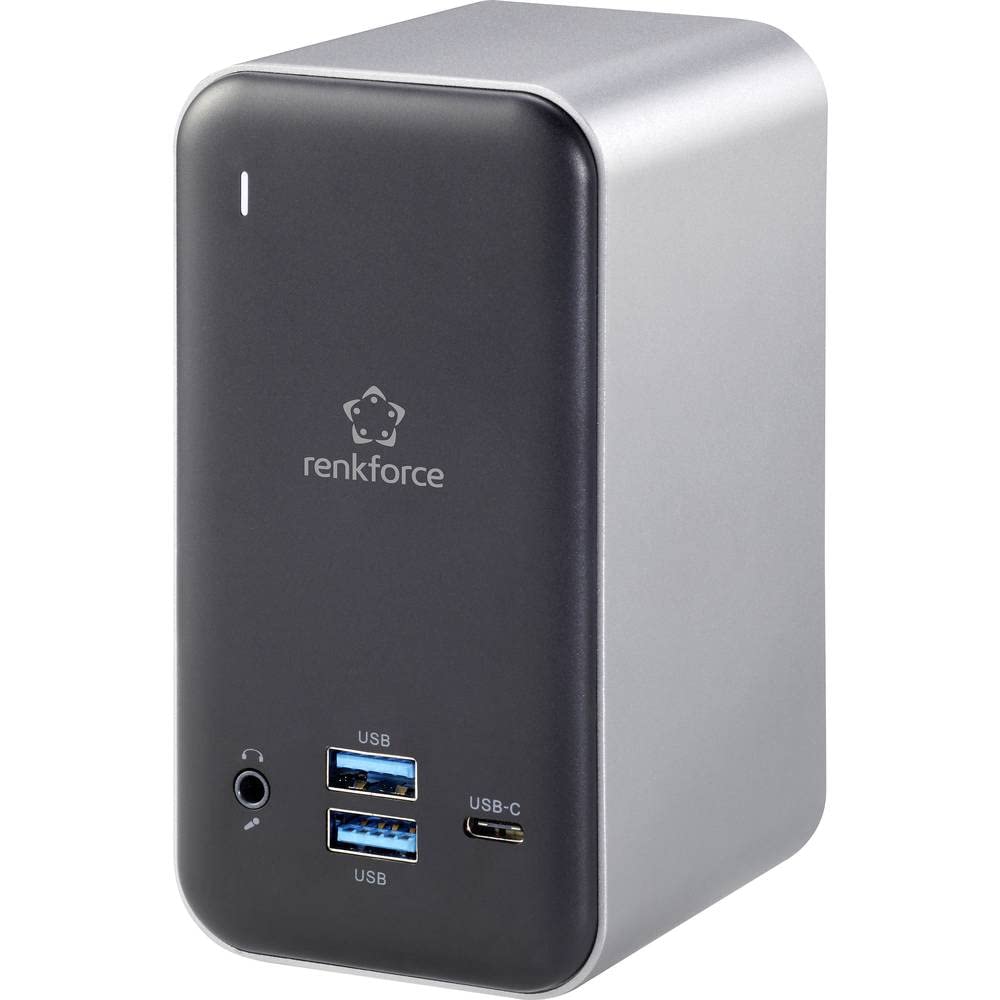
Figure 1: Renkforce USB-C RF-DKS-650 Universal Laptop Docking Station - Overall View
Awọn ilana iṣeto
Follow these steps to set up your Renkforce RF-DKS-650 docking station:
- So agbara: Plug the supplied AC/DC power adapter (12V 3A @36W) into the 'POWER' port on the rear of the docking station and then into a wall outlet.
- Sopọ si Ẹrọ Gbalejo: Use a USB-C cable to connect your laptop, convertible, or tablet to the 'HOST' USB-C port on the docking station.
- Awọn diigi Sopọ: Connect your monitors to the available HDMI (3 ports) and/or VGA (1 port) outputs on the docking station. The rear panel is ideal for these connections.
- Awọn Agbeegbe Sopọ: Connect your USB devices (e.g., keyboard, mouse, external drives) to the USB-A (USB 3.0) ports or additional USB-C ports. For audio, connect your headset or speakers to the 3.5mm microphone/audio jack.
- Nẹtiwọọki Sopọ (Aṣayan): For a wired network connection, plug an Ethernet cable into the LAN port on the docking station.
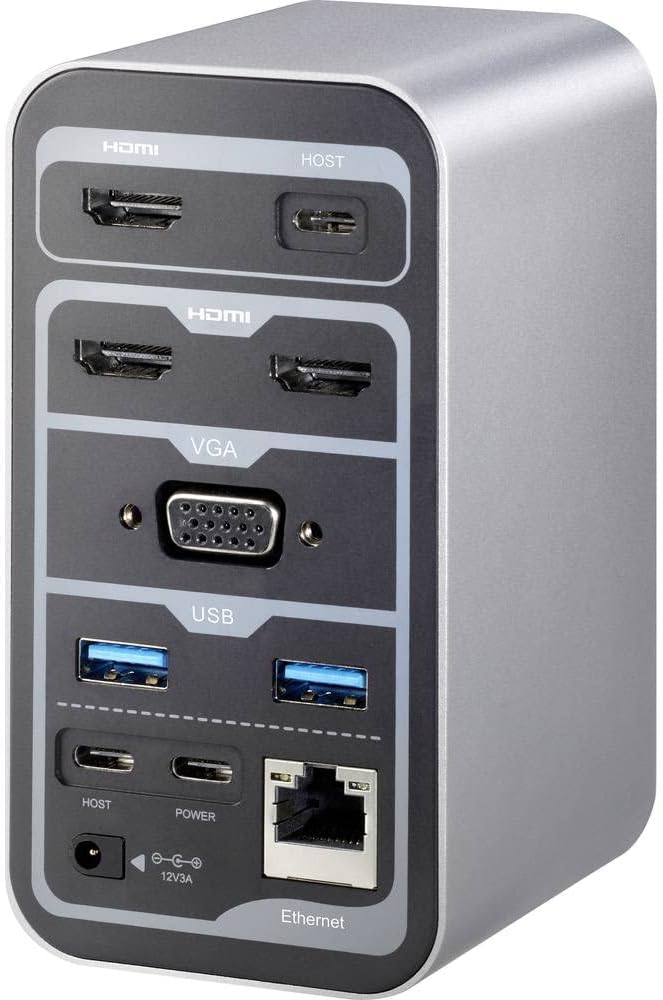
Figure 2: Rear Panel Connections (HDMI, VGA, USB, Ethernet, Power Input)

Figure 3: Front Panel Connections (USB, USB-C, Audio Jack)
Awọn ilana Iṣiṣẹ
Multi-Monitor Display
The RF-DKS-650 supports various multi-monitor configurations depending on your operating system:
- Windows 8 tabi ju bẹẹ lọ: Supports 1 or 3 simultaneous display outputs. Mirroring and extension modes are supported.
- MAC OS 10.12 or higher: Supports up to 4 simultaneous display outputs. Mirroring and extension modes are supported. For Intel and M1 chips, specific configurations like HDMI1 or HDMI2+HDMI3+VGA are possible.
- iPad OS 13 or higher: Supports 1 or 3 simultaneous display outputs. Mirroring is supported, but extension mode is not.
- Android OS: Supports 1 or 3 simultaneous display outputs. Mirroring is supported, but extension mode is not.
Adjust display settings (resolution, arrangement, mirroring/extension) through your operating system's display settings menu.
Ngba agbara ẹrọ
The docking station provides a convenient charging function for smartphones and other small USB-powered devices through its USB ports. Simply connect your device to an available USB-A or USB-C port.
Akiyesi pataki: While the docking station can charge small devices, it does not provide sufficient power to charge your laptop via its USB-C connection. For laptop charging, you must use your laptop's original power adapter or a separate, sufficiently powerful USB-C PD (Power Delivery) charger (not included).
Itoju
To ensure the longevity and optimal performance of your Renkforce RF-DKS-650 docking station, follow these simple maintenance guidelines:
- Ninu: Disconnect the docking station from power and all devices before cleaning. Use a soft, dry, lint-free cloth to wipe the exterior. Avoid using liquid cleaners, aerosols, or solvents, as these can damage the finish or internal components.
- Iṣakoso USB: Utilize the strategic port placement to keep cables organized. Regularly check cable connections to ensure they are secure and free from kinks or damage.
- Afẹfẹ: Rí i dájú pé ibùdó ìdúró ọkọ̀ náà wà ní ibi tí afẹ́fẹ́ ti ń fẹ́ kí ó má baà pọ̀ jù. Má ṣe dí àwọn ihò afẹ́fẹ́ kankan.
- Ibi ipamọ: Nigbati o ko ba wa ni lilo fun awọn akoko ti o gbooro sii, tọju ibudo docking ni itura, aye gbigbẹ kuro lati orun taara ati awọn iwọn otutu to gaju.
Laasigbotitusita
If you encounter issues with your Renkforce RF-DKS-650 docking station, refer to the following common problems and solutions:
- Ko si Ifihan lori Atẹle:
- Rí i dájú pé ibùdó ìdókòwò náà ti ṣiṣẹ́, àti pé ohun tí a fi agbára ṣe náà ti so mọ́ ara rẹ̀ dáadáa.
- Verify that the USB-C cable connecting the docking station to your host device is properly seated.
- Check that the HDMI/VGA cables are securely connected to both the docking station and the monitors.
- Confirm that your monitor is set to the correct input source (e.g., HDMI 1, VGA).
- Gbiyanju lati tun ẹrọ alejo rẹ bẹrẹ.
- Ṣe imudojuiwọn awọn awakọ aworan rẹ lori ẹrọ alejo rẹ.
- Awọn ẹrọ USB ko mọ:
- Ensure the docking station is properly connected to your host device via USB-C.
- Gbiyanju lati so ẹrọ USB pọ si ibudo ti o yatọ lori ibudo docking.
- Connect the USB device directly to your host device to confirm it is functional.
- Tun ẹrọ ogun rẹ bẹrẹ.
- Awọn oran Isopọ nẹtiwọki:
- Rii daju pe okun Ethernet ti sopọ ni aabo si mejeeji ibudo docking ati olulana/modẹmu rẹ.
- Ṣayẹwo awọn eto nẹtiwọki rẹ lori ẹrọ agbalejo rẹ.
- Try connecting your host device directly to the router/modem to isolate the issue.
- Charging Function Not Working for Laptop:
- As noted, the docking station does not provide power to charge your laptop. Use your laptop's dedicated power adapter or a separate USB-C PD charger.
Imọ ni pato
| Brand | Renkforce |
| Nọmba Awoṣe Nkan | RF-4499452 |
| ASIN | B08DJ112NF |
| Àwọ̀ | Orisirisi |
| Connectivity / Interface Types | HDMI, USB |
| Awọn ẹrọ ibaramu | Laptops, Convertibles, Tablets with USB-C, iPad |
| Number of Display Outputs | 4 |
| Nọmba ti HDMI Ports | 3 |
| Number of VGA Ports | 1 |
| Ipinnu ti o pọju | 3840 x 2160 awọn piksẹli |
| Agbara Input | AC/DC 12V 3A (36W) |
| Ibamu System isẹ | Windows 8 or higher, MAC OS 10.12 or higher, iPad OS 13 or higher, Android OS |
| Ọjọ Akọkọ Wa lori Amazon.com.be | Oṣu Karun ọjọ 18, ọdun 2022 |
Atilẹyin ọja ati Support
The Renkforce RF-DKS-650 Universal Laptop Docking Station comes with a Wíwà àwọn ohun èlò àfikún ọdún méjì guarantee from the manufacturer.
For technical support, warranty claims, or further assistance, please contact Renkforce customer service or refer to the official Renkforce webojula fun alaye olubasọrọ.