
Ọrọ Iṣaaju
This manual provides detailed instructions for the setup, operation, maintenance, and troubleshooting of your Macally BTWKEYMB-ES Extended Wireless Bluetooth Keyboard. Please read this manual thoroughly to ensure proper use and to maximize the performance of your device.
The Macally BTWKEYMB-ES is an elegant and ultra-thin (17 mm thick) wireless Bluetooth keyboard with a brushed metallic finish. It is specifically designed for Mac, iPad, iPhone, PC, and Android devices with Bluetooth capability. It features a stable and reliable radio connection, allowing for a clean, wireless workspace. This keyboard supports connection to up to three Bluetooth devices simultaneously, with direct switching via the Quick-Switch function. It includes 110 flat keys with a scissor-lift mechanism for sensitive and responsive typing, 21 function buttons for easy access to Mac functions, and a 17-key numeric keypad to boost productivity. The keyboard features a Spanish layout.

Oke-isalẹ view of the Macally BTWKEYMB-ES keyboard, showcasing its full Spanish QWERTY layout with numeric keypad and function keys.
Ṣeto
1. Ngba agbara si Keyboard
Before first use, ensure the keyboard is fully charged. Connect the included USB charging cable to the keyboard's charging port and to a USB power source (e.g., computer USB port, USB wall adapter). The charging indicator light will show the charging status.
2. Sisopọ Bluetooth
- Turn on the keyboard using the power switch, usually located on the side or back.
- Press and hold one of the Bluetooth channel keys (e.g., B1, B2, B3) for a few seconds until the corresponding indicator light starts blinking rapidly. This indicates the keyboard is in pairing mode.
- On your device (Mac, PC, iPad, iPhone, Android), go to Bluetooth settings.
- Wa fun available Bluetooth devices. The keyboard should appear as "Macally BTWKEYMB-ES" or similar.
- Select the keyboard from the list to initiate pairing. Follow any on-screen prompts, such as entering a code displayed on your screen.
- Once paired, the indicator light for that channel will stop blinking and remain solid, indicating a successful connection.
3. Quick-Switch Pairing (Multi-Device Connection)
The keyboard supports connecting up to three devices. To connect additional devices, repeat the Bluetooth pairing steps using a different Bluetooth channel key (B2 or B3). Once multiple devices are paired, you can switch between them instantly by simply pressing the corresponding Bluetooth channel key (B1, B2, or B3).

The Macally BTWKEYMB-ES keyboard in a workspace setting, connected wirelessly to a desktop monitor and a tablet, demonstrating its multi-device capability.
Awọn ilana Iṣiṣẹ
Awọn bọtini iṣẹ
The keyboard features 21 function keys (F1-F12 and additional media/system control keys) that provide quick access to various functions on your Mac or other compatible devices. These include brightness control, mission control, media playback, volume control, and more. For specific functions, refer to your device's operating system documentation.
Bọtini Nọmba
The integrated 17-key numeric keypad allows for efficient data entry and calculations. Ensure Num Lock is enabled if necessary for your operating system.
Iriri Titẹ
The scissor-lift key mechanism provides a comfortable and responsive typing experience with a satisfying tactile feedback. The Spanish layout includes specific characters and key placements relevant to the Spanish language.
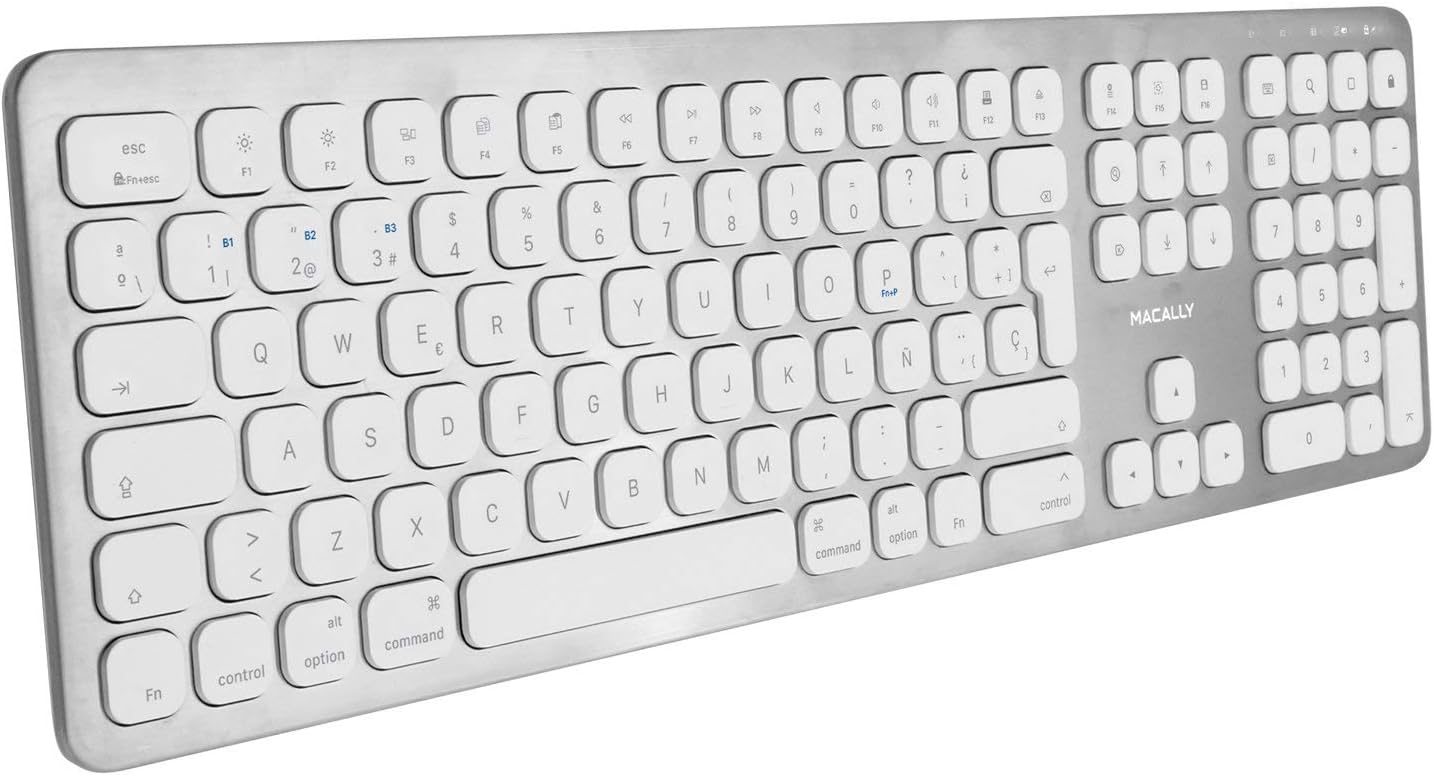
Overhead angled view of the Macally BTWKEYMB-ES keyboard, providing a clear look at all keys and the overall layout.
Itoju
Ninu
To clean the keyboard, first turn it off. Use a soft, lint-free cloth slightly dampened with water or a mild cleaning solution. Avoid using harsh chemicals, abrasive cleaners, or excessive moisture. Do not spray liquid directly onto the keyboard. For dust and debris between keys, use compressed air.
Ibi ipamọ
When not in use for extended periods, store the keyboard in a cool, dry place away from direct sunlight and extreme temperatures. Ensure the keyboard is turned off to conserve battery life.
Laasigbotitusita
Keyboard Ko Sopọ/So pọ
- Rii daju pe keyboard ti wa ni titan ati gbigba agbara ni kikun.
- Rii daju pe Bluetooth ti ṣiṣẹ lori ẹrọ rẹ.
- Gbé keyboard sún mọ́ ẹ̀rọ rẹ láti rí i dájú pé ó wà láàrín ibi tí Bluetooth wà.
- Try unpairing the keyboard from your device's Bluetooth settings and then re-pairing it.
- Restart both the keyboard (turn off and on) and your device.
- Rii daju pe ko si awọn ẹrọ Bluetooth miiran ti o nfa kikọlu.
Awọn bọtini Ko Fesi
- Ṣàyẹ̀wò bóyá keyboard náà so pọ̀ dáadáa nípasẹ̀ Bluetooth.
- Ensure the battery is not critically low. Charge the keyboard if needed.
- Nu keyboard mọ lati yọkuro eyikeyi idoti ti o le ṣe idiwọ awọn bọtini.
- Test the keyboard with another device to determine if the issue is with the keyboard or the original device.
Aisun tabi Idaduro Input
- Reduce the distance between the keyboard and your device.
- Din kikọlu silẹ lati awọn ẹrọ alailowaya miiran (Awọn olulana Wi-Fi, awọn ẹrọ Bluetooth miiran).
- Rii daju pe ẹrọ ṣiṣe ẹrọ rẹ ati awọn awakọ Bluetooth ti wa ni imudojuiwọn.
Awọn pato
| Nọmba awoṣe | BTWKEYMB-ES |
| Asopọmọra Technology | Bluetooth |
| Pataki Ẹya | Gbigba agbara |
| Awọn ẹrọ ibaramu | Kọ̀ǹpútà, Fóònù alágbèéká, Táblẹ́ẹ̀tì |
| Nọmba ti Awọn bọtini | 110 |
| Ifilelẹ bọtini itẹwe | QWERTY (Spanish) |
| Number of Buttons (Function) | 21 |
| Olupese | Macally |
Alaye atilẹyin ọja
Specific warranty details for the Macally BTWKEYMB-ES keyboard are typically provided with the product packaging or on the manufacturer's official website. Please refer to these sources for comprehensive warranty terms and conditions.
Atilẹyin
For technical support, frequently asked questions, or additional assistance, please visit the official Macally support website. Contact information for customer service may also be found on the product packaging or the manufacturer's webojula.