
Ọrọ Iṣaaju
The Globe Electric 50200 Smart Wi-Fi Light Switch allows you to automate and control your home lighting using the GLOBE SUITE™ App, voice commands, or directly from the switch. This manual provides essential information for installation, operation, and maintenance to ensure safe and efficient use of your smart switch.

Image: The Globe Electric Smart Switch, highlighting its compatibility with various smart home platforms.
Alaye Aabo
Before installing or operating the Globe Electric 50200 Smart Wi-Fi Light Switch, please read and understand all safety instructions. Failure to follow these instructions may result in electric shock, fire, or property damage.
- IKILO: Risk of Electric Shock. Installation requires working with high voltage wiring. Always turn off power at the circuit breaker before installation.
- Kan si alagbawo ina mọnamọna ti o pe ti o ko ba ni idaniloju nipa eyikeyi apakan ti ilana fifi sori ẹrọ.
- Ẹrọ yii wa fun lilo inu ile nikan.
- Ensure the switch is installed in a standard wall box.
- Maṣe kọja wat ti o pọjutage Rating ti 100 wattis.
Package Awọn akoonu
Daju pe gbogbo awọn paati wa ṣaaju ki o to bẹrẹ fifi sori:
- Globe Electric 50200 Smart Wi-Fi Light Switch
- Screwless Faceplate
- Wires and Backplate
- Awọn skru (2)
- Eso okun (4)
- Wire Label Stickers
Eto ati fifi sori
Follow these steps for proper installation of your smart switch. This switch is designed for single-pole indoor use only.
- Pa Agbara: Locate your circuit breaker and turn off the power to the switch you are replacing. Verify the power is off using a voltage idanwo.
- Yọ Yipada atijọ kuro: Carefully remove the existing wall plate and unscrew the old switch from the wall box. Disconnect the wires, noting their connections (e.g., Line, Load, Neutral, Ground). Use the provided wire label stickers if needed.
- So Smart Yipada: Connect the wires from your wall box to the corresponding wires on the Globe Electric 50200 Smart Switch using the provided wire nuts.
- Sopọ awọn Laini wire (usually black, coming from the breaker) to the Line wire on the smart switch.
- Sopọ awọn Fifuye wire (usually black, going to the light fixture) to the Load wire on the smart switch.
- Sopọ awọn Àdánù wire (usually white) to the Neutral wire on the smart switch. A neutral wire is required for this smart switch.
- Sopọ awọn Ilẹ wire (usually bare copper or green) to the Ground wire on the smart switch.
- Gbe Iyipada naa: Gently push the wired smart switch into the wall box. Secure it with the provided screws. Attach the screwless faceplate.
- Pada Agbara pada: Turn the power back on at the circuit breaker. The indicator light on the smart switch should illuminate.
- Asopọmọra App:
- Ṣe igbasilẹ ọfẹ naa GLOBE SUITE™ App lati rẹ foonuiyara ká app itaja.
- Ṣii app naa ki o ṣẹda akọọlẹ kan tabi wọle.
- Press the restart button located on the right side below the on/off rocker after installation.
- Follow the in-app instructions to add your new smart switch. Ensure your phone is connected to a 2.4 GHz Wi-Fi network during the initial setup. You can switch back to a 5 GHz network afterward if preferred.
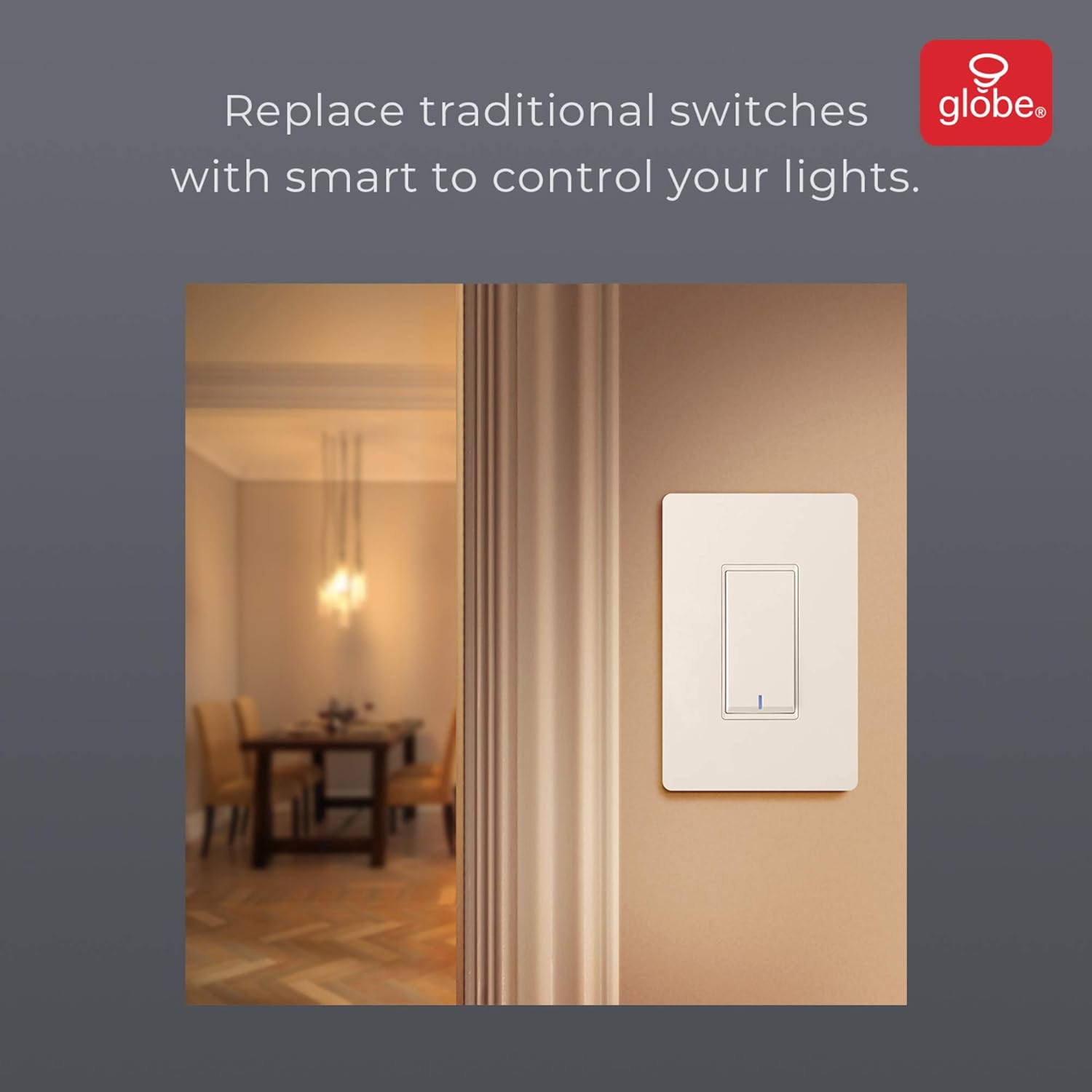
Image: The smart switch installed in a wall, demonstrating its integration into a home environment.
Awọn ilana Iṣiṣẹ
Once installed and connected to the GLOBE SUITE™ App, you can operate your smart switch in several ways:
- Iṣakoso Afowoyi: Press the rocker switch directly to turn connected lights on or off.
- Ohun elo Iṣakoso: Use the GLOBE SUITE™ App on your smartphone to turn lights on/off from anywhere with an internet connection.
- Iṣakoso ohun: Integrate with Amazon Alexa, Google Assistant, or Siri for hands-free control.
- Example Awọn aṣẹ: "Alexa, turn on the living room light," "Hey Google, turn off the kitchen switch," "Siri, activate evening scene."
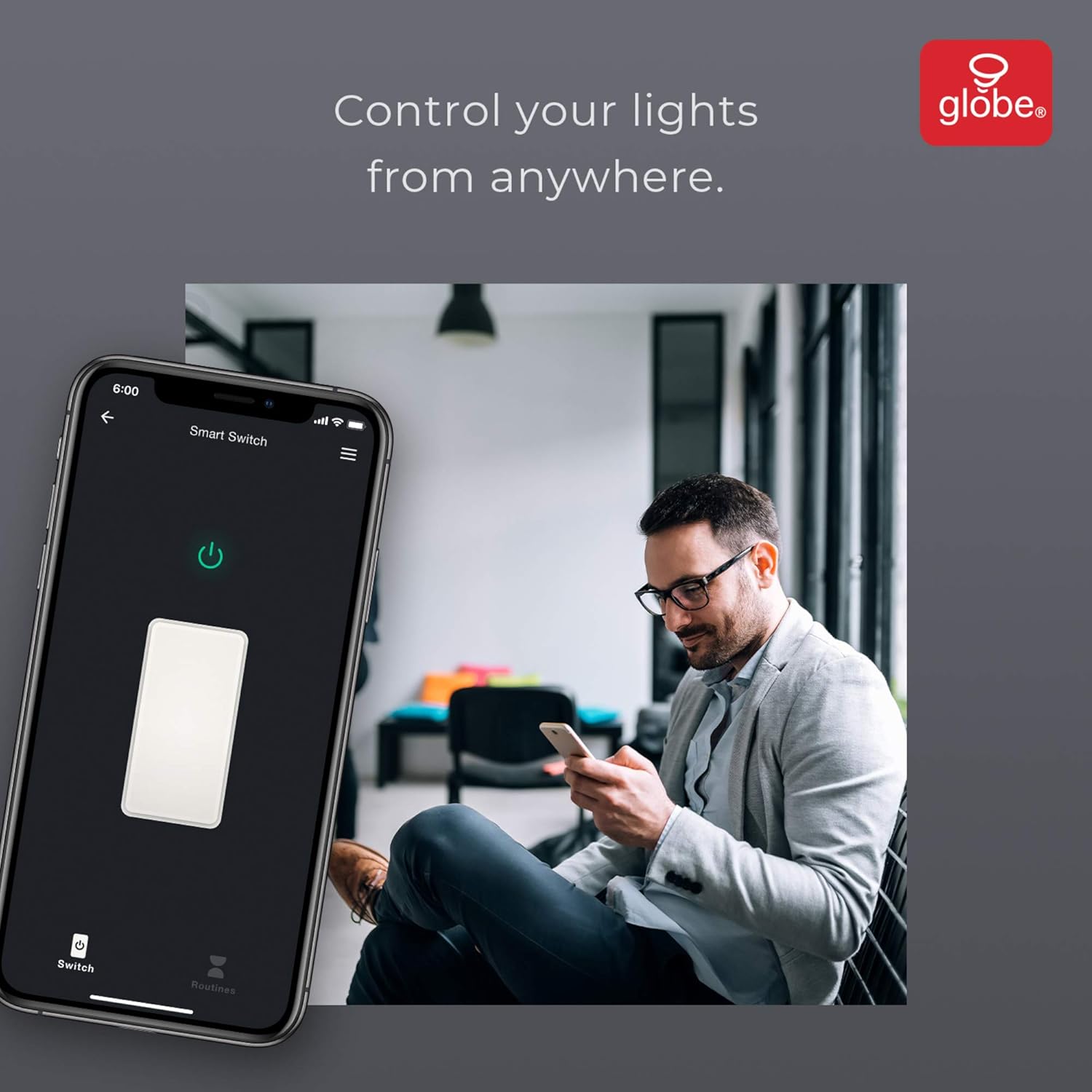
Image: A user controlling the smart switch remotely via the GLOBE SUITE™ mobile application.
App Integration and Smart Features
The GLOBE SUITE™ App unlocks the full potential of your smart switch:
- Iṣeto: Create custom schedules to automatically turn lights on or off at specific times, days of the week, or based on sunrise/sunset.
- Awọn iwoye: Combine multiple smart devices into custom scenes. For example, a "Movie Night" scene could dim lights and turn on entertainment devices simultaneously.
- Adaṣe: Set up automations based on conditions like presence detection, temperature, or other smart device triggers.

Image: The GLOBE SUITE™ app interface demonstrating the scheduling feature for automated lighting control.
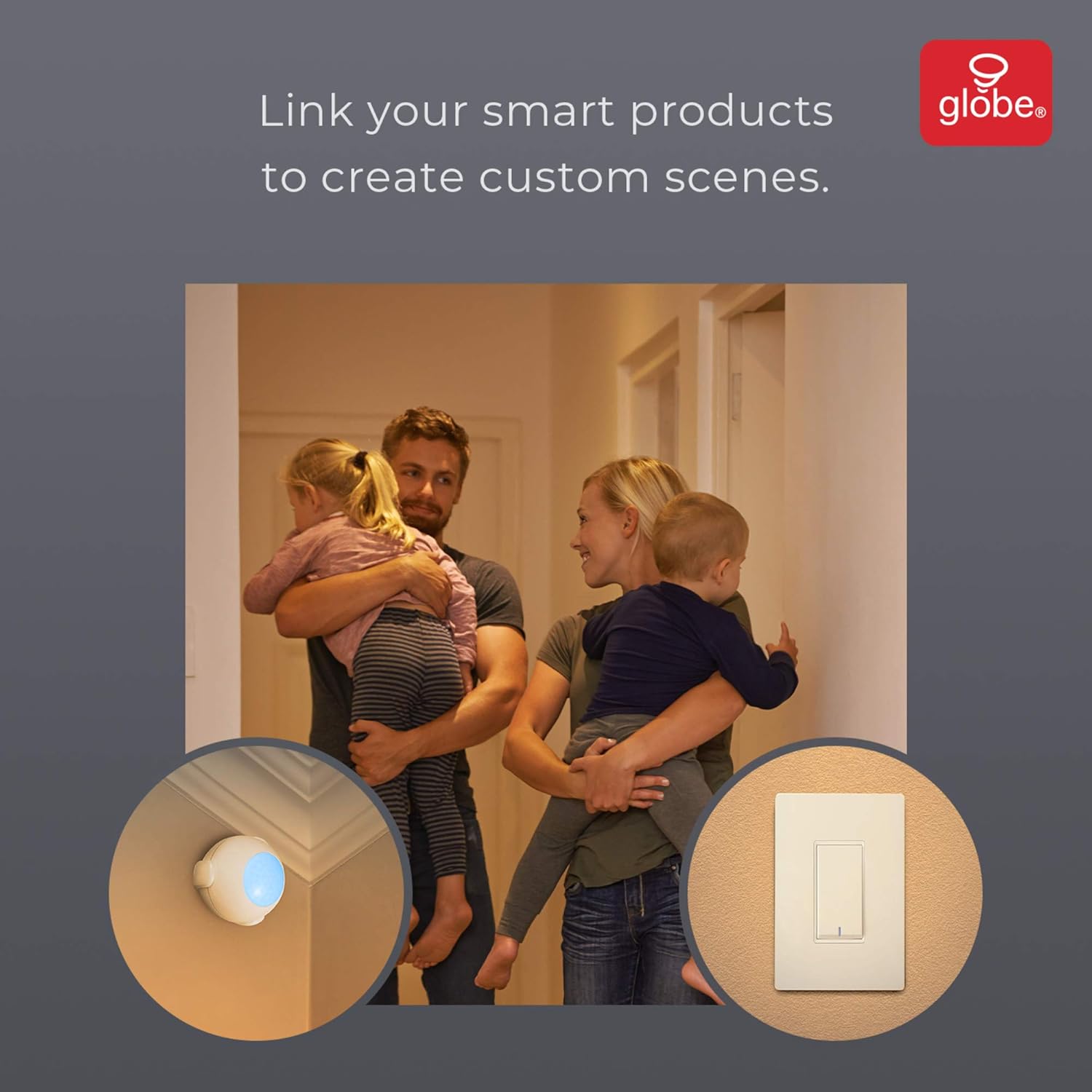
Image: Demonstrates how to link multiple Globe Electric smart products to create custom scenes for various home activities.
Itoju
The Globe Electric 50200 Smart Wi-Fi Light Switch requires minimal maintenance.
- Ninu: Disconnect power at the circuit breaker before cleaning. Wipe the switch and faceplate with a soft, damp asọ. Maṣe lo awọn kẹmika ti o lewu tabi awọn afọmọ abrasive.
- Awọn imudojuiwọn famuwia: Periodically check the GLOBE SUITE™ App for available firmware updates to ensure optimal performance and security.
Laasigbotitusita
If you encounter issues with your Globe Electric 50200 Smart Wi-Fi Light Switch, refer to the following common solutions:
| Isoro | Owun to le Fa | Ojutu |
|---|---|---|
| Switch does not turn on/off lights. | No power, incorrect wiring, or bulb issue. | Check circuit breaker. Verify wiring connections (Line, Load, Neutral, Ground). Test the light bulb. |
| Ko le sopọ si Wi-Fi. | Ẹgbẹ Wi-Fi ti ko tọ, ifihan agbara ti ko lagbara, tabi ọrọ igbaniwọle ti ko tọ. | Ensure your router is broadcasting a 2.4 GHz network. Move closer to the router. Double-check Wi-Fi password. Press the restart button on the switch and try pairing again. |
| Iṣakoso ohun ko ṣiṣẹ. | Incorrect integration with voice assistant or device naming. | Ensure the GLOBE SUITE™ App is correctly linked to your Amazon Alexa, Google Assistant, or Siri account. Verify the device name in the app matches what you are saying. |
| Switch frequently disconnects. | Weak Wi-Fi signal or network interference. | Ensure the switch is within good range of your 2.4 GHz Wi-Fi router. Consider a Wi-Fi extender if necessary. |
Awọn pato
| Ẹya ara ẹrọ | Ẹ̀kúnrẹ́rẹ́ |
|---|---|
| Awoṣe | 50200 |
| Brand | Globe Electric |
| Ilana Asopọmọra | Wi-Fi (2.4 GHz) |
| Ọna Iṣakoso | App, Voice, Manual |
| Adarí Iru | Amazon Alexa, Oluranlọwọ Google, Siri |
| Wattage | 100 Wattis (O pọju) |
| Ipo Isẹ | ON-NONE-ON or ON-ON-OFF |
| Yipada Iru | Rocker |
| Iṣagbesori Iru | Ògiri Ògiri |
| Awọn Iwọn Nkan (L x W x H) | 1.96 x 2.05 x 4.13 inches |
| Ohun elo | Irin, Ṣiṣu |
| Iwọn Nkan | 0.28 iwon |
| UPC | 058219502006 |
Alaye atilẹyin ọja
The Globe Electric 50200 Smart Wi-Fi Light Switch comes with a Atilẹyin ọja ọdun kan fun olupese. This warranty covers defects in materials and workmanship under normal use. For specific terms and conditions, please refer to the official Globe Electric webojula tabi kan si atilẹyin alabara.
Atilẹyin
For further assistance, technical support, or warranty claims, please contact Globe Electric customer service. You can find contact information on the official Globe Electric webojula: www.globe-electric.com.
You can also visit the Globe Electric Store on Amazon for more products and information: Globe Electric Amazon Store.