
Ọrọ Iṣaaju
The Razer Pro Glide is a soft mouse mat designed for enhanced office productivity. It features a thick, high-density rubber foam construction for comfort and durability, a textured micro-weave cloth surface for precise mouse movements, and an anti-slip base to ensure stability during use. This manual provides instructions for setting up, operating, and maintaining your Razer Pro Glide mouse mat.
Ṣeto
- Unpack the Mouse Mat: Carefully remove the Razer Pro Glide mouse mat from its packaging.
- Flatten the Mat: If the mat is rolled, gently unroll it and allow it to lie flat on your desk surface. It may take a short period for the mat to completely flatten.
- Ipo: Place the mouse mat on a clean, dry, and flat surface where you intend to use your mouse. The anti-slip rubber base will help secure the mat in place.
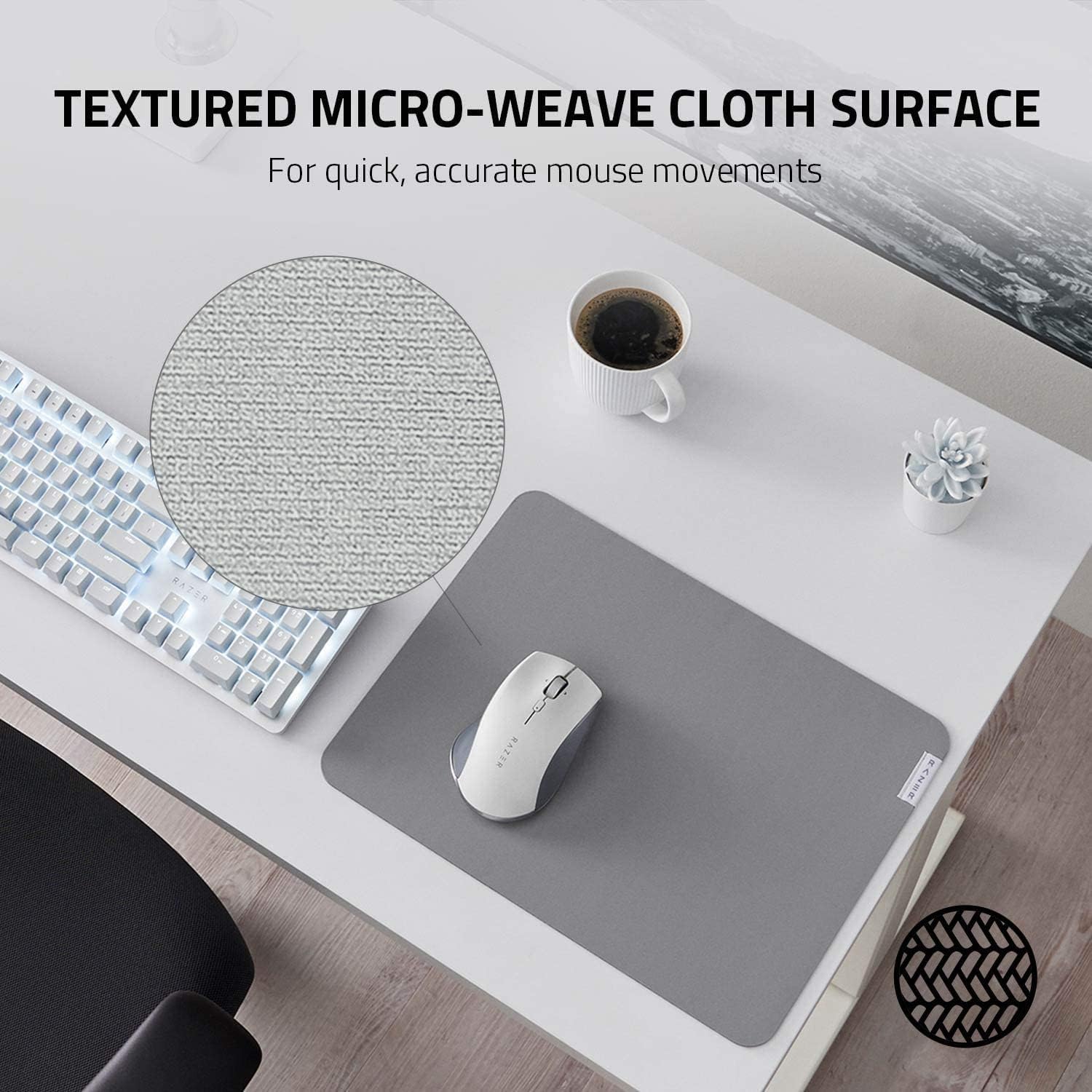
Image: The anti-slip base ensures the mat remains stable on your desk.
Ṣiṣẹ
The Razer Pro Glide is designed for immediate use. Simply place your mouse on the mat and begin your work or gaming activities. The textured micro-weave cloth surface is optimized for all mouse sensors, providing precise tracking and smooth gliding for accurate and efficient movements.
- Iṣakoso Imudara: The surface texture allows for quick and accurate mouse movements, crucial for productivity tasks.
- Itunu: The 3mm thick, high-density rubber foam provides a comfortable cushioning effect for your hand and wrist during extended use.
- Iduroṣinṣin: The anti-slip rubber base prevents the mat from shifting, ensuring consistent performance.

Image: The textured micro-weave cloth surface provides optimal tracking for your mouse.
Itoju
To ensure the longevity and optimal performance of your Razer Pro Glide mouse mat, follow these cleaning guidelines:
- Isọdọmọ Aami: For minor spills or dirt, use a soft, damp pẹ̀lú ọṣẹ díẹ̀. Fi ọwọ́ nu ibi tí ó ní ipa náà.
- Yago fun Kemikali lile: Do not use harsh detergents, bleach, or abrasive cleaners, as these can damage the mat's surface and materials.
- Afẹfẹ Gbẹ After cleaning, allow the mat to air dry completely before reuse. Do not machine wash or tumble dry.
- Eruku igbagbogbo: Periodically dust the surface with a dry, soft cloth to prevent dust buildup.
Laasigbotitusita
- Mat Not Lying Flat: If the mat does not immediately lie flat after unrolling, place heavy, flat objects (like books) on the edges for a few hours to help it flatten.
- Awọn ọran Itọpa Asin: Ensure the mouse mat surface is clean and free of debris. If issues persist, try cleaning your mouse sensor.
- Mat Slipping: Verify that the desk surface beneath the mat is clean and dry. The anti-slip base requires a clean surface for optimal grip.
Awọn pato
| Ẹya ara ẹrọ | Ẹ̀kúnrẹ́rẹ́ |
|---|---|
| Nọmba awoṣe | RZ02-03331500-R3M1 |
| Awọn iwọn (L x W) | 14.17" x 10.83" (360 mm x 275 mm) |
| Sisanra | 3 mm |
| Ohun elo | High-density rubber foam (base), Textured micro-weave cloth (surface) |
| Àwọ̀ | Grẹy |
| Pataki Awọn ẹya ara ẹrọ | Durability, Non-slip base |
| Iwọn | 290 giramu |

Image: The thick, high-density rubber foam provides comfort and durability.
Atilẹyin ọja ati Support
Fun alaye atilẹyin ọja ati atilẹyin imọ-ẹrọ, jọwọ tọka si Razer osise website or contact Razer customer service directly. Keep your purchase receipt for warranty claims.
Razer Osise Webojula: www.razer.com