
Ọrọ Iṣaaju
The Picun Elite P80S Wireless Headset provides a high-definition audio experience with multidimensional surround sound, extra bass, and noise reduction. Designed for comfort and versatility, it features both wireless and wired connectivity options, a detachable microphone, and intuitive controls. This manual provides detailed instructions for setup, operation, maintenance, and troubleshooting to ensure optimal performance of your headset.
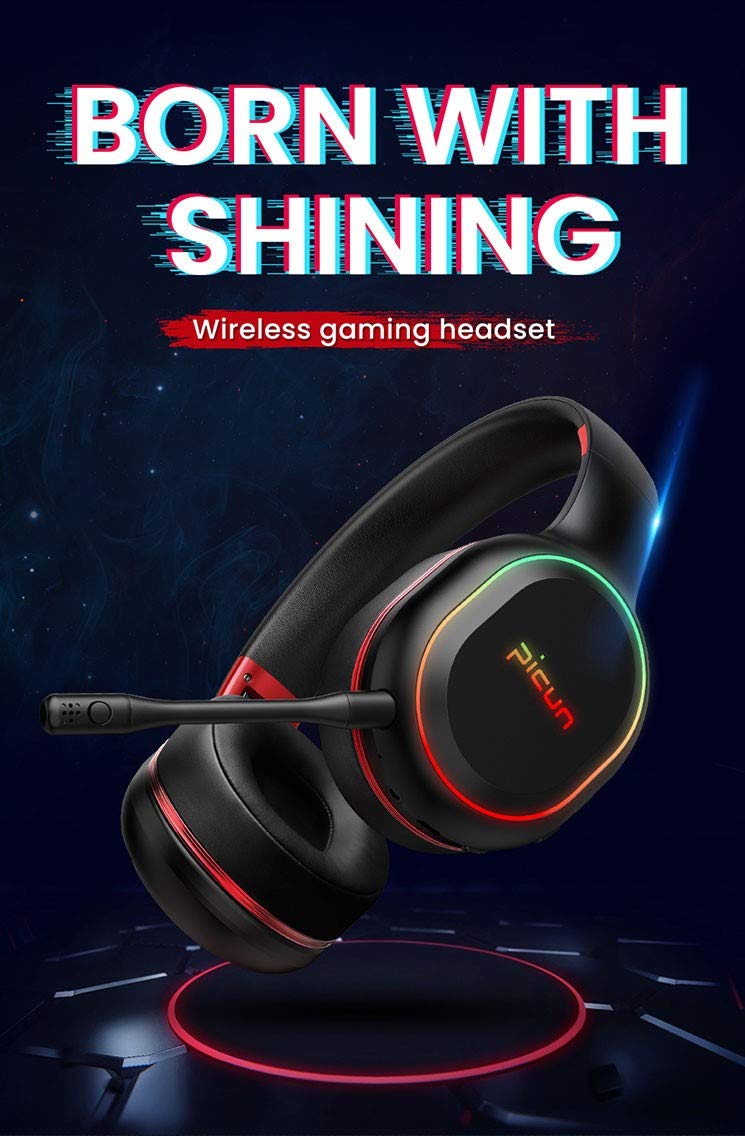
Image: The Picun Elite P80S Wireless Headset, showcasing apẹrẹ rẹ ati gbohungbohun ti a ṣe sinu rẹ.
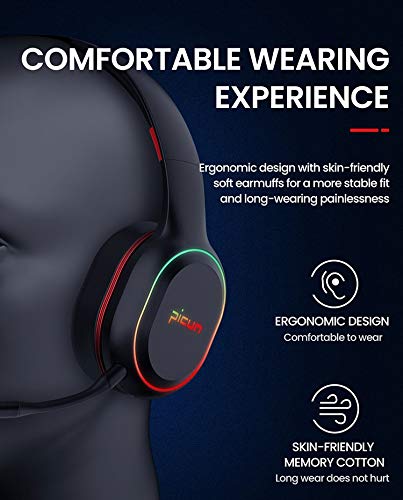
Image: The Picun Elite P80S Headset demonstrating its ergonomic design and comfortable earcups made from skin-friendly memory cotton.
Ohun ti o wa ninu Apoti
Jọwọ rii daju pe gbogbo awọn nkan wa ninu package:
- Picun Elite P80S Wireless Headset
- Gbohungbohun yiyọ kuro
- Okun Ngba agbara USB
- 3.5mm AUX Audio Cable
- Afowoyi Olumulo (iwe-ipamọ yii)
Ṣeto
1. Ngba agbara si Agbekọri
Before initial use, fully charge the headset. Connect the provided USB charging cable to the headset's charging port and to a compatible USB power source (e.g., computer USB port, USB wall adapter). The LED indicator will show charging status and turn off or change color when fully charged.
A full charge provides approximately 40 hours of game time or 60 hours of music/media playback in wireless mode.
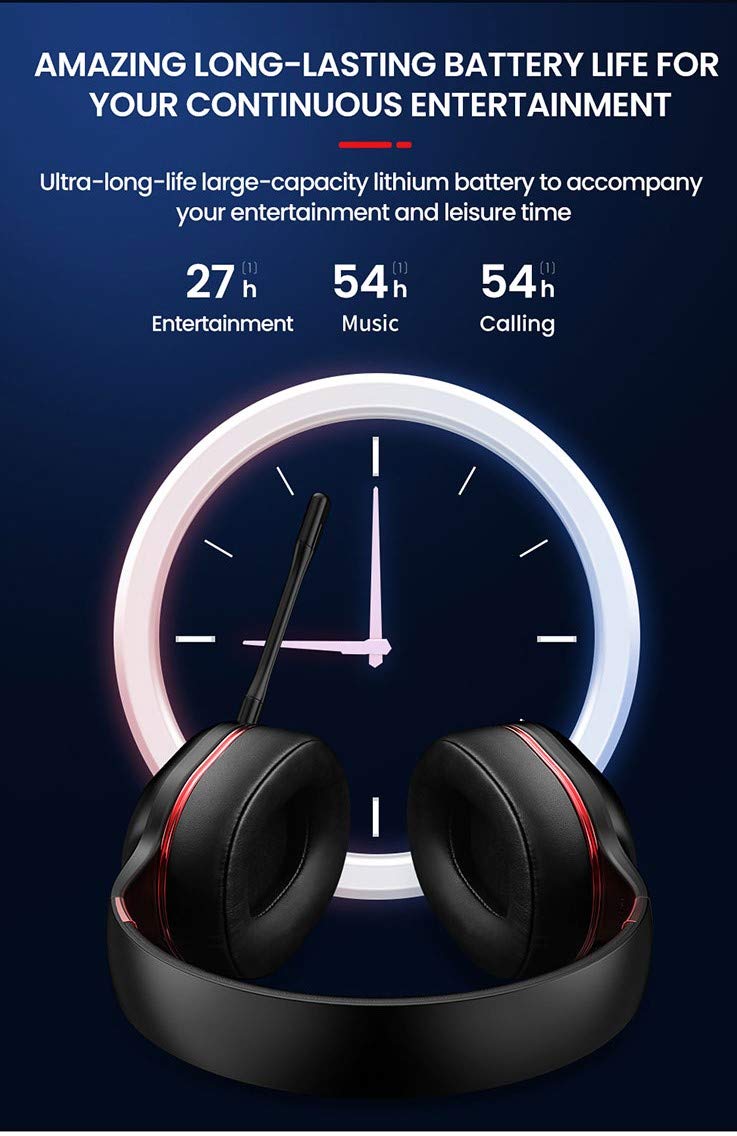
Image: Picun Elite P80S Headset illustrating long battery life for entertainment, music, and calls.
2. So gbohungbohun
The professional detachable microphone can be inserted into the designated port on the left earcup. Ensure it is securely connected for clear voice communication. The microphone can be rotated 360 degrees for optimal positioning.
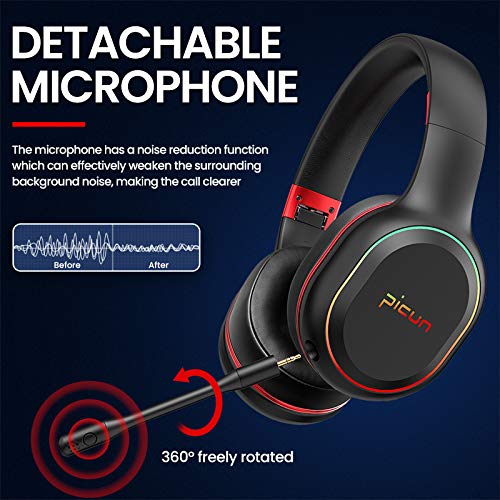
Image: Picun Elite P80S Headset showing the detachable microphone and its 360-degree rotation capability.
Awọn ilana Iṣiṣẹ
1. Agbara Tan / Paa
- Agbara Tan: Tẹ mọlẹ bọtini agbara fun isunmọ awọn aaya 3 titi ti Atọka LED yoo tan imọlẹ.
- Agbara Pa: Tẹ mọlẹ bọtini agbara fun isunmọ awọn aaya 3 titi ti itọkasi LED yoo wa ni pipa.
2. Ìsopọ̀ Bluetooth (Ipò Aláìlágbára)
After powering on, the headset will automatically enter pairing mode (LED indicator will flash). On your device (smartphone, PC, console), enable Bluetooth and search for "Picun Elite P80S". Select it to connect. A voice prompt will confirm successful pairing. The headset maintains a stable connection up to 10 meters.

Image: Diagram illustrating the stable and instant connection features of the Picun Elite P80S headset, highlighting 10-meter transmission, audio/video synchronization, call stability, and no in-game delay.
3. Wired Mode (AUX Connection)
To use the headset in wired mode, connect the provided 3.5mm AUX audio cable to the headset's AUX port and to your audio source. Wired mode allows for indefinite playback regardless of battery charge. The headset functions as a passive headphone in wired mode.
4. Gbohungbohun Lilo
- Detachable Pro Microphone: Provides high-definition vocals and effectively reduces ambient noise for clear communication during gaming or calls.
- Inbuilt Microphone: An additional microphone is integrated for general use, ensuring seamless communication even without the detachable mic.
5. Audio Awọn ẹya ara ẹrọ
The Picun Elite P80S provides omnidirectional stereo sound, allowing for an immersive audio experience, especially beneficial for gaming to detect subtle sound cues.
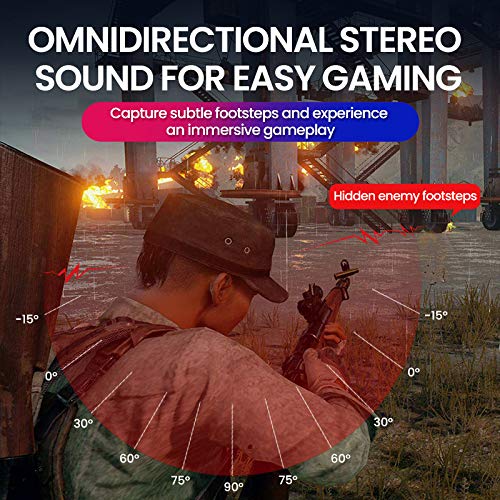
Image: A gaming scenario demonstrating the omnidirectional stereo sound capability, helping users identify sound sources like footsteps from various directions.
6. Àwọn Ìṣàkóso Ìròyìn
The headset features integrated buttons for easy control:
- Ṣiṣẹ/Daduro: Press the Multi-function button once to play or pause music/videos.
- Idahun/Ipe Ipari: Press the Multi-function button once to answer an incoming call, and again to end it.
- Iṣakoso iwọn didun: Use the Volume Up (+) and Volume Down (-) buttons to adjust the audio level.
- Itele / Tẹlẹ Orin: Long press Volume Up (+) for next track, Long press Volume Down (-) for previous track.
7. Dual Shock / Vibration Mode
Activate the Dual Shock / Vibration Mode for an enhanced immersive experience, particularly for deep bass in music and movies, or realistic vibrations during gaming. This mode can be toggled on or off using the dedicated switch on the headset.
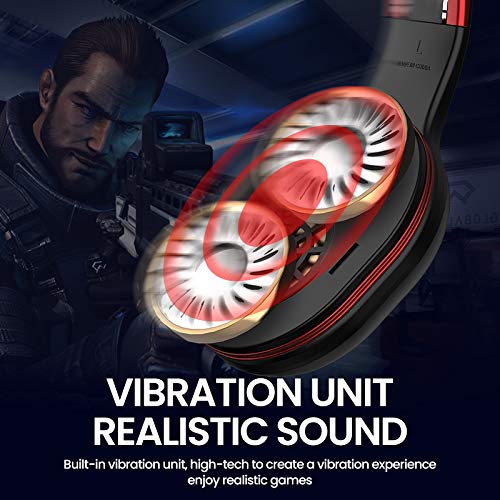
Image: Close-up of the Picun Elite P80S earcup highlighting the built-in vibration unit for realistic sound and gaming experience.
8. LED Light Display
The headset features a gradient colorful breathing light display. To turn the LED lights on or off, press and hold both the Volume Up (+) and Volume Down (-) buttons simultaneously for approximately 3 seconds.

Image: Picun Elite P80S Headset showcasing its gradient colorful breathing light effect, with instructions on how to activate/deactivate it.
Itoju
- Ninu: Lo aṣọ rírọrùn tí ó gbẹ láti nu agbekọri naa. Maṣe lo awọn ohun elo fifọ tabi awọn ohun elo olomi.
- Ibi ipamọ: Tọ́jú agbekọri naa si ibi gbigbẹ ti o tutu, kuro ni oorun taara ati iwọn otutu ti o le gbojufo. Apẹrẹ ti a le ṣe pọ gba laaye fun ibi ipamọ kekere.
- Itọju Batiri: Lati pẹ aye batiri, yago fun gbigba agbara agbekari ni kikun nigbagbogbo. Gba agbara rẹ nigbagbogbo, paapaa ti kii ba lo fun awọn akoko gigun.
- Itọju USB: Handle cables gently. Avoid sharp bends or excessive pulling to prevent damage.
Laasigbotitusita
No Power / Headset Not Turning On
- Ensure the headset is fully charged. Connect it to a power source using the USB charging cable.
- Verify that the power button is pressed and held for the correct duration (approx. 3 seconds).
Ko le So pọ nipasẹ Bluetooth
- Make sure the headset is in pairing mode (LED flashing). If not, power it off and on again.
- Ensure Bluetooth is enabled on your device and it is within 10 meters of the headset.
- Remove "Picun Elite P80S" from your device's Bluetooth list and attempt to pair again.
- Gbiyanju lati so pọ pẹlu ẹrọ ti o yatọ lati ṣe akoso awọn oran-ẹrọ kan pato.
Ko si Ohun / Iwọn didun kekere
- Ṣayẹwo awọn ipele iwọn didun lori mejeeji agbekari ati ẹrọ ti o sopọ.
- If in wired mode, ensure the 3.5mm AUX cable is fully inserted into both the headset and the audio source.
- If in wireless mode, ensure the headset is properly paired and connected.
- Ṣe ìdánwò pẹ̀lú oríṣiríṣi orísun ohùn tàbí àwọn ohun èlò ìṣiṣẹ́.
Gbohungbohun Ko Ṣiṣẹ
- Rii daju pe gbohungbohun ti o yọkuro ti wa ni edidi ni aabo sinu agbekari.
- Check microphone settings on your connected device (e.g., input device selection, volume levels).
- Test the microphone in different applications or communication platforms.
One Earpiece Not Working
- Ṣàyẹ̀wò àwọn ètò ìwọ́ntúnwọ̀nsí ohùn lórí ẹ̀rọ tí o so pọ̀ mọ́.
- If using the AUX cable, ensure it is fully inserted and try a different cable if available.
- Tun agbekari bẹrẹ ati ẹrọ ti o sopọ.
Awọn pato
| Brand | Picun |
| Orukọ awoṣe | Elite P80S |
| Àwọ̀ | Dudu |
| Fọọmù ifosiwewe | Lori Eti |
| Ariwo Iṣakoso | Ti nṣiṣe lọwọ Noise Ifagile |
| Awọn agbekọri Jack | 3.5 mm Jack |
| Ohun elo apade | Faux awọ |
| Awọn ẹrọ ibaramu | Personal Computers/Laptops, Playstations/ X-box/ Nintendo Switch, Smartphones/Pads |
| USB Awọn ẹya ara ẹrọ | Iyasọtọ |
| Alailowaya Technology Iru | Bluetooth |
| Iṣakoso Iru | Iṣakoso iwọn didun |
| Ọna Iṣakoso | Touch (for some functions, e.g., Play/Pause, Answer/End Call via Multi-function button) |
Atilẹyin ọja ati Support
For warranty information and technical support, please refer to the warranty card included with your product or contact Picun customer service through their official webojula. Jọwọ ṣe idaduro ẹri rira rẹ fun eyikeyi awọn ibeere atilẹyin ọja.
For further assistance, please visit the official Picun support page or contact their customer service directly.