
Ọrọ Iṣaaju
This manual provides comprehensive instructions for the Lexmark MS431dw Monochrome Laser Printer. It covers setup, operation, maintenance, and troubleshooting to ensure optimal performance and longevity of your device. The Lexmark MS431dw is designed for efficient monochrome printing, offering speeds up to 40 pages per minute and automatic duplex printing.

Àwòrán: Iwájú-ọtún view of the Lexmark MS431dw Monochrome Laser Printer.
Ṣeto
1. Ṣiṣii Iwe itẹwe
Carefully remove the printer from its packaging. Ensure all packing materials, tapes, and protective films are removed from the exterior and interior of the printer. Retain the packaging for future transport if needed.
2. Fifi Katiriji Toner sori ẹrọ
- Ṣii ideri iwaju ti itẹwe naa.
- Yọ katiriji toner tuntun kuro ninu apoti rẹ ki o si gbọn ọ́n pẹ̀lẹ́pẹ̀lẹ́ lati pin toner naa.
- Fi káàtírììtì tónẹ́ẹ̀tì sínú ihò tí a yàn títí tí yóò fi tẹ ibi tí ó wà.
- Pa ideri iwaju.
3. Iwe Ikojọpọ
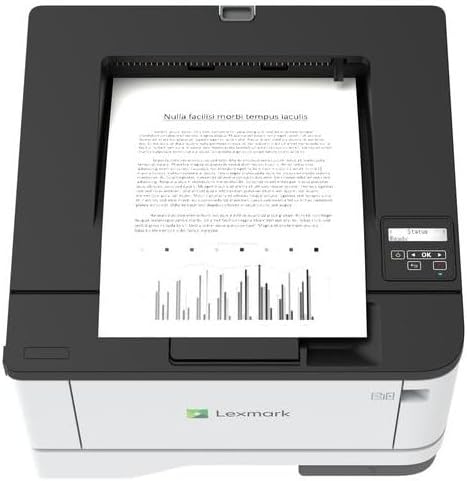
Aworan: Oke view of the Lexmark MS431dw with paper loaded in the input tray.
Open the paper tray and adjust the paper guides to fit the size of your paper. Load the paper stack into the tray, ensuring it is flat and below the maximum fill line. Close the paper tray. The printer supports various media types, including card stock.
4. Nsopọ Agbara
So okùn agbára náà mọ́ agbára ẹ̀rọ ìtẹ̀wé náà, lẹ́yìn náà so mọ́ ibi tí a ti rì mọ́ iná mànàmáná.
5. Connecting to a Network/Computer
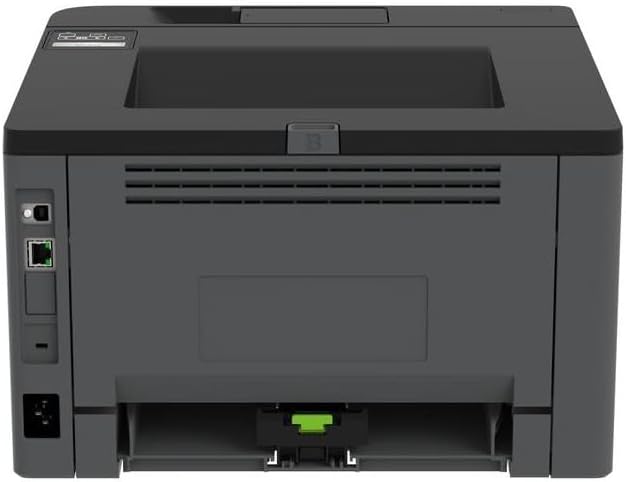
Aworan: Ẹyin view of the Lexmark MS431dw, highlighting the Ethernet and power connection ports.
The Lexmark MS431dw supports Ethernet connectivity. Connect an Ethernet cable from your network router or switch to the Ethernet port on the back of the printer. For direct connection to a computer, use a USB cable (not included) if available, or configure network printing.
6. Fifi sori awakọ
Turn on the printer. Insert the driver CD (if provided) into your computer, or download the latest drivers from the official Lexmark support webAaye ayelujara. Tẹle awọn ilana loju iboju lati pari fifi sori ẹrọ awakọ naa.
Awọn ilana Iṣiṣẹ
1. Iṣakoso igbimo Loriview

Aworan: Oke view of the Lexmark MS431dw, showing the printer's control panel with display and buttons.
The control panel features a display screen and navigation buttons (Up, Down, OK, Back) to access printer settings, status, and functions. Refer to the on-screen menus for specific options.
2. Ipilẹ Printing
- Rii daju pe itẹwe ti wa ni titan ati ti sopọ si kọnputa tabi nẹtiwọki rẹ.
- Ṣii iwe ti o fẹ lati tẹ sita lori kọnputa rẹ.
- Yan Titẹ sita lati inu akojọ ohun elo (fun apẹẹrẹ, File > Titẹjade).
- Choose the Lexmark MS431dw from the list of available printers.
- Adjust print settings as desired (e.g., number of copies, paper size).
- Tẹ Titẹ sita.
3. Automatic Duplex Printing
The MS431dw supports automatic two-sided (duplex) printing. To enable this feature:
- In the print dialog box on your computer, navigate to the printer properties or preferences.
- Look for an option related to "Two-sided printing" or "Duplex printing."
- Yan àṣàyàn duplex tí o fẹ́ (fún àpẹẹrẹ, ìdè gígùn, ìdè kúkúrú).
- Jẹrisi yiyan rẹ ki o tẹsiwaju pẹlu titẹjade.
Itoju
1. Rírọ́pò Káàtìrìjì Toner
When the toner level is low, the printer's display will indicate a warning. To replace the cartridge:
- Rii daju pe itẹwe ti wa ni titan.
- Ṣii ideri iwaju.
- Yọ katiriji toner atijọ kuro nipa fifa a jade.
- Unpack a new Lexmark-compatible toner cartridge and gently shake it.
- Insert the new cartridge until it locks into place.
- Pa ideri iwaju.
2. Ninu itẹwe
Ìmọ́tótó déédéé ń ran lọ́wọ́ láti mú kí ìtẹ̀wé dára síi, ó sì ń mú kí ìtẹ̀wé pẹ́ síi.
- Òde: Mu ese ita gbangba pẹlu asọ, damp, lint-free asọ. Ma ṣe lo abrasive ose tabi epo.
- Inu inu: Periodically open the front cover and gently remove any dust or paper debris from accessible areas using a dry, lint-free cloth. Avoid touching the fuser unit.
Laasigbotitusita
This section addresses common issues you might encounter. For more detailed troubleshooting, refer to the Lexmark support webojula.
1. Awọn Jams iwe
- If a paper jam occurs, the printer display will show an error message indicating the location of the jam.
- Carefully open the indicated covers or trays.
- Fi pẹ̀lẹ́pẹ̀lẹ́ fa ìwé tí ó ti dí mọ́lẹ̀ sí ọ̀nà tí ìwé náà ń gbà. Má ṣe ya ìwé náà.
- Close all covers and trays. The printer should resume printing.
2. Dídára ìtẹ̀wé tí kò dára
- Àwọn ìtẹ̀jáde tí ó ti parẹ́: The toner cartridge may be low. Replace it if necessary.
- Àwọn ìlà tàbí àwọn ibi tí ó wà: Clean the printer's interior as described in the Maintenance section. Ensure the toner cartridge is properly seated.
- Awọn oju-iwe ti o ṣofo: Verify the toner cartridge is installed correctly and has toner. Check printer drivers and print settings.
3. Asopọmọra Oran
- A ko ri ẹrọ itẹwe: Ensure the Ethernet cable is securely connected to both the printer and the network. Verify network settings on the printer and computer.
- Ipo Aisinipo: Check the printer's power and network connection. Restart both the printer and your computer.
Awọn pato
| Ẹya ara ẹrọ | Ẹ̀kúnrẹ́rẹ́ |
|---|---|
| Nọmba awoṣe | 29S0110 |
| Imọ-ẹrọ titẹ sita | Lesa |
| Ijade itẹwe | Monochrome |
| Iyara Titẹjade ti o pọju (Monochrome) | Titi di 40 ppm (awọn oju-iwe fun iṣẹju kan) |
| Asopọmọra Technology | Àjọlò |
| Pataki Ẹya | Auto-Duplex (Automatic Two-sided Printing) |
| O pọju Input dì Agbara | 900 iwe |
| Print Media Support | Card stock, Plain paper |
| Iwọn Nkan | 9300 Giramu (isunmọ 20.5 lbs) |
| Wattage | 570 watt |
| UPC | 734646695558 |
Akiyesi: Awọn alaye ni o wa labẹ iyipada laisi akiyesi.
Atilẹyin ọja ati Support
Alaye atilẹyin ọja
Your Lexmark MS431dw printer is covered by a standard manufacturer's warranty. For specific terms, conditions, and duration of your warranty, please refer to the documentation included with your product or visit the official Lexmark webojula. Jeki ẹri rira rẹ fun awọn iṣeduro atilẹyin ọja.
Onibara Support
For technical assistance, driver downloads, or further support, please visit the official Lexmark support portal.
Visit the Lexmark Store for Support