
1. Ọja Ipariview
The VENTION USB 3.0 Hub (Model CHL) is a compact and portable 4-port USB splitter designed to expand the connectivity of your laptop or PC. It offers high-speed data transfer and broad compatibility with various USB devices.
Awọn ẹya pataki:
- Ìfẹ̀sí Ibudo 4: Provides four additional USB ports for connecting multiple peripherals simultaneously.
- Gbigbe Data Iyara Giga: Utilizes USB 3.0 technology for data sync speeds up to 5Gbps, which is up to 10 times faster than USB 2.0.
- Pulọọgi ati Ṣiṣẹ: Requires no driver installation for immediate use.
- External Power Support: Includes a micro USB port for optional external power supply when connecting power-hungry devices. Avoid power adapters exceeding 5V/2A.
- Iwapọ ati Gbigbe: Ultra-slim and lightweight design for easy transport and use on the go.
- Ibamu gbooro: Supports Windows 10/8/7/Vista/XP, Mac OS x 10.6-10.12 or later, and Linux 2.6.14 or later.
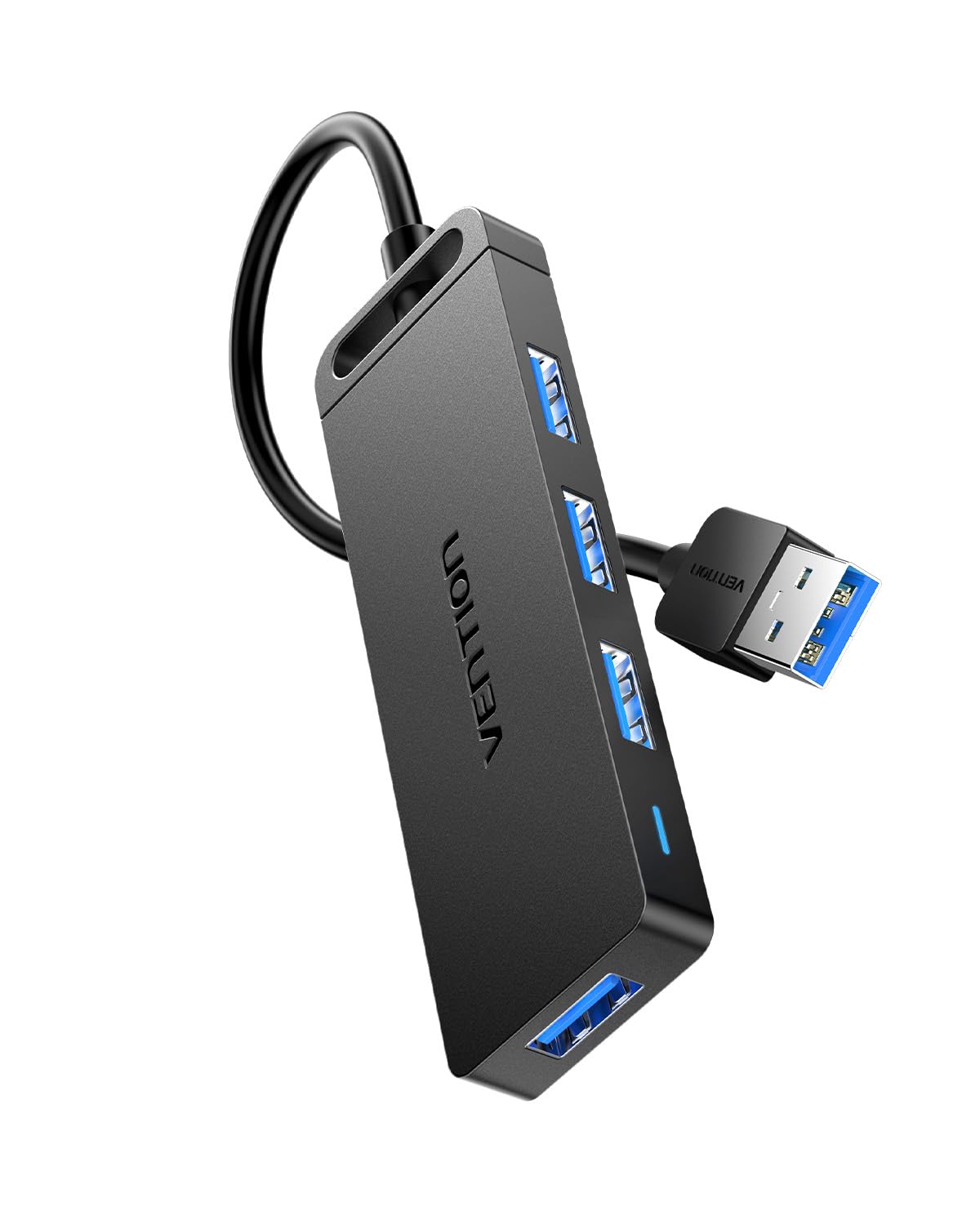
Figure 1: VENTION USB 3.0 Hub (Model CHL)
2. Awọn ilana iṣeto
Follow these steps to set up your VENTION USB 3.0 Hub:
- Sopọ si Ẹrọ Gbalejo: Plug the USB-A connector of the VENTION USB 3.0 Hub into an available USB 3.0 port on your laptop, PC, or other compatible host device. The hub is plug-and-play, so no additional drivers are required.
- Observe Indicator Light: Once connected, a blue indicator light on the hub will illuminate, signifying that the device is powered and operational.
- Agbara Ita ti a yan: If you plan to connect power-hungry devices such as external hard drives, connect a micro USB power adapter (not included) to the micro USB port on the hub. Ensure the power adapter does not exceed 5V/2A to prevent damage.

Figure 2: Connecting the USB Hub to a laptop.
Video 1: Demonstrates connecting the VENTION USB 3.0 Hub to a laptop, showing the indicator light, internal chip, data transfer capabilities, and smart phone charging support.
3. Awọn ilana Iṣiṣẹ
Once the hub is connected, you can begin using its ports:
- Awọn ẹrọ Asopọmọra: Insert your USB devices (e.g., flash drives, external hard drives, mouse, keyboard, printer) into any of the four available USB 3.0 ports on the hub.
- Gbigbe Data: The hub supports high-speed data transfer up to 5Gbps. This allows for quick transfer of large files, bíi 1GB file ni isunmọ 3 aaya.
- Gbigba agbara: The USB 3.0 ports can also support charging for smart phones and other compatible devices, especially when the hub is connected to an external power source.
- Ibamu sẹhin: The hub is backward compatible with USB 2.0 and USB 1.0 devices, ensuring versatility with older peripherals, though data transfer speeds will be limited to the device's capabilities.
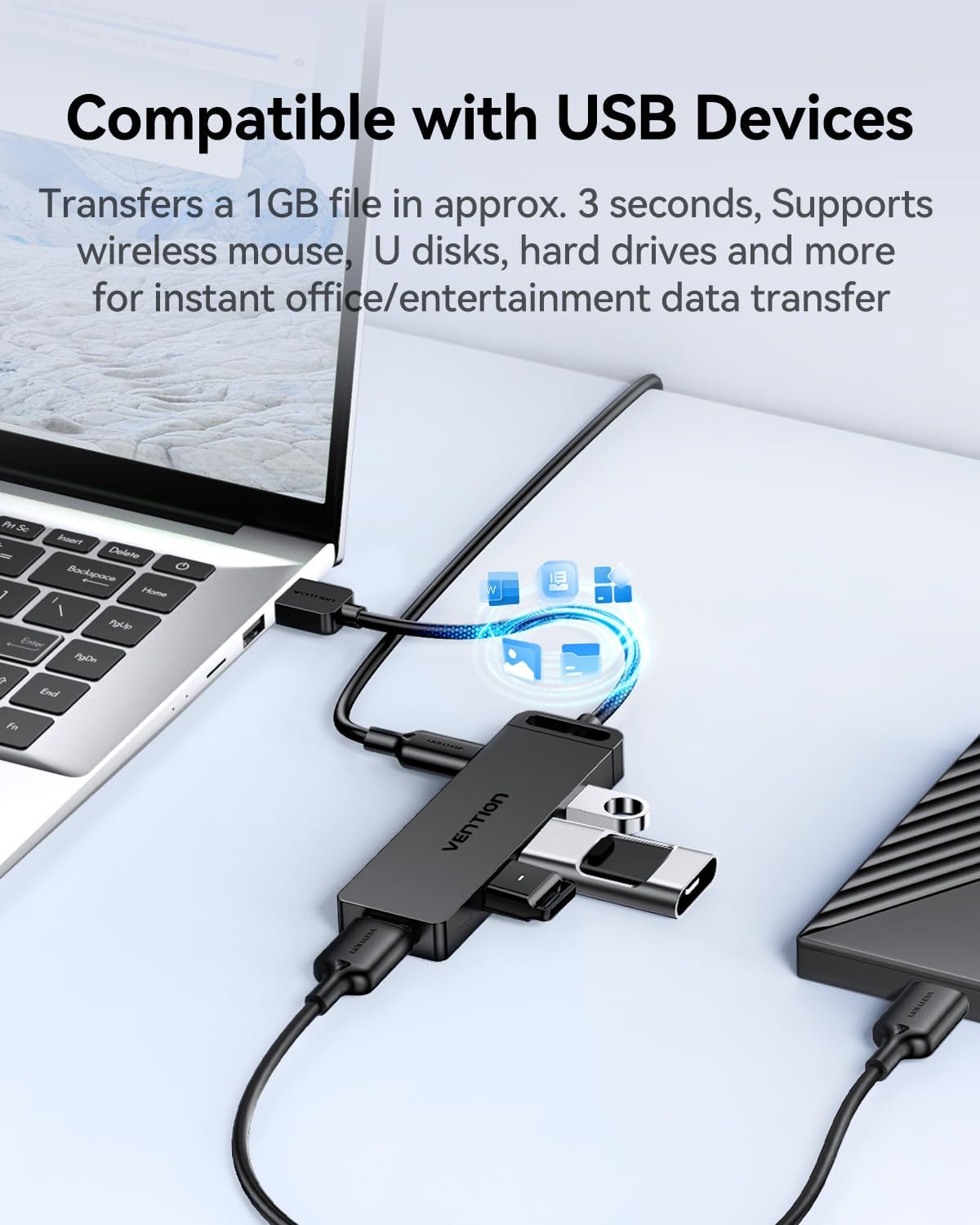
Figure 3: The VENTION USB 3.0 Hub connected to a laptop with multiple USB devices.

Figure 4: The 4-in-1 USB 3.0 Multiport Hub helps maintain a tidy workspace by consolidating connections.
Video 2: Shows the VENTION USB 3.0 Hub in use, connecting multiple devices to a tablet and demonstrating its utility.
4. Itọju
To ensure the longevity and optimal performance of your VENTION USB 3.0 Hub, follow these maintenance guidelines:
- Ninu: Use a soft, dry cloth to wipe the exterior of the hub. Avoid liquid cleaners or abrasive materials that could damage the surface or internal components.
- Ibi ipamọ: Nigbati o ko ba wa ni lilo, tọju ibudo naa ni itura, aye gbigbẹ kuro lati orun taara ati awọn iwọn otutu to gaju.
- Itọju USB: Avoid bending or twisting the integrated USB cable excessively to prevent internal wire damage.
- Pipade Ooru: The hub features a durable, scratch-resistant ABS shell designed to improve heat dissipation. Ensure it is not covered or placed in an enclosed space during operation to allow for proper airflow.

Figure 5: The durable ABS shell of the VENTION USB 3.0 Hub is designed for effective heat dissipation.
5. Laasigbotitusita
If you encounter issues with your VENTION USB 3.0 Hub, refer to the following common problems and solutions:
- Ohun elo Ko Damọ:
- Rii daju pe ibudo ti wa ni edidi ni aabo sinu ibudo USB ti kọnputa rẹ.
- Gbiyanju lati so ibudo pọ si ibudo USB ti o yatọ lori kọnputa rẹ.
- Tun kọmputa rẹ bẹrẹ ki o tun so ibudo naa pọ.
- If connecting a power-hungry device (e.g., external HDD), ensure an external micro USB power adapter (5V/2A max) is connected to the hub.
- Iyara Gbigbe Data lọra:
- Verify that both the hub and your connected device support USB 3.0 for optimal speeds. If either is USB 2.0, speeds will be limited to USB 2.0 rates.
- Ensure the hub is connected to a USB 3.0 port on your computer (often identified by a blue interior).
- Avoid connecting too many power-hungry devices simultaneously without an external power supply.
- Asopọmọra Laarin:
- Ṣayẹwo gbogbo awọn asopọ okun fun alaimuṣinṣin.
- Ensure the USB cable of the hub is not damaged.
- Test with different USB devices to isolate if the issue is with a specific peripheral.
If these steps do not resolve the issue, please contact VENTION customer service for further assistance.
6. Awọn pato
| Ẹya ara ẹrọ | Ẹ̀kúnrẹ́rẹ́ |
|---|---|
| Brand | IGBAGBÜ |
| Nọmba awoṣe | Chl |
| Ọja Mefa | 3.9 x 1.2 x 0.4 inches |
| Iwọn Nkan | 1.38 iwon |
| Ni wiwo Hardware | USB 3.0 |
| Iyara Gbigbe Data | Titi di 5Gbps |
| Pataki Awọn ẹya ara ẹrọ | Fast Data Transfer, Heat Resistant, Indicator Light, Lightweight, Portable |
| Awọn ẹrọ ibaramu | Computers, Laptops, Keyboards, Mouse, USB sound cards, Flash Drives, HDDs, Printers |
| Ibi ti ina elekitiriki ti nwa | USB Bus-powered; Micro USB for optional external power (5V/2A max) |
| Awọn ọna ṣiṣe | Windows 10/8/7/Vista/XP, Mac OS x 10.6-10.12+, Linux 2.6.14+ |
7. Atilẹyin ọja ati Support
The VENTION USB 3.0 Hub (Model CHL) comes with a 1-odun atilẹyin ọja Láti ọjọ́ tí a rà á. Àtìlẹ́yìn yìí bo àwọn àbùkù iṣẹ́ ṣíṣe, ó sì ń rí i dájú pé ọjà náà bá àwọn ìlànà iṣẹ́ tí a là sílẹ̀ mu lábẹ́ lílò déédéé.
For any questions, technical support, or warranty claims, please contact VENTION customer service. You can typically find contact information on the product packaging or the official VENTION webojula.