
Ọrọ Iṣaaju
The Apogee Symphony Desktop is a professional audio interface designed to bring flagship sound quality to your personal studio. It features advanced A/D and D/A conversion, powerful mic preamps, an intuitive touch-screen display, and integrated DSP processing. This manual provides essential information for setting up, operating, maintaining, and troubleshooting your Symphony Desktop.

Eto Itọsọna
1. Unboxing ati Awọn akoonu
Carefully unpack your Apogee Symphony Desktop. Verify that all components are present:
- Symphony Desktop Unit
- Ibi ti ina elekitiriki ti nwa
- USB Iru A Okun
- USB Iru C C
- USB Flash Drive (containing software installers and documentation)
2. Nsopọ ẹrọ naa
Connect the Symphony Desktop to your computer or compatible device using the provided USB Type A or USB Type C cable. Ensure the power supply is connected to the unit and a power outlet. The device supports Mac, PC, iPhone, and iPad operating systems.

3. Software fifi sori
The Apogee Symphony Desktop requires the Apogee Software Control 2 application for full functionality. Insert the provided USB Flash Drive into your computer and follow the on-screen instructions to install the necessary drivers and software. Alternatively, download the latest software from the official Apogee webojula.

Operating the Symphony Desktop
1. Intuitive Touch Screen
The Symphony Desktop features an intuitive touch screen display for direct control over settings and parameters. This allows for hands-on adjustment of input levels, output routing, and DSP plugin settings without needing to constantly switch to your computer software.

2. Powerful Microphone Preamps
The device includes high-quality microphone preamps offering up to 75dB of clean gain. These preamps are designed for ultra-low noise and distortion, ensuring transparent recordings.
Vintage Mic Emulations
The Symphony Desktop offers two vintage mic ṣaajuamp emulations: a Neve 1066 and an Ampex 601. These emulations combine analog circuitry with DSP processing to provide authentic and rich tonal characteristics for your recordings.


3. Integrated DSP Plugins
The Symphony Desktop includes a suite of hardware DSP plugins and native plugins to enhance your audio processing capabilities:
- Hardware DSP Plugins: Symphony ECS Channel Strip, Pultec EQP-1A, Pultec MEQ-5, Opto-3A, ModEQ 6, and ModComp. These run directly on the interface's hardware, providing zero-latency processing.
- Ilu abinibi Plugins: Symphony ECS Channel Strip and Clearmountain’s Spaces. These can be used within your Digital Audio Workstation (DAW).

4. DualPath Monitoring
DualPath Monitoring allows you to control all recording parameters directly from your DAW. This eliminates the need to switch between multiple software windows, streamlining your workflow and ensuring consistent sound and settings.
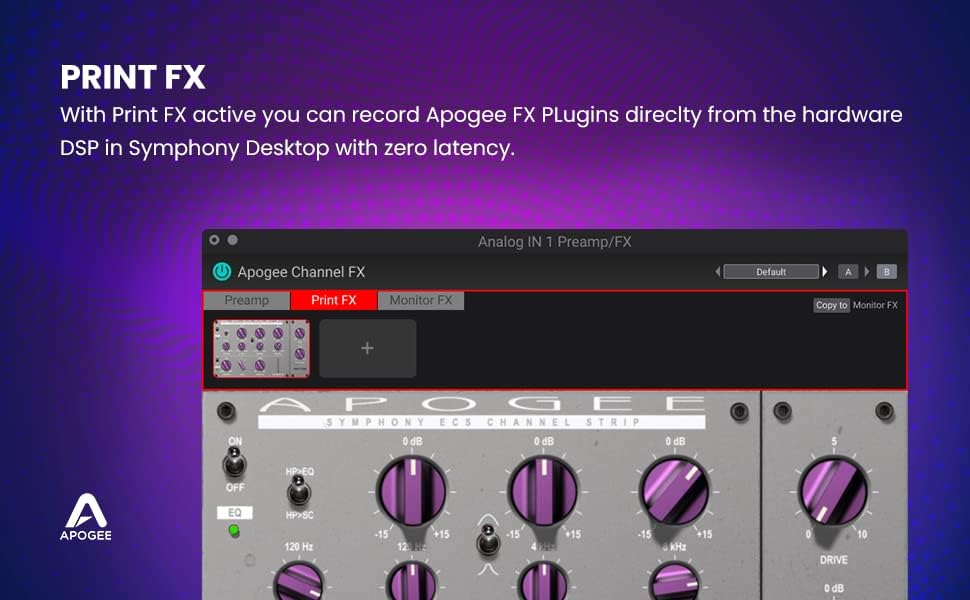
5. Print FX and Monitor FX
The Symphony Desktop and its Control 2 Software offer flexibility in applying effects:
- Print FX: When active, you can record Apogee FX Plugins directly from the hardware DSP with zero latency. The effects are permanently applied to the recorded audio.
- Monitor FX: This mode provides ultimate flexibility. You can monitor with Apogee FX plugins at zero latency while tracking, without printing the effects to the recorded audio. This allows for an inspiring sound during performance while retaining a dry signal for mixing.

Itoju
1. Ninu
To maintain the appearance and functionality of your Symphony Desktop, regularly wipe the exterior with a soft, dry cloth. Avoid using abrasive cleaners, solvents, or sprays directly on the unit, especially on the touch screen. For the touch screen, a microfiber cloth lightly dampened with water can be used, ensuring no liquid enters the device.
2. Software imudojuiwọn
Periodically check the official Apogee website for software and firmware updates. Keeping your Symphony Desktop's software up-to-date ensures optimal performance, compatibility, and access to new features or bug fixes. Follow the instructions provided with each update carefully.
Laasigbotitusita
If you encounter issues with your Apogee Symphony Desktop, consider the following common troubleshooting steps:
- Ẹrọ ti ko ni agbara: Ensure the power supply is securely connected to both the Symphony Desktop and a working power outlet. Verify the power outlet is active. Try a different power outlet if available.
- Ko si ohun igbewọle/Ijadejade: Check all cable connections (USB, audio inputs/outputs). Verify that the correct input/output devices are selected in your computer's sound settings and your DAW. Ensure gain levels are appropriately set on the Symphony Desktop and within your software.
- Software Instability or Crashes: Ensure you have the latest drivers and software installed from the Apogee website. Try uninstalling and reinstalling the Apogee Control 2 software. Check for conflicts with other audio drivers or applications.
- Iboju Fọwọkan Ko dahun: Gently clean the touch screen. If the issue persists, try restarting the Symphony Desktop and your computer.
- Awọn ọran aipe: Adjust the buffer size in your DAW's audio settings. Lower buffer sizes reduce latency but require more processing power. Ensure you are utilizing the Symphony Desktop's direct monitoring or Monitor FX feature for zero-latency monitoring during recording.
For persistent issues, refer to the detailed troubleshooting guides on the Apogee support website or contact Apogee customer support directly.
Awọn pato
| Ẹya ara ẹrọ | Ẹ̀kúnrẹ́rẹ́ |
|---|---|
| Iwọn Nkan | 1.85 iwon |
| Ọja Mefa | 8 x 4.75 x 2.5 inches |
| Nọmba Awoṣe Nkan | SYMPHONYDESKTOP |
| Awọn ẹrọ ibaramu | Tablet, Mac, PC, iPhone, iPad |
| Software atilẹyin | Apogee Software Control 2 |
| Eto isesise | Mac, Windows, iPad Pro |
| Asopọmọra Technology | USB |
| Nọmba ti awọn ikanni | 10 |
| Akọkọ Wa Ọjọ | Oṣu Kẹsan Ọjọ 30, Ọdun 2020 |
Atilẹyin ọja ati Support
The Apogee Symphony Desktop comes with a manufacturer's warranty. For detailed information regarding warranty terms, registration, and support, please visit the official Apogee website or refer to the documentation included with your product. For technical assistance, software downloads, and frequently asked questions, please visit the Apogee Store tàbí ojú ọ̀nà ìrànlọ́wọ́ wọn tí a yà sọ́tọ̀.