
DOOGEE S40 Pro
DOOGEE S40 Pro Afowoyi olumulo foonu gaungaun
Awoṣe: S40 Pro
Ọrọ Iṣaaju
The DOOGEE S40 Pro is a rugged smartphone designed for durability and performance in challenging environments. It features a 5.45-inch display, Android 10, a 4650mAh battery, and dual rear cameras. This manual provides essential information for setting up, operating, maintaining, and troubleshooting your device.

Aworan: Iwaju ati sẹhin view of the DOOGEE S40 Pro rugged phone, showcasing its robust design and camera module.
1. Eto
1.1 Unboxing ati Package Awọn akoonu
Carefully unbox your DOOGEE S40 Pro. Verify that all standard accessories are included in the package.

Image: Contents of the DOOGEE S40 Pro package, including the phone, power adapter, USB cable, user manual, and warranty information.
- DOOGEE S40 Pro Smartphone
- Adapter agbara
- Okun USB
- Itọsọna olumulo
- Kaadi atilẹyin ọja
1.2 Fifi sori ẹrọ Kaadi SIM ati Kaadi SD
The DOOGEE S40 Pro supports dual SIM cards and an expandable SD card for additional storage. Locate the SIM tray on the side of the device.
- Use the provided SIM ejector tool to open the SIM card tray.
- Carefully place your Nano-SIM cards and/or microSD card into the designated slots on the tray. Ensure the gold contacts are facing down.
- Fi ọwọ́ rọra tẹ atẹ naa pada sinu foonu naa titi ti yoo fi fara jọ ara ẹrọ naa.
1.3 Gbigba agbara akọkọ
Ṣaaju lilo akọkọ, o niyanju lati gba agbara si ẹrọ naa ni kikun.
- So okun USB pọ mọ oluyipada agbara.
- Plug the USB cable into the charging port of the phone.
- Pulọọgi ohun ti nmu badọgba agbara sinu iṣan ogiri kan.
- Àmì ìgbóná yóò hàn lójú ìbòjú. Jẹ́ kí fóònù náà gba agbára títí àmì bátírì yóò fi kún.
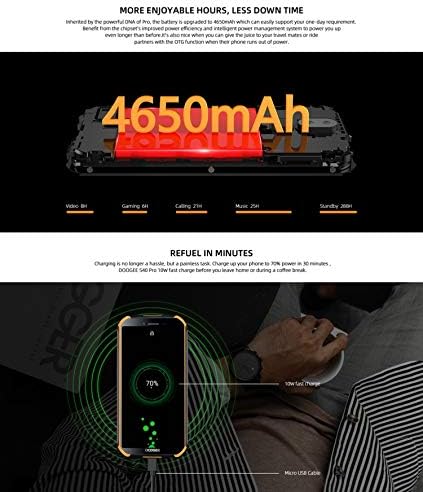
Image: The DOOGEE S40 Pro connected to a charger, showing the charging animation and battery percentage.
1.4 Agbara Tan / Pa
- Lati Fi agbara: Press and hold the Power button (located on the right side) until the DOOGEE logo appears.
- Lati Paarẹ: Tẹ mọlẹ bọtini agbara titi ti akojọ aṣayan agbara yoo han. Yan "Agbara kuro" ki o jẹrisi.
- Lati Tun bẹrẹ: Lati akojọ aṣayan agbara, yan "Tun bẹrẹ" ki o jẹrisi.
2. Awọn ilana Iṣiṣẹ
2.1 Ipilẹ Lilọ kiri
The DOOGEE S40 Pro operates on Android 10.0 and uses a touchscreen for navigation.
- Fọwọ ba: Fọwọkan iboju lẹẹkan lati yan ohun kan tabi ṣii ohun elo kan.
- Ra: Fa ika rẹ kọja iboju lati yi lọ nipasẹ awọn oju-iwe tabi awọn atokọ.
- Fun pọ-si- Sun-un: Gbe awọn ika ika meji sori iboju ki o gbe wọn lọtọ tabi papọ lati sun-un sinu tabi jade.
- Long Tẹ: Press and hold an item to access additional options or move icons.
2.2 Awọn ipe ati Fifiranṣẹ
- Ṣiṣe awọn ipe: Ṣii ohun elo foonu, tẹ nọmba sii, ki o tẹ aami ipe ni kia kia.
- Gbigba Awọn ipe: Swipe up to answer or down to decline an incoming call.
- Fifiranṣẹ Awọn ifiranṣẹ: Open the Messages app, tap the new message icon, enter the recipient and message, then tap send.
2.3 kamẹra Lilo
The S40 Pro features dual rear cameras (13MP Sony primary sensor + 2MP portrait camera) and a front camera for selfies.

Image: Diagram highlighting the AI Rear Dual Camera setup on the DOOGEE S40 Pro, showing the 13MP Sony sensor and 2MP portrait camera, along with exampawọn fọto.
- Ṣii ohun elo kamẹra lati iboju ile rẹ tabi duroa app.
- Yipada laarin awọn kamẹra iwaju ati ẹhin nipa lilo aami yi pada kamẹra.
- Fọwọ ba bọtini titiipa lati ya fọto kan.
- Explore different modes like Portrait, Video, and Panorama.
2.4 Ṣii silẹ Itẹka ika
The device includes a rear-mounted fingerprint sensor for quick and secure unlocking.

Image: Illustration of the fingerprint unlock feature on the DOOGEE S40 Pro, showing a finger interacting with the rear-mounted sensor.
- Lọ si Eto > Aabo & ipo > Itẹka ika.
- Tẹle awọn ilana loju iboju lati forukọsilẹ itẹka rẹ.
- Once registered, simply place your finger on the sensor to unlock the phone.
2.5 NFC and Google Pay
The DOOGEE S40 Pro supports NFC (Near Field Communication) for convenient data transmission and mobile payments like Google Pay.

Image: Visual representation of NFC functionality for Google Pay and data transmission, and the 3.5mm headphone jack on the DOOGEE S40 Pro.
- To enable NFC: Lọ si Eto > Awọn ẹrọ ti a ti sopọ > NFC ki o si tan-an.
- Google Pay: Ensure Google Pay is set up with your payment methods. Tap your phone to compatible terminals for contactless payments.
2.6 Asopọmọra
- Wi-Fi: Sopọ si awọn nẹtiwọki alailowaya nipasẹ Eto > Nẹtiwọọki & Intanẹẹti > Wi-Fi.
- Bluetooth: So pọ pẹlu awọn ẹrọ Bluetooth nipasẹ Eto > Awọn ẹrọ ti a ti sopọ > Bluetooth.
- USB: Connect to a computer using the provided USB cable for file gbigbe tabi gbigba agbara.
- Jack agbekọri 3.5mm: Plug in wired headphones for audio.
3. Itọju
3.1 Rugged Features and Durability
The DOOGEE S40 Pro is built to withstand harsh conditions, featuring IP68 water and dust resistance and MIL-STD-810G certification for drops and extreme temperatures.

Image: The DOOGEE S40 Pro submerged in water, dropped onto concrete, and surviving a fall, illustrating its IP68 and MIL-STD-810G durability.
- Omi Resistance (IP68): Can withstand submersion up to 1.5 meters for 30 minutes. Ensure all port covers are securely closed before exposure to water.
- Dust Resistance (IP68): Ni aabo ni kikun lodi si eruku eruku.
- Drop Resistance (MIL-STD-810G): Designed to survive drops from up to 1.2 meters onto hard surfaces.
- Atako iwọn otutu: Operates in extreme temperatures from -55°C to 70°C.

Image: The DOOGEE S40 Pro shown in extreme cold (-55°C) and hot (70°C) environments, highlighting its robust temperature tolerance.
3.2 Ninu ẹrọ rẹ
To clean your DOOGEE S40 Pro:
- Pa iboju ati ara rẹ pẹlu asọ ti ko ni lint.
- Fun eruku alagidi, dampen awọn asọ die-die pẹlu omi. Yago fun awọn kemikali lile tabi awọn ohun elo abrasive.
- If the device has been exposed to saltwater, rinse it thoroughly with fresh water and dry it completely before charging.
3.3 Software imudojuiwọn
Regularly check for software updates to ensure optimal performance and security.
- Lọ si Eto > Eto > Imudojuiwọn eto.
- Follow the on-screen prompts to download and install any available updates. Ensure your device has sufficient battery and a stable internet connection during updates.
4. Laasigbotitusita
| Isoro | Owun to le Solusan |
|---|---|
| Ẹrọ naa ko ṣiṣẹ. | Ensure the battery is charged. Connect to a charger and wait a few minutes before attempting to power on again. If unresponsive, try a forced restart by holding the Power button for 10-15 seconds. |
| Batiri n ṣan ni kiakia. | Check for background apps consuming power. Reduce screen brightness. Disable Wi-Fi, Bluetooth, or GPS when not in use. Perform a software update. |
| Ko le sopọ si Wi-Fi. | Rí i dájú pé Wi-Fi ti ṣiṣẹ́. Tun olulana rẹ àti foonu rẹ bẹ̀rẹ̀. Gbàgbé nẹ́tíwọ́ọ̀kì náà kí o sì tún sopọ̀ mọ́ ara wọn. |
| Foonu naa lọra tabi ko dahun. | Close unnecessary background apps. Clear cache. Restart the device. If issues persist, consider a factory reset (back up data first). |
| Kamẹra ko ṣiṣẹ. | Restart the phone. Clear the Camera app's cache and data in Settings > Apps. Ensure no other app is using the camera. |
5. Awọn pato
Key technical specifications for the DOOGEE S40 Pro:
- Orukọ awoṣe: S40 Pro
- Eto isesise: Android 10.0
- Ifihan: 5.45 inches, LCD, 1440 x 720 resolution
- Ramu: 4 GB
- Ibi ipamọ inu: 64 GB (faagun nipasẹ microSD)
- Batiri: 4650mAh
- Kamẹra Tẹhin: Dual Back Cameras (13MP Sony primary + 2MP portrait)
- Kamẹra iwaju: Bẹẹni
- Olupilẹṣẹ: Octa Core (CPU speed: 1.8 GHz, CPU model: Snapdragon)
- Asopọmọra: 4G Cellular, Wi-Fi, Bluetooth, USB, GPS, NFC
- Awọn ẹya pataki: Touchscreen, Fingerprint Sensor, 3.5mm Headphone Jack
- Iduroṣinṣin: IP68 Water & Dust Resistant, MIL-STD-810G Drop Resistant
- Àwọ̀: Dudu
- Kini o wa ninu apoti: Adapter, Okun USB
6. Atilẹyin ọja ati Support
For warranty information and customer support, please refer to the warranty card included in your product package or visit the official DOOGEE webojula. Jeki ẹri rira rẹ fun awọn iṣeduro atilẹyin ọja.
- Osise Webojula: www.doogee.cc (Jọwọ ṣakiyesi: Eyi jẹ aaye ibi URL, refer to your product's specific documentation for the correct support webAaye.)
- Iṣẹ onibara: Contact details may be found on the official webojula tabi kaadi atilẹyin ọja rẹ.
Ask a question about this manual
Ask about setup, troubleshooting, compatibility, parts, safety, or missing instructions. Manuals+ will review the question and use this page’s manual context to help answer it.