
Ọrọ Iṣaaju
Thank you for choosing the Anivia Y-901B-M 7.1 Surround Sound Gaming Headset. This manual provides detailed instructions for setting up, operating, and maintaining your headset to ensure optimal performance and an immersive audio experience. Please read this manual thoroughly before using the product.

Aworan: Iwaju view of the Anivia Y-901B-M Gaming Headset, showcasing its design with blue accents and the adjustable microphone.
Package Awọn akoonu
Daju pe gbogbo awọn nkan wa ninu apo rẹ:
- Anivia Y-901B-M PC Gaming Headset
- Itọsọna olumulo
Ọja Pariview
Agbekọri Agbekọri
- Akọkọ ti o le ṣatunṣe: Fun kan itura ati ni aabo fit.
- Soft Memory Foam Earcups: Designed for extended wear and improved air permeability.
- Ariwo-Fagilee Gbohungbohun: Flexible and adjustable for clear voice communication.
- In-line Controller: For volume adjustment, microphone on/off, and LED light control.
- Asopọ USB: For power and audio signal transmission.
- Imọlẹ LED: Integrated blue LED lights on earcups for aesthetic appeal.
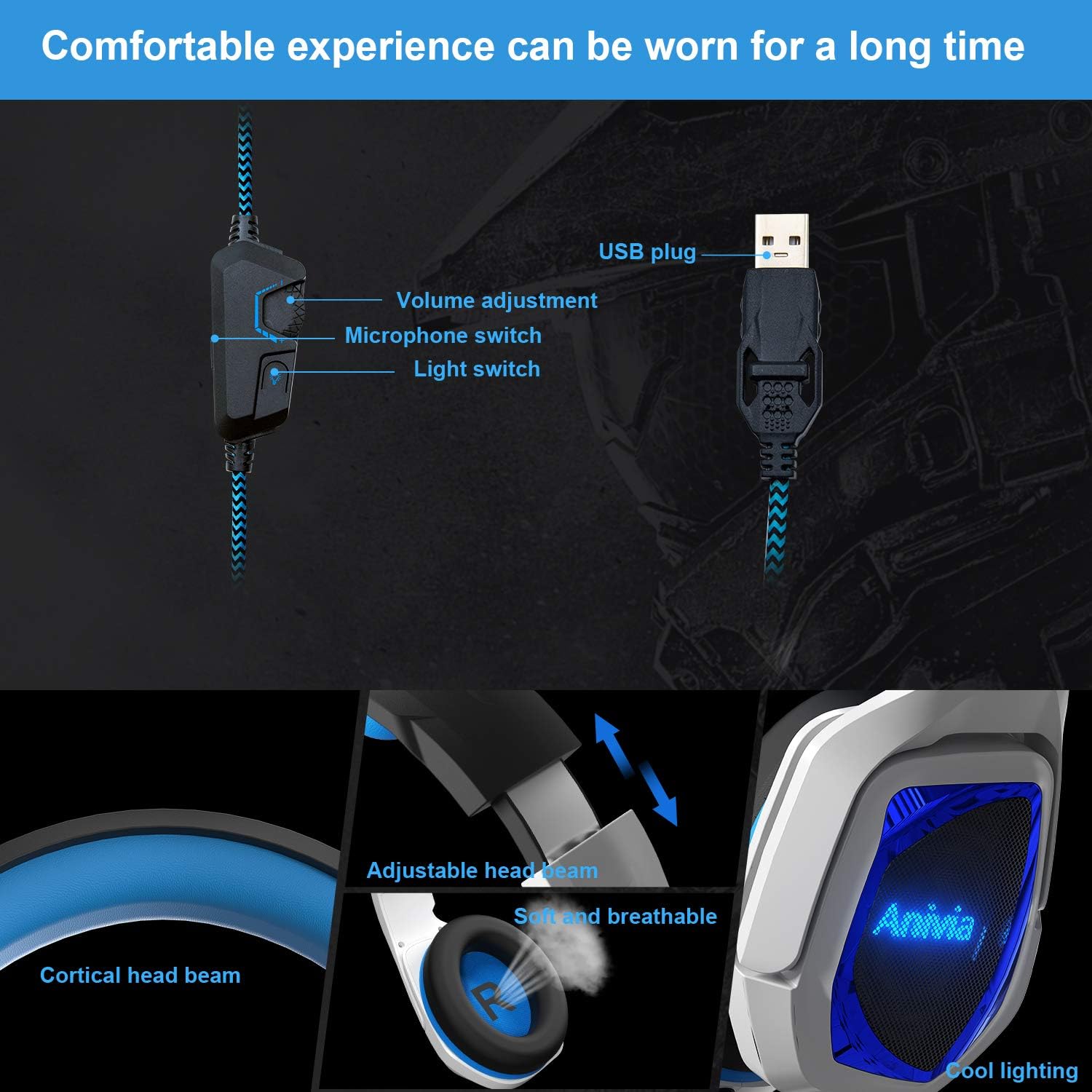
Aworan: Alaye view of the headset's in-line controls, adjustable headband, soft earcups, and LED lighting.
Awọn ilana iṣeto
Nsopọ si Ẹrọ rẹ
- Locate an available USB port on your PC, laptop, or compatible gaming console (e.g., PS4/PS5).
- Insert the USB connector of the Anivia Y-901B-M headset firmly into the USB port.
- For most operating systems (Windows 7/8/8.1/10/XP), the headset will be recognized automatically, and necessary drivers will be installed.
- Once connected, the LED lights on the earcups should illuminate, indicating power.

Image: Illustration of connecting the USB headset to various devices including a PlayStation, laptop, and desktop PC.
Initial Configuration (PC/Laptop)
- Windows Sound Settings: Right-click the speaker icon in your system tray and select "Sound Settings" or "Playback devices."
- Set as Default: Ensure the Anivia Y-901B-M headset is selected as the default playback and recording device.
- Ipele Gbohungbohun: Go to the "Recording" tab, select the headset microphone, click "Properties," and adjust the microphone level as needed.
- 7.1 Ohun ayika: For 7.1 virtual surround sound, ensure your operating system's sound settings are configured for 7.1 audio output if applicable. Some games or applications may require specific in-game audio settings.
Awọn ilana Iṣiṣẹ
Iṣakoso iwọn didun
Use the scroll wheel on the in-line controller to adjust the headset's volume. Scroll up to increase volume and down to decrease it.
Gbohungbohun Lilo
The flexible microphone can be adjusted to your preferred position for clear voice pickup. Use the switch on the in-line controller to toggle the microphone on or off. When the microphone is off, the LED indicator on the microphone tip may change color or turn off (if applicable).
Imọlẹ LED
The headset features integrated blue LED lights on the earcups. A dedicated switch on the in-line controller allows you to turn these lights on or off according to your preference.
7.1 Foju agbegbe kakiri
The Anivia Y-901B-M headset delivers an immersive 7.1 virtual surround sound experience through its high-precision 50mm neodymium audio drivers. This feature enhances spatial awareness in games, allowing you to pinpoint sound sources like footsteps or gunshots from various directions.

Image: Visual representation of 7.1 channel audio, showing how different sound effects are perceived from various directions.
Itunu ati Fit
The headset is designed for comfort during extended use. The headband is adjustable to fit various head sizes. Gently slide the earcups up or down along the headband until you achieve a snug yet comfortable fit. The soft memory foam earcups provide cushioning and breathability.

Image: Features emphasizing the headset's adjustable headband and soft, breathable earcups for comfortable wear.
Itoju
Ìtọ́jú tó tọ́ yóò mú kí agbekọri rẹ pẹ́ sí i.
- Ninu: Use a soft, dry cloth to wipe the earcups and headband. Do not use harsh chemicals or abrasive cleaners.
- Ibi ipamọ: Tọju agbekari naa ni itura, aye gbigbẹ kuro lati orun taara ati awọn iwọn otutu to gaju. Yago fun gbigbe awọn nkan ti o wuwo sori agbekari.
- Itọju USB: Yago fun awọn atunse didasilẹ tabi fifaju iwọn lori okun USB lati yago fun ibajẹ.
Laasigbotitusita
| Oro | Owun to le Solusan |
|---|---|
| Ko si ohun lati agbekari |
|
| Gbohungbohun ko ṣiṣẹ |
|
| LED lights are off |
|
| Ohun ti daru tabi koyewa |
|
Awọn pato
| Ẹya ara ẹrọ | Ẹ̀kúnrẹ́rẹ́ |
|---|---|
| Nọmba awoṣe | Y-901B-M |
| Asopọmọra Technology | Firanṣẹ (USB) |
| Awọn agbekọri Jack | USB |
| Agbọrọsọ Opin | 50mm |
| Impedance Agbọrọsọ | 16Ω ± 15% |
| Ifamọ Agbọrọsọ | 100 ± 3dB (at 1kHz) |
| Idahun igbohunsafẹfẹ Agbọrọsọ | 20Hz ~ 20KHz |
| Gbohungbohun | Ariwo-Fagilé, 360° A le ṣatunṣe |
| Iṣakoso Iru | In-line Volume Control, Mic On/Off, Light Switch |
| USB Ipari | 2.2M |
| Iwọn Nkan | 1.06 poun (isunmọ 480g) |
| Ọja Mefa | 7.87 x 3.94 x 6.3 inches |
| Awọn ẹrọ ibaramu | Desktops, Laptops, PC, PS4/PS5 Console |
| Ohun elo | Plastic, Skin-friendly Leather (earpads) |
| Pataki Awọn ẹya ara ẹrọ | Lightweight, Microphone Included, Noise Cancellation, LED Lighting |
Atilẹyin ọja ati Support
Anivia products are manufactured to high quality standards. For warranty information or technical support, please refer to the documentation included with your purchase or contact Anivia customer service through their official webaaye tabi alagbata ti o ti ra ọja naa. Jọwọ ṣe idaduro ẹri rira rẹ fun awọn iṣeduro atilẹyin ọja.