
1. Ifihan
This manual provides detailed instructions for the Symcode MJ-X5-2D Bluetooth Wireless Barcode Scanner. It covers product features, setup procedures, operating modes, maintenance guidelines, and troubleshooting tips to ensure optimal performance and longevity of your device. Please read this manual thoroughly before using the scanner.
2. Package Awọn akoonu
Daju pe gbogbo awọn nkan ti a ṣe akojọ rẹ si isalẹ wa ninu package rẹ:
- Symcode MJ-X5-2D Barcode Scanner
- Ngba agbara USB/Okun data
- 2.4G USB Alailowaya Dongle
- Itọsọna olumulo

Image: Contents of the Symcode MJ-X5-2D Barcode Scanner package, showing the scanner unit, a USB cable, a 2.4G wireless dongle, and the printed user guide.
3. Eto
3.1 Gbigba agbara akọkọ
Before first use, fully charge the scanner. Connect the scanner to a USB power source using the provided USB cable. A full charge typically takes approximately 2 hours and provides up to 5 hours of continuous operation.

Image: The scanner next to a battery icon, illustrating the charging process and battery capacity. The scanner features a 650mAh rechargeable lithium-ion battery.
3.2 Nsopọ Scanner
The Symcode MJ-X5-2D scanner offers multiple connectivity options:
- Asopọ okun USB: Connect the scanner directly to your computer using the USB cable. The scanner will function as a plug-and-play device.
- 2.4G Asopọ Alailowaya: Insert the 2.4G USB dongle into your computer's USB port. The scanner will automatically pair with the dongle. This mode offers a barrier-free transmission distance of up to 150m (492ft) and up to 30m (98ft) in a barrier environment.
- Asopọ Bluetooth: Enable Bluetooth on your host device (PC, laptop, tablet, smartphone). Put the scanner into Bluetooth pairing mode (refer to the specific pairing instructions in the included user guide). Select the scanner from your device's Bluetooth list to connect. Bluetooth offers a barrier-free transmission distance of up to 50m (164ft) and up to 15m (49ft) in a barrier environment.

Image: Connectivity options for the scanner, including USB wired, Bluetooth, and 2.4G wireless dongle, compatible with PCs, laptops, tablets, and phones.

Image: Transmission range capabilities for the 2.4GHz Wireless and Bluetooth connections. The 2.4GHz wireless mode offers up to 150m (492ft) barrier-free and 30m (98ft) with barriers. Bluetooth offers up to 50m (164ft) barrier-free and 15m (49ft) with barriers.
4. Awọn ọna ṣiṣe
The scanner supports two primary data uploading modes:
- Ipo Ikojọpọ lẹsẹkẹsẹ: In this mode, scanned barcode data is immediately transmitted to your connected device. This is suitable for real-time data entry.
- Ipo Ipamọ: The scanner can store up to 50,000 barcodes in its internal 16MB memory. Data is saved internally and can be uploaded to your device later when needed. This mode is ideal for inventory tasks where an immediate connection is not always available.
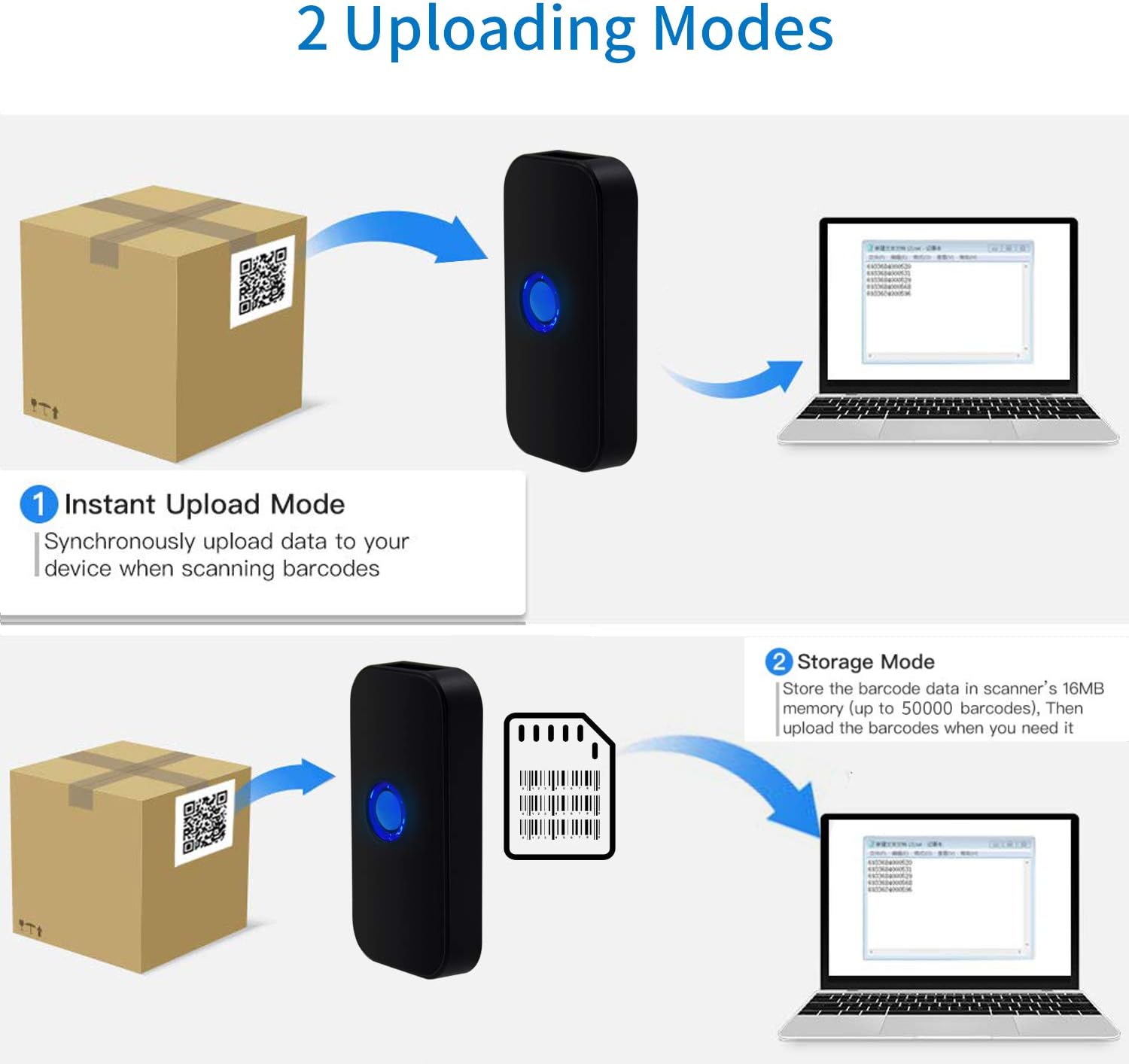
Image: Visual representation of the two data uploading modes. Instant Upload Mode sends data synchronously upon scanning, while Storage Mode saves up to 50,000 barcodes in 16MB memory for later upload.
5. Supported Barcodes
The Symcode MJ-X5-2D scanner is capable of reading both 1D and 2D digital and printed barcodes:
- 1D Barcodes: Code 128, EAN-13, EAN-8, Code 39, Code 93, UPC-A, UPC-E, Codabar, Interleaved 2 of 5, ISBN, GS1 DataBar, Matrix 2 of 5, Code 11, Industrial 2 of 5, MSI.
- 2D Barcodes: Data Matrix, PDF417, QR code, Aztec, Maxicode, Hanxin.

Image: The scanner demonstrating its ability to read various 1D and 2D barcodes, including QR codes, from digital displays and printed labels.
6. Itọju
To ensure the longevity and optimal performance of your scanner, follow these maintenance guidelines:
- Ninu: Lo aṣọ rirọ ati gbigbẹ lati nu ita ẹrọ ayẹwo naa. Fun ferese ayẹwo, lo aṣọ ti ko ni lint diẹ.ampYẹra fún àwọn kẹ́míkà líle tàbí àwọn ohun èlò ìfọ́mọ́ra.
- Ibi ipamọ: Tọ́jú ẹ̀rọ ìwádìí náà sí ibi tí ó tutù tí ó sì gbẹ, tí kò sí ìmọ́lẹ̀ oòrùn tààrà àti igbóná tó le koko.
- Itọju Batiri: Avoid fully discharging the battery frequently. If storing for extended periods, charge the battery to about 50% and recharge every few months.
- Idaabobo: Protect the scanner from drops and impacts.
7. Laasigbotitusita
If you encounter issues with your Symcode MJ-X5-2D scanner, refer to the following common problems and solutions:
- Scanner kò tan: Ensure the battery is charged. Connect the scanner to a power source using the USB cable.
- Scanner not connecting to device:
- For USB wired: Check the cable connection.
- For 2.4G Wireless: Ensure the USB dongle is properly inserted and recognized by your computer.
- For Bluetooth: Confirm Bluetooth is enabled on your device and the scanner is in pairing mode. Re-pair if necessary.
- Scanner kò ka àwọn barcode:
- Ensure the barcode is clean, undamaged, and within the scanner's reading range.
- Check if the barcode type is supported by the scanner.
- Verify that the scanner's lens is clean.
- Incorrect characters or unexpected behavior: This can sometimes occur with certain host devices or software configurations. Try resetting the scanner to factory defaults (refer to the full user guide for specific instructions). Ensure your device's input language settings are compatible.
- Scanner beeps/flashes 5 times and shuts off: This indicates a potential internal error or low battery. Try fully charging the device. If the issue persists, a factory reset might be required. Consult the full user guide for reset procedures.
If problems persist after attempting these solutions, please contact Symcode customer support.
8. Awọn pato
| Brand | symcode |
| Nọmba awoṣe | MJ-X5-2D |
| Asopọmọra Technology | Bluetooth, 2.4G Wireless, USB |
| Awọn ẹrọ ibaramu | Smartphone, PC, Laptop, Tablet |
| Orisun agbara | Agbara Batiri |
| Batiri Tiwqn | Litiumu-dẹlẹ |
| Batiri gbigba agbara | Bẹẹni |
| Àwọ̀ | Scanner QR 2D (Black) |
| UPC | 791533381758 |
9. Atilẹyin ọja ati Support
For warranty information, technical support, or service inquiries, please refer to the contact details provided in the original product packaging or visit the official Symcode webojula. Tọju iwe-ẹri rira rẹ bi ẹri rira fun awọn iṣeduro atilẹyin ọja.