
OPTIMUS 3.0
Optimus 3.0 GPS Tracker Afowoyi olumulo
Brand: OPTIMUS | Model: 3.0
1. Ọja Ipariview
The Optimus 3.0 GPS Tracker is a compact, real-time tracking device designed for vehicles, machinery, and other valuable assets. It features a long-lasting battery and comes with a heavy-duty waterproof case equipped with powerful magnets for secure attachment. The device provides accurate location data, customizable alerts, and detailed history reports accessible via a user-friendly tracking software.

Image: Optimus 3.0 GPS Tracker with its waterproof magnetic case.
2. Kini To wa
Your Optimus 3.0 GPS Tracker package includes the following items:
- Optimus 3.0 GPS Tracker Device
- Heavy Duty Waterproof Magnetic Case
- Okun Ngba agbara USB
- Activation Steps Card
- Kaadi Alaye atilẹyin ọja
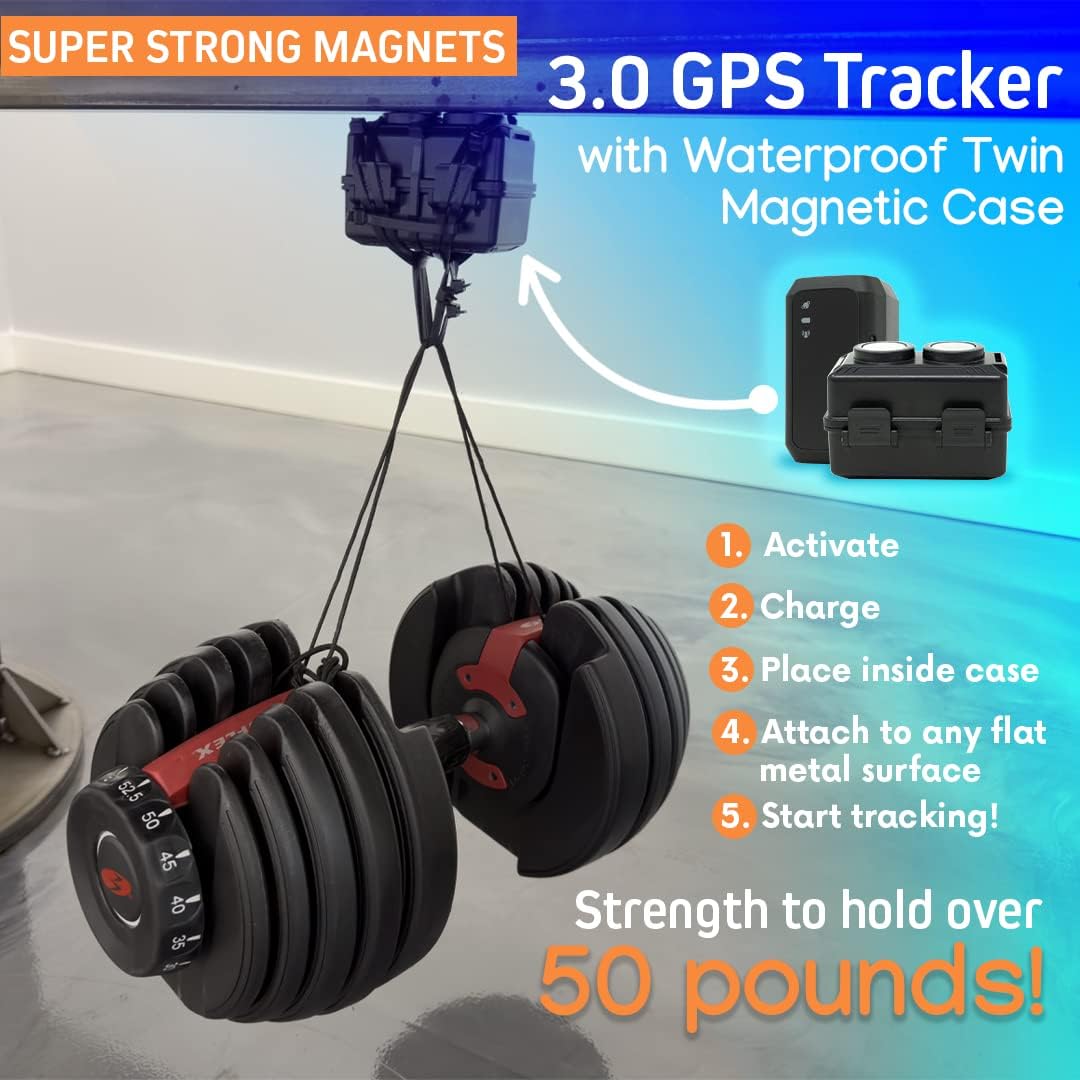
Image: The Optimus 3.0 GPS Tracker device alongside its heavy-duty waterproof magnetic case.
3. Eto ati Muu ṣiṣẹ
Follow these steps to set up and activate your Optimus 3.0 GPS Tracker:
3.1. Unboxing ati Ibẹrẹ Ayẹwo
Carefully unbox your Optimus 3.0 GPS Tracker and ensure all components listed in Section 2 are present. Inspect the device and case for any visible damage.
Video: This video demonstrates the unboxing process, powering on the device, charging, and placing the tracker inside its waterproof magnetic case.
3.2. Agbara Lori Ẹrọ
There are two methods to power on your Optimus 3.0 GPS Tracker:
- Press and Hold Power Button: Locate the power button on the device. Press and hold it until the indicator lights illuminate.
- Sopọ si Ṣaja: Plug the USB charging cable into the device and connect it to a power source. The device will automatically power on.
3.3. Ngba agbara ẹrọ
Before first use, fully charge the device. Connect the USB charging cable to the tracker and a power source. A blinking red light indicates the device is charging. A solid red light indicates a full battery.
3.4. Activating Your Tracker
To activate your Optimus 3.0 GPS Tracker, follow these steps:
- Visit the official Optimus Tracking webojula: www.optimustracker.com.
- Click on the "Activate Tracker" link.
- Fill out the required form. You will need the IMEI number, which is a 15-digit number printed on the tracker's label.
- After submitting, wait a few minutes for the activation email. Check your spam/junk folder if you do not receive it promptly.
A monthly subscription is required for the tracking service.
3.5. Initial GPS Signal Acquisition
For the device to acquire its initial GPS signal, leave it outdoors in an open area for 10-15 minutes, or take it for a short drive. This allows the tracker to calibrate and lock onto satellite signals.
4. Awọn ilana Iṣiṣẹ
The Optimus 3.0 GPS Tracker provides real-time tracking and data access through both a mobile application and a web portal.
4.1. Mobile Application Tracking
Download the Optimus Tracking app from your device's app store (available for Android and iPhone). Log in with your account credentials to view your tracker's location, route history, and manage settings.

Image: The Optimus 3.0 GPS Tracker's mobile application interface displayed on a smartphone, tablet, laptop, and desktop computer.
4.2. Web Wiwọle Portal
Access the tracking software via any web kiri nipa lilo optimustracking.com. Awọn web portal offers a comprehensive view of your tracker's activity, including detailed reports and advanced settings.
4.3. Setting Up Alerts
Configure custom instant alerts (text and/or email) for various events, such as:
- Geofence Alerts: Receive notifications when the tracker enters or exits a predefined boundary area.
- Awọn Itaniji Iyara: Get notified if the tracker exceeds a set speed limit.
- Movement Alerts: Receive alerts when the device starts moving after being stationary.

Aworan: Examples of instant alerts displayed on a smartwatch and smartphone.

Image: A map illustrating a geofence, a pre-defined boundary area for alerts.
5. Fifi sori ẹrọ ati fifi sipo
The Optimus 3.0 GPS Tracker, when enclosed in its waterproof magnetic case, can be securely attached to any flat metal surface. Ensure the device is placed in a location that allows for optimal GPS signal reception and is not easily dislodged.
- Place the tracker inside the waterproof magnetic case, ensuring it is properly sealed.
- Attach the case to a clean, flat metal surface on the vehicle or asset you wish to track. The powerful magnets will hold it in place.
- Verify the device is securely attached by gently tugging on it. It should not move easily.

Image: The GPS tracker securely installed underneath a truck.

Image: A hand demonstrating the attachment of the magnetic case to a metal surface.
6. Itọju
To ensure optimal performance and longevity of your Optimus 3.0 GPS Tracker:
- Gbigba agbara deede: Recharge the device regularly to maintain battery life. The battery can last up to 2 months with default 1-minute update settings.
- Case Inspection: Periodically inspect the waterproof magnetic case for any signs of wear or damage to ensure it remains sealed and secure.
- Awọn imudojuiwọn sọfitiwia: Keep your mobile application and web browser updated to the latest versions for the best tracking experience and access to new features.
7. Awọn pato
| Ẹya ara ẹrọ | Ẹ̀kúnrẹ́rẹ́ |
|---|---|
| Awoṣe | Optimus 3.0 |
| Awọn iwọn | 6.34 x 4.72 x 3.31 inches (Apapọ) |
| Iwọn Nkan | 8.1 iwon |
| Batiri | 1 Batiri litiumu polima (pẹlu) |
| Igbesi aye batiri | Up to 2 months (at 1-minute update setting) |
| Asopọmọra | Cellular |
| Pataki Awọn ẹya ara ẹrọ | Portable, Real-Time Tracking, Instant Alerts, Geofence, Speed Monitoring, History Reports |
| Interface Input | Awọn bọtini |
| Àwọ̀ | Dudu |
| Ohun elo | Ṣiṣu |
| Ibora | USA, Canada, and Mexico |

Image: Optimus 3.0 GPS Tracker showing its dimensions and key features.
8. Laasigbotitusita
If you encounter issues with your Optimus 3.0 GPS Tracker, consider the following common troubleshooting steps:
- No Signal/Location Updates:
- Rii daju pe ẹrọ naa ti tan ati pe o ti gba agbara ni kikun.
- Verify the device is in an area with good cellular and GPS reception (outdoors, away from heavy obstructions).
- Confirm your subscription is active and in good standing.
- Allow 10-15 minutes for initial GPS signal acquisition in an open area.
- Sisun Batiri Ni kiakia:
- Check your update frequency settings. More frequent updates consume more battery. Adjust to a longer interval if extended battery life is needed.
- Ensure the device is not in an area with extremely poor signal, as it will consume more power trying to connect.
- Ohun elo Ko Ngba agbara:
- Verify the USB charging cable is securely connected to both the device and the power source.
- Try a different USB cable or power adapter to rule out faulty accessories.
- Ohun elo/Web Portal Issues:
- Rii daju pe asopọ intanẹẹti rẹ jẹ iduroṣinṣin.
- Clear your browser cache or reinstall the mobile app.
- Check for any service outages or announcements from Optimus Tracking.
Ti awọn igbesẹ wọnyi ko ba yanju ọran rẹ, jọwọ kan si atilẹyin alabara.
9. Atilẹyin ọja ati Support
Optimus Tracking is committed to providing reliable products and excellent customer service. Your Optimus 3.0 GPS Tracker comes with a warranty. Please refer to the Warranty Information Card included in your package or visit the official website for full details on warranty coverage and exclusions.
For any questions, technical assistance, or support, please contact Optimus Tracking customer service:
- Foonu: (855) 893-0707
- Imeeli: support@optimustracker.com
- Webojula: www.optimustracker.com
Customer support is available Monday to Friday from 8 AM to 8 PM CT, and Saturday and Sunday from 9 AM to 5 PM CT.
Ask a question about this manual
Ask about setup, troubleshooting, compatibility, parts, safety, or missing instructions. Manuals+ will review the question and use this page’s manual context to help answer it.