
1. Ifihan
The Chieftec MUB-3003C is a versatile USB hub designed for installation into a standard 3.5-inch external drive bay of a desktop computer. It expands your system's connectivity by providing one USB 3.2 Type-C port and two USB 3.0 Type-A ports, offering high-speed data transfer capabilities directly from your PC's front panel.
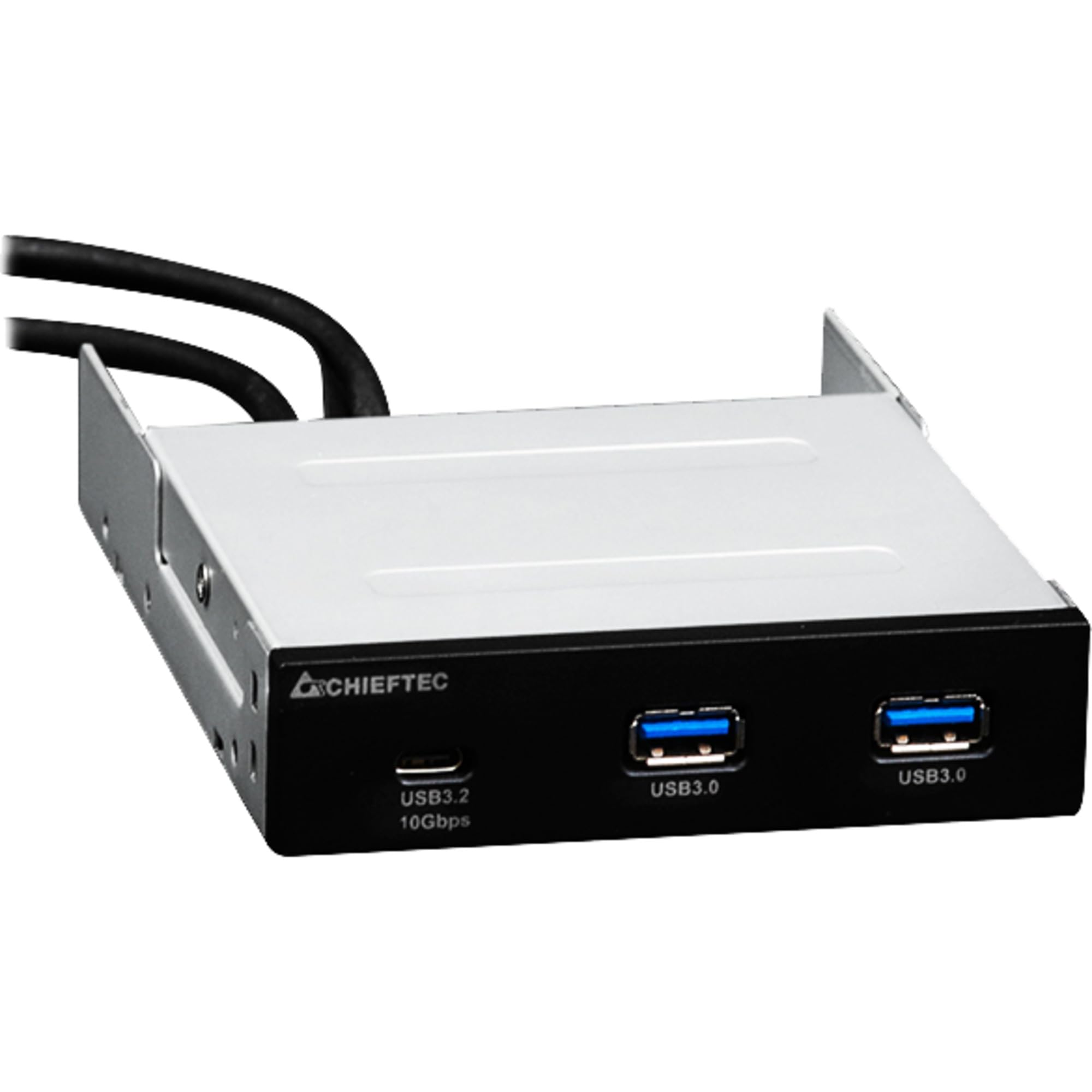
Aworan 1.1: Iwaju view of the Chieftec MUB-3003C USB Hub, showing the USB 3.2 Type-C and two USB 3.0 Type-A ports.
2. Alaye Aabo
Jọ̀wọ́ ka àwọn ìtọ́ni ààbò wọ̀nyí kí o sì tẹ̀lé wọn dáadáa kí o má baà ba ẹ̀rọ náà jẹ́ tàbí kí o ba ara rẹ jẹ́.
- Ma ṣe fi ẹrọ naa han si ọrinrin, awọn iwọn otutu pupọ, tabi imọlẹ orun taara.
- Má ṣe gbìyànjú láti ṣí tàbí ṣe àtúnṣe sí ẹ̀rọ náà. Tọ́ka gbogbo iṣẹ́ ìtọ́jú náà sí àwọn òṣìṣẹ́ tó mọ̀ nípa rẹ̀.
- Ensure proper grounding of your computer system before installation.
- Disconnect power from your computer before installing or removing the USB hub.
- Pa ẹrọ kuro lati awọn ọmọde.
3. Package Awọn akoonu
Daju pe gbogbo awọn nkan wa ninu apo rẹ:
- Chieftec MUB-3003C USB Hub
- Internal USB 3.0 Header Cable
- Mounting Screws (typically included with PC cases or the hub)

Image 3.1: The Chieftec MUB-3003C USB Hub shown with its retail packaging.
4. Eto ati fifi sori
Follow these steps to install the Chieftec MUB-3003C USB Hub into your computer system.
- Mura Eto Rẹ: Power off your computer and disconnect the power cable from the wall outlet. Open your computer case to access the internal components.
- Locate a 3.5-inch Bay: Identify an available 3.5-inch external drive bay in your computer case. This is typically found at the front of the case.
- Fi sori ẹrọ Hub: Slide the MUB-3003C USB Hub into the chosen 3.5-inch bay from the front of the case until it is flush with the front panel. Secure the hub using the appropriate mounting screws on both sides.
- Connect Internal Cables:
- Connect the internal USB 3.0 header cable from the MUB-3003C to an available USB 3.0 (or USB 3.1 Gen1) header on your motherboard. This header is usually blue and labeled 'USB3' or 'F_USB3'.
- Akiyesi: The MUB-3003C typically draws power directly from the USB 3.0 header. No separate SATA power connection is usually required for this model.
- Pa Apo ati Agbara Tan: Once all connections are secure, close your computer case, reconnect the power cable, and power on your computer. The system should automatically detect the new USB hub.

Aworan 4.1: Apa view of the Chieftec MUB-3003C USB Hub, illustrating the mounting bracket and the internal USB 3.0 header cable connection.
5. Awọn ilana Iṣiṣẹ
Using the Chieftec MUB-3003C USB Hub is straightforward:
- Awọn ẹrọ Sopọ: Plug your USB devices (e.g., flash drives, external hard drives, card readers, smartphones) into the available ports on the front of the hub.
- USB 3.2 Iru-C Port: This port supports data transfer speeds up to 10 Gbps (USB 3.1 Gen2). Use it for devices that require the highest speed and utilize a USB-C connector.
- Àwọn Ibudo USB 3.0 Iru-A: These two ports support data transfer speeds up to 5 Gbps (USB 3.1 Gen1). They are compatible with standard USB-A devices.
- Pulọọgi & Ṣiṣẹ: The hub is plug-and-play compatible, meaning no additional drivers are typically required for most operating systems.

Image 5.1: Close-up of the Chieftec MUB-3003C USB Hub's front panel, highlighting the USB 3.2 Type-C and USB 3.0 Type-A ports.
6. Itọju
To ensure the longevity and optimal performance of your USB hub:
- Ninu: Use a soft, dry cloth to gently wipe the exterior of the hub. Avoid using liquid cleaners or abrasive materials.
- Ayika: Keep the hub installed in a well-ventilated area within your PC case to prevent overheating.
- Awọn isopọ: Periodically check that all internal and external connections are secure.
7. Laasigbotitusita
If you encounter issues with your Chieftec MUB-3003C USB Hub, refer to the following common problems and solutions:
- Ohun elo Ko Damọ:
- Ensure the internal USB 3.0 header cable is securely connected to both the hub and the motherboard.
- Try connecting the USB device directly to a motherboard port to verify the device itself is functional.
- Check your motherboard's BIOS/UEFI settings to ensure USB ports are enabled.
- Awọn iyara Gbigbe Data lọra:
- Ensure you are using USB 3.0/3.2 compatible devices and cables. Connecting a USB 2.0 device will result in USB 2.0 speeds.
- Verify that the hub is connected to a USB 3.0 or higher header on your motherboard.
- Avoid connecting multiple high-bandwidth devices simultaneously if you experience performance degradation.
- No Power to USB Devices:
- Confirm the internal USB 3.0 header cable is fully seated on the motherboard.
- Some high-power USB devices may require an externally powered hub. This hub draws power from the motherboard's USB header, which has power limitations.
8. Awọn pato
| Ẹya ara ẹrọ | Sipesifikesonu |
|---|---|
| Brand | Chieftec |
| Nọmba awoṣe | MUB-3003C |
| Ni wiwo Hardware | USB |
| Awọn ẹrọ ibaramu | Card Readers, Desktops, USB Flash Drives |
| Lapapọ Awọn ibudo USB | 3 |
| Port iṣeto ni | 1x USB 3.2 Type-C (10 Gbps), 2x USB 3.0 Type-A (5 Gbps) |
| Installation Bay | 3.5-inch external drive bay |
| Iwọn Nkan | 10.6 iwon |
9. Atilẹyin ọja ati Support
Chieftec products are designed for reliability and performance. For warranty information, technical support, or service inquiries, please refer to the official Chieftec webaaye tabi kan si alagbata agbegbe rẹ. Jeki ẹri rira rẹ fun awọn iṣeduro atilẹyin ọja.
Awọn orisun Ayelujara: For the latest drivers, FAQs, and support documentation, visit the official Chieftec support page.