
Ọrọ Iṣaaju
This manual provides comprehensive instructions for the Docooler T-Wolf V11 Wired Gaming Mouse. It covers setup, operation, maintenance, and troubleshooting to ensure optimal performance and longevity of your device. The T-Wolf V11 is designed for both gaming and office use, featuring adjustable DPI, ergonomic design, and customizable RGB lighting.
Ọja Awọn ẹya ara ẹrọ
- Apẹrẹ Bọ́tìnì 8: Equipped with 8 programmable buttons suitable for various tasks in gaming and office applications.
- DPI ti o le ṣatunṣe: Offers 6 levels of DPI adjustment (1000/1600/2400/3200/4800/6400) for precise cursor control and sensitive operation.
- Ergonomic Arc Design: Engineered for a comfortable grip, fitting closely to your palm to reduce fatigue during extended use.
- Integrated Weights: Features independent weights within the mouse, allowing customization for improved stability and precision to suit individual preferences.
- RGB Colorful Backlight: Provides 6 types of colorful RGB streaming light effects, enhancing the visual experience.
- Ikole ti o tọ: Includes a lightweight aluminum alloy anti-skid roller for comfortable and reliable use.
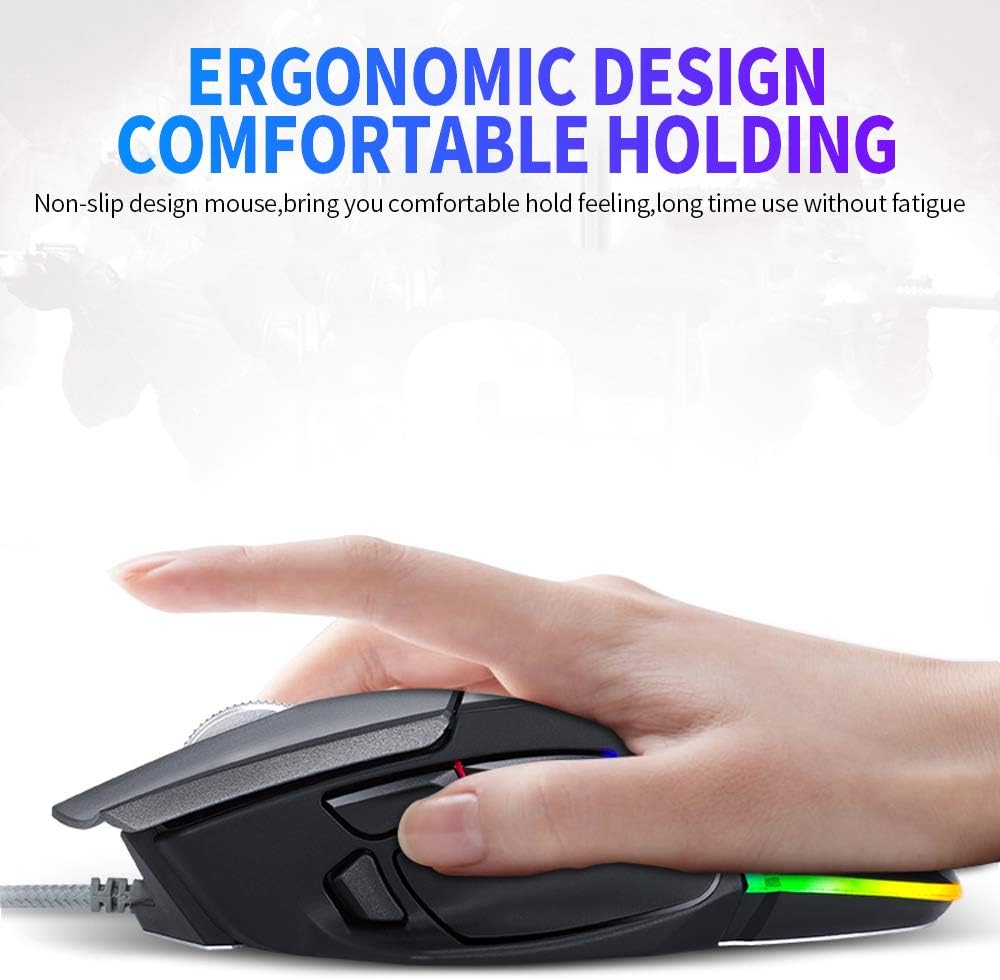
Image: The ergonomic design of the T-Wolf V11 mouse, demonstrating how it comfortably fits the hand to reduce strain during prolonged use.

Image: The T-Wolf V11 mouse illuminated with its dynamic RGB streaming light effects, showcasing the customizable lighting options.
Awọn ilana iṣeto
- Yọ Asin naa kuro: Carefully remove the T-Wolf V11 mouse from its packaging.
- Sopọ si Kọmputa: Plug the USB connector of the mouse's cable into an available USB port on your computer (desktop or laptop).
- Fifi sori Awakọ: The mouse is typically plug-and-play. Your operating system (Windows, macOS, Linux) should automatically detect and install the necessary drivers. No additional software installation is usually required for basic functionality.
- Jẹrisi Iṣiṣẹ: Once connected, move the mouse to check cursor movement and click the left and right buttons to ensure they are responsive.

Image: The Docooler T-Wolf V11 gaming mouse connected to a laptop, illustrating a typical setup scenario.
Awọn ilana Iṣiṣẹ
Awọn iṣẹ bọtini
- Tẹ apa osi (Bọ́tìnì 1): Standard jc iṣẹ tẹ.
- Tẹ apa ọtun (Bọ́tìnì 2): Standard secondary tẹ iṣẹ.
- Kẹ̀kẹ́ Yípo (Bọ́tìnì 3): Scrolls content up/down. Can also be pressed for middle-click functionality.
- DPI Cycle Button (Button 4): Located near the scroll wheel, press to cycle through DPI settings (1000/1600/2400/3200/4800/6400).
- Àwọn Bọ́tìnì Siwaju/Sẹhin (Bọ́tìnì 5 & 6): Typically located on the side, used for navigation in web aṣàwákiri tabi file oluwadi.
- Additional Programmable Buttons (Buttons 7 & 8): These buttons can often be customized using third-party software or operating system settings for specific functions or macros.
DPI Atunṣe
Press the DPI cycle button (usually located behind the scroll wheel) to switch between the available DPI settings. Each press will change the sensitivity, allowing you to adapt to different tasks, from precise aiming in games to fast navigation in desktop environments. The RGB lighting may change color to indicate the current DPI level.
Awọn ipa Imọlẹ RGB
The T-Wolf V11 features 6 types of colorful RGB streaming light effects. These effects are pre-programmed and cycle automatically, providing a dynamic visual experience. There is no specific button to change RGB modes on the mouse itself; the lighting patterns are typically fixed or cycle through automatically.

Aworan: A alaye view of the T-Wolf V11 mouse, illustrating its DPI adjustment capabilities and RGB streamer marquee lighting.
Itoju
- Ninu: Lo asọ ti o rọ, ti o gbẹ lati nu dada ti Asin naa. Fun idoti alagidi, die-die dampFi omi tàbí ohun ìfọṣọ tí kò ní ìfọ́ ara bò aṣọ náà. Yẹra fún lílo kẹ́míkà líle tàbí ọrinrin tó pọ̀ jù.
- Sensọ Cleaning: Lẹẹkọọkan nu sensọ opiti ni abẹlẹ ti Asin pẹlu swab owu kan lati rii daju titọpa deede.
- Itọju USB: Avoid sharply bending or twisting the mouse cable to prevent internal damage. Store the cable neatly when not in use.
- Ibi ipamọ: Nigbati o ko ba wa ni lilo fun awọn akoko ti o gbooro sii, tọju asin naa sinu mimọ, agbegbe gbigbẹ kuro lati orun taara ati awọn iwọn otutu to gaju.
Laasigbotitusita
- Asin Ko Dahun:
- Rii daju pe okun USB ti wa ni edidi ni aabo sinu ibudo USB ti n ṣiṣẹ lori kọnputa rẹ.
- Gbiyanju yiyi asin sinu ibudo USB ti o yatọ.
- Tun kọmputa rẹ bẹrẹ.
- Ìṣípopọ̀ ìkọ́sọ̀ jẹ́ àìtọ́ tàbí àìfò:
- Nu sensọ opitika lori isalẹ ti Asin.
- Rii daju pe o nlo Asin lori mimọ, ti kii ṣe afihan, ati dada aṣọ (fun apẹẹrẹ, paadi asin).
- DPI Ko Yipada:
- Press the DPI cycle button firmly.
- Ensure the mouse is properly connected and recognized by your system.
- Awọn imọlẹ RGB Ko Ṣiṣẹ:
- Ṣayẹwo asopọ USB.
- The RGB lighting is typically automatic; if it's not illuminating, ensure the mouse is receiving power.
Awọn pato
| Brand | Olutọju ẹrọ |
| Awoṣe | V11 |
| Àwọ̀ | Dudu |
| Asopọmọra Technology | Ti firanṣẹ |
| Nọmba ti Awọn bọtini | 8 |
| Awọn Eto DPI | 1000/1600/2400/3200/4800/6400 (Adjustable) |
| Backlight Iru | RGB Colorful |
| USB Ipari | 1.9 mita |
| Iwọn Nkan | 13 x 8.5 x 4.5 cm (5.1 x 3.3 x 1.8 inches) |
| Iwọn Nkan | 177 g (6.24 iwon) |
| Awọn ẹrọ ibaramu | Kọǹpútà alágbèéká, PC |
| Hardware Platform | PC |
| Orisun agbara | Cable Electric (USB) |
Atilẹyin ọja ati Support
For warranty information and technical support, please refer to the documentation provided with your purchase or contact Docooler customer service directly. Keep your proof of purchase for any warranty claims. Support contact details can typically be found on the manufacturer's official webojula.