
1. Ifihan
This manual provides instructions for the Arducam 16MP Autofocus USB Camera, Model B0290. This camera module features a 16-megapixel IMX298 sensor, offering sharp images and accurate color reproduction. It is designed for various applications including home surveillance, 3D printer monitoring, object recognition, and machine vision.

Figure 1: Arducam 16MP Autofocus USB Camera Module (Model B0290).
2. Key Awọn ẹya ara ẹrọ
- Aworan Didara Giga: Adopts a 16MP IMX298 sensor for sharp images and accurate color reproduction. Maximum still picture resolution: 4656 x 3496.
- Idojukọ: Automatically adjusts focus for objects at various distances without manual lens adjustment.
- Awọn oṣuwọn fireemu: Supports MJPG 10fps@4656x3496/4160x3120/3264x2448/2592x1944; 30fps@2320x1744/1080P/720; YUY2 10fps@1024x768/800x600/640x480.
- Pulọọgi & Ṣiṣẹ: UVC-compliant, requiring no additional drivers for installation on compatible operating systems.
- Awọn ohun elo: Suitable for home surveillance, 3D printer monitoring, object recognition, tracking, and other machine vision tasks requiring high resolution.
3. Ohun ti o wa ninu Apoti
- Okun USB
4. Awọn ilana iṣeto
The Arducam 16MP Autofocus USB Camera is UVC-compliant, allowing for plug-and-play functionality on most compatible operating systems without the need for additional driver installations.
4.1 Connecting to a Computer (Windows, Linux, Mac OS)
- Wa ibudo USB ti o wa lori kọnputa rẹ.
- Connect the provided USB cable to the camera module.
- Plug the other end of the USB cable into your computer's USB port.
- Eto iṣiṣẹ naa yẹ ki o ṣawari ati fi awọn awakọ ti o yẹ sori ẹrọ laifọwọyi.
- Open a camera application (e.g., Camera app on Windows, Guvcview on Linux, Photo Booth on Mac) to verify the camera's functionality.

Figure 2: Connecting the camera to a laptop via USB.
4.2 Connecting to a Raspberry Pi
- Rí i dájú pé Raspberry Pi rẹ ti pa.
- Connect the provided USB cable to the camera module.
- Plug the other end of the USB cable into an available USB port on your Raspberry Pi.
- Power on your Raspberry Pi. The camera should be recognized as a standard UVC device.
- Use appropriate software (e.g., `fswebcam`, `motion`, or custom Python scripts) to access the camera feed.

Figure 3: Connecting the camera to a Raspberry Pi.
4.3 Connecting to an Android Device
For Android devices, a USB-C to USB-A adapter (not included) may be required if your device uses a USB-C port. Ensure your Android device supports USB OTG (On-The-Go) functionality.
- Connect the provided USB cable to the camera module.
- If necessary, connect the USB-A end of the cable to a USB-C to USB-A adapter.
- Plug the adapter (or USB-A end directly) into your Android device's USB port.
- Install a compatible USB camera application from the Google Play Store (e.g., 'USB Camera' by ShenYao).
- Open the application and select the Arducam camera as the input source.
4.4 Ọja Loriview Fidio
Fidio 1: Ipariview demonstrating the Arducam 16MP IMX298 Autofocus USB Camera (Model B0290) connected to various devices and showcasing its autofocus capabilities.
5. Awọn ilana Iṣiṣẹ
Once connected, the Arducam 16MP Autofocus USB Camera operates as a standard webcam or camera module, depending on the host device and software used.
5.1 Autofocus Functionality
The camera features automatic autofocus. Simply point the camera at your desired subject, and the lens will adjust to achieve a clear image. This eliminates the need for manual focus adjustments, making it suitable for dynamic environments or varying object distances.
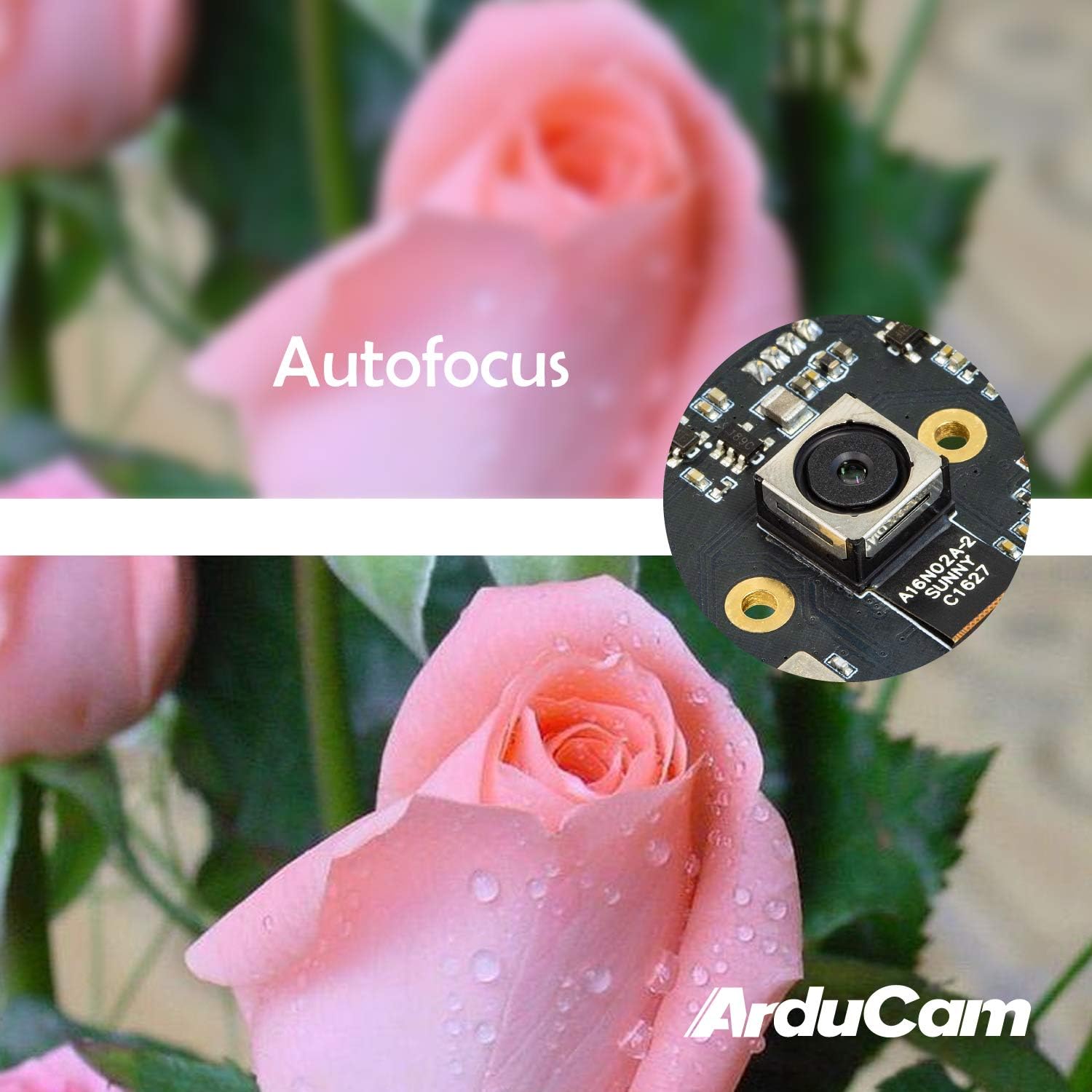
Figure 4: Demonstration of the camera's autofocus capability.
5.2 Software ibamu
The camera is compatible with standard UVC (USB Video Class) software. On Windows, you can use the built-in Camera app or third-party webcam software. On Linux, applications like Guvcview or Cheese can be used. For Mac OS, Photo Booth or QuickTime Player can access the camera. For advanced applications, programming libraries such as OpenCV can be utilized.
6. Awọn pato
| Ẹya ara ẹrọ | Ẹ̀kúnrẹ́rẹ́ |
|---|---|
| Brand | Arducam |
| Nọmba awoṣe | B0290 |
| Fọto sensọ Technology | CMOS |
| Ipinnu Iduro ti o munadoko | 16 MP |
| Ipinnu Yaworan fidio | 1080p |
| Ipari Ifojusi ti o pọju | 100 millimeters |
| Ipari Ifojusi Kere | 100 millimeters |
| Idojukọ Iru | Idojukọ aifọwọyi |
| Asopọmọra Technology | USB |
| Ibamu System isẹ | Lainos, Mac, Windows |
| Iwọn Nkan | 0.07 kilo |
| Iwọn sensọ Fọto | 1/2.8-inch |
| Ọna kika Aworan Atilẹyin | MJPG/YUY2 |
| Atilẹyin Audio kika | AAC, MP3, or PCM |
| Awọn ẹya ara ẹrọ | Imọlẹ kekere |

olusin 5: Oke ati isalẹ views of the camera module with dimensions.
7. Itọju
To ensure the longevity and optimal performance of your Arducam 16MP Autofocus USB Camera, follow these maintenance guidelines:
- Ninu: Use a soft, dry, lint-free cloth to gently wipe the camera lens and module surface. Avoid using liquid cleaners or abrasive materials, as they can damage the lens or electronic components.
- Ibi ipamọ: When not in use, store the camera in a cool, dry place away from direct sunlight, extreme temperatures, and high humidity. Keep it protected from dust and physical impact.
- Mimu: Handle the camera module by its edges to avoid touching the lens or sensitive electronic components.
8. Laasigbotitusita
If you encounter issues with your Arducam 16MP Autofocus USB Camera, consider the following troubleshooting steps:
- Kamẹra Ko Ri:
- Rí i dájú pé okùn USB náà so mọ́ kámẹ́rà àti ẹ̀rọ olùgbàlejò dáadáa.
- Try connecting the camera to a different USB port on your device.
- Test the camera on another computer or compatible device to rule out a device-specific issue.
- Tun kọmputa rẹ tabi ẹrọ alejo rẹ bẹrẹ.
- Kò sí Àwòrán tàbí Ìbòjú Dúdú:
- Verify that the correct camera is selected in your camera application settings.
- Ti ohun elo kamẹra naa ki o si tun ṣii.
- Check if any other application is currently using the camera, as some systems only allow one application to access it at a time.
- Poor Image Quality / Focus Issues:
- Rii daju pe lẹnsi kamẹra jẹ mimọ ati ofe lati eruku tabi smudges.
- Provide adequate lighting for your subject.
- For autofocus, ensure there is sufficient contrast in the scene for the camera to lock focus.
- Awọn oran ibamu:
- Confirm that your operating system and software are compatible with UVC devices.
- For Android, ensure USB OTG is supported and enabled.
9. Atilẹyin ọja ati Support
Fun alaye atilẹyin ọja ati atilẹyin imọ-ẹrọ, jọwọ tọka si Arducam osise webojula tabi kan si eniti o ta taara. Tọju iwe-ẹri rira rẹ fun awọn ẹtọ atilẹyin ọja.
O le ṣàbẹwò awọn Arducam Store fun afikun ọja alaye ati oro.