
Macally BTERGOKEY
Macally Wireless Ergonomic Keyboard User Manual
Model: BTERGOKEY
Ọrọ Iṣaaju
Thank you for choosing the Macally Wireless Ergonomic Keyboard. This manual provides detailed instructions for setting up, operating, maintaining, and troubleshooting your new keyboard. Please read this manual thoroughly to ensure optimal performance and longevity of your device.

Figure 1: Macally Wireless Ergonomic Keyboard (Model BTERGOKEY)
Ṣeto
Package Awọn akoonu
- Macally Wireless Ergonomic Keyboard
- Micro USB to USB-A Charging Cable
- Itọsọna olumulo (iwe yii)
Ngba agbara si Keyboard
The keyboard features a built-in 500mAh rechargeable battery. Before initial use, or when the battery is low, charge the keyboard using the included Micro USB to USB-A cable.
- Locate the Micro USB port on the keyboard.
- Connect the Micro USB end of the cable to the keyboard.
- So opin USB-A ti okun pọ mọ orisun agbara USB ti o baamu (fun apẹẹrẹ, ibudo USB kọnputa, ohun ti nmu badọgba ogiri USB).
- Atọka LED yoo fihan ipo gbigba agbara.

Figure 2: Keyboard connected to charging cable.
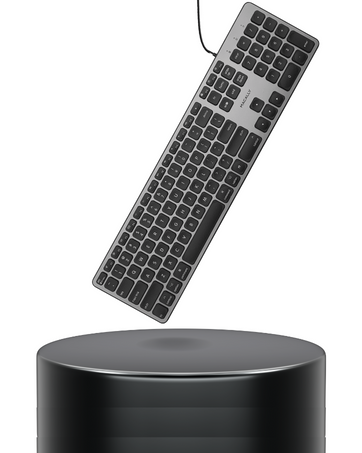
Figure 3: Close-up of the charging port and On/Off switch.
Asopọ Bluetooth
The Macally BTERGOKEY keyboard can pair with up to three Bluetooth devices simultaneously.
- Ensure the keyboard is charged and the On/Off switch is in the "On" position.
- To initiate pairing, press and hold the Fn key, and while holding it, press the Number 1, 2, or 3 key on the number row. Release both keys. This selects the Bluetooth channel.
- Nigbamii, tẹ mọlẹ Fn again, and while holding it, press the "P" key. Release both keys. The LED light for the selected channel (B1, B2, or B3) will flash rapidly, indicating it is in pairing mode.
- Lori Mac rẹ, iPad, tabi iPhone, lọ si Awọn ayanfẹ eto (Mac) tabi Eto (iOS), then navigate to Bluetooth.
- Select "Macally BTERGOKEY" from the list of available devices.
- Follow any on-screen prompts to complete the pairing process. The LED light will stop flashing rapidly once successfully paired.
Figure 4: Bluetooth connectivity with multiple Apple devices.
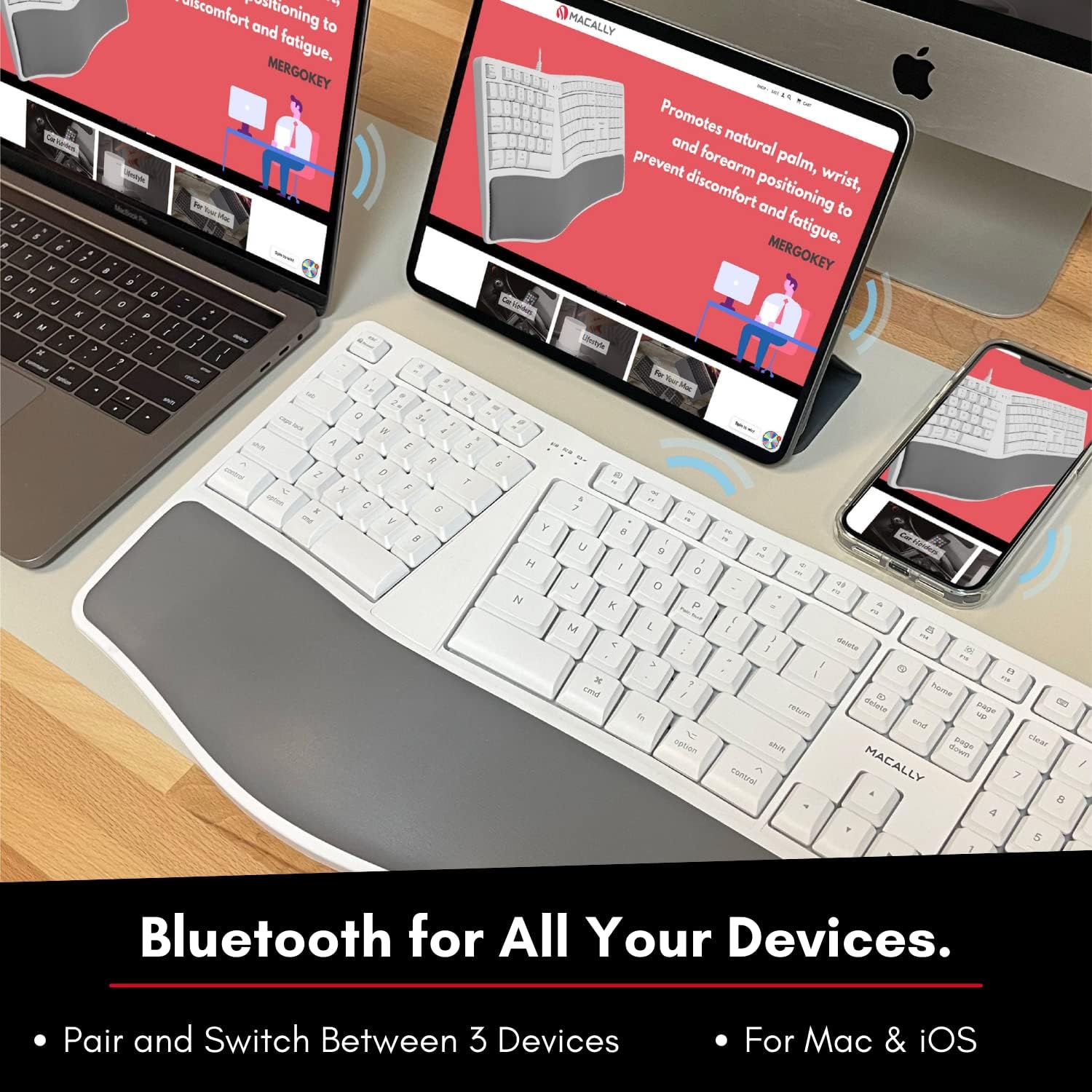
Figure 5: The keyboard supports Bluetooth connection to Mac, iPad, and iPhone.
Awọn ilana Iṣiṣẹ
Yipada Laarin Awọn ẹrọ Sopọ
To quick-switch between your paired Bluetooth devices (B1, B2, or B3), simply press and hold the Fn key and then press the corresponding Number 1, 2, or 3 on the number row. Release both keys. The keyboard will connect to the selected device.
Ergonomic Design and Typing
The Macally BTERGOKEY features a split ergonomic design with keys in two zones and at an angle to promote natural arm and wrist posture. It includes a padded wrist cushion for enhanced comfort.

Figure 6: The keyboard's design promotes neutral arm resting position and sloped comfort.
The keyboard's layout includes two dedicated typing zones and a space bar for each hand, which can help improve typing speed and reduce strain.

Figure 7: The keyboard features two distinct typing zones for improved efficiency.
It may take a few days to adjust to the unique layout of this ergonomic keyboard. Consistent use will help you adapt and experience the full benefits.

Figure 8: Adjustment period for the ergonomic layout.
MacOS Shortcut Keys
The keyboard features a 110-key Mac-specific layout with 21 MacOSX shortcut keys to enhance your productivity. These keys provide quick access to common functions.

Olusin 9: Pariview of the 21 MacOS shortcut keys.
Itoju
Ninu rẹ Keyboard
To maintain the cleanliness and functionality of your keyboard, follow these guidelines:
- Always turn off the keyboard before cleaning.
- Lo asọ asọ, ti ko ni lint die-die dampened pẹlu omi tabi ìwọnba, ti kii-abrasive ninu ojutu.
- Avoid spraying cleaners directly onto the keyboard.
- Má ṣe lo àwọn kẹ́míkà líle, àwọn ohun èlò olómi, tàbí àwọn ohun èlò ìpara.
- Regularly remove dust and debris from between the keys using compressed air.
Itọju Batiri
Lati pẹ igbesi aye batiri gbigba agbara:
- Yago fun gbigba agbara si batiri ni kikun nigbagbogbo.
- Charge the keyboard regularly, especially if it will not be used for an extended period.
- Store the keyboard in a cool, dry place when not in use.
Laasigbotitusita
Awọn Ọrọ Isopọpọ
- LED light flashing rapidly: This indicates the keyboard is actively searching for a device to pair with. Ensure Bluetooth is enabled on your host device and it is discoverable.
- LED light flashing slowly: This means the keyboard is attempting to reconnect to a previously paired device. Ensure the paired device's Bluetooth is on and within range.
- Keyboard not appearing in Bluetooth list:
- Rii daju pe o ti gba agbara ati ki o tan-an keyboard.
- Make sure the keyboard is in pairing mode (LED flashing rapidly).
- Gbìyànjú láti tún bẹ̀rẹ̀ kííbọọ̀dù àti ẹ̀rọ ìgbàlejò rẹ.
- Clear existing Bluetooth connections on your host device if you have too many.
Number Pad Not Working
If your number pad is not functioning, and there is no dedicated "Num Lock" key, you may need to adjust a setting in your macOS:
- Lọ si Awọn ayanfẹ eto lori Mac rẹ.
- Tẹ lori Wiwọle.
- Yi lọ si isalẹ ki o yan Iṣakoso ijuboluwole.
- Pa a the "Enable Mouse Keys" option. This setting can sometimes interfere with the number pad's functionality.
General Connectivity Issues
- Ensure the keyboard is within the effective range of your Bluetooth device (typically up to 33 feet or 10 meters).
- Din kikọlu silẹ lati awọn ẹrọ alailowaya miiran (fun apẹẹrẹ, awọn olulana Wi-Fi, awọn foonu alailowaya).
- If issues persist, try unpairing and re-pairing the keyboard with your device.
Awọn pato
| Ẹya ara ẹrọ | Ẹ̀kúnrẹ́rẹ́ |
|---|---|
| Ọja Mefa | 19 x 9.85 x 1.5 inches |
| Iwọn Nkan | 2.89 iwon |
| Nọmba awoṣe | BTERGOKEY |
| Asopọmọra Technology | Bluetooth |
| Awọn ẹrọ ibaramu | Apple Mac Pro/Mini, Macbook Pro/Air, iMac, iPad, iPhone |
| Nọmba ti Awọn bọtini | 110 |
| Batiri | 500mAh Batiri gbigba agbara |
| Pataki Awọn ẹya ara ẹrọ | Split Ergonomic Design, Padded Wrist Cushion, Multi-sync Bluetooth, 21 MacOS Shortcut Keys, Adjustable Kickstand |
Atilẹyin ọja ati Support
Macally products are designed with quality and reliability in mind. For warranty information and technical support, please visit the official Macally webojula tabi kan si wọn onibara iṣẹ.
Webojula: www.maally.com
Please have your product model number (BTERGOKEY) and purchase information ready when contacting support.
Ask a question about this manual
Ask about setup, troubleshooting, compatibility, parts, safety, or missing instructions. Manuals+ will review the question and use this page’s manual context to help answer it.