
1. Ọja Ipariview
The HDWR HD6600 is a compact, portable 1D/2D barcode scanner designed for efficiency and convenience. Its ergonomic design, resembling a car key, makes it easy to carry and use in various environments. This device supports both 1D and 2D barcode types, including QR codes, and offers flexible connectivity options.
Awọn ẹya pataki:
- Iwapọ ati Gbigbe: Designed for easy handling and pocket storage, optimizing space in any workplace.
- Dual Wireless Communication: Connects via radio using the included USB micro-receiver or via Bluetooth.
- Integrated Memory: Stores up to 5000 standard codes for later transmission, enhancing operational flexibility.
- Ṣiṣayẹwo Ilọpo: Capable of high-quality reading for 1D and 2D barcodes, including QR codes, even if they are difficult to read or damaged.
- Isẹ ti o rọrun: Features an illuminated scan button and an on/off button for straightforward use.
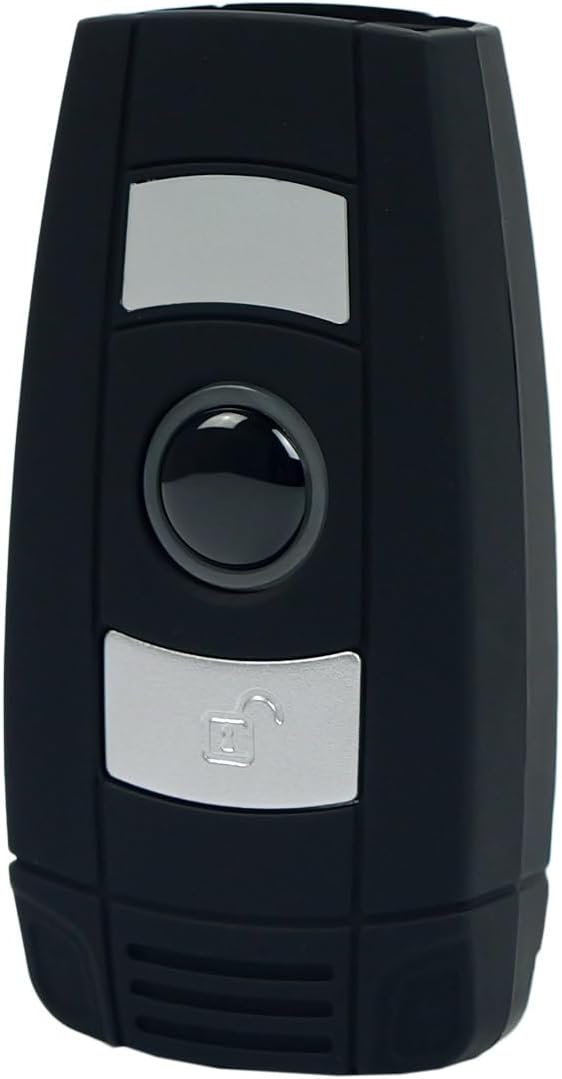
olusin 1: Iwaju view of the HDWR HD6600 barcode scanner, showing the scan and function buttons.
2. Package Awọn akoonu
Daju pe gbogbo awọn nkan wa ninu apo rẹ:
- HDWR HD6600 Barcode Scanner
- Okun Ngba agbara USB
- USB Micro-Receiver (for radio communication)
- Afowoyi Olumulo (iwe-ipamọ yii)
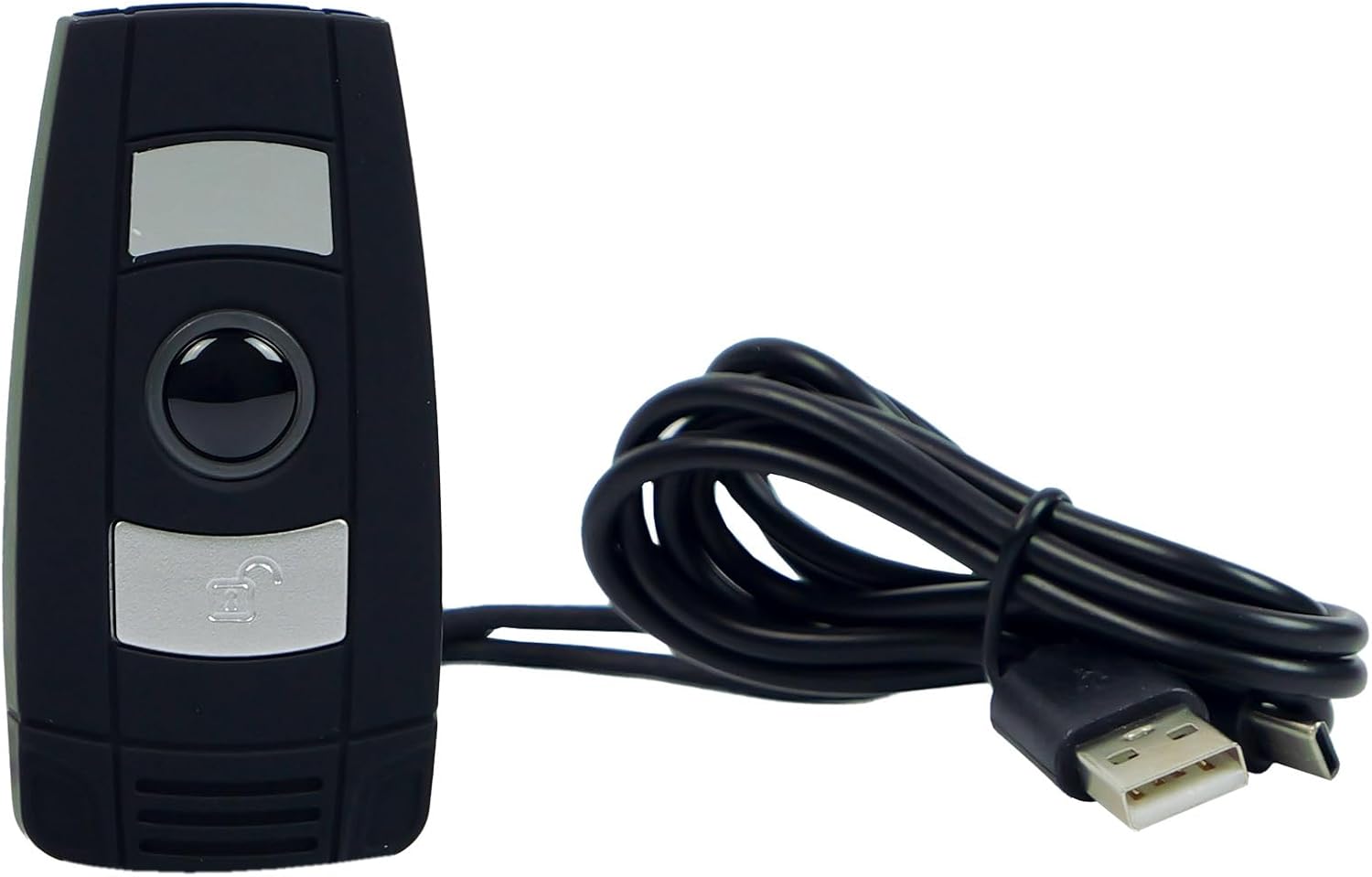
Figure 2: The HDWR HD6600 barcode scanner shown with its USB charging cable.
3. Ni ibẹrẹ Oṣo
3.1 Ngba agbara si Ẹrọ
Before first use, fully charge the scanner. Connect the provided USB charging cable to the scanner's USB-C port and to a power source (e.g., computer USB port or USB wall adapter). The charging indicator light will show the charging status.
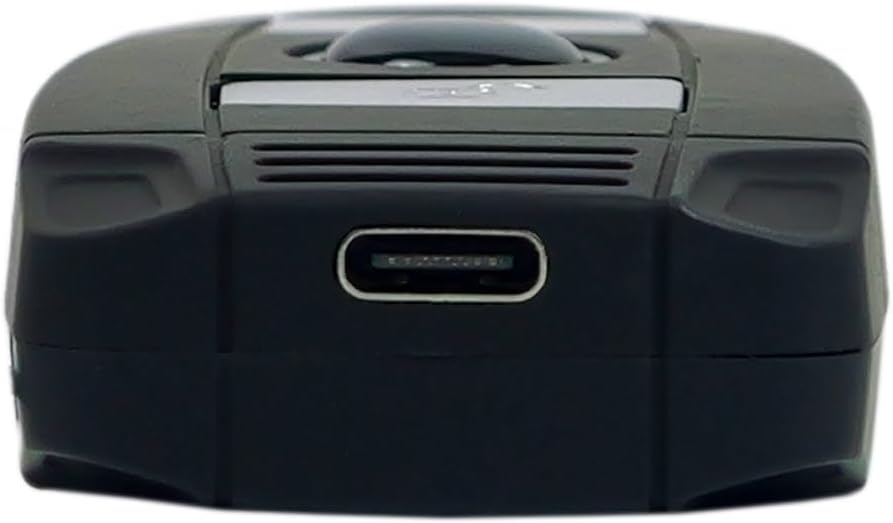
Figure 3: The USB-C charging port located at the bottom of the scanner.
3.2 Titan / Pa a
To power on the scanner, press and hold the On/Off button until the indicator light illuminates. To power off, press and hold the On/Off button again until the indicator light turns off.
3.3 Nsopọ si ẹrọ kan
The HD6600 offers two primary connection methods:
3.3.1 USB Micro-Receiver (Radio Communication)
- Plug the USB micro-receiver into an available USB port on your computer or host device.
- The scanner will automatically attempt to pair with the receiver. A successful connection is indicated by a specific sound or light pattern (refer to device indicators).
3.3.2 Ibaraẹnisọrọ Bluetooth
- Rí i dájú pé ẹ̀rọ ìṣiṣẹ́ náà ti ṣiṣẹ́.
- To switch to Bluetooth mode, press and hold the scan button for 8 seconds. The scanner will emit a sound or show a light pattern indicating it is in Bluetooth pairing mode.
- On your host device (computer, tablet, smartphone), enable Bluetooth and search for available devices.
- Select "HD6600" from the list of found devices to pair.
- Once paired, the scanner is ready for use.
4. Awọn ilana Iṣiṣẹ
4.1 Ṣíṣe àyẹ̀wò àwọn kọ́ọ̀dù
Lati ọlọjẹ kooduopo kan:
- Point the scanner's lens at the barcode you wish to read.
- Press the illuminated scan button.
- A successful scan will be indicated by a beep and/or a green light. The scanned data will be transmitted to your connected device.
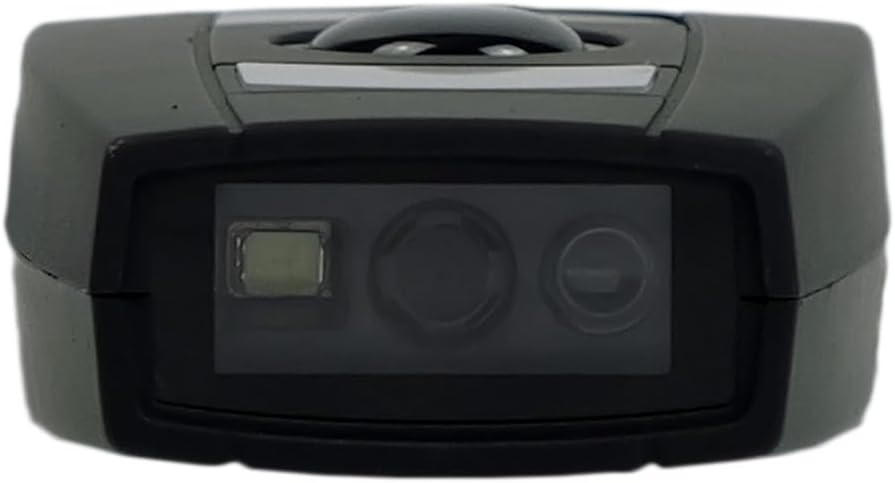
Figure 4: The scanning lens of the HDWR HD6600 barcode scanner.
4.2 Using Integrated Memory
The HD6600 can store up to 5000 standard barcodes when not connected or when operating in inventory mode. To retrieve stored data, connect the scanner to your host device and follow the instructions for data transfer (usually by scanning a specific function code or entering a data upload mode).
4.3 Switching Communication Modes
To switch between radio (USB micro-receiver) and Bluetooth communication modes, press and hold the scan button for 8 seconds. The scanner will confirm the mode change with an audible alert or indicator light change.
Video 1: Demonstration of the HDWR HD6600 barcode scanner's features and operation, including its compact design and scanning capabilities.
5. Itọju ati Itọju
- Ninu: Use a soft, dry cloth to clean the scanner's exterior. For the scanning lens, use a lens cleaning cloth and solution. Avoid abrasive cleaners or solvents.
- Ibi ipamọ: Store the scanner in a cool, dry place away from direct sunlight and extreme temperatures. The maximum storage temperature is 60 degrees Celsius.
- Batiri: The device contains a Lithium-ion battery. Do not attempt to replace the battery yourself. Dispose of the device according to local regulations for electronic waste.
- Idaabobo: While durable, avoid dropping the scanner or exposing it to excessive moisture or dust.
6. Laasigbotitusita
| Isoro | Owun to le Fa | Ojutu |
|---|---|---|
| Scanner ko ni agbara lori. | Batiri kekere. | Gba agbara sikirini naa nipa lilo okun USB ti a pese. |
| Scanner does not connect to host device. | Incorrect communication mode; not paired; out of range. | Ensure correct mode (radio/Bluetooth). Re-pair the device. Move scanner closer to the host device. |
| Ko le ṣayẹwo awọn kooduopo. | Barcode damaged; scanner lens dirty; insufficient lighting. | Try scanning a different barcode. Clean the scanner lens. Ensure adequate lighting. |
| Awọn data ti a ṣayẹwo jẹ aṣiṣe tabi pe. | Partial scan; incorrect symbology settings. | Ensure the entire barcode is within the scanning area. Check scanner configuration for supported barcode types. |
7. Imọ ni pato
| Ẹya ara ẹrọ | Ẹ̀kúnrẹ́rẹ́ |
|---|---|
| Nọmba awoṣe | HD6600 |
| Brand | HDWR |
| Asopọmọra Technology | Bluetooth, USB, Wi-Fi |
| Awọn ẹrọ ibaramu | Kọmputa |
| Batiri Iru | 1 Lithium-ion (pẹlu) |
| Awọn ọna Voltage | 5 Volts |
| Iwọn Nkan | 130 giramu |
| O pọju Ibi iwọn otutu | Awọn iwọn Celsius 60 |
| Nọmba ti Awọn nkan | 1 |
| Apoju Awọn ẹya ara wiwa | Alaye ko si |
| Software imudojuiwọn Titi | Alaye ko si |
8. atilẹyin ọja Information
The HDWR HD6600 barcode scanner comes with a 2-odun atilẹyin ọja from the date of purchase. This warranty covers manufacturing defects and malfunctions under normal use. It does not cover damage caused by misuse, accidents, unauthorized modifications, or improper maintenance. Please retain your proof of purchase for warranty claims.
9. Onibara Support
For further assistance, technical support, or warranty inquiries, please contact HDWR customer service. Refer to the product packaging or the official HDWR webojula fun awọn julọ lọwọlọwọ alaye olubasọrọ.
Awọn orisun Ayelujara: Visit the official HDWR website for FAQs, updated drivers, and additional support materials.