
1. Ifihan
The KuWFi AC1200 Dual Band Wireless USB Adapter provides high-speed Wi-Fi connectivity for your desktop or laptop PC. This adapter supports both 2.4GHz and 5GHz frequency bands, offering flexible and reliable wireless performance. Its compact design ensures portability and ease of use.

Image 1.1: The KuWFi AC1200 adapter highlighting its dual-band capabilities with speeds of 867Mbps on 5GHz and 300Mbps on 2.4GHz.
2. Awọn ẹya Ọja
- Asopọmọra Band Meji: Supports 2.4GHz (up to 300Mbps) and 5GHz (up to 867Mbps) for a combined speed of up to 1200Mbps.
- Iṣe-iyara giga: Ideal for online gaming, HD video streaming, and large file awọn gbigbe.
- Ibamu gbooro: Compatible with Windows 10 (32/64bit), Windows 8, and Windows 7 operating systems.
- Fifi sori Ọfẹ Awakọ: Plug-and-play functionality for Windows 10 (32/64bit) systems.
- Ilọsiwaju Aabo: Supports WEP, WPA-PSK, WPA2-PSK, and WPA/WPA2 64/128bit encryption protocols.
- Mini & Portable Design: Compact size for easy carrying and convenient use.
- AP Mode Support: Can function as a Wi-Fi hotspot (SimulationAP).

Image 2.1: Key features of the KuWFi AC1200 adapter, including its compact size and AP mode capability.

Image 2.2: The adapter's mini size, making it highly portable.
3. System Awọn ibeere
- Operating System: Windows 10 (32/64bit), Windows 8, Windows 7
- Available USB Port (USB 2.0 or higher recommended)
- CD-ROM drive (for driver installation on Windows 7/8, not required for Windows 10)
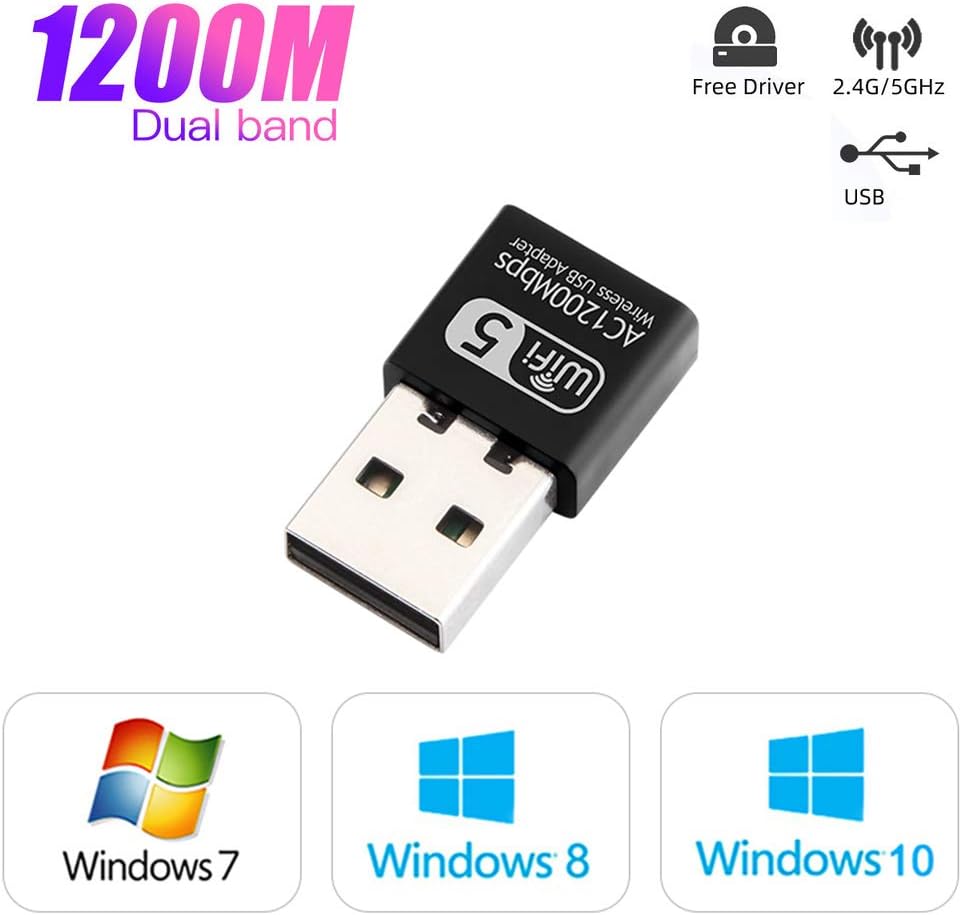
Image 3.1: Operating system compatibility and driver-free support for Windows 10.
4. Package Awọn akoonu
- 1 x KuWFi AC1200 Dual Band Wireless USB Adapter
- 1 x Driver CD (for Windows 7/8)
5. Itọsọna fifi sori ẹrọ
Step 1: Insert the USB Adapter
Carefully insert the KuWFi AC1200 Wireless USB Adapter into an available USB port on your desktop or laptop computer.

Image 5.1: Inserting the USB adapter into a computer's USB port.
Igbesẹ 2: Fifi sori ẹrọ Awakọ
For Windows 10 (32/64bit): The adapter is designed for plug-and-play functionality. The system should automatically detect and install the necessary drivers. If not, proceed with the CD driver installation steps.
Fun Windows 7/8:
- Insert the provided Driver CD into your computer's CD-ROM drive.
- Ṣí 'Kọ̀ǹpútà Mi' tàbí 'Kọ̀ǹpútà Yìí'.
- Double-click on the CD Driver icon to open it.
- Locate and double-click the setup or install file.
- Tẹle awọn ilana loju iboju lati pari fifi sori awakọ.

Image 5.2: Visual guide for installing drivers from the CD.
Step 3: Connect to a Wi-Fi Network
Once the drivers are installed, your computer will detect available Wi-Fi networks. Select your desired network and enter the password to connect.
6. Awọn ilana Iṣiṣẹ
Meji Band Isẹ
The KuWFi AC1200 adapter supports both 2.4GHz and 5GHz Wi-Fi bands. You can choose the band that best suits your needs:
- Iwọn 2.4GHz: Offers wider coverage and better penetration through walls, suitable for general internet browsing and tasks that do not require very high speeds.
- Iwọn 5GHz: Provides faster speeds and less interference, ideal for online gaming, HD video streaming, and large file downloads. This band typically has a shorter range.
Your computer's Wi-Fi settings will display available networks. Networks operating on the 5GHz band often have '5G' or '5GHz' in their name (e.g., 'MyWiFi_5G'). Select the appropriate network based on your requirements.
AP Mode (Soft AP)
The adapter can function as a Wi-Fi hotspot (Soft AP) if your computer has an internet connection via Ethernet. This allows other devices to connect to your computer's internet through the adapter. Refer to your operating system's network settings for instructions on enabling mobile hotspot or Soft AP functionality.
7. Itọju
- Jeki ohun ti nmu badọgba di mimọ ati ofe kuro ninu eruku.
- Yago fun ṣiṣafihan ohun ti nmu badọgba si awọn iwọn otutu tabi ọriniinitutu.
- Do not shake or plug/unplug the adapter excessively to prevent damage to the USB port or the adapter itself.
- Store the adapter in a safe place when not in use.
8. Laasigbotitusita
No Wi-Fi Networks Detected
- Rii daju pe ohun ti nmu badọgba ti wa ni edidi ni aabo sinu ibudo USB kan.
- Rí i dájú pé àwọn awakọ̀ náà ti fi sori ẹrọ dáadáa. Ṣàyẹ̀wò Olùṣàkóso Ẹ̀rọ (Windows) fún àwọn àmì ìkéde aláwọ̀ ofeefee tí ó wà lẹ́gbẹ̀ẹ́ adapter nẹ́tíwọ́ọ̀kì náà.
- Tun kọmputa rẹ bẹrẹ.
- Gbìyànjú láti so ohun tí a fi ń ṣe àgbékalẹ̀ náà mọ́ ibudo USB mìíràn.
Iyara Asopọ Lọra
- Ensure you are connected to the 5GHz band if your router supports it and you are within range.
- Reduce the distance between your computer and the Wi-Fi router.
- Minimize obstacles (walls, large metal objects) between the adapter and the router.
- Check for other devices causing interference (e.g., microwaves, cordless phones).
- Ṣe àtúnṣe firmware ti olulana rẹ.
Asopọ silẹ Nigbagbogbo
- Ensure the adapter is not loose in the USB port.
- Check for driver updates from the manufacturer's webojula ti o ba wa.
- Adjust the position of your computer or router to improve signal strength.
- Disable power-saving features for the USB port or network adapter in your computer's settings.
9. Awọn pato
| Awoṣe | AC1200 |
| Ni wiwo Hardware | USB |
| Data Gbigbe Oṣuwọn | Titi di 1200 Mbps (867 Mbps lori 5GHz, 300 Mbps lori 2.4GHz) |
| Awọn ẹgbẹ Igbohunsafẹfẹ | 2.4GHz, 5GHz |
| Awọn ẹrọ ibaramu | Ojú-iṣẹ, Kọǹpútà alágbèéká |
| Awọn ọna ṣiṣe | Windows 10 (32/64bit), Windows 8, Windows 7 |
| Àtìlẹ́yìn Ìfipamọ́ | WEP, WPA-PSK, WPA2-PSK, WPA/WPA2 64/128bit |
| Iwọn Nkan | 0.634 iwon (nipa 18 giramu) |
| Package Mefa | 3.78 x 3.35 x 0.47 inches |