
Ọrọ Iṣaaju
The Sharkoon Skiller SGK30 is a mechanical gaming keyboard designed for performance and durability. It features customizable RGB lighting, N-Key rollover, and a 1000Hz polling rate for responsive gameplay and typing. This manual provides essential information for setting up, operating, and maintaining your keyboard.

Image: Sharkoon Skiller SGK30 Mechanical Gaming Keyboard banner displaying the product name and type.
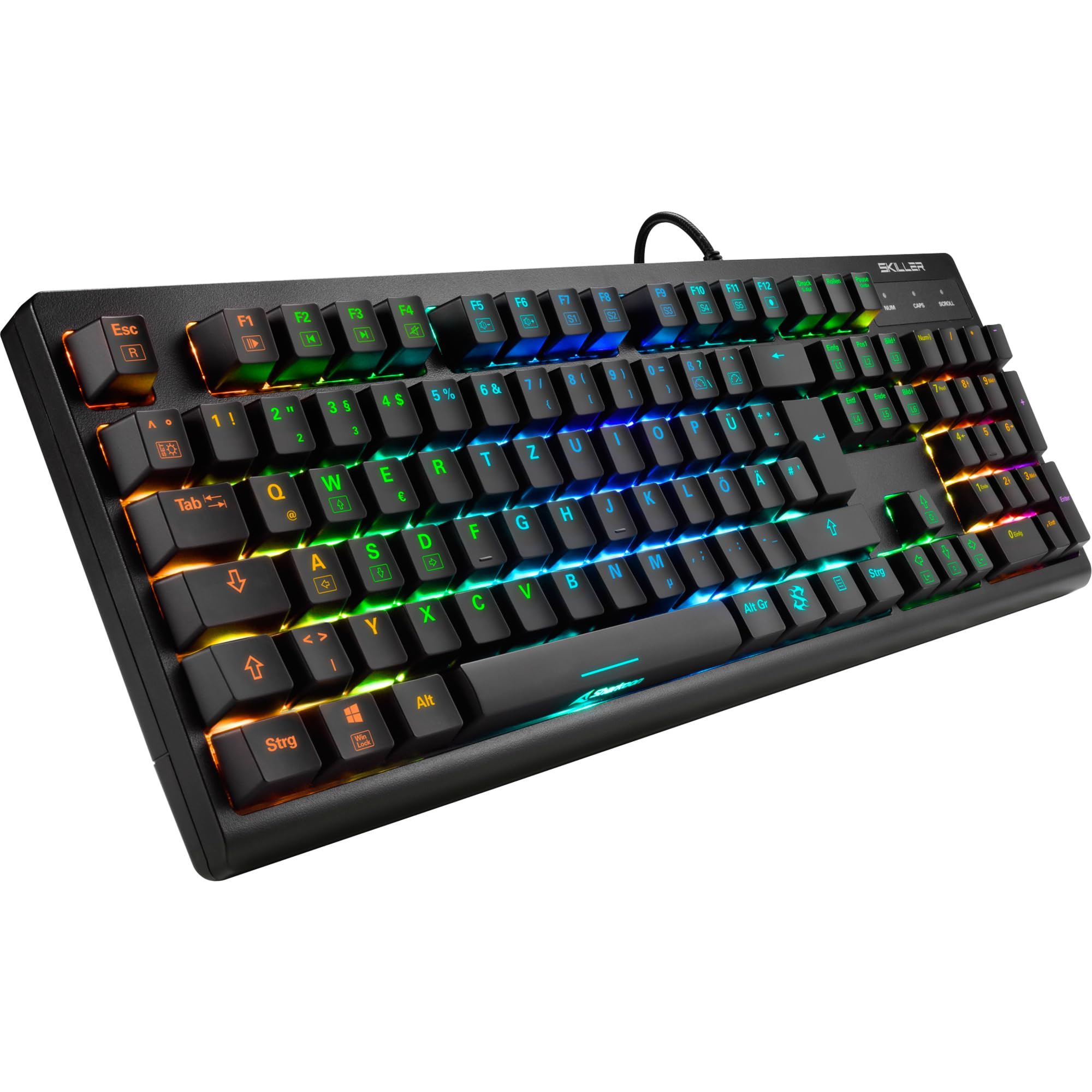
Aworan: A oke-isalẹ view of the Sharkoon Skiller SGK30 mechanical gaming keyboard, showcasing ipilẹ rẹ ni kikun ati ina ẹhin RGB larinrin.
Ọja Pariview Fidio
Fidio: Ọja osise ti pariview of the Sharkoon Skiller SGK30 Mechanical Gaming Keyboard, demonstrating its features, RGB lighting effects, and mechanical switches.
Ṣeto
Follow these steps to set up your Sharkoon Skiller SGK30 keyboard:
- Yọ Keyboard kuro: Carefully remove the keyboard and the included USB cable from its packaging.
- Sopọ si Kọmputa: Plug the Micro USB end of the cable into the keyboard's port and the standard USB-A end into an available USB port on your computer.
- Fifi sori Awakọ: The keyboard is plug-and-play. Your operating system (Windows 10 or later recommended) should automatically detect and install the necessary drivers.
- Fifi sori ẹrọ Software (Aṣayan): For advanced customization of RGB lighting and key assignments, download the official Sharkoon software from the manufacturer's webojula.

Image: The Sharkoon Skiller SGK30 keyboard positioned on a desk, ready for connection.
Awọn ilana Iṣiṣẹ
Ipilẹ Key Awọn iṣẹ
The Sharkoon Skiller SGK30 features a standard layout with additional function keys accessible via the FN bọtini.
- FN + F1-F12: Access multimedia controls (e.g., play/pause, volume up/down, mute).
- FN + Bọtini Windows: Titiipa/ṣii bọtini Windows lati ṣe idiwọ titẹ lairotẹlẹ lakoko ere.
- N-Kọtini Rollover: All keys are registered simultaneously, ensuring every keystroke is detected, even during rapid input.
Iṣakoso Imọlẹ RGB
The keyboard offers extensive RGB lighting customization. Use the following combinations to adjust lighting effects:
- FN + Insert/Home/Page Up/Delete/End/Page Down: Cycle through various pre-programmed lighting effects.
- FN + Arrow Keys (Up/Down): Adjust brightness levels of the lighting.
- FN + Arrow Keys (Left/Right): Ṣàtúnṣe iyára àwọn ipa ìmọ́lẹ̀ oníyípadà.
- Custom Illumination: Use the dedicated software for advanced per-key lighting customization.

Aworan: A sunmọ-soke view of the keyboard keys highlighting the adjustable RGB illumination capabilities.
Software isọdi
For advanced settings, macro programming, and detailed RGB customization, download and install the Sharkoon Skiller SGK30 software from the official Sharkoon webojula. Sọfitiwia gba ọ laaye lati:
- Ṣẹda ati ṣafipamọ pro ina aṣa aṣafiles.
- Program macros for specific keys.
- Awọn iṣẹ bọtini Remap.

Image: A screenshot showing the graphical user interface of the Sharkoon Skiller SGK30 customization software, illustrating various options for lighting and key remapping.
Itoju
Itọju to peye ṣe idaniloju pe keyboard rẹ yoo pẹ to ati pe yoo ṣiṣẹ:
- Ninu: Lo aṣọ rírọrùn tí ó gbẹ láti nu ojú kọ̀ǹpútà náà. Fún ìwẹ̀nùmọ́ jíjinlẹ̀, lo afẹ́fẹ́ tí a fi ìfúnpọ̀ mú láti mú eruku àti ìdọ̀tí kúrò láàárín àwọn ìbòrí kọ́kọ́rọ́ náà.
- Yiyọkuro bọtini bọtini: If necessary, keycaps can be carefully removed using a keycap puller (not included) for thorough cleaning of the switches. Reinstall keycaps by pressing them firmly onto the switch stems.
- Yago fun Olomi: Maṣe fi bọtini itẹwe han si awọn olomi. Ni ọran ti idasonu, ge asopọ keyboard lẹsẹkẹsẹ ki o jẹ ki o gbẹ patapata ṣaaju ki o to tunpo.
- Ibi ipamọ: Tọju keyboard ni itura, aye gbigbẹ kuro lati orun taara ati awọn iwọn otutu to gaju.

Aworan: A sunmọ-soke view of the mechanical switches on the Sharkoon Skiller SGK30 keyboard, illustrating their design for durability and ease of maintenance. Note: This model is available with Red switches, while the image shows Blue switches.
Laasigbotitusita
If you encounter issues with your Sharkoon Skiller SGK30 keyboard, refer to the following common solutions:
| Isoro | Owun to le Fa | Ojutu |
|---|---|---|
| Keyboard ko fesi | Asopọ USB alaimuṣinṣin, ibudo USB ti ko tọ, ọran awakọ. |
|
| Ina RGB ko ṣiṣẹ tabi ti ko tọ | Lighting settings incorrect, software conflict. |
|
| Awọn bọtini ko forukọsilẹ | Eruku/ idoti labẹ bọtini bọtini, iyipada aṣiṣe. |
|
Awọn pato
| Ẹya ara ẹrọ | Ẹ̀kúnrẹ́rẹ́ |
|---|---|
| Brand | Sharkoon |
| Nọmba awoṣe | 4044951030026 |
| Keyboard Iru | Ẹrọ Kokoro Ẹrọ |
| Yipada Iru | Red Switch (Blue switches are also available for this model series) |
| Asopọmọra | Micro USB |
| Idibo Oṣuwọn | 1000Hz |
| N-Kọtini Rollover | Atilẹyin |
| Imọlẹ RGB | Customizable RGB |
| Eto isesise | Windows 10 (ati ibaramu pẹlu awọn ẹya Windows miiran) |
| Awọn iwọn (LxWxH) | 44 x 14.4 x 3.5 cm |
| Iwọn | 867 g |
Ohun ti o wa ninu Apoti
The Sharkoon Skiller SGK30 package includes:
- Sharkoon Skiller SGK30 Mechanical Gaming Keyboard
- Okun USB
Atilẹyin ọja ati Support
For warranty information and technical support, please refer to the official Sharkoon webaaye tabi kan si alagbata agbegbe rẹ. Jeki ẹri rira rẹ fun awọn iṣeduro atilẹyin ọja.
Akiyesi: Awọn pato ọja ati awọn ẹya jẹ koko ọrọ si iyipada laisi akiyesi iṣaaju.