
Tera HW0002_BK_US
Ìwé Ìtọ́sọ́nà Olùlò Onímọ̀ Ẹ̀rọ Àwòrán Barcode Tera HW0002
Model: HW0002_BK_US
Orúkọ ìtajà: Tera
Ọrọ Iṣaaju
This user manual provides comprehensive instructions for the Tera HW0002 Wireless Barcode Scanner. It covers setup, operation, maintenance, and troubleshooting to ensure optimal performance and longevity of your device. The Tera HW0002 is a versatile 1D/2D QR barcode reader featuring a patented battery level indicator, 3-in-1 connectivity (Bluetooth, 2.4G Wireless, USB Wired), and a durable, shockproof design.
Package Awọn akoonu
- Ayẹwo kooduopo x1
- Barcode Scanner Stand x1
- Okun USB x1
- Dongle x1
- Ilana olumulo x1

Image: The Tera HW0002 Barcode Scanner, its stand, USB cable, and 2.4G wireless dongle, illustrating the complete package contents.
Ṣeto
3-in-1 Connection Modes
The Tera HW0002 offers flexible connectivity options to suit various environments and devices. You can connect the scanner via Bluetooth, 2.4G Wireless, or a wired USB connection.

Image: Visual representation of the three connection modes: Bluetooth (BT), 2.4G Wireless via dongle, and USB Wired connection, compatible with various operating systems like Windows, Mac OS, iOS, Android, and Linux.
1. 2.4G Alailowaya Ipo
- Insert the 2.4G USB dongle into an available USB port on your computer or device.
- The scanner will automatically pair with the dongle. A successful connection is indicated by a specific sound or LED light pattern (refer to the full PDF manual for details).
- The transmission distance can reach 328ft in barrier-free environments and 114ft in environments with obstacles.
2. Ipo Bluetooth
- Rii daju pe Bluetooth ẹrọ rẹ ti ṣiṣẹ.
- Scan the "Bluetooth Mode" barcode from the user manual (physical or PDF).
- On your device, search for "Barcode Scanner HW0002" in the Bluetooth settings and pair.
- This mode is compatible with smartphones, tablets, and computers running iOS, Android, Mac OS, and Windows.
3. Ipo Ti firanṣẹ USB
- So ẹ̀rọ ìwádìí náà pọ̀ mọ́ kọ̀ǹpútà rẹ nípa lílo okùn USB tí a pèsè.
- The scanner will function as a standard keyboard input device, requiring no additional drivers for most operating systems.
- This mode also charges the scanner's internal battery.
Video: An official product video demonstrating the Tera HW0002 Barcode Scanner's features, including its battery indicator, scanning capabilities, and various connection modes (2.4GHz, Bluetooth, Wired).
Awọn ilana Iṣiṣẹ
Atọka Ipele Batiri
The Tera HW0002 features a patented battery level indicator located on the top of the scanner. This allows for real-time monitoring of the remaining charge, helping to prevent unexpected power interruptions.

Image: A visual guide to the battery level indicator, displaying working time (>12H), charging time (3.5H), standby time (>720H), and battery percentage levels (25%, 50%, 75%, 100%) via LED dots.
Antivirus Barcodes
The scanner utilizes Superior Global CMOS Imaging Scanning technology, enabling fast and accurate reading of both ordinary and high-density 1D and 2D barcodes. It can read barcodes from various surfaces, including paper, reflective materials, and digital screens.

Image: The barcode scanner actively scanning various types of 1D and 2D barcodes, including QR codes, Code 39, EAN-13, and Data Matrix, demonstrating its versatile scanning capabilities.
Supported Symbologies include: 1D (Codabar, Code 11, Code93, MSI, Code 128, UCC/EAN-128, Code 39, EAN-8, EAN-13, UPC-A, ISBN, Industrial 25, Interleaved 25, Standard25, Matrix) and 2D (QR, DataMatrix, PDF417, Aztec, Hanxin, Micro PDF417).

Image: A Tera barcode scanner being used to scan both 1D and 2D barcodes displayed on computer monitors, highlighting its ability to read from digital screens.
Hands-Free Automatic Scanning
When placed on its stand, the scanner can operate in hands-free automatic scanning mode. This is ideal for high-volume scanning tasks, allowing users to simply present items to the scanner for automatic data capture.

Image: The barcode scanner positioned on its stand, ready for hands-free automatic scanning, with a person preparing to scan a document next to a laptop.
Customizing Scan Output (Prefix/Suffix)
The Tera HW0002 allows for advanced data editing, such as adding custom prefixes or suffixes to scanned data. This feature is configured by scanning specific barcodes found in the full user manual.
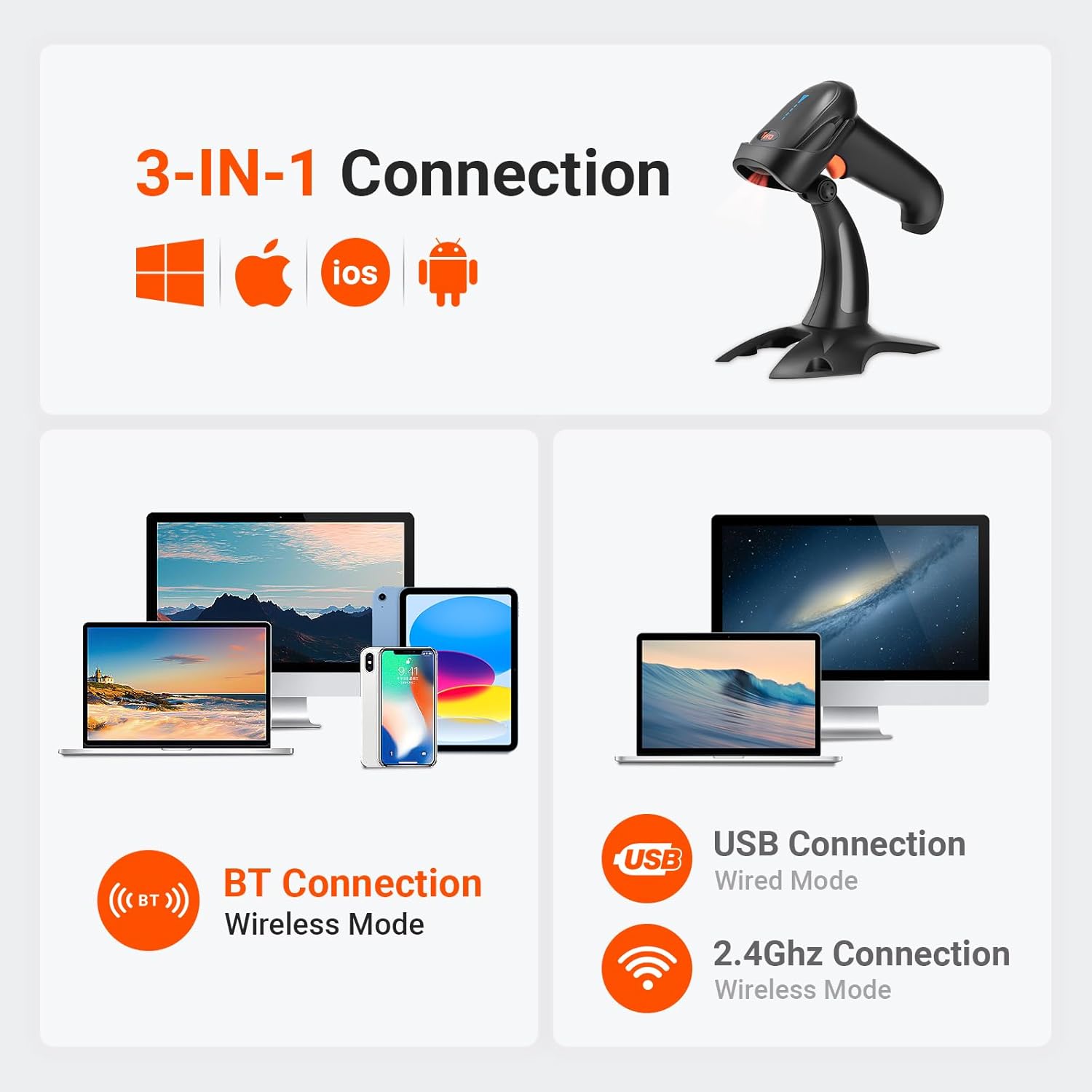
Image: Illustrations showing how date and time can be added as either a prefix or a suffix to scanned barcode data, demonstrating the customization feature.
Fun example, you can configure the scanner to delete the first 2 characters and add 2 TAB-characters when scanning Code39, while leaving other barcode types unedited. Refer to the full user manual for detailed programming barcodes.
Vibration Alert and Sound Settings
In addition to sound and LED illumination, the scanner provides a tactile vibration alert upon successful scans. The buzzer can be muted for quiet operation, which is useful in noise-sensitive environments.

Image: A graphic illustrating the volume settings (Off, Low, Medium, High) and vibration settings (Vibration On, Vibration Off) for the scanner, configurable via scanning specific barcodes.
Itoju
To ensure the longevity and optimal performance of your Tera HW0002 barcode scanner, follow these general maintenance guidelines:
- Ninu: Lo aṣọ rirọ ati gbigbẹ lati nu ita ẹrọ ayẹwo naa. Fun ferese ayẹwo, lo aṣọ ti ko ni lint diẹ.ampened with a mild, non-abrasive cleaner. Avoid harsh chemicals or abrasive materials that could scratch the lens.
- Ibi ipamọ: Store the scanner in a cool, dry place away from direct sunlight and extreme temperatures. When not in use, place it on its stand or in a protective case to prevent accidental drops or damage.
- Itọju Batiri: While the scanner has a large 2000mAh battery, avoid completely draining the battery frequently. For long-term storage, charge the battery to about 50% to prolong its lifespan.
- Idaabobo ti ara: The scanner features a shockproof silicone protective cover. While designed to withstand drops, avoid unnecessary impacts to maintain its integrity.
Laasigbotitusita
If you encounter issues with your Tera HW0002 barcode scanner, please refer to the following common troubleshooting steps:
- Scanker Kò Sopọ̀ Mọ́:
- Alailowaya 2.4G: Ensure the USB dongle is securely plugged in and the scanner is in 2.4G mode. Try a different USB port.
- Bluetooth: Confirm Bluetooth is enabled on your host device and the scanner is in Bluetooth pairing mode. Forget the device on your host and re-pair.
- Okun USB: Check the USB cable connection at both ends. Try a different USB cable or port.
- A ko le ṣe ayẹwo awọn koodu barcode:
- Rí i dájú pé àmì ìdámọ̀ náà mọ́ tónítóní, kò sì bàjẹ́ púpọ̀.
- Check the distance and angle of the scanner to the barcode.
- Verify the scanner's light is active when attempting to scan.
- Confirm the barcode symbology is supported by the scanner (refer to "Supported Symbologies" in the Operating Instructions).
- If scanning from a screen, ensure screen brightness is adequate.
- Ijade data ti ko tọ:
- If data appears garbled or incorrect, ensure the keyboard language settings on your computer match the scanner's configuration (e.g., US English keyboard layout).
- If custom prefixes/suffixes are causing issues, reset the scanner to factory defaults by scanning the appropriate barcode in the full user manual.
- No Vibration/Sound:
- Check the volume and vibration settings by scanning the configuration barcodes in the manual. The buzzer might be set to mute.
For more detailed troubleshooting or advanced configurations, please refer to the comprehensive PDF User Manual available online.
Awọn pato
| Ẹya ara ẹrọ | Ẹ̀kúnrẹ́rẹ́ |
|---|---|
| Ọja Mefa | 3.3 x 4.8 x 8.8 inches |
| Iwọn Nkan | 1.12 iwon |
| Nọmba Awoṣe Nkan | HW0002_BK_US |
| Awọn batiri | Batiri Lithium ion 1 nilo (pẹlu) |
| Orisun agbara | Agbara Batiri |
| Asopọmọra Technology | 2.4G Alailowaya, Bluetooth, okun USB |
| Awọn ẹrọ ibaramu | Ojú-iṣẹ, Kọǹpútà alágbèéká, Foonuiyara, Tabulẹti |
| Olupese | Tẹra |
| Ọjọ Akọkọ Wa | Oṣu Kẹta Ọjọ 20, Ọdun 2021 |
Atilẹyin ọja & Atilẹyin
Tera products are designed for reliability and performance. For specific warranty details, please refer to the documentation included with your purchase or contact Tera customer support.
For further assistance, technical support, or to access the full user manual with detailed configuration barcodes, please visit the official Tera store or refer to the PDF user manual:
Ask a question about this manual
Ask about setup, troubleshooting, compatibility, parts, safety, or missing instructions. Manuals+ will review the question and use this page’s manual context to help answer it.