1. Ifihan
Thank you for choosing the OSSURET Quad-Core Android 10 GPS Navigation System. This manual provides essential information for the proper installation, operation, and maintenance of your new car multimedia system. Please read this manual thoroughly before using the product to ensure optimal performance and safety. This unit is designed for Mitsubishi Lancer models manufactured between 2007 and 2017.
2. Alaye Aabo
- Ṣiṣẹ ẹrọ naa nigbagbogbo ni ifojusọna ati ni ibamu pẹlu awọn ofin ijabọ agbegbe. Wiwakọ idalọwọduro le ja si awọn ijamba.
- Do not attempt to install or repair the unit yourself if you are not qualified. Improper installation can cause damage to the vehicle's electrical system or the unit itself. Professional installation is recommended.
- Ensure all wiring connections are secure to prevent short circuits or electrical fires.
- Jẹ́ kí ibojú náà mọ́ tónítóní kí ó sì wà láìsí ìdènà láti ríran kedere.
- Yago fun ṣiṣafihan ẹyọkan si awọn iwọn otutu to gaju, imọlẹ orun taara fun awọn akoko gigun, tabi ọrinrin pupọ.
3. Ọja Ipariview
3.1 Key Awọn ẹya ara ẹrọ
- Eto isesise: Android 10
- Olupilẹṣẹ: Quad-Core ARM A7 4*1.2GHz
- Iranti: 1GB RAM, 16GB Flash Storage
- Ifihan: 10.1-inch Capacitive Touchscreen, 1024x600 Resolution
- Lilọ kiri: Built-in GPS, supports offline maps, Google Maps, Waze, and other Android navigation apps.
- Asopọmọra: Integrated WiFi, Bluetooth (Hands-free calling, A2DP music streaming), USB.
- Multimedia: Supports 1080P video decoding, various audio and video formats (MP4, AVI, MP3, WMA, JPEG, etc.).
- Awọn iṣẹ to ti ni ilọsiwaju: Split Screen, Steering Wheel Control, Mirror Link (AirPlay for iOS, Easy-Connect for Android), Rearview Camera Input support, Android Market access.
3.2 Package Contents (Accessories)
The package includes the main head unit and various cables and adapters necessary for installation and functionality. Please verify all components are present upon unboxing.

Aworan: Various wiring harnesses, USB cables, and adapters included with the OSSURET car multimedia system.
4. Eto ati fifi sori
4.1 Ọkọ ibamu
This unit is specifically designed for Mitsubishi Lancer models from 2007 to 2017. It is intended for left-hand drive vehicles. Always confirm the center console of your vehicle matches the product's design before installation.

Aworan: This image shows the dashboard of a Mitsubishi Lancer before and after the installation of the OSSURET Android head unit, demonstrating the integrated fit.
4.2 Awọn Igbesẹ fifi sori ẹrọ (Ti ṣe iṣeduro fifi sori Ọjọgbọn)
- Igbaradi: Disconnect the vehicle's battery to prevent electrical damage.
- Yọ Ẹ̀yà Àtilẹ̀wá kúrò: Carefully remove the existing car stereo and trim panels.
- Asopọmọra Waya: So àwọn okùn waya tí a pèsè mọ́ àwọn asopọ̀ ọkọ̀ tó wà tẹ́lẹ̀. Rí i dájú pé gbogbo asopọ̀ wà ní ààbò.
- Eriali GPS: Install the GPS antenna in a location with a clear view ti oju ọrun, nigbagbogbo lori dasibodu tabi labẹ afẹfẹ afẹfẹ.
- Awọn okun USB: Route the USB cables to an accessible location, such as the glove compartment.
- Iṣe idanwo: Before fully reassembling the dashboard, reconnect the battery and power on the unit to test basic functions (power, audio, touchscreen, GPS signal).
- Ẹka to ni aabo: So ẹrọ ori tuntun naa si ibi ti o ti ṣii dasibodu naa lailewu.
- Ṣe atunto: Reinstall all trim panels and ensure a neat finish.
4.3 Agbara akọkọ Lori ati Eto
After installation, power on the unit. The system will boot into the Android 10 interface. Follow any on-screen prompts for initial setup, such as language selection and time zone. Connect to a Wi-Fi network to enable online features and app downloads.
5. Awọn ilana Iṣiṣẹ
5.1 Ipilẹ Lilọ kiri
- Afi ika te: The unit features a responsive touchscreen for all interactions. Tap to select, swipe to scroll, and pinch to zoom.
- Iboju ile: The main interface provides access to frequently used applications and widgets.
- Drawer App: Swipe up from the bottom of the screen or tap the app icon to access all installed applications.
5.2 GPS Lilọ kiri
The system comes with pre-loaded offline map data. It also supports online navigation applications like Google Maps and Waze when connected to the internet.
- Starting Navigation: Tap the 'Navigation' or 'Maps' icon on the home screen or app drawer.
- Títẹ̀sí ibi tí a ń lọ: Use the on-screen keyboard to enter your destination address or select from saved locations.
- Itọsọna ohun: The system provides voice-guided turn-by-turn directions.
- Máàpù 2D/3D Views: Yipada laarin 2D ati 3D maapu views as preferred.
- Iṣẹ Agbegbe Meji: Navigate while listening to music or other audio sources simultaneously.
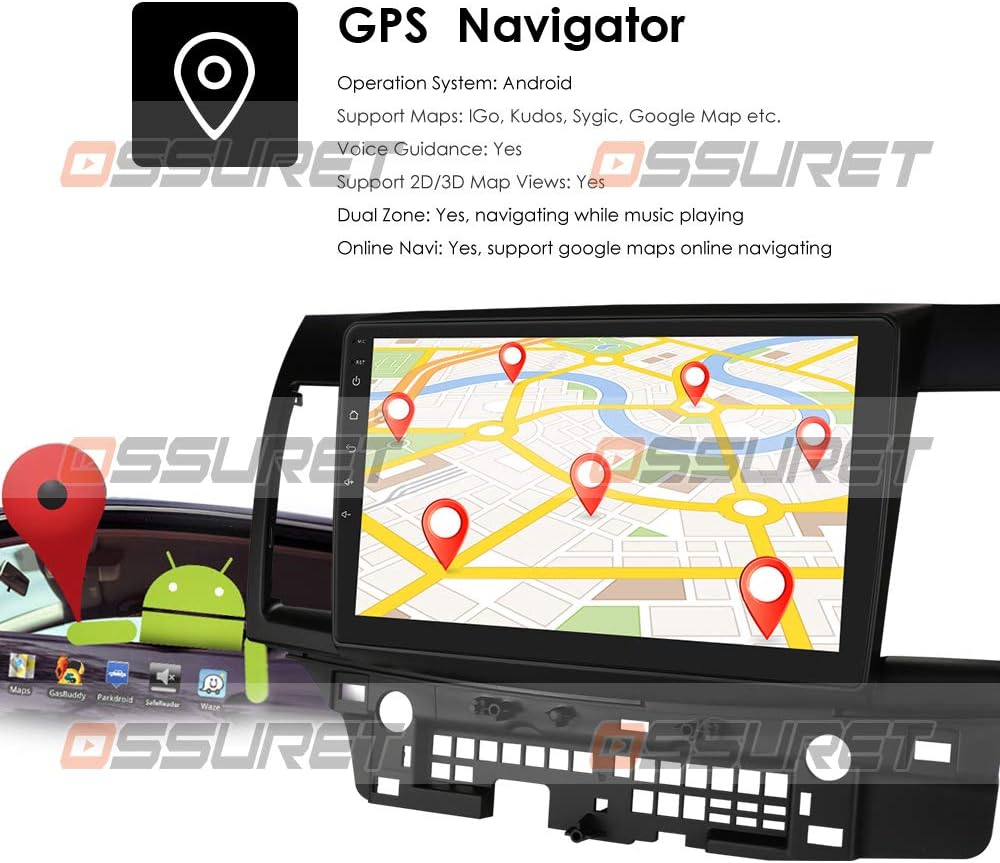
Aworan: A visual representation of the GPS navigation interface, showing a map with route markers and an Android robot icon, indicating Android OS functionality.
5.3 Radio (FM/DAB+)
- Redio FM: Access the FM radio application to scan for stations, save presets, and adjust settings. The FM frequency range is 87.5-108MHz.
- DAB/DAB+ (Optional): If a DAB+ box is connected (sold separately), you can enjoy digital audio broadcasting with higher sound quality and more channels. Connect the DAB+ box via a USB port.

Aworan: This image illustrates the connection of an optional DAB+ box via USB and provides a table comparing the advantages of DAB+ over traditional FM radio, such as CD-like quality and robust signal reception.
5.4 Bluetooth Išė
So foonu alagbeka rẹ pọ nipasẹ Bluetooth fun ipe laisi ọwọ ati sisanwọle ohun.
- Pipọpọ: Go to Bluetooth settings on the unit and your phone, search for available devices, and pair with the OSSURET unit.
- Awọn ipe laisi ọwọ: Make and receive calls directly from the unit's screen. The built-in microphone allows for clear communication.
- Bluetooth Music (A2DP): Stream audio from your phone to the car speakers. Control playback (play/pause, next/previous) from the unit.
- Iwe foonu: Download your phone's contacts to the unit for easy access and searching.
- Awọn Akọsilẹ Ipe: View dialed, received, and missed calls.

Aworan: This image displays the Bluetooth interface for phone calls, showing a dial pad on the car stereo screen and a smartphone displaying a similar interface, highlighting hands-free calling capability.
5.5 Multimedia Sisisẹsẹhin
The unit supports various media formats for music, video, and images.
- Ẹrọ orin: Supports MP3, WMA, AAC, RM, FLAC, etc.
- Ẹrọ fidio: Supports MPEG-1/2/4, H264, H263, VC1, RV, RMVB, DivX, VP8, AVS Stream, etc., with 1080P video decoding.
- Aworan Viewnitori: Supports JPS, BMP, PNG, GIF formats.
5.6 Pipin iboju Išė
Perform two tasks simultaneously by running two applications side-by-side on the screen. For example, navigate with Google Maps while listening to music or browsing a web oju-iwe.
5.7 Iṣakoso kẹkẹ idari
The unit supports your vehicle's original steering wheel controls, allowing you to manage music playback and volume without taking your hands off the wheel, enhancing driving safety.
5.8 Mirror Link
Mirror your smartphone's screen onto the head unit's display.
- For Apple iPhones (AirPin PRO): Connect your iPhone via Wi-Fi. The unit can create a Wi-Fi hotspot. Wa fun this hotspot on your iPhone and connect. You can then mirror your iPhone's display, including the main menu, photos, videos, and online navigation maps.
- For Android Phones (Easy-Connect): Connect your Android phone using a USB charging cable. You can mirror the connected Android smartphone display, including the main menu, photos, videos, and online navigation maps.

Aworan: This image demonstrates the Mirror Link feature, showing an iPhone connected wirelessly via Wi-Fi (AirPlay) and an Android phone connected via USB (Easy-Connect), both mirroring their screens to the car stereo.
5.9 Ẹyìnview Iṣagbewọle kamẹra
Eto naa ṣe atilẹyin fun ẹhinview camera input (camera sold separately). When the vehicle is in reverse, the display automatically switches to the camera feed, providing a clear view of the area behind the car and assisting with parking and avoiding obstacles.

Aworan: This image illustrates the rearview camera input feature, showing a car backing up with a visual overlay of parking guidelines on the screen, indicating support for a backup camera system.
5.10 Android Market and App Installation
Access the Android Market (Google Play Store) to download and install a wide variety of applications, games, and utilities. The unit supports Android Package (APK) installer for manual app installation.

Aworan: This image depicts the Android Market feature, showing various app icons floating around a tablet-like device, symbolizing access to a wide range of applications. It also highlights the 16GB ROM and support for APK installation.
6. Itọju
- Isọsọ iboju: Use a soft, lint-free cloth to clean the touchscreen. For stubborn smudges, lightly dampen awọn asọ pẹlu omi tabi a iboju-ailewu regede. Yago fun awọn kẹmika lile.
- Awọn imudojuiwọn sọfitiwia: Periodically check for system software updates to ensure optimal performance and access to new features. Updates can usually be found in the system settings menu.
- Afẹyinti data: Regularly back up important data or settings if applicable.
7. Laasigbotitusita
| Isoro | Owun to le Fa | Ojutu |
|---|---|---|
| Unit ko ni agbara lori | Asopọ agbara alaimuṣinṣin, fiusi ti o fẹ, ọrọ batiri ọkọ. | Check power cables and fuse. Ensure vehicle battery is charged. Consult a professional if needed. |
| Ko si ohun | Iwọn didun kere ju, o ti mu odi ṣiṣẹ, iṣoro okun agbọrọsọ. | Increase volume, check mute status. Verify speaker connections. |
| Ifihan GPS sọnu tabi aiṣedeede | GPS antenna obstructed, poor satellite reception. | Rii daju pe eriali GPS ni gbangba view ti ọrun. Gbe lọ si agbegbe ti o ṣii. |
| Bluetooth ko sopọ | Bluetooth off on unit or phone, device not in pairing mode. | Ensure Bluetooth is enabled on both devices. Put phone in pairing mode. Restart both devices. |
| Iboju ifọwọkan ko dahun | Didi eto, glitch sọfitiwia igba diẹ. | Restart the unit. If issue persists, perform a factory reset (refer to system settings). |
8. Awọn pato
| Ẹya ara ẹrọ | Ẹ̀kúnrẹ́rẹ́ |
|---|---|
| Eto isesise | Android 10 |
| Sipiyu | Quad-Core ARM A7 4*1.2GHz |
| Àgbo | 1GB |
| Flash Memory | 16GB |
| Iwon iboju | 10.1 inches |
| Ipinnu | 1024 x 600 |
| Iyipada fidio | 1080P HD H.265 2160p, Multi-format FHD video decoding |
| Iwọn Igbohunsafẹfẹ FM | 87.5-108MHz (EU/US) |
| WiFi | Ti a ṣe sinu |
| Bluetooth | Hands-free calls, A2DP music, Phonebook download |
| GPS | Offline maps pre-loaded, supports Google Maps/Waze |
| Asopọmọra | USB |
| Ipo Ijade Ohun | Sitẹrio |
| Iru fifi sori ẹrọ | Dashboard Mount or Windshield Mount |
| Ọja Mefa | 17.78 x 10.16 x 3.05 cm |
| Olupese Reference | T1MTLC101001B |
9. Atilẹyin ọja ati Support
OSSURET n pese ọkan-odun atilẹyin ọja and technical support for this car stereo system. If you have any questions regarding installation or the product itself, please contact us via message. We aim to respond within 24 hours to assist you.