
OnePlus GM1917
Ìwé ìtọ́ni fún fóònù alágbèéká OnePlus 7 Pro Méjì SIM (Model GM1917)
Your comprehensive guide to the OnePlus 7 Pro
1. Ifihan
The OnePlus 7 Pro (Model GM1917) is a high-performance smartphone designed to deliver a smooth and immersive user experience. It features a 6.67-inch Fluid AMOLED display with a 90 Hz refresh rate and QHD+ resolution, offering exceptional clarity and fluidity. The device is equipped with a versatile camera system, including a 48 MP main camera, an ultra-wide-angle lens, and 3x optical zoom, enhanced by smart scene recognition and Nightscape 2.0 technology. This manual provides essential information for setting up, operating, and maintaining your OnePlus 7 Pro.

olusin 1: Iwaju view of the OnePlus 7 Pro smartphone.
2. Ni ibẹrẹ Oṣo
2.1. Package Awọn akoonu
Ṣaaju ki o to tẹsiwaju, rii daju pe gbogbo awọn nkan wa ninu package rẹ:
- OnePlus 7 Pro Smartphone (Model GM1917)
- Adapter agbara
- USB Iru-C USB
- SIM Ejector Ọpa
- Quick Bẹrẹ Itọsọna
- Alaye Aabo
2.2. Fi awọn kaadi SIM sii
- Wa atẹ kaadi SIM ni ẹgbẹ ẹrọ rẹ.
- Insert the SIM ejector tool into the small hole on the tray and press firmly until the tray ejects.
- Place your Nano-SIM cards into the tray with the gold contacts facing down. The OnePlus 7 Pro supports Dual SIM functionality.
- Fi iṣọra tun fi atẹ naa sinu ẹrọ naa.
2.3. Agbara Lori ati Iṣeto ni ibẹrẹ
- Press and hold the Power button (located on the right side) until the OnePlus logo appears.
- Tẹle awọn itọnisọna loju iboju lati yan ede rẹ, sopọ si nẹtiwọki Wi-Fi, ki o si ṣeto akọọlẹ Google rẹ.
- You will be guided through setting up security features such as fingerprint unlock and face unlock.
3. Operating Your OnePlus 7 Pro
3.1. Ifihan Awọn ẹya ara ẹrọ
The OnePlus 7 Pro features a 6.67-inch Fluid AMOLED display with a QHD+ resolution (2560 x 1440 pixels) and a 90 Hz refresh rate. This combination provides incredibly smooth scrolling, fluid animations, and vibrant colors. Adjust display settings such as brightness, color mode, and refresh rate (if applicable) in the Settings menu under 'Display'.
3.2. Išẹ ati Ibi ipamọ
Powered by a Qualcomm Snapdragon 855 processor and 6GB of RAM, the OnePlus 7 Pro delivers robust performance for multitasking, gaming, and demanding applications. The device comes with 128GB of internal storage, providing ampaaye fun awọn lw, awọn fọto, ati awọn fidio.
3.3. Lilọ kiri
Your device offers various navigation options, including traditional on-screen navigation buttons or gesture navigation. These can be customized in the Settings menu under 'Buttons & gestures'.
4. Eto kamẹra
The OnePlus 7 Pro is equipped with a triple rear camera setup and a unique pop-up front camera.
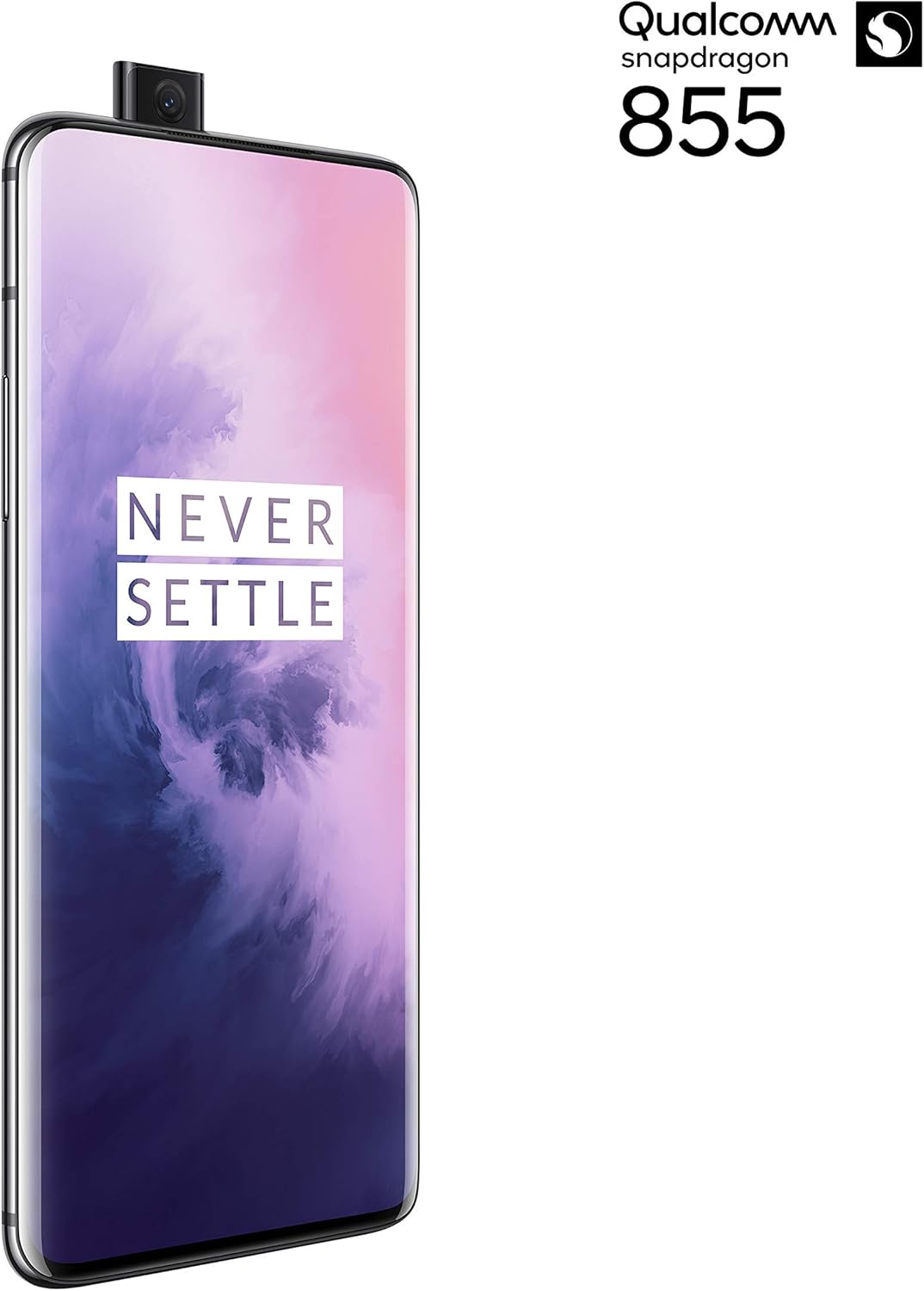
olusin 2: Iwaju view of the OnePlus 7 Pro with its pop-up selfie camera.
4.1. ru Awọn kamẹra
- Kamẹra akọkọ: 48 MP sensor for high-resolution photos.
- Ultra-Wide Angle Lens: Ó gba pápá gbígbòòrò kan view, o dara julọ fun awọn aworan ilẹ ati awọn aworan ẹgbẹ.
- Lẹnsi Tẹlifoonu: Offers 3x optical zoom for clear, detailed shots from a distance.
4.2. Kamẹra iwaju
The device features a motorized pop-up front camera, ensuring an uninterrupted full-screen display. This camera is designed for high-quality selfies and video calls.
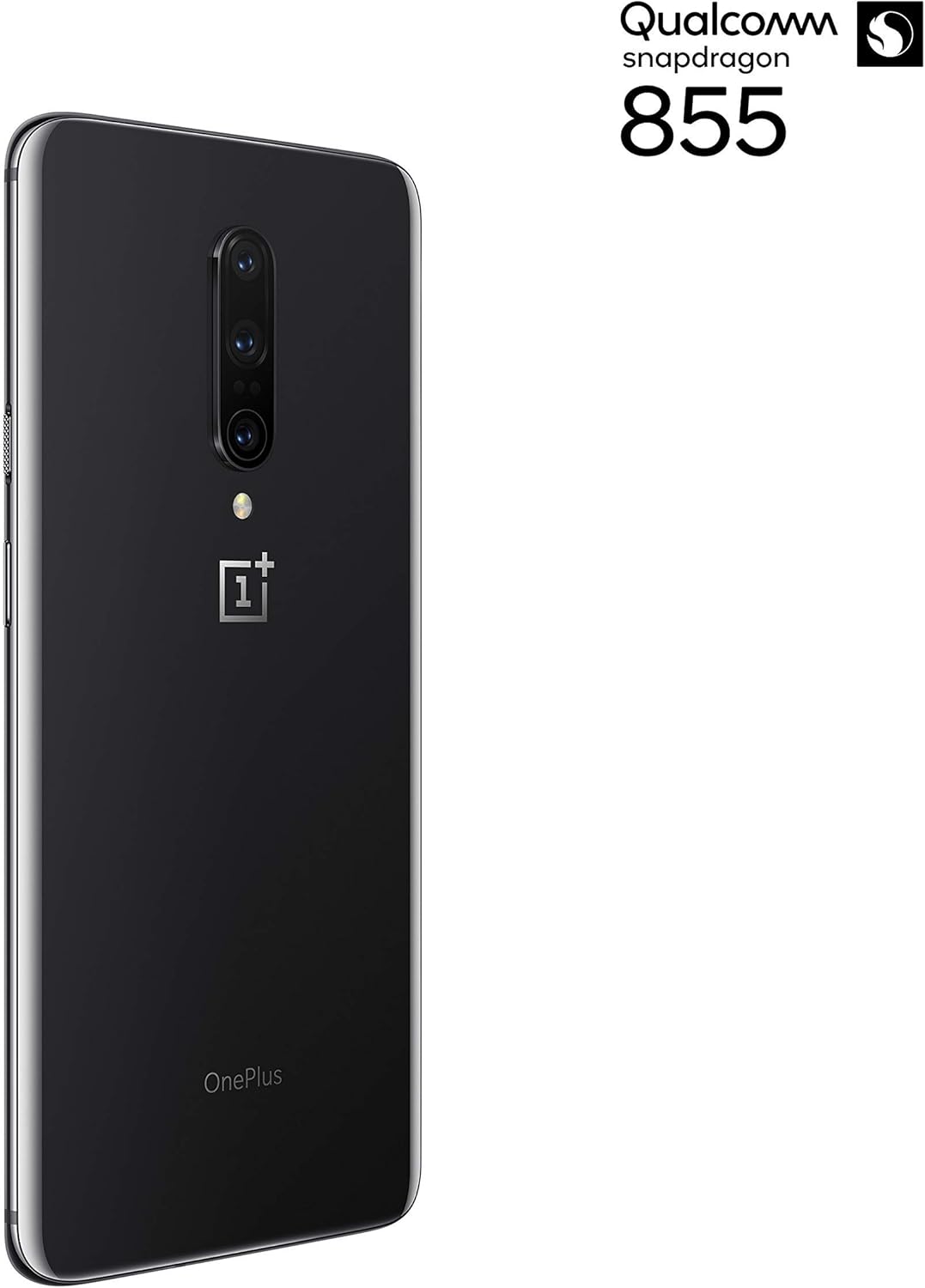
olusin 3: Ẹyìn view of the OnePlus 7 Pro highlighting the triple camera module.
4.3. Awọn ọna kamẹra
Explore various camera modes to enhance your photography:
- Fọto: Ipo boṣewa fun awọn aworan ojoojumọ.
- Aworan: Creates a depth-of-field effect, blurring the background.
- Nightscape 2.0: Optimizes photos taken in low-light conditions for brighter and clearer results.
- Ipo Pro: Nfunni iṣakoso afọwọṣe lori awọn eto bii ISO, iyara oju, ati iwọntunwọnsi funfun.
- Fidio: Records high-quality videos.
5. Batiri ati Ngba agbara
The OnePlus 7 Pro is equipped with a 4000 mAh battery, designed to provide extended usage. It supports Warp Charge technology for rapid charging.
5.1. Ngba agbara ẹrọ rẹ
To charge your device, connect the provided USB Type-C cable to the phone's charging port and the power adapter. Plug the adapter into a wall outlet. For optimal charging speed, use only the official OnePlus Warp Charge adapter and cable.
5.2. Batiri Ti o dara ju
To maximize battery life, consider the following:
- Ṣatunṣe imọlẹ iboju.
- Mu ipo fifipamọ batiri ṣiṣẹ nigbati o ba nilo rẹ.
- Pa awọn ohun elo ti ko lo ti nṣiṣẹ ni abẹlẹ.
- Fi opin si lilo data isale fun awọn ohun elo kan.
6. Imọ ni pato
| Ẹya ara ẹrọ | Sipesifikesonu |
|---|---|
| Nọmba awoṣe | GM1917 |
| Ifihan | 6.67-inch Fluid AMOLED, QHD+ (2560 x 1440), 90 Hz |
| isise | Qualcomm Snapdragon 855 |
| Àgbo | 6 GB |
| Ibi ipamọ inu | 128 GB |
| Kamẹra ẹhin | 48 MP Main, Ultra-Wide, 3x Optical Zoom Telephoto |
| Kamẹra iwaju | Pop-up Selfie Camera |
| Agbara Batiri | 4000 mAh |
| Eto isesise | Android |
| Asopọmọra | Wi-Fi, 4G LTE (AT&T, Verizon, T-Mobile compatible) |
| SIM Iru | Nano-SIM meji |
7. Laasigbotitusita
If you encounter issues with your OnePlus 7 Pro, try the following steps:
- Ohun elo Ko dahun: Press and hold the Power button for approximately 10 seconds to force restart the device.
- Awọn ọrọ App: Clear the cache and data for the problematic app in Settings > Apps > [App Name] > Storage. If the issue persists, uninstall and reinstall the app.
- Asopọmọra nẹtiwọki: Toggle Airplane Mode on and off. Restart your device. Check your SIM card insertion.
- Sisan Batiri: Review 'Battery Usage' in Settings to identify apps consuming excessive power. Reduce screen brightness and disable unnecessary features.
- Awọn abawọn sọfitiwia: Ensure your device's software is up to date via Settings > System > System updates.
- Idapada si Bose wa tele: As a last resort, you can perform a factory reset (Settings > System > Reset options > Erase all data). Ikilọ: Eyi yoo nu gbogbo data rẹ lori ẹrọ rẹ. Ṣe afẹyinti alaye pataki ṣaaju ki o to tẹsiwaju.
8. Itọju ati Itọju
To ensure the longevity and optimal performance of your OnePlus 7 Pro:
- Keep the device clean using a soft, lint-free cloth. Avoid harsh chemicals.
- Dabobo iboju pẹlu aabo iboju ki o lo ọran aabo kan.
- Yago fun ṣiṣafihan ẹrọ naa si awọn iwọn otutu to gaju, oorun taara, tabi ọrinrin.
- Regularly back up your data to a cloud service or external storage.
- Install software updates to benefit from the latest features and security enhancements.
9. Atilẹyin ọja ati Support
For information regarding warranty coverage, technical support, or service, please refer to the documentation provided with your purchase or visit the official OnePlus support website. As this is a renewed product, specific warranty terms may vary; please consult your seller for details on their renewed product warranty and return policy.
Ask a question about this manual
Ask about setup, troubleshooting, compatibility, parts, safety, or missing instructions. Manuals+ will review the question and use this page’s manual context to help answer it.