
1. Ifihan
The Poly Studio is an all-in-one USB video and audio conferencing system designed for home offices and small meeting rooms. It integrates a 4K camera, smart microphones, and a speaker into a single, sleek bar, offering a plug-and-play solution for enhanced virtual meetings.

Image: Poly Studio Premium USB Video & Audio Conferencing System, showcasing awọn oniwe-iwapọ oniru.
Awọn ẹya pataki:
- Ojutu Gbogbo-ni-Ọkan: Combines a 4K camera, smart microphone, and speaker into a single bar, ideal for small meeting rooms and home offices.
- Pulọọgi-ati-mu USB Asopọmọra: No software required for basic functionality. Connect via USB to instantly elevate your Zoom, Teams, Skype, and Google Meet experience.
- Exceptional Audio Clarity: Features Polycom noise-blocking technology and beamforming microphones for crystal-clear sound.
- Smart Camera Framing: Automatically adjusts framing and tracking based on speaker movement and participants in the room.
2. Eto
Follow these steps to set up your Poly Studio conferencing system:
- Yọ Ẹrọ naa kuro: Carefully remove the Poly Studio bar and all accessories from the packaging.
- Yan Aṣayan Iṣagbesori kan: The Poly Studio can be mounted on a tabletop, wall, or tripod.
- Oke Tabili: Gbe awọn ẹrọ lori kan idurosinsin dada.
- Odi Odi: Use the provided wall mount bracket and hardware to securely attach the device to a wall, typically above or below your display.
- Tripod Oke: Attach the device to a standard tripod using the integrated tripod thread.
- So agbara: Plug the power cable into the Poly Studio and then into a power outlet.
- Sopọ si Kọmputa: Connect the USB cable from the Poly Studio to an available USB port on your laptop or PC.
- Ìmọ̀ Sọ́fítíwèèjì: Your computer should automatically recognize the device as a USB camera, microphone, and speaker.

Image: Poly Studio connected to a display, highlighting its compatibility with various video conferencing applications.
3. Awọn ilana Iṣiṣẹ
The Poly Studio is designed for ease of use with popular video conferencing platforms.
- Select Device in Application: In your preferred video conferencing application (e.g., Zoom, Microsoft Teams, Skype, Google Meet), navigate to the audio and video settings. Select "Poly Studio" as your camera, microphone, and speaker.
- Utilize Smart Camera Features: The device's smart camera framing and speaker tracking features will automatically adjust the view to keep participants in frame and focus on the active speaker.
- Experience Clear Audio: Polycom's noise-blocking and beamforming technologies work automatically to ensure clear audio transmission and reception.
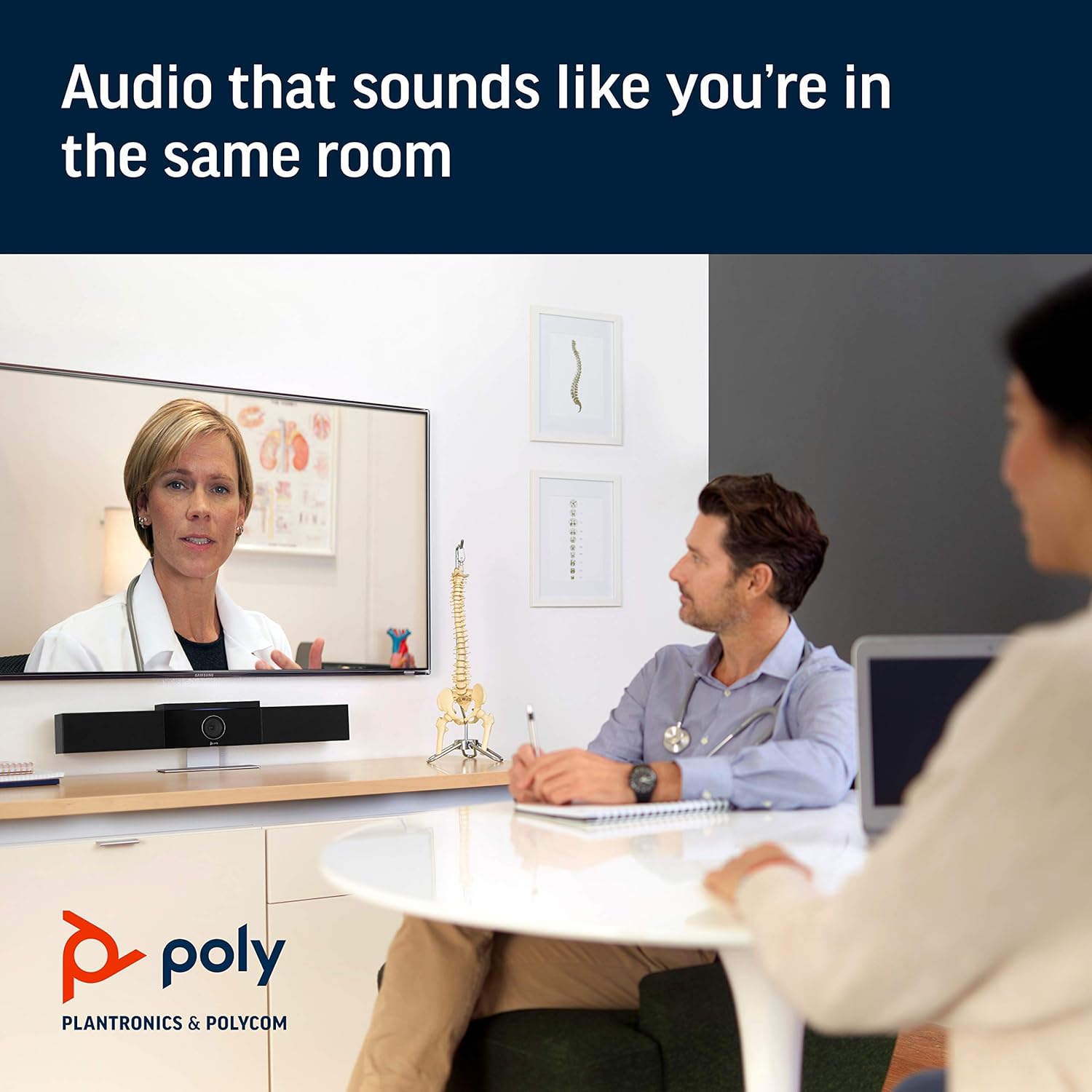
Image: Poly Studio in a meeting room, illustrating its capability to deliver clear audio for all participants.

Image: Poly Studio capturing vivid details and facial expressions of meeting participants.
4. Itọju
To ensure optimal performance and longevity of your Poly Studio, regular maintenance is recommended:
- Ninu: Gently wipe the device with a soft, dry cloth. Avoid using harsh chemicals or abrasive materials.
- Awọn imudojuiwọn sọfitiwia: Regularly check for and install software updates. These updates often include performance improvements, new features, and bug fixes. Poly Lens remote device management software can assist with this.
- Iṣakoso USB: Rii daju pe gbogbo awọn kebulu ti ṣeto daradara ati kii ṣe labẹ igara lati yago fun ibajẹ.
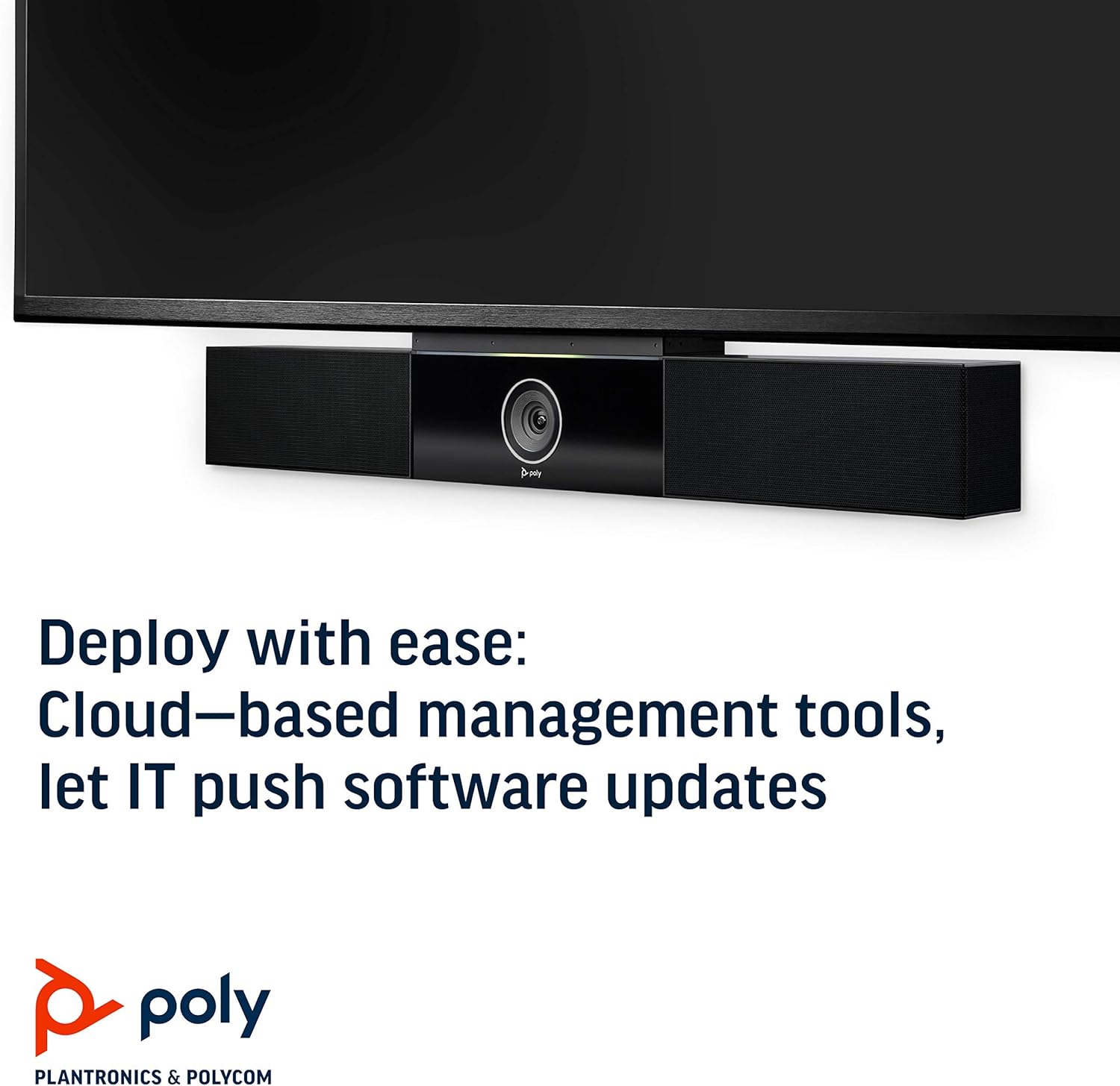
Image: Poly Studio, illustrating its compatibility with cloud-based management tools for easy software updates.
5. Laasigbotitusita
If you encounter issues with your Poly Studio, try the following troubleshooting steps:
- Ko si Agbara: Ensure the power cable is securely connected to both the device and the power outlet. Try a different outlet if necessary.
- Ko si Fidio/Ohùn: Verify that the USB cable is securely connected to both the Poly Studio and your computer. Check your video conferencing application settings to ensure the Poly Studio is selected as the active camera, microphone, and speaker.
- Didara Olohun ko dara: Ensure the device is placed in a central location in the room. Check for any physical obstructions blocking the microphones or speakers. Update the device firmware via the Poly Lens app.
- Camera Not Tracking: Ensure the room is adequately lit. Check the Poly Lens app settings for camera tracking modes and adjust as needed.
- Ohun elo Ko Damọ: Try connecting the USB cable to a different USB port on your computer. Restart your computer.
6. Awọn pato
| Ẹya ara ẹrọ | Ẹ̀kúnrẹ́rẹ́ |
|---|---|
| Iṣagbesori Iru | Tabletop Oke |
| Orukọ awoṣe | 649661882596 |
| Agbọrọsọ Iru | Sitẹrio |
| Pataki Ẹya | Imọlẹ kekere |
| Niyanju Lilo Fun Ọja | video conferencing in home offices and small conference rooms |
| Awọn ẹrọ ibaramu | Kọǹpútà alágbèéká |
| Kakiri Ohun ikanni iṣeto ni | 2.0 |
| Àwọ̀ | Dudu |
| Awọn irinše to wa | camera, stereo speakers, microphones, control unit |
| Se mabomire | ERO |
| Atilẹyin ọja Iru | Lopin |
| Nọmba ti Awọn nkan | 1 |
| Ọna Iṣakoso | Ohùn |
| Imọ-ẹrọ Ibaraẹnisọrọ Alailowaya | Kò sí Ìmọ̀-ẹ̀rọ Ìbánisọ̀rọ̀ Aláìlọ́wọ́ |
| Iwọn Agbọrọsọ | 21.59 centimita |
| Orisun agbara | Okun Itanna |
| Omi Resistance Ipele | Ko Omi Resistant |
| Audio Driver Type | Yiyi Awakọ |
| Subwoofer Asopọmọra Technology | Ti firanṣẹ |
| Awọn Lilo Ni pato Fun Ọja | Home office, Small conference rooms, Video conferencing with Zoom and Microsoft Teams |
| UPC | 649661882596 |
| inu ile / ita gbangba Lilo | Ninu ile |
| Olupese | Polycom Inc. |
| Apẹrẹ | onigun prism |
| Ọja Mefa | 30 x 6 x 4 inches |
| Iwọn Nkan | 10.58 iwon |
| ASIN | B091YCFF84 |
| Nọmba awoṣe ohun kan | 649661882596 |
| Ọjọ Akọkọ Wa | Oṣu Kẹrin Ọjọ 7, Ọdun 2021 |
| Brand | POLY |
| Agbọrọsọ Agbara Ijade ti o pọju | 40 Wattis |
| Idahun Igbohunsafẹfẹ | 120 kHz |
| Asopọmọra Technology | USB |
| Ipo Ijade Ohun | Sitẹrio |
7. Atilẹyin ọja ati Support
Your Poly Studio Premium USB Video & Audio Conferencing System comes with a Atilẹyin ọja to lopin. For specific details regarding the warranty period and coverage, please refer to the official Poly documentation or contact Poly support.
This product is also eligible for a 90-ọjọ agbapada / rirọpo policy under the Amazon Renewed Guarantee, as it is a renewed product. For support or to claim warranty/return, please contact the seller or refer to the product's official support channels.