
1. Ifihan
The Energizer Connect Smart WiFi Plug allows you to control your electronic devices remotely using a mobile application or voice commands. This smart plug connects directly to your home's 2.4GHz Wi-Fi network, eliminating the need for a separate hub. It is compatible with Amazon Alexa, Google Assistant, and Siri for convenient voice control. This manual provides detailed instructions for setting up, operating, maintaining, and troubleshooting your smart plug.
2. Alaye Aabo
Please read and understand all safety instructions before using this product. Failure to follow these instructions may result in electric shock, fire, or property damage.
- Fun lilo inu ile nikan.
- Maṣe kọja ẹru ti o pọju ti 15 Amps (120 Volts).
- Do not immerse the plug in water or expose it to moisture.
- Ma ṣe gbiyanju lati tunto tabi yi ẹrọ naa pada.
- Jeki kuro ni arọwọto awọn ọmọde.
- Rii daju pe plug naa ti fi sii ni kikun sinu iṣan ogiri.
- Yọ ẹ̀rọ náà kúrò nínú ihò ìtajà kí o tó sọ ọ́ di mímọ́.
3. Package Awọn akoonu
- 1 x Energizer Connect Smart WiFi Plug
- 1 x Itọsọna olumulo (iwe yii)
4. Ọja Ipariview
The Energizer Connect Smart WiFi Plug features a compact design that allows access to the second outlet. It includes a power button and an LED indicator for status.

Aworan 4.1: The Energizer Connect Smart WiFi Plug shown with its retail packaging, highlighting key features like 15 Amps of power, grouping, voice control, and Wi-Fi connectivity. The plug itself is white and compact.

Aworan 4.2: A sunmọ-soke iwaju view of the Energizer Connect Smart WiFi Plug, showing the standard Type B electrical outlet configuration (two vertical slots and a round ground hole).

Aworan 4.3: This image displays the compact dimensions of the Energizer Connect Smart WiFi Plug. The side view shows a depth of 1.0625 inches, and the front view indicates a diameter of 1.125 inches, illustrating its mini size.
4.1. Awọn irinše
- Bọtini agbara: Press to manually turn the connected device on or off. Press and hold for 5 seconds to initiate pairing mode (LED will blink rapidly).
- Atọka LED:
- Ri to Blue: Ẹrọ ti wa ni titan.
- Paa: Ẹrọ ti wa ni pipa.
- Rapidly Blinking Blue: Ipo sisopọ.
- Bulu ti n paju laiyara: Ge asopọ lati Wi-Fi.
5. Awọn ilana iṣeto
Follow these steps to set up your Energizer Connect Smart WiFi Plug.
5.1. System Awọn ibeere
- A stable 2.4GHz Wi-Fi network (5GHz networks are not supported).
- A smartphone or tablet running iOS 10.0 or higher, or Android 6.0 or higher.
- Access to the Apple App Store or Google Play Store.
5.2. App Download ati fifi sori
- Gba awọn Energizer Connect App lati Apple App itaja tabi Google Play itaja. Wa fun "Energizer Connect".
- Ṣii app naa ki o tẹle awọn ilana loju iboju lati ṣẹda akọọlẹ kan tabi wọle.

Aworan 5.1: A smartphone displaying the Energizer Connect App interface, showing the smart plug in an "ON" state. The image also includes the physical smart plug and icons for downloading the app from the App Store and Google Play.
5.3. Pairing the Smart Plug
- Plug the Energizer Connect Smart WiFi Plug into a standard 120V wall outlet.
- The LED indicator on the plug should begin blinking rapidly, indicating it is in pairing mode. If not, press and hold the power button on the side of the plug for 5 seconds until it blinks rapidly.
- Open the Energizer Connect App.
- Tap the "+" icon (or "Add Device") to add a new device.
- Yan "Ibusọ ina" tabi "Smart Plug" lati inu akojọ awọn ẹrọ.
- Rí i dájú pé ìmọ́lẹ̀ àmì náà ń tàn kánkán nínú àpù náà.
- Enter your 2.4GHz Wi-Fi network name and password. Ensure your phone is connected to the same 2.4GHz network.
- The app will attempt to connect to the smart plug. This may take a few moments.
- Once successfully paired, the LED indicator on the plug will turn solid blue, and the app will confirm the connection.
- You can then rename your smart plug within the app for easier identification (e.g., "Living Room Lamp," "Coffee Maker").

Aworan 5.2: A visual guide showing the three easy steps for setting up the Energizer Connect Smart WiFi Plug: download the app, install the device, and set up and control via the app or voice assistants. The image also features the Energizer bunny mascot.
6. Awọn ilana Iṣiṣẹ
Control your smart plug using the Energizer Connect App or compatible voice assistants.
6.1. Iṣakoso Afowoyi
Tẹ bọtini agbara ni ẹgbẹ ti plug ọlọgbọn lati tan tabi pa ẹrọ ti o sopọ mọ pẹlu ọwọ.
6.2. App Iṣakoso
- Tan/Pa: Open the Energizer Connect App, select your smart plug, and tap the power icon to toggle its state.
- Iṣeto: Set custom schedules for your plug to turn on or off automatically at specific times or days. This is useful for lights, coffee makers, or other appliances.
- Awọn aago: Set countdown timers for the plug to turn off after a set duration.
- Wiwọle Latọna jijin: Control your smart plug from anywhere with an internet connection, even when you are away from home.
- Iṣakojọpọ: Group multiple Energizer Connect smart plugs together to control them simultaneously with a single command.
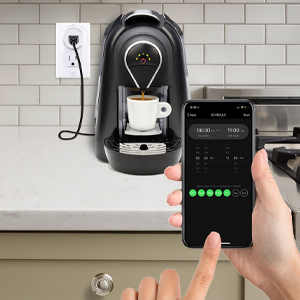
Aworan 6.1: A hand holding a smartphone displaying the Energizer Connect App's scheduling interface, set to turn on a coffee maker at a specific time. The smart plug is visible in the background, connected to the coffee machine.

Aworan 6.2: A person using a smartphone to remotely control a smart plug, demonstrating the ability to turn devices on or off from any location. The image shows a split view of the person and a living room with a lamp connected to a smart plug.
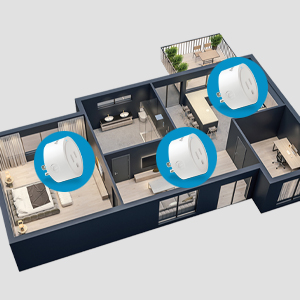
Aworan 6.3: An overhead diagram of a home showing multiple Energizer Connect Smart WiFi Plugs placed in different rooms, illustrating the concept of grouping and controlling several devices simultaneously.
6.3. Iṣakoso ohun
The Energizer Connect Smart WiFi Plug is compatible with Amazon Alexa, Google Assistant, and Siri. To enable voice control:
- Ensure your smart plug is successfully paired with the Energizer Connect App.
- Open your Amazon Alexa, Google Home, or Apple Home app.
- Follow the app's instructions to link the "Energizer Connect" skill or service. You will need to log in with your Energizer Connect account credentials.
- Ni kete ti o ti sopọ, o le lo awọn pipaṣẹ ohun bii:
- "Alexa, turn on [Plug Name]."
- "Hey Google, turn off [Plug Name]."
- "Hey Siri, turn on [Plug Name]." (Requires setting up Siri Shortcuts in the Energizer Connect App)

Aworan 6.4: A living room scene demonstrating voice control capabilities. The image shows a smart plug connected to a fan, with icons for Google Assistant, Alexa, and Siri Shortcuts, indicating compatibility with these voice assistants.
7. Itọju
To ensure optimal performance and longevity of your smart plug:
- Ninu: Disconnect the smart plug from the power outlet before cleaning. Use a soft, dry cloth to wipe the surface. Do not use liquid cleaners or aerosols.
- Ibi ipamọ: When not in use, store the smart plug in a cool, dry place away from direct sunlight and moisture.
- Awọn ipo Ayika: Avoid exposing the plug to extreme temperatures or humidity.
8. Laasigbotitusita
If you encounter issues with your Energizer Connect Smart WiFi Plug, refer to the following solutions:
| Isoro | Owun to le Fa | Ojutu |
|---|---|---|
| Plug not connecting to Wi-Fi / LED blinking slowly | Incorrect Wi-Fi password, 5GHz network selected, plug too far from router, network interference. |
|
| App cannot find the plug during pairing | Plug not in pairing mode, incorrect app used, network issues. |
|
| Iṣakoso ohun ko ṣiṣẹ | Voice assistant not linked, incorrect device name, internet connectivity issues. |
|
| Plug unresponsive | Agbara otage, device malfunction. |
|
9. Awọn pato
| Ẹya ara ẹrọ | Ẹ̀kúnrẹ́rẹ́ |
|---|---|
| Nọmba awoṣe | B0929DFGZY |
| UPC | 805106871352 |
| Iṣagbewọle Voltage | 120 Volts |
| Max Fifuye lọwọlọwọ | 15 Amps |
| Wi-Fi Igbohunsafẹfẹ | 2.4GHz (IEEE 802.11 b/g/n) |
| Ibamu | Amazon Alexa, Google Assistant, Siri (via Shortcuts) |
| Awọn iwe-ẹri | FCC Certified, ETL Certified |
| Ohun elo | Ṣiṣu, Roba |
| Àwọ̀ | Funfun |
| Iwọn Nkan | 2.89 iwon |
| Dimensions (Approx. Plug Body) | 1.125" (Diameter) x 1.0625" (Depth from outlet face) |
10. Atilẹyin ọja ati Support
For warranty information and technical support, please contact the manufacturer or seller directly. The manufacturer of this product is Jem Accessories, and the brand is Energizer Connect (distributed by XTREME DIGITAL LIFESTYLE ACCESSORIES).
Jọwọ ṣe idaduro ẹri rira rẹ fun awọn iṣeduro atilẹyin ọja.
For further assistance, visit the Energizer Connect webaaye tabi tọka si alaye olubasọrọ ti a pese pẹlu apoti ọja rẹ.