1. Ifihan
Thank you for choosing the Moxee MT-T800 Tablet. This manual provides essential information to help you get started, understand the features, and maintain your device. Please read this manual carefully before using your tablet to ensure proper operation and to maximize its lifespan.
2. Alaye Aabo
To prevent damage to your device or injury to yourself or others, please observe the following safety precautions:
- Má ṣe fi tábìlẹ́ẹ̀tì náà sí ojú ọjọ́ tí ó le koko, oòrùn tààrà, tàbí ọ̀rinrin gíga.
- Yago fun sisọ tabi tẹri tabulẹti si ipa ti o lagbara.
- Lo ṣaja ati awọn ẹya ẹrọ ti a fọwọsi nikan.
- Má ṣe gbìyànjú láti tú tàbí tún tábìlì náà ṣe fúnra rẹ. Tọ́ka sí àwọn òṣìṣẹ́ iṣẹ́ tó péye.
- Jeki tabulẹti kuro lati awọn ẹrọ iṣoogun, nitori o le dabaru pẹlu iṣẹ wọn.
3. Package Awọn akoonu
Jọwọ ṣayẹwo apoti fun awọn nkan wọnyi:
- Moxee MT-T800 Tablet
- Okun Ngba agbara USB
- Adapter agbara
- Case or Cover (if included with your specific package)
- Quick Bẹrẹ Itọsọna
Ti awọn ohun kan ba nsọnu tabi bajẹ, jọwọ kan si alagbata rẹ.
4. Ọja Ipariview
Familiarize yourself with the physical features of your Moxee MT-T800 Tablet.

Nọmba 4.1: Lapapọ view of the Moxee MT-T800 Tablet, showing both the front display and the textured back panel with the camera module.
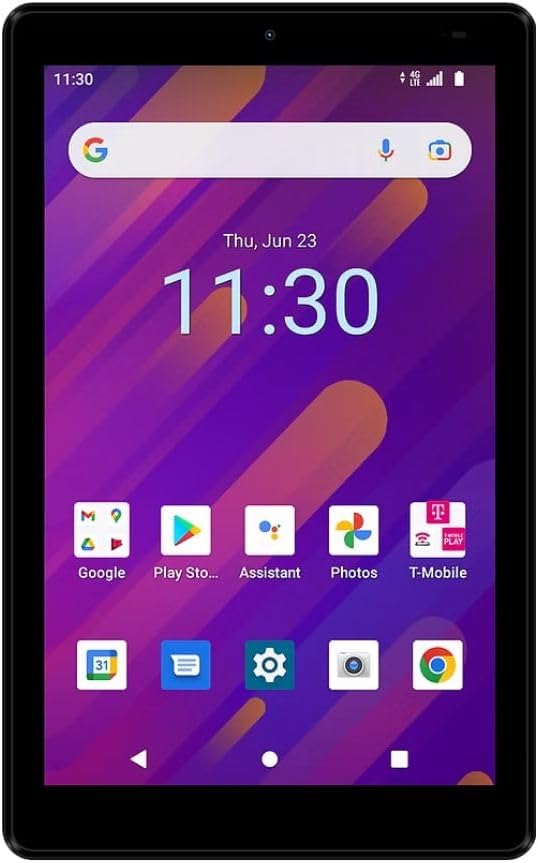
Nọmba 4.2: Iwaju view of the Moxee MT-T800 Tablet, displaying the 8-inch screen with the Android interface, including app icons and the date/time.

Nọmba 4.3: Ẹyìn view of the Moxee MT-T800 Tablet, highlighting the textured back panel, the 'moxee' logo, and the rear camera module with 'AI CAMERA' text.
4.1. Awọn ohun elo ti ara
- Kamẹra iwaju: Located above the display, used for video calls and selfies.
- Ifihan: 8-inch HD+ touchscreen for interaction and content viewing.
- Bọtini agbara: Typically on the side, used to turn the tablet on/off or wake/sleep the screen.
- Awọn bọtini iwọn didun: Usually adjacent to the power button, for adjusting audio levels.
- Ibudo USB-C: Fun gbigba agbara ati gbigbe data.
- Agbọrọsọ: Fun igbejade ohun.
- Kamẹra Tẹhin: Ó wà ní ẹ̀yìn, tí a ń lò fún yíya fọ́tò àti fídíò.
- Iho kaadi SIM/SD: (Location may vary) For inserting a SIM card for mobile data and an SD card for expandable storage.
5. Eto
5.1. Gbigba agbara akọkọ
Before first use, fully charge your tablet. Connect the USB charging cable to the tablet's USB-C port and the power adapter. Plug the adapter into a wall outlet. The charging indicator will show the charging status.
5.2. Agbara lori / Paa
- Lati Fi agbara: Press and hold the Power button until the Moxee logo appears on the screen.
- Lati Paarẹ: Press and hold the Power button until the power options menu appears. Tap 'Power off' and confirm.
5.3. Fifi Kaadi SIM ati Kaadi SD sori ẹrọ
The Moxee MT-T800 supports 4G LTE connectivity and expandable storage.
- Locate the SIM/SD card tray on the side of the tablet.
- Fi SIM ejector irinṣẹ (tabi iwe kekere kan) sinu iho kekere ti o tẹle atẹ lati ṣii.
- Place your Nano-SIM card and/or microSD card into the designated slots on the tray, ensuring correct orientation.
- Rọra Titari atẹ naa pada sinu tabulẹti titi ti o fi tẹ sinu aaye.
5.4. Oṣo oluṣeto akọkọ
Upon first power-on, the tablet will guide you through the initial setup process. This includes selecting your language, connecting to a Wi-Fi network, setting up your Google account, and configuring basic settings.
6. Ṣiṣẹ tabulẹti
6.1. Touchscreen Lilọ kiri
The tablet's primary interaction is through its capacitive touchscreen:
- Fọwọ ba: Lati yan ohun kan tabi ṣii ohun elo kan.
- Fọwọkan ati Mu: Lati wọle si awọn akojọ aṣayan ọrọ-ọrọ tabi gbe awọn ohun kan.
- Ra: Lati yi lọ nipasẹ awọn iboju tabi awọn akojọ.
- Fun pọ-si- Sun-un: Lati sun-un sinu tabi jade lori awọn aworan tabi web awọn oju-iwe.
6.2. Wi-Fi Asopọmọra
Lati sopọ si nẹtiwọki Wi-Fi:
- Lọ si Eto > Nẹtiwọọki & Intanẹẹti > Wi-Fi.
- Tan Wi-Fi.
- Yan nẹtiwọki ti o fẹ lati inu akojọ.
- Tẹ ọrọ igbaniwọle sii ti o ba ṣetan, lẹhinna tẹ ni kia kia Sopọ.
6.3. Mobile Data (4G LTE)
If you have an active SIM card with a data plan (for T-Mobile/Sprint Only):
- Lọ si Eto > Nẹtiwọọki & Intanẹẹti > Nẹtiwọọki alagbeka.
- Rii daju Mobile data ti wa ni toggled lori.
- Configure APN settings if necessary, as provided by your carrier.
6.4. Mobile Hotspot
The tablet can act as a mobile hotspot, sharing its 4G LTE connection with up to 10 devices.
- Lọ si Eto > Nẹtiwọọki & Intanẹẹti > Hotspot & so pọ.
- Fọwọ ba Wi-Fi hotspot.
- Yipada Wi-Fi hotspot lori.
- You can configure the hotspot name (SSID) and password in this menu.
6.5. Lilo kamẹra
To use the tablet's cameras:
- Ṣii awọn Kamẹra ohun elo.
- Fọwọ ba bọtini titiipa lati ya fọto kan.
- Yipada laarin awọn kamẹra iwaju ati ẹhin nipa lilo aami yi pada kamẹra.
- Yan ipo fidio lati gba awọn fidio silẹ.
6.6. Bluetooth Asopọmọra
To connect to Bluetooth devices (e.g., headphones, speakers):
- Lọ si Eto > Awọn ẹrọ ti a ti sopọ > Bluetooth.
- Tan Bluetooth.
- The tablet will scan for available devices. Select your device from the list to pair.
7. Itọju
7.1. Nu Táblẹ́ẹ̀tì Rẹ
Use a soft, lint-free cloth to clean the screen and body of the tablet. Do not use abrasive cleaners or solvents.
7.2. Itọju batiri
- Yago fun gbigba agbara si batiri ni kikun nigbagbogbo.
- Má ṣe fi tábìlì náà sílẹ̀ pẹ̀lú charger fún ìgbà pípẹ́ lẹ́yìn tí ó bá ti gba agbára tán.
- Store the tablet in a cool, dry place if not used for a long time.
7.3. Software imudojuiwọn
Ṣayẹwo nigbagbogbo fun awọn imudojuiwọn eto lati rii daju iṣẹ ti o dara julọ ati aabo. Lọ si Eto > Eto > Imudojuiwọn eto.
7.4. Ibi ipamọ Management
Lati tu aaye ipamọ silẹ, ro:
- Ayọkuro awọn ohun elo ti a ko lo.
- Deleting old photos and videos or moving them to cloud storage/SD card.
- Clearing cached data from apps (Eto > Awọn ohun elo & awọn iwifunni > yan app > Ibi ipamọ & kaṣe > Ko kaṣe kuro).
8. Laasigbotitusita
Ti o ba pade awọn iṣoro pẹlu tabulẹti rẹ, gbiyanju awọn ojutu wọnyi:
8.1. Tablet Will Not Turn On
- Rii daju pe batiri ti gba agbara. So ṣaja pọ ki o duro fun iṣẹju diẹ ṣaaju ki o to gbiyanju lati tan-an.
- Tẹ mọlẹ bọtini Agbara fun o kere ju iṣẹju 10-15 lati tun fi agbara mu bẹrẹ.
8.2. Ko si Wi-Fi Asopọ
- Rii daju pe Wi-Fi ti ṣiṣẹ ni Eto.
- Tun olulana Wi-Fi rẹ bẹrẹ.
- Forget the network and reconnect (Eto > Nẹtiwọọki & Intanẹẹti > Wi-Fi > tap network > Gbagbe).
8.3. O lọra Performance
- Pa awọn ohun elo ti ko lo ti nṣiṣẹ ni abẹlẹ.
- Clear app caches and manage storage as described in Section 7.4.
- Tun tabulẹti bẹrẹ.
8.4. Awọn ọran gbigba agbara
- Ensure the charging cable and adapter are securely connected and undamaged.
- Gbiyanju iṣan agbara ti o yatọ.
- Lo awọn ẹya ẹrọ gbigba agbara atilẹba tabi ti a fọwọsi nikan.
Ti awọn iṣoro ba wa, kan si atilẹyin alabara.
9. Awọn pato
| Ẹya ara ẹrọ | Ẹ̀kúnrẹ́rẹ́ |
|---|---|
| Orukọ awoṣe | MT-T800 |
| Ifihan | 8-inch HD+ (1280 x 800) |
| Eto isesise | Android 10 |
| isise | Octa-Core Processor (Qualcomm Chipset) |
| GPU | Adreno 505 |
| Àgbo | 3 GB |
| Ibi ipamọ inu | 32 GB |
| Expandable Ibi ipamọ | Yes (microSD) |
| Kamẹra ẹhin | 5 MP |
| Kamẹra iwaju | 5 MP |
| Alailowaya Asopọmọra | Wi-Fi (802.11g), Bluetooth, 4G LTE (T-Mobile/Sprint Only) |
| Mobile Hotspot | Ṣe atilẹyin awọn ẹrọ to 10 |
| Awọn iwọn (LxWxH) | 8.57" x 4.89" x 0.35" (Product) / 6 x 4 x 8 inches (Shipping) |
| Iwọn | 14.3 iwon |
| Àwọ̀ | Dudu |
| Batiri | Batiri litiumu 1 nilo |
10. Atilẹyin ọja ati Support
This Moxee MT-T800 Tablet is covered by a limited warranty. For specific warranty terms and conditions, please refer to the documentation provided at the time of purchase or contact your retailer. For technical support, troubleshooting assistance, or service inquiries, please visit the official Moxee support webojula tabi kan si wọn onibara iṣẹ.