
1. Ifihan
Thank you for choosing the IROAD X5 Dash Cam. This device is designed to record your driving journey in Full HD, providing crucial evidence in case of an incident. It features front and rear cameras, Wi-Fi connectivity for smartphone access, a G-Sensor for impact detection, and advanced driver assistance systems (ADAS). Please read this manual carefully before installation and operation to ensure proper use and optimal performance.

Figure 1: IROAD X5 Dash Cam (Front and Rear Units)
2. Ọja Ipariview
2.1 Package Awọn akoonu
- Main Unit (Front Camera)
- Kamẹra ẹhin
- Wi-Fi Dongle
- IROAD Genuine 16GB MicroSD Card
- Oke Atẹgun
- Constant Power Cable (3m)
- Rear Camera Connection Cable (6m)
- Ilana Afowoyi (iwe yii)
- Spare Double-sided Tape
2.2 Key Awọn ẹya ara ẹrọ
- Dual Full HD Recording: Front and rear cameras record in 1920x1080P at 30fps.
- Gbooro Viewigun Angle: 140 ° aaye ti view for both front and rear cameras.
- G-Sensọ: 3-axis acceleration sensor for automatic impact detection and event recording.
- Wi-Fi Asopọmọra: Connect to your smartphone via Wi-Fi for live view, playback, and settings adjustment.
- ADAS (Ẹ̀rọ Ìrànlọ́wọ́ Awakọ̀ Tó Tẹ̀síwájú): Includes Lane Departure Warning, Front Vehicle Departure Warning, and Forward Collision Warning.
- Various Recording Modes: Continuous, Impact, Parking, and Motion Detection recording.
- Iran Alẹ: Enhanced recording quality in low-light conditions.
- Gbigbasilẹ ohun: On/Off selectable.
3. Eto
3.1 Fifi Kaadi MicroSD sii
- Rii daju pe kamera dash ti wa ni pipa.
- Locate the MicroSD card slot on the main unit.
- Insert the provided 16GB MicroSD card into the slot until it clicks into place. Ensure the correct orientation.
3.2 Fifi sori ẹrọ kamẹra iwaju
- Clean the windshield area where you intend to mount the camera.
- Attach the mounting bracket to the front camera.
- Peel off the protective film from the double-sided tape on the bracket.
- Mount the front camera on the windshield, ideally behind the rearview mirror, ensuring a clear view of the road. Press firmly for secure adhesion.

Figure 2: IROAD X5 Front Camera
3.3 Ru kamẹra fifi sori
- Clean the rear window area.
- Attach the rear camera to the rear window using the double-sided tape, ensuring a clear view.
- Connect the rear camera to the main unit using the provided 6m rear camera connection cable. Route the cable neatly along the vehicle's interior trim.
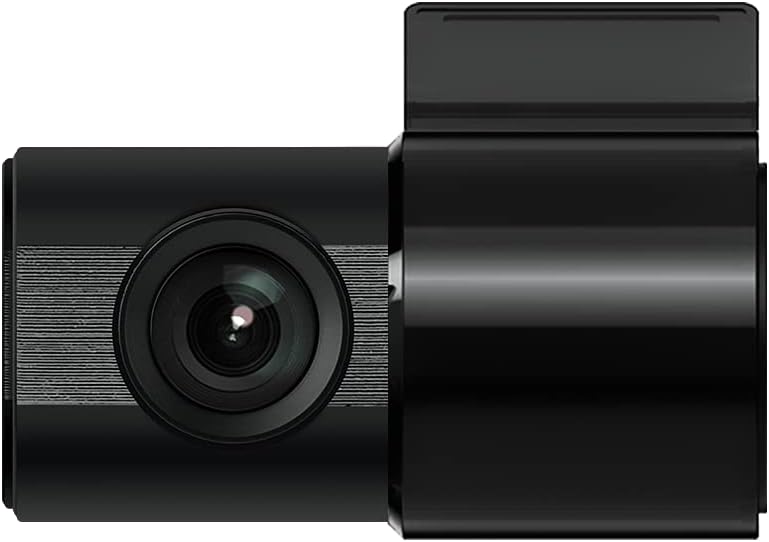
Figure 3: IROAD X5 Rear Camera
3.4 Asopọ agbara
- Connect the constant power cable to the main unit's power input port.
- Connect the other end of the power cable to your vehicle's power source (e.g., OBDII port for general and hybrid vehicles, if using the optional OBDII power cable, or fuse box for constant power). Consult a professional for hardwiring if unsure.
3.5 Wi-Fi Dongle Connection (Optional)
If your model requires an external Wi-Fi dongle, insert it into the designated USB port on the main unit. This enables Wi-Fi connectivity for smartphone app control.
4. Awọn ilana Iṣiṣẹ
4.1 Automatic Power On/Off
The IROAD X5 Dash Cam will automatically power on and begin recording when your vehicle's ignition is turned on. It will power off automatically when the ignition is turned off.
4.2 Awọn ọna Gbigbasilẹ
- Igbasilẹ Gbigbawọle: The dash cam continuously records while driving. Older files are overwritten by new ones when the MicroSD card is full.
- Impact Recording: When the G-Sensor detects a sudden impact or collision, the dash cam automatically saves the current recording segment as an event file, tí ó ń dènà kí a má baà tún kọ ọ́ síta.
- Gbigbasilẹ Gbigbasilẹ: When the vehicle is parked and the ignition is off, the dash cam enters parking mode. It records events triggered by motion detection or impacts.
- Gbigba Iwari išipopada: In parking mode, the camera records when motion is detected in its field of view.
4.3 ADAS Functions
The IROAD X5 includes Advanced Driver Assistance Systems to enhance driving safety:
- Lane Departure Warning (LDWS): Titaniji fun ọ ti ọkọ rẹ ba lọ kuro ni ọna rẹ.
- Ikilọ Ilọkuro Ọkọ iwaju (FVDW): O sọ ọ leti nigbati ọkọ iwaju ba bẹrẹ gbigbe lati iduro kan.
- Forward Collision Warning (FCWS): Kilọ fun ọ nipa ijamba ti o pọju pẹlu ọkọ kan ti o wa niwaju.
These features can be configured via the IROAD smartphone application.
4.4 Gbigbasilẹ Ohun
Audio recording is enabled by default. You can toggle this feature on or off through the IROAD smartphone application settings.
4.5 Using the IROAD App (Wi-Fi)
- Download the "IROAD" app from your smartphone's app store.
- Tan kamẹra daaṣi.
- On your smartphone, go to Wi-Fi settings and connect to the IROAD dash cam's Wi-Fi network (SSID and password can be found in the app or on the device label).
- Open the IROAD app to access live view, recorded videos, and adjust settings.
5. Itọju
5.1 MicroSD Card Management
It is recommended to format the MicroSD card regularly (e.g., once a month) to maintain optimal recording performance and prevent data corruption. This can be done through the IROAD smartphone app or by removing the card and formatting it on a computer.
5.2 Ninu awọn lẹnsi
Periodically clean the front and rear camera lenses with a soft, dry cloth to ensure clear video quality. Avoid using abrasive cleaners.
5.3 famuwia imudojuiwọn
Check the official IROAD website or the IROAD app for available firmware updates. Keeping your dash cam's firmware up-to-date ensures the latest features and bug fixes.
6. Laasigbotitusita
| Isoro | Owun to le Fa / Solusan |
|---|---|
| Kamẹra Dash ko ni agbara lori. | Check power cable connection. Ensure vehicle ignition is on. Verify fuse in power cable or vehicle's fuse box. |
| No recording or recording stops. | MicroSD card may be full or corrupted. Format the MicroSD card. Ensure the card is inserted correctly. |
| Awọn oran asopọ Wi-Fi. | Ensure Wi-Fi dongle is properly connected (if applicable). Restart the dash cam and your smartphone. Check Wi-Fi settings on your phone. |
| Didara fidio ti ko dara. | Clean camera lenses. Ensure protective film is removed from lenses. Check recording resolution settings in the app. |
| Awọn ikilọ ADAS ko pe. | Ensure the camera is properly calibrated and mounted centrally. Environmental factors (heavy rain, fog) can affect performance. |
7. Awọn pato
| Ẹya ara ẹrọ | Sipesifikesonu |
|---|---|
| Aaye ti View (Iwaju/Ẹyin) | 140° |
| Resolution (Front/Rear) | Full HD 1920x1080P |
| Frame Rate (Front/Rear) | 30fps |
| Awọn igbasilẹ Gbigbasilẹ | Continuous, Impact, Parking, Motion Detection |
| ADAS Awọn ẹya ara ẹrọ | Lane Departure Warning, Front Vehicle Departure Warning, Forward Collision Warning |
| G-Sensọ | Sensọ isare 3-apa |
| Gbigbasilẹ ohun | On/Off selectable |
| Agbara agbara | 2.6W |
| Awọn iwọn otutu ti nṣiṣẹ | -30°C si 75°C |
| Media Gbigbasilẹ | MicroSD Card (16GB included) |
| Main Unit Mefa | 90 x 40 x 30mm |
| Akọkọ Unit iwuwo | 60g |
| Asopọmọra | Wi-Fi |
| Ifihan Iru | LCD (4 inch, if applicable, though product description implies no screen on main unit) |
| Iṣagbesori Ọna | Alamora |
8. Atilẹyin ọja ati Support
For warranty information, technical support, or service inquiries, please refer to the warranty card included with your product or visit the official IROAD webojula. Tọju iwe-ẹri rira rẹ bi ẹri rira fun awọn iṣeduro atilẹyin ọja.