
Ọrọ Iṣaaju
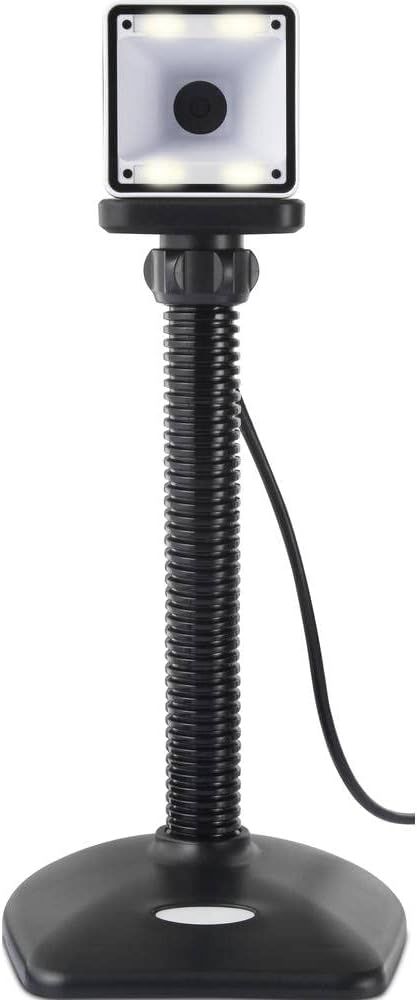
Thank you for choosing the Renkforce RF-SBS-500 2D Wired Barcode Scanner. This device is designed for efficient and reliable scanning of both 1D and 2D barcodes from various surfaces, including paper and smartphone screens. Its omnidirectional scanning capability and hands-free operation make it suitable for a wide range of applications. This manual provides essential information for the proper setup, operation, and maintenance of your scanner.
Awọn Itọsọna Aabo
- Má ṣe fi ẹ̀rọ ìwádìí náà sí ojú ọjọ́ tí ó le koko, ọriniinitutu, tàbí oòrùn tààrà.
- Avoid dropping the scanner or subjecting it to strong impacts.
- Do not attempt to disassemble or modify the scanner. This will void the warranty.
- Keep the scanning window clean to ensure optimal performance. Use a soft, dry cloth.
- Ensure the USB cable is connected securely to prevent accidental disconnection.
Package Awọn akoonu
- Renkforce RF-SBS-500 2D Wired Barcode Scanner
- Integrated USB-A Cable
- Afowoyi Olumulo (iwe-ipamọ yii)
Ṣeto
Follow these steps to set up your Renkforce RF-SBS-500 barcode scanner:
- Yọ Scanner kuro: Carefully remove the scanner from its packaging.
- Sopọ mọ Kọmputa kan: Plug the integrated USB-A cable from the scanner into an available USB port on your desktop or laptop computer.
- Fifi sori Awakọ: The scanner is typically plug-and-play. Your operating system (Windows, macOS, Linux) should automatically detect and install the necessary drivers. Wait for the installation to complete.
- Ibi: Place the scanner on a stable, flat surface. The flexible neck allows for adjustment of the scanning head angle for optimal positioning.

Ṣiṣayẹwo Scanner
The Renkforce RF-SBS-500 is designed for ease of use with its omnidirectional and hands-free capabilities.
- Agbara Tan: Once connected via USB, the scanner will power on automatically. The LED indicators on the scanner head may illuminate briefly.
- Ṣiṣayẹwo koodu koodu kan: Position the barcode within the scanning area of the scanner head. The scanner will automatically detect and read the barcode.
- Idahun wiwo ati Gbolohun: Upon successful scanning, the integrated buzzer will emit a short beep, and the LED display on the scanner will flash or change color, indicating a successful read.
- Omnidirectional Reading: The scanner can read barcodes regardless of their orientation, eliminating the need to align the barcode precisely.
- Hands-Free Mode (Presentation Mode): The scanner operates continuously in a presentation mode, allowing you to simply pass items with barcodes in front of the scanning window without pressing any buttons. This saves time and improves workflow efficiency.
- Awọn koodu bar ti o ni atilẹyin: The scanner supports both 1D (e.g., EAN, UPC, Code 39) and 2D (e.g., QR Code, Data Matrix, PDF417) barcode types.
Itoju
Itọju to peye n ṣe idaniloju pe ẹrọ iboju rẹ yoo pẹ to ati pe yoo ṣiṣẹ daradara.
- Fífọ Fèrèsé Ṣíṣe Àyẹ̀wò: Máa fọ fèrèsé ìwádìí déédéé pẹ̀lú aṣọ rírọ̀ tí kò ní àwọ̀. Fún ìdọ̀tí líle, fi díẹ̀ sí i.ampen the cloth with water or a mild, non-abrasive cleaner. Do not spray cleaner directly onto the scanner.
- Isọsọ gbogboogbo: Nu ita ẹrọ iboju naa pẹlu gbigbẹ tabi d diẹ die-dieamp asọ. Yago fun lilo awọn kẹmika lile tabi awọn ohun elo abrasive.
- Ibi ipamọ: Nigbati o ko ba si ni lilo, tọju ẹrọ aṣayẹwo sinu mimọ, agbegbe gbigbẹ kuro lati orun taara ati awọn iwọn otutu to gaju.
Laasigbotitusita
Ti o ba pade awọn ọran pẹlu ẹrọ iwoye rẹ, tọka si awọn iṣoro ti o wọpọ ati awọn ojutu wọnyi:
| Isoro | Owun to le Fa | Ojutu |
|---|---|---|
| Scanner ko ni agbara lori. | USB cable not connected properly or faulty USB port. | Ensure the USB cable is firmly connected to both the scanner and the computer. Try a different USB port. |
| Scanner ko ka barcodes. | Barcode damaged, scanning window dirty, or incorrect barcode type. | Check the barcode for damage. Clean the scanning window. Ensure the barcode type is supported (1D/2D). Adjust the distance and angle of the barcode to the scanner. |
| No beep or LED feedback after scanning. | Barcode not read successfully. | Refer to the "Scanner does not read barcodes" solution. If the issue persists, contact support. |
| Scanned data appears incorrectly. | Keyboard layout mismatch or software issue. | Ensure your computer's keyboard layout matches the expected output. Test with a simple text editor. |
If the problem persists after trying these solutions, please contact Renkforce customer support.
Awọn pato
| Ẹya ara ẹrọ | Sipesifikesonu |
|---|---|
| Nọmba awoṣe | RF-4679568 |
| Agbara Ayẹwo | 1D and 2D Barcodes |
| Asopọmọra Technology | USB-A (Ti firanṣẹ) |
| Oṣuwọn ọlọjẹ | 60 awọn aworan fun keji |
| Ipo wíwo | Omnidirectional, Hands-free (Presentation Mode) |
| Esi | Integrated Buzzer, LED Display |
| Awọn ẹrọ ibaramu | Desktop Computer, Laptop, Smartphone (via appropriate adapter if needed) |
| Awọn iwọn (L x W x H) | 150 x 5.2 x 5.2 cm |
| Iwọn Nkan | 102 giramu |
| Orisun agbara | Agbara USB |
| Ilu isenbale | Jẹmánì |
Atilẹyin ọja ati Support
Renkforce products are manufactured to high-quality standards and come with a standard warranty. Please refer to your purchase documentation or the Renkforce official webAaye fun awọn ofin atilẹyin ọja kan pato ati ipo ti o wulo si agbegbe rẹ.
For technical support, troubleshooting assistance, or warranty claims, please contact Renkforce customer service. Contact details can typically be found on the Renkforce webaaye tabi lori apoti ọja rẹ.