
1. Ifihan
The Razer Thunderbolt 4 Dock is a versatile connectivity solution designed to expand the capabilities of your laptop or desktop. It offers high-speed data transfer, support for multiple displays, and pass-through charging, all through a single Thunderbolt 4 cable connection. This dock is compatible with both Windows and Mac systems, and features customizable Razer Chroma RGB lighting.
Awọn ẹya pataki pẹlu:
- Full Thunderbolt 4 Functionality: Experience high-speed data transfer, connect multiple displays, and charge your laptop with a single cable.
- Ibamu gbooro: USB 4 compatible, works with legacy Thunderbolt devices, and supports Windows and Mac systems.
- Ṣe-Nipasẹ Gbigba agbara: Keep your USB-C powered laptop charged while simultaneously powering other connected devices.
- 10-Port Hub: Maximize your setup with a variety of ports for peripherals.
- Dual 4K or Single 8K Display Output: Expand your visual workspace with high-resolution display options.
- Imọlẹ Razer Chroma RGB: Personalize your dock with customizable lighting effects.
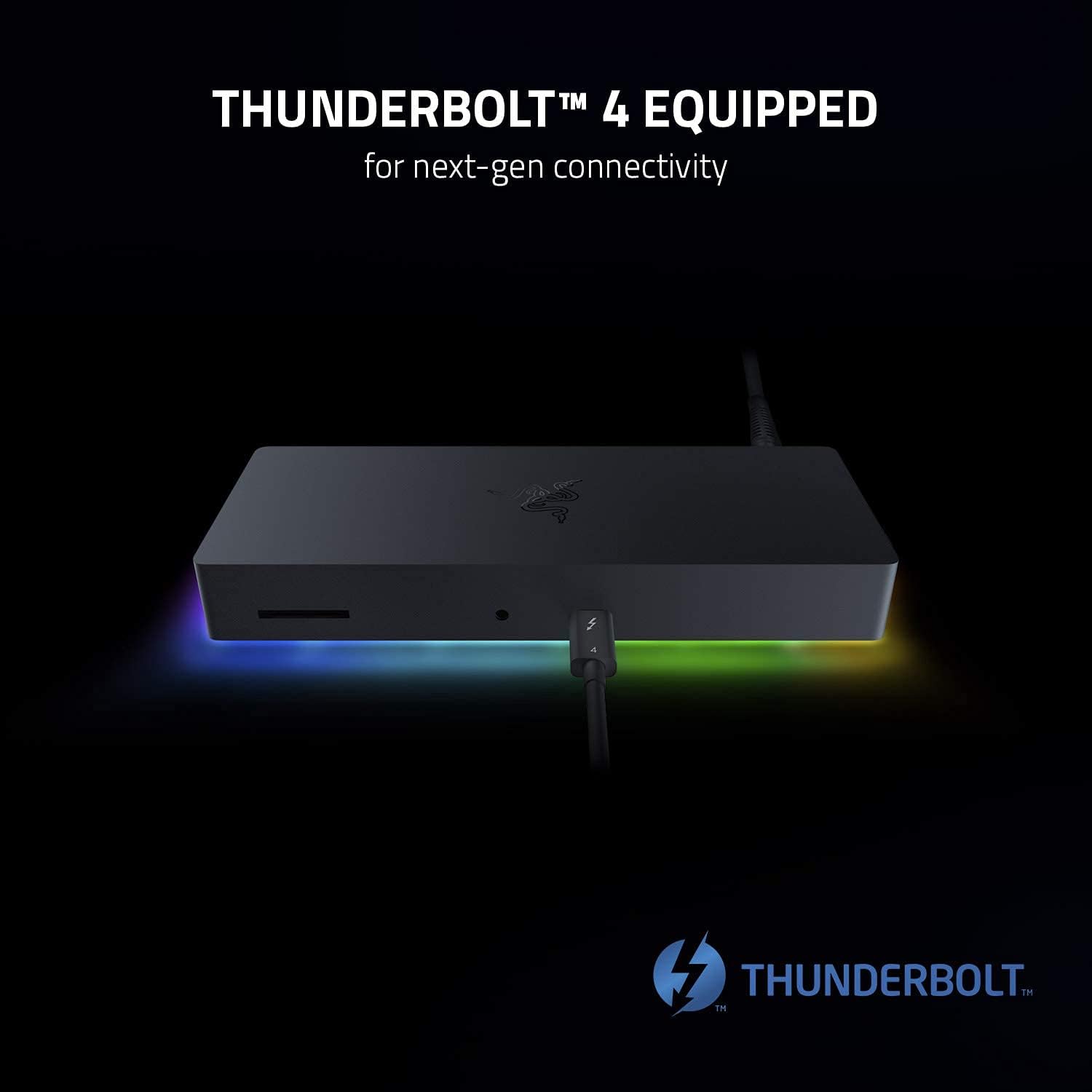
Image 1.1: The Razer Thunderbolt 4 Dock, highlighting its Thunderbolt 4 capabilities for next-generation connectivity.
2. Eto
Follow these steps to set up your Razer Thunderbolt 4 Dock:
- So agbara: Plug the included power adapter into the dock's power input port and then into a wall outlet. The dock's Chroma lighting should illuminate.
- Sopọ si Ẹrọ Gbalejo: Use the provided Thunderbolt 4 cable to connect the dock's upstream Thunderbolt 4 port to a Thunderbolt 4 or USB-C port on your laptop or desktop computer.
- Awọn Agbeegbe Sopọ:
- Awọn ifihan: Connect your monitors to the available Thunderbolt 4 (USB-C) ports or the HDMI port on the dock. Ensure your cables support the desired resolution (e.g., 4K or 8K).
- Awọn ẹrọ USB: Plug in your USB peripherals (keyboard, mouse, external drives) into the USB-A ports.
- Àjọlò: For a wired network connection, connect an Ethernet cable from your router or modem to the Gigabit Ethernet port on the dock.
- Ohun: So awọn agbekọri tabi awọn agbohunsoke pọ si jaketi ohun afetigbọ 3.5mm.
- Kaadi SD: Insert an SD card into the SD card slot for data transfer.
- Fifi sori ẹrọ Awakọ (ti o ba jẹ dandan): For optimal performance, ensure your computer's operating system and Thunderbolt drivers are up to date. In most cases, the dock will be plug-and-play.

Image 2.1: Diagram illustrating the 10-port hub of the Razer Thunderbolt 4 Dock and various connected peripherals.

Aworan 2.2: Iwaju ati ẹhin views of the Razer Thunderbolt 4 Dock, showcasing its various ports for maximum versatility and ease of use.
3. Ṣiṣẹ́ Ibùdókọ̀
Once set up, the Razer Thunderbolt 4 Dock operates seamlessly with your connected devices.
- Iṣeto ni Ifihan: Your operating system should automatically detect connected displays. You can configure display settings (resolution, arrangement, mirroring/extending) through your computer's display settings. The dock supports dual 4K displays or a single 8K display.
- Ṣe-Nipasẹ Gbigba agbara: If your laptop supports USB-C power delivery, the dock will charge your laptop while it is connected, eliminating the need for a separate power adapter for your laptop.
- Razer Chroma RGB: To customize the dock's RGB lighting, download and install the Razer Synapse software from the official Razer website. Synapse allows you to synchronize lighting effects with other Razer Chroma-enabled devices and personalize your setup.

Image 3.1: The Razer Thunderbolt 4 Dock connected to a monitor and laptop, demonstrating its capability for dual 4K or single 8K display output.

Image 3.2: The Razer Thunderbolt 4 Dock connected to a laptop, illustrating its pass-through charging feature for convenience.

Image 3.3: The Razer Thunderbolt 4 Dock displaying its customizable Chroma RGB lighting, with the Razer Synapse software interface visible on a monitor.
4. Itọju
Proper maintenance ensures the longevity and optimal performance of your Razer Thunderbolt 4 Dock.
- Ninu: Use a soft, dry cloth to wipe down the exterior of the dock. Avoid using harsh chemicals or abrasive materials. Ensure the dock is powered off and disconnected from all devices before cleaning.
- Afẹfẹ: Rí i dájú pé a gbé èbúté náà sí ibi tí afẹ́fẹ́ ti ń fẹ́ kí ó má baà pọ̀ jù. Má ṣe dí àwọn ihò afẹ́fẹ́ kankan.
- Awọn imudojuiwọn famuwia: Periodically check the official Razer support website for any available firmware updates for your dock. Firmware updates can improve performance, add features, or resolve issues.
5. Laasigbotitusita
If you encounter issues with your Razer Thunderbolt 4 Dock, try the following troubleshooting steps:
- Ko si Agbara: Ensure the power adapter is securely connected to both the dock and a working power outlet. Check if the Chroma lighting is active.
- Devices Not Recognized:
- Rí i dájú pé okùn Thunderbolt 4 so mọ́ ibi ìdúró ọkọ̀ àti kọ̀ǹpútà rẹ dáadáa.
- Try disconnecting and reconnecting the peripheral device to the dock.
- Tun kọmputa rẹ bẹrẹ.
- Ensure your computer's Thunderbolt drivers are up to date.
- Ko si Abajade Ifihan:
- Check all display cable connections (HDMI, USB-C to display).
- Rii daju pe atẹle rẹ ti ṣeto si orisun titẹ sii to tọ.
- Test the display directly with your computer if possible to rule out monitor issues.
- Ṣe imudojuiwọn awọn awakọ eya aworan rẹ.
- Asopọmọra igba diẹ: Ensure all cables are of high quality and securely connected. Avoid placing the dock near sources of electromagnetic interference.
- Awọn oran Imọlẹ Chroma: If Chroma lighting is not working as expected, ensure Razer Synapse is installed and running, and check its settings.
If these steps do not resolve your issue, please refer to the official Razer support resources.
6. Awọn pato
| Nọmba awoṣe | RC21-01690100-R3U1 |
| Ọja Mefa | 19 x 7.49 x 2.69 cm |
| Iwọn | 1.05 kg |
| Ni wiwo Hardware | Thunderbolt 4 |
| Awọn ẹrọ ibaramu | Windows Laptops, MacBooks, Thunderbolt Devices, USB-C Devices |
| Lapapọ Awọn ibudo USB | 10 |
| Lapapọ HDMI Ports | 1 |
| Àwọ̀ | Dudu |
| UPC | 656942067061 |
7. atilẹyin ọja Information
This product is sold as an Amazon Renewed item. Amazon Renewed products are professionally inspected and tested to work and look like new. If you are not satisfied with your purchase, renewed products are eligible for replacement or refund under the Amazon Renewed Guarantee. Please refer to the Amazon Renewed Guarantee terms and conditions for full details regarding your warranty and return options.
8. Atilẹyin
For further assistance, technical support, or to download the latest drivers and software (such as Razer Synapse), please visit the official Razer support webojula:
You may also contact Amazon customer service for inquiries related to your Amazon Renewed purchase.