
1. Ọja Ipariview
The Lexmark MX611DHE is a monochrome laser multifunction device designed for office environments, offering comprehensive capabilities including printing, copying, scanning, and faxing. This robust unit is engineered for high-volume output and efficient document handling.
- Iṣẹ ṣiṣe lọpọlọpọ: Integrates print, copy, fax, and scan functions into a single device.
- Iṣe-iyara giga: Capable of printing and copying at speeds up to 50 pages per minute (ppm).
- Titẹ ile-meji: Supports automatic two-sided printing to conserve paper.
- Agbara titẹ sii: Features a standard input capacity of 650 sheets, expandable for larger tasks.
- Asopọmọra: Equipped with USB and Ethernet interfaces for versatile network integration.
- Iṣakoso ogbon inu: Features a touchscreen display for easy navigation and operation.
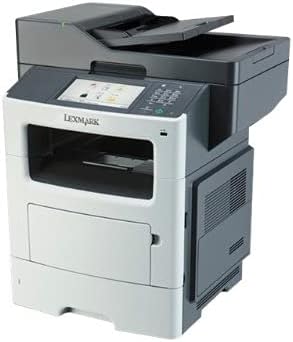
olusin 1: Iwaju view of the Lexmark MX611DHE multifunction printer, showcasing its compact design and front-facing paper tray.
2. Eto Itọsọna
Follow these steps to set up your Lexmark MX611DHE printer for initial use.
- Ṣii silẹ: Carefully remove the printer from its packaging. Remove all protective tapes and packing materials from the exterior and interior of the device.
- Ibi: Place the printer on a stable, level surface with adequate ventilation. Ensure there is enough space around the printer for proper operation and maintenance.
- Asopọ agbara: Connect the power cord to the printer's power input and then to a grounded electrical outlet. Do not connect to a surge protector or extension cord initially.
- Gbigba iwe: Open the paper tray and load the appropriate paper size (up to 8.5 x 14 inches). Adjust the paper guides to fit the paper stack snugly.
- Nẹtiwọọki/Asopọ USB:
- For Network (Ethernet): So okùn Ethernet kan lati ibudo Ethernet ti itẹwe si olulana nẹtiwọọki rẹ tabi yipada.
- Fun USB: Connect a USB cable from the printer's USB port to your computer.
- Agbara Ibẹrẹ Tan: Press the power button to turn on the printer. Follow the on-screen prompts on the touchscreen display to select language, region, and perform initial setup configurations.
- Fifi sori Awakọ: Install the necessary printer drivers on your computer. Drivers can typically be found on the Lexmark support website or on an included installation CD (if applicable).
3. Awọn ilana Iṣiṣẹ
This section provides basic instructions for using the Lexmark MX611DHE's primary functions.
3.1. Titẹ sita
- Rii daju pe itẹwe ti wa ni titan ati ti sopọ si kọnputa tabi nẹtiwọki rẹ.
- Ṣii iwe ti o fẹ lati tẹ sita lori kọnputa rẹ.
- Yan File > Tẹjade (tabi aṣẹ deede ninu ohun elo rẹ).
- Choose "Lexmark MX611DHE" from the list of available printers.
- Adjust print settings such as number of copies, paper size, and duplex options as needed.
- Tẹ Titẹ sita.
3.2. Didaakọ
- Fi ìwé náà sí orí gíláàsì ẹ̀rọ ìwádìí tàbí ojú rẹ̀ sí orí rẹ̀ nínú ẹ̀rọ ìfúnni ìwé aládàáṣe (ADF).
- On the printer's touchscreen, select the Daakọ iṣẹ.
- Adjust settings such as number of copies, lightness/darkness, and paper size.
- Tẹ awọn Bẹrẹ bọtini lati bẹrẹ daakọ.
3.3. Ṣiṣayẹwo

Figure 2: The Lexmark MX611DHE with its scanner lid open, revealing the flatbed scanner glass and the automatic document feeder mechanism.
- Gbe iwe naa sori gilasi ọlọjẹ tabi ni ADF.
- On the printer's touchscreen, select the Ṣayẹwo iṣẹ.
- Choose your desired scan destination (e.g., Scan to Computer, Scan to Email, Scan to Network Folder).
- Ṣe àtúnṣe àwọn ètò ìṣàyẹ̀wò bíi ìpinnu, ipò àwọ̀, àti file ọna kika.
- Tẹ awọn Bẹrẹ button to initiate the scan.
3.4. Faxing
- Ensure the printer is connected to a telephone line.
- Gbe iwe naa sori gilasi ọlọjẹ tabi ni ADF.
- On the printer's touchscreen, select the Faksi iṣẹ.
- Enter the recipient's fax number using the keypad on the control panel.
- Ṣe àtúnṣe sí àwọn ètò fax tó yẹ.
- Tẹ awọn Bẹrẹ bọtini lati fi awọn Faksi.
4. Itọju
Regular maintenance ensures optimal performance and extends the lifespan of your Lexmark MX611DHE.
- Ninu Ode: Lo asọ, damp, lint-free cloth to wipe the exterior surfaces of the printer. Avoid abrasive cleaners.
- Ninu Gilasi Scanner: For clear scans, regularly clean the scanner glass with a soft, lint-free cloth and a mild glass cleaner.
- Iyipada Katiriji Toner: When the toner low message appears, order a new Lexmark toner cartridge. Follow the instructions provided with the new cartridge for proper installation.
- Isọsọ Oju-ọna Iwe: If paper jams become frequent, consult the printer's internal guides or the Lexmark support website for instructions on cleaning the paper path rollers.
5. Laasigbotitusita
This section addresses common issues you might encounter with your Lexmark MX611DHE.
| Isoro | Owun to le Fa | Ojutu |
|---|---|---|
| Itẹwe ko dahun | Power cable disconnected, network issue, driver problem. | Check power connections. Verify network cable or USB connection. Reinstall printer drivers. |
| Jam iwe | Incorrectly loaded paper, foreign object in paper path. | Open access covers and carefully remove jammed paper. Ensure paper is loaded correctly. |
| Didara titẹ sita ti ko dara | Low toner, dirty print head/rollers, incorrect print settings. | Replace toner cartridge. Clean internal components as per maintenance guide. Adjust print quality settings in driver. |
| Scanner ko ṣiṣẹ | Scanner glass dirty, software issue, connectivity problem. | Clean scanner glass. Restart computer and printer. Check USB/network connection. |
6. Awọn pato
Detailed technical specifications for the Lexmark MX611DHE.
| Ẹya ara ẹrọ | Ẹ̀kúnrẹ́rẹ́ |
|---|---|
| Brand | Lexmark |
| Orukọ awoṣe | MX611DHE |
| Ifihan Iru | LCD (Ibojú Ìfọwọ́kan) |
| Imọ-ẹrọ titẹ sita | Lésà (Monochrome) |
| Iyara Titẹjade ti o pọju (Monochrome) | 50ppm |
| Iyara Daakọ ti o pọju (Dudu & Funfun) | 50ppm |
| Ipinnu | 1200 x 1200 dpi |
| Agbara Ibi ipamọ Iranti | 1024 MB |
| dì Iwon Support | Up to 8.5 x 14 Inches |
| Ni wiwo Hardware | USB, àjọlò |
| Ọja Mefa | 22.6 x 23.5 x 26.5 inches |
| Àwọ̀ | Grẹy/funfun |
| UPC | 656942073611 |
7. Atilẹyin ọja ati Support
Your Lexmark MX611DHE (Renewed) product is covered by a limited warranty and support resources.
- Atilẹyin ọja: Ọja yi wa pẹlu kan 90 ọjọ atilẹyin ọja to lopin. Please refer to your purchase documentation for specific terms and conditions of the Amazon Renewed Guarantee.
- Oluranlowo lati tun nkan se: For technical assistance, driver downloads, or further troubleshooting, please visit the official Lexmark support webojula tabi kan si wọn onibara iṣẹ.
- Awọn orisun Ayelujara: Additional user guides, FAQs, and firmware updates may be available on the Lexmark support portal.