
1. Ifihan
Thank you for choosing the Dacom K6H Pro Bluetooth 5.0 Earphones. This manual provides detailed instructions on how to set up, operate, and maintain your earphones to ensure optimal performance and longevity. Please read this manual thoroughly before using the product.
2. Package Awọn akoonu
- Dacom K6H Pro Wireless Earbuds (Left and Right)
- Ngba agbara Case
- Itọsọna olumulo
3. Ọja Ipariview
Familiarize yourself with the components of your Dacom K6H Pro earphones and charging case.
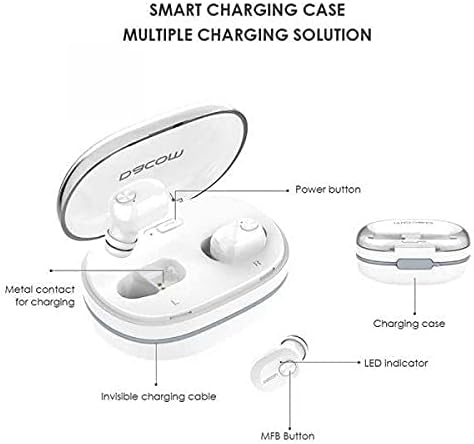
Aworan 3.1: Diagram illustrating the Dacom K6H Pro earphones and charging case components. The image highlights the power button, metal contacts for charging, invisible charging cable, LED indicator, and Multi-Function Button (MFB) on the earbud.
Awọn eroja pataki:
- Ngba agbara: Stores and charges the earbuds. Features a power button and metal contacts for earbud charging.
- Invisible Charging Cable: Integrated USB charging cable for convenient power replenishment.
- Earbuds (Left & Right): Each earbud has an LED indicator and a Multi-Function Button (MFB) for control.

Aworan 3.2: The Dacom K6H Pro wireless earphones, showing both the charging case with one earbud inserted and the other earbud removed, ready for use. The case is open, revealing the earbud compartments.
4. Gbigba agbara
Ensure your Dacom K6H Pro earphones and charging case are fully charged before first use.
4.1 Ngba agbara si Awọn Agbekọri
- Gbe awọn afikọti naa sinu awọn iho oniwun wọn ninu ọran gbigba agbara.
- Close the charging case lid. The earbuds will begin charging automatically.
- The LED indicator on the earbuds will show charging status (refer to LED indicator section for details).
4.2 Gbigba agbara si ọran naa
The charging case features a hidden, integrated USB charging cable for convenience.
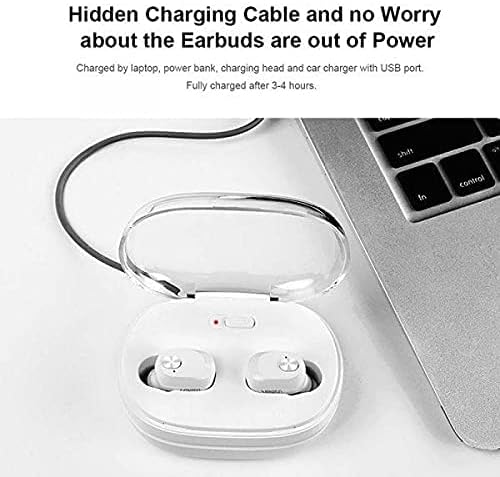
Aworan 4.1: The Dacom K6H Pro charging case connected to a laptop via its integrated USB charging cable. The earbuds are inside the case, and a red LED indicator on the case is visible, signifying charging in progress.
- Locate the integrated USB charging cable on the charging case.
- Connect the USB cable to a power source such as a laptop, power bank, charging head, or car charger with a USB port.
- The charging case LED indicator will illuminate to show charging status.
- Gbigba agbara ni kikun maa n gba to awọn wakati 3-4.
5. Ṣíṣeto àti Ṣíṣepọ̀
Follow these steps to pair your Dacom K6H Pro earphones with your device.
5.1 Ibẹrẹ Ibẹrẹ
- Rii daju pe awọn agbekọri ti gba agbara.
- Ṣii apoti gbigba agbara. Awọn agbekọri yoo tan ina laifọwọyi ati tẹ ipo sisopọ pọ sii.
- On your smartphone (iPhone or Android) or other Bluetooth-enabled device, go to the Bluetooth settings.
- Wa fun available devices and select "Dacom K6H Pro" from the list.
- Ni kete ti a ti sopọ, itọka ohun kan yoo jẹrisi isọdọkan aṣeyọri.
5.2 Atunṣe
After initial pairing, the earbuds will automatically reconnect to the last paired device when removed from the charging case and the device's Bluetooth is active.
6. Awọn iṣakoso iṣẹ
The Dacom K6H Pro earphones feature touch controls via the Multi-Function Button (MFB) on each earbud.
- Ṣiṣẹ/Daduro: Single tap on either MFB.
- Orin t’okan: Double tap the MFB on the right earbud.
- Tẹlẹ Orin: Double tap the MFB on the left earbud.
- Idahun/Ipe Ipari: Single tap on either MFB during an incoming call.
- Kọ Ipe: Press and hold either MFB for 2 seconds during an incoming call.
- Mu Oluranlọwọ Ohun ṣiṣẹ: Triple tap on either MFB.
- Iṣakoso iwọn didun: Volume is typically controlled via the connected device.
7. Itọju
Proper maintenance ensures the longevity and performance of your earphones.
- Ninu: Mọ awọn afikọti nigbagbogbo ati apoti gbigba agbara pẹlu asọ ti o gbẹ, asọ ti ko ni lint. Maṣe lo awọn kẹmika lile tabi awọn ohun elo abrasive.
- Ibi ipamọ: Nigbati o ko ba si ni lilo, tọju awọn agbekọri sinu apoti gbigba agbara wọn lati daabobo wọn lọwọ eruku ati ibajẹ.
- Yago fun Omi: The earphones are not waterproof. Avoid exposure to water, moisture, or extreme temperatures.
- Awọn olubasọrọ gbigba agbara: Ensure the metal charging contacts on both the earbuds and the case are clean and free of debris for effective charging.
8. Laasigbotitusita
If you encounter issues with your Dacom K6H Pro earphones, refer to the following common solutions.
- Awọn agbekọri ti ko so pọ:
- Rii daju pe awọn agbekọri mejeeji ti gba agbara.
- Pa Bluetooth lori ẹrọ rẹ, lẹhinna tan-an pada.
- Forget/delete "Dacom K6H Pro" from your device's Bluetooth list and attempt to pair again.
- Gbe awọn agbekọri pada sinu ọran naa, pa ideri naa, duro fun iṣẹju-aaya diẹ, lẹhinna ṣii lati tun tẹ ipo isọpọ sii.
- Agbekọri agbekọri kan ṣoṣo ti n ṣiṣẹ:
- Rii daju pe awọn agbekọri mejeeji ti gba agbara.
- Try resetting the earbuds (refer to manufacturer's specific reset instructions if available, otherwise try placing both in case, closing, and reopening).
- Nu awọn olubasọrọ gbigba agbara kuro lori awọn agbekọri mejeeji ati ọran naa.
- Ekọti ko gba agbara:
- Rii daju pe idiyele gbigba agbara funrararẹ ti gba agbara.
- Rí i dájú pé àwọn agbekọri náà wà ní ipò tó tọ́ nínú àpótí gbigba agbara.
- Nu awọn olubasọrọ gbigba agbara kuro lori awọn agbekọri mejeeji ati ọran naa.
- Try a different USB power source for the charging case.
- Didara ohun ti ko dara:
- Rii daju pe awọn agbekọri ti joko daradara ni awọn eti rẹ.
- Check the audio source and volume levels on your connected device.
- Sunmọ ẹrọ ti o sopọ lati yago fun kikọlu.
9. Awọn pato
| Brand | Dacom |
| Nọmba awoṣe | K6H Pro |
| Asopọmọra | Alailowaya, Bluetooth 5.0 |
| Agbekọri Iru | Ninu Eti |
| Gbohungbohun | To wa |
| Ariwo Iṣakoso | Ti nṣiṣe lọwọ Noise Ifagile |
| Iṣakoso Iru | Media Iṣakoso, Fọwọkan |
| Cable Ẹya | Without Cable (integrated USB for case) |
| Awọn ẹrọ ibaramu | Multi (iPhone & Android) |
| Àwọ̀ | Funfun |
| Package Mefa | 17.2 x 10.2 x 3.8 cm |
| Iwọn Nkan | 120 g |
10. Atilẹyin ọja ati Support
Dacom products are designed for reliability and performance. For warranty information, please refer to the warranty card included in your product packaging or visit the official Dacom website. For technical support or further assistance, please contact Dacom customer service through the channels provided on their official webojula.