
Ọrọ Iṣaaju
The Poly DA75 is a versatile USB-A/USB-C digital adapter designed to connect Poly Quick Disconnect (QD) headsets to computers. It ensures clear audio quality for call center environments, supporting both USB-A and USB-C connections for compatibility with various systems. This adapter is engineered to work seamlessly with platforms such as Avaya, Genesys, and Cisco, providing a reliable audio solution for professionals.
Awọn ẹya pataki pẹlu:
- Asopọmọra gbogbo agbaye: Equipped with both USB-A and USB-C connectors on the cable for broad compatibility with new and legacy equipment.
- Intelligent Headset Recognition: Automatically adjusts audio performance to the specific Poly Quick Disconnect headset for optimized call quality.
- Acoustic Protection: Incorporates features to manage safe volume levels, protecting user hearing.
- Platform Integration: Fully compatible with leading call center platforms including Avaya, Genesys, and Cisco.
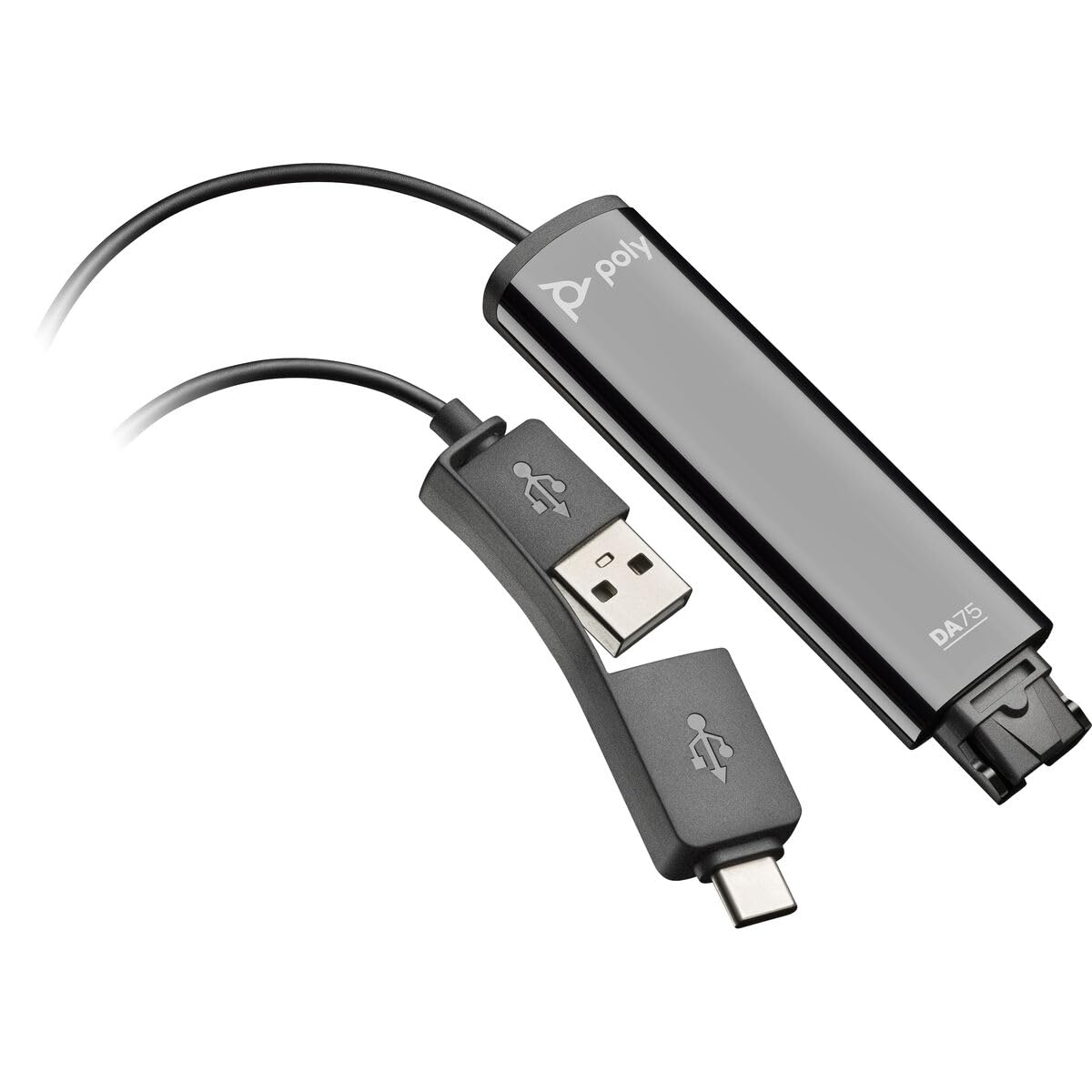
Image: The Poly DA75 USB-A/USB-C Digital Adapter, showing its dual USB-A and USB-C connectors and the Quick Disconnect port for headsets.
Ohun ti o wa ninu Apoti
The Poly DA75 package typically includes the following items:
- Poly DA75 USB-A/USB-C Digital Adapter
- Iwe (Itọsọna Ibẹrẹ Ibẹrẹ, Alaye Aabo)
Note: Headsets are sold separately and are not included with the DA75 adapter.
Ṣeto
Follow these steps to set up your Poly DA75 Digital Adapter:
- So Agbekọri pọ: Connect your Poly Quick Disconnect (QD) headset to the QD port on the Poly DA75 adapter. Ensure the connection is secure.
- Sopọ si Kọmputa:
- If your computer has a USB-A port, use the USB-A connector on the DA75 cable.
- If your computer has a USB-C port, use the USB-C connector on the DA75 cable.
Plug the appropriate USB connector into an available USB port on your computer.
- Fifi sori Awakọ: The DA75 is a plug-and-play device. Your operating system (Windows, macOS) should automatically detect the device and install the necessary drivers. This process may take a few moments.
- Jẹrisi idanimọ Ẹrọ:
- Windows: Lọ si Eto> Eto> Ohun or Ibi iwaju alabujuto > Ohun. The Poly DA75 should appear as an audio input and output device.
- MacOS: Lọ si Eto Eto> Ohun. The Poly DA75 should appear as an input and output device.
Select the Poly DA75 as your default communication device for both playback and recording.
- Iṣeto ni Sọfitiwia: If you are using communication software (e.g., Avaya, Genesys, Cisco, Microsoft Teams, Zoom), ensure that the Poly DA75 is selected as the audio device within the application's settings.
Awọn ilana Iṣiṣẹ
The Poly DA75 adapter facilitates audio communication through your connected Poly QD headset. Its operation is primarily managed through your computer's operating system and communication software.
- Ṣiṣe/Ngba Awọn ipe: Use your communication software to initiate or answer calls. The audio will be routed through your connected Poly QD headset via the DA75 adapter.
- Iṣakoso iwọn didun: Adjust the listening volume using your computer's system volume controls or the volume controls within your communication application.
- Pa gbohungbohun: Mute and unmute your microphone using the controls provided by your communication software.
- Audio Optimization: The DA75 automatically optimizes audio for your specific Poly QD headset. No manual adjustments are typically required for audio profiles.
Itoju
To ensure the longevity and optimal performance of your Poly DA75 Digital Adapter, follow these maintenance guidelines:
- Ninu: Gently wipe the adapter with a soft, dry, anti-static cloth. Do not use liquid cleaners or abrasive materials.
- Ibi ipamọ: Tọju ohun ti nmu badọgba ni itura, aye gbigbẹ kuro lati orun taara ati awọn iwọn otutu to gaju.
- Mimu: Avoid bending or twisting the cable excessively, especially near the connectors, to prevent internal damage.
- Asopọmọra: Ensure the Quick Disconnect (QD) connection and USB connections are clean and free of debris before connecting.
Laasigbotitusita
If you encounter issues with your Poly DA75 Digital Adapter, refer to the following troubleshooting steps:
| Isoro | Owun to le Fa | Ojutu |
|---|---|---|
| Ko si ohun lati agbekari |
|
|
| Gbohungbohun ko ṣiṣẹ |
|
|
| Adapter not recognized by computer |
|
|
Awọn pato
| Ẹya ara ẹrọ | Ẹ̀kúnrẹ́rẹ́ |
|---|---|
| Nọmba awoṣe | 218266-01 |
| Brand | POLY |
| Asopọmọra Iru | USB-A, USB-C (dual connector) |
| Awọn ẹrọ ibaramu | Poly Quick Disconnect (QD) Headsets |
| Awọn Lilo pato | PC, Call Center Platforms (Avaya, Genesys, Cisco) |
| Àwọ̀ | Dudu |
| Awọn Iwọn Nkan (L x W x H) | 0.98 x 0.39 x 2.95 inches |
| Iwọn Nkan | 30 giramu |
| Nọmba ti Ports | 2 (USB-A/USB-C to QD) |
| UPC | 197029650054 |
Atilẹyin ọja ati Support
Alaye Atilẹyin ọja: The Poly DA75 Digital Adapter comes with a Atilẹyin ọja ọdun kan fun olupese. Atilẹyin ọja yi ni wiwa awọn abawọn ninu awọn ohun elo ati iṣẹ ṣiṣe labẹ lilo deede. Jọwọ ṣe idaduro ẹri rira rẹ fun awọn iṣeduro atilẹyin ọja.
Oluranlowo lati tun nkan se: For technical assistance, product inquiries, or warranty service, please contact Poly customer support. Visit the official Poly website for the most up-to-date support contact information, FAQs, and additional resources.
Awọn orisun Ayelujara: Poly Atilẹyin Webojula