
1. Ọja Ipariview
The AI Carecam NPK Intelligent Camera is a wireless indoor security camera designed for home and office use. It features 360° pan and tilt capabilities, 2MP 1080P Full HD resolution, night vision, two-way audio communication, and motion detection. The camera supports up to a 128GB Micro SD card for local storage and is controlled via a mobile application.
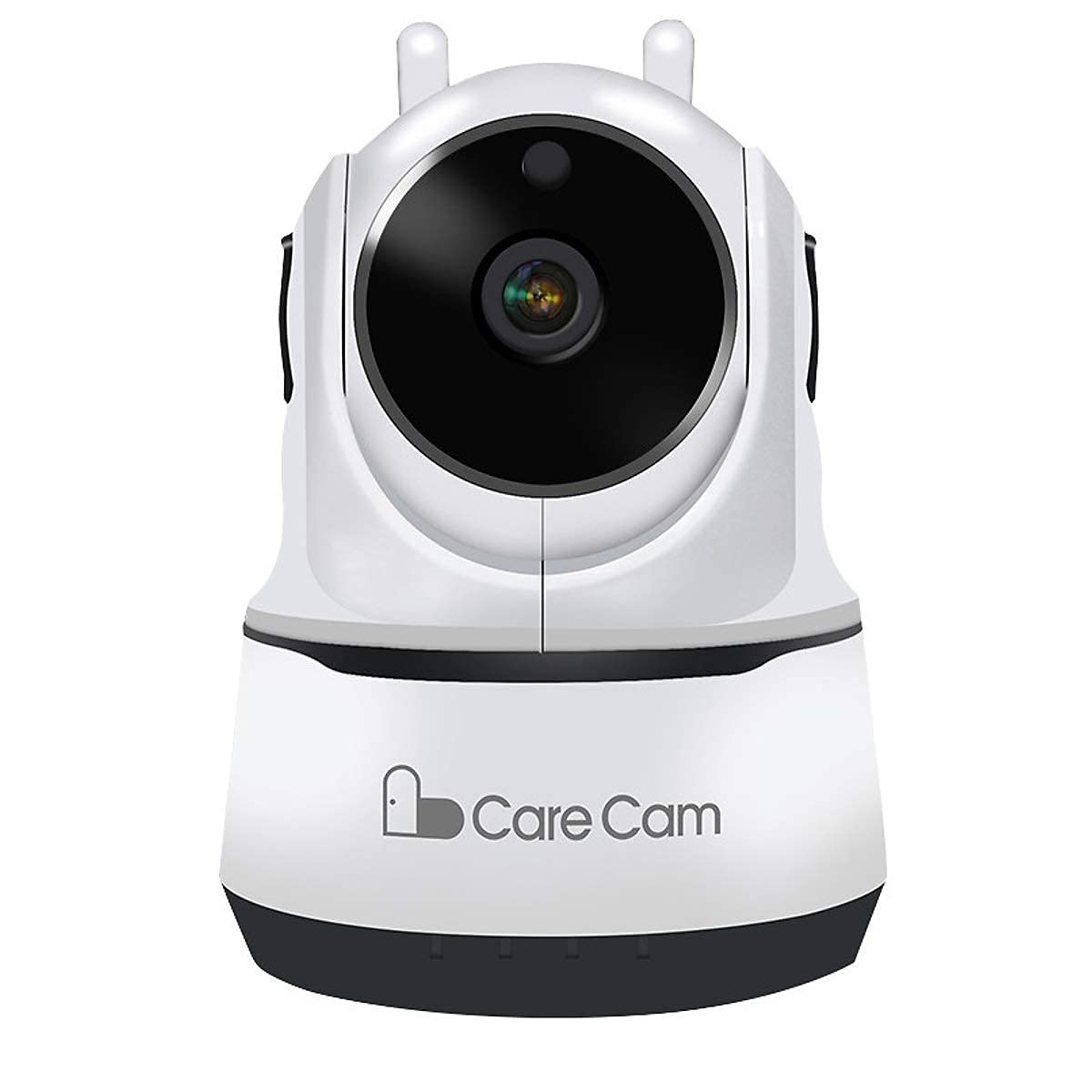
Nọmba 1: Iwaju view of the AI Carecam NPK Intelligent Camera, showing the lens and base.
2. Package Awọn akoonu
- AI Carecam NPK Intelligent Camera
- Adapter agbara
- Afowoyi Olumulo (iwe-ipamọ yii)
3. Awọn ilana iṣeto
3.1 Identifying Camera Ports
Before setup, familiarize yourself with the camera's ports and interfaces.
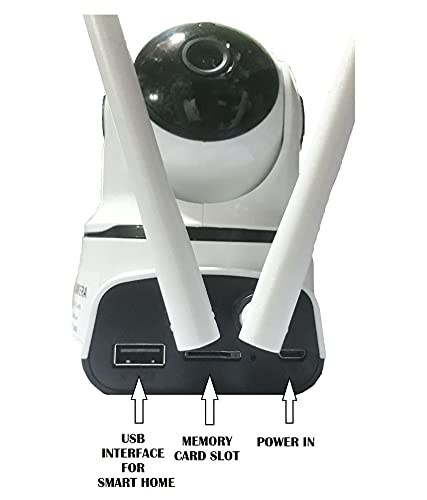
Nọmba 2: Ẹyìn view of the camera showing the USB interface, memory card slot, and power input port.
- Atokun USB: For smart home integration (if applicable).
- Iho kaadi iranti: Insert a Micro SD card (up to 128GB) for local video storage.
- Agbara Ni: So ohun ti nmu badọgba agbara ti a pese nibi.
3.2 Lilo Kamẹra
- Connect the provided power adapter to the "Power In" port on the camera.
- So ohun ti nmu badọgba naa sinu ibudo ina deede kan.
- The camera will power on and initiate its self-test sequence. Wait for the camera to indicate readiness (e.g., a specific LED indicator or voice prompt).
3.3 Installing the Mobile Application
The camera is controlled via a dedicated mobile application, compatible with Android and iOS devices. Wa fun "Carecam" or the recommended app name in your device's app store.

Nọmba 3: The camera supports control via Android and iOS mobile applications.
3.4 Nsopọ si Wi-Fi
- Ensure your mobile device is connected to the 2.4GHz Wi-Fi network you intend to use for the camera.
- Open the installed Carecam application.
- Follow the in-app instructions to add a new device. This typically involves scanning a QR code on the camera or entering Wi-Fi credentials.
- Once connected, the camera's status indicator will change, and you will receive a confirmation in the app.
4. Awọn ilana Iṣiṣẹ
4.1 Live View ati Pan / Pulọọgi Iṣakoso
After successful setup, open the app to view the live feed from your camera. Use the on-screen controls to adjust the camera's viewigun igun.

Nọmba 4: Control the camera's 355° pan and 90° tilt movements directly from the mobile application.
- Akara: Yi kamẹra naa pada ni apa ila titi de 355°.
- Tẹ: Ṣe àtúnṣe kámẹ́rà náà ní inaro títí dé 90°.
4.2 Meji-Ona Audio Communication
The camera supports two-way audio, allowing you to listen and speak through the camera using the mobile app.

Nọmba 5: The camera features clear two-way audio with a sensitive microphone to restore vocals.
- Ninu aye view, tap the microphone icon to speak.
- Fọwọ ba aami agbọrọsọ lati tẹtisi ohun lati ipo kamẹra naa.
4.3 Night Vision
The camera automatically switches to night vision mode in low-light conditions, providing clear monitoring even in darkness using infrared light.
4.4 Išipopada erin ati titaniji
Configure motion detection settings within the app to receive alerts on your mobile device when movement is detected. The camera is designed for motion-only alerts.
- Lilö kiri si awọn eto kamẹra ninu app naa.
- Locate the "Motion Detection" or "Alert Settings" section.
- Enable motion detection and customize sensitivity levels and alert schedules as needed.
4.5 Micro SD Card Storage
The camera supports local storage on a Micro SD card up to 128GB. Ensure a compatible card is inserted for continuous recording or event-triggered recordings.

Nọmba 6: The camera supports Micro SD (TF) card storage up to 128GB for recording video footage.
- Insert the Micro SD card into the designated slot with the contacts facing the correct direction.
- Format the Micro SD card through the camera's app settings for optimal performance.
5. Itọju
5.1 Ninu kamẹra
- Rí i dájú pé kámẹ́rà náà ti pa, kí o sì ti yọ ìsopọ̀ mọ́ ọn kí o tó sọ ọ́ di mímọ́.
- Lo aṣọ rirọ ati gbigbẹ lati nu ara kamẹra naa ni rọra.
- For the lens, use a specialized lens cleaning cloth to avoid scratches. Do not use liquid cleaners directly on the lens.
5.2 Micro SD Card Management
- Regularly check the storage status of your Micro SD card via the app.
- Format the card periodically to maintain optimal recording performance and free up space.
- Back up important recordings before formatting the card.
6. Laasigbotitusita
- Kamẹra ko sopọ mọ Wi-Fi:
- Rii daju pe nẹtiwọki Wi-Fi rẹ jẹ 2.4GHz. Kamẹra ko ṣe atilẹyin awọn nẹtiwọki 5GHz.
- Verify the Wi-Fi password is entered correctly in the app.
- Gbe kamẹra naa sunmọ olulana Wi-Fi lati mu agbara ifihan pọ si.
- Tun kamẹra ati olulana rẹ bẹrẹ.
- Kò sí àwòrán tàbí dídára àwòrán tí kò dára:
- Check the power connection to ensure the camera is on.
- Rii daju pe lẹnsi kamẹra jẹ mimọ ati ofe lọwọ awọn idiwọ.
- Verify your internet connection speed.
- Wiwa išipopada ko ṣiṣẹ:
- Check the motion detection settings in the app to ensure it is enabled and configured correctly.
- Ṣe àtúnṣe ipele ifamọ.
- Rii daju aaye kamẹra ti view jẹ kedere.
- Micro SD card not recording:
- Rí i dájú pé o ti fi kaadi Micro SD sii ni ọna ti o tọ.
- Format the Micro SD card through the app.
- Check if the card is full; if so, back up data and format it.
- Verify the card is not damaged.
7. Awọn pato
| Ẹya ara ẹrọ | Ẹ̀kúnrẹ́rẹ́ |
|---|---|
| Brand | AI |
| Orukọ awoṣe | NPK Carecam (HVG Carecam) |
| Asopọmọra Technology | Ailokun (Wi-Fi) |
| Pataki Ẹya | 2MP kamẹra |
| inu ile / ita gbangba Lilo | Ninu ile |
| Orisun agbara | Okun Itanna |
| Ilana Asopọmọra | Wi-Fi |
| Adarí Iru | Android, iOS (App) |
| Àwọ̀ | Funfun |
| Fọọmù ifosiwewe | Dome |
| Omi Resistance Ipele | Ko Omi Resistant |
| Iru Itaniji | Išipopada Nikan |
| Yara Iru | Ọfiisi, Ile |
| Orisun Imọlẹ | Infrared (for Night Vision) |
| Ọna Iṣakoso | App |
| Network Asopọmọra Technology | Ailokun |
| Alailowaya Technology Iru | Wi-Fi |
| Ipinnu Yaworan fidio | 1080P (FHD), H.264 |
| Fidio Yaworan kika | MP4, AVI |
| Alẹ Iranran | Night Awọ |
| Awọn iwọn Nkan | 10 x 10 x 10 centimeters |
| Iwọn Nkan | 200 giramu |
| Iwọn Ẹka | 1 Iṣiro |
| Nọmba ti Awọn nkan | 1 |
| -Itumọ ti Media | Adapter |
| Viewigun igun | Awọn iwọn 360 |
| Aaye Ti View | Awọn iwọn 360 |
| Sun-un Iru | Sun-un Optical |
| Fọto sensọ Technology | CMOS |
| Flash Memory Iru | Micro SD (to 128GB) |
8. atilẹyin ọja Information
The AI Carecam NPK Intelligent Camera comes with a 1-odun olupese atilẹyin ọja from the date of purchase. This warranty covers defects in materials and workmanship under normal use. Please retain your proof of purchase for warranty claims. The warranty does not cover damage caused by misuse, accidents, unauthorized modifications, or natural disasters.
9. Atilẹyin
For technical assistance, troubleshooting, or warranty inquiries, please contact the manufacturer or your point of purchase. The packer contact information is provided below:
Olùbáṣepọ̀ pẹ̀lú Olùgbékalẹ̀: HOTSPOT ELECTRONICS, MUMBAI 400004
Please have your product model number (NPK Carecam) and proof of purchase ready when contacting support.