
1. Ifihan
O ṣeun fun riraasing the AUKEY PC-LM3 WebKamera. Ìwé ìtọ́ni yìí fún wa ní àwọn ìtọ́ni tó ṣe kedere fún ṣíṣètò, ṣíṣiṣẹ́, àti ṣíṣe àtúnṣe rẹ webcam. Please read this manual thoroughly before use and retain it for future reference.
2. Alaye Aabo
- Pa awọn webcam away from water, moisture, and extreme temperatures.
- Ma ṣe gbiyanju lati tunto tabi tun ẹrọ naa funrararẹ. Tọkasi gbogbo iṣẹ si oṣiṣẹ oṣiṣẹ.
- Yẹra fun sisọ tabi tẹriba awọn webKame.awo-ori si awọn ipa ti o lagbara.
- Clean the lens with a soft, dry cloth. Do not use liquid cleaners.
3. Package Awọn akoonu
Jọwọ ṣayẹwo pe gbogbo awọn ohun kan wa ninu apo rẹ:
- AUKEY PC-LM3 Webkamẹra
- Itọsọna olumulo
- Okun USB (ṣepọ)
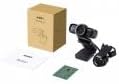
Image 1: Contents of the AUKEY PC-LM3 Webcam package, showing the webcam, manual, and packaging.
4. Ọja Ipariview
The AUKEY PC-LM3 is a 1080p USB 2.0 webcam designed for high-quality video communication and recording. It features a CMOS sensor and 5x optical zoom capability, providing clear and detailed visuals.
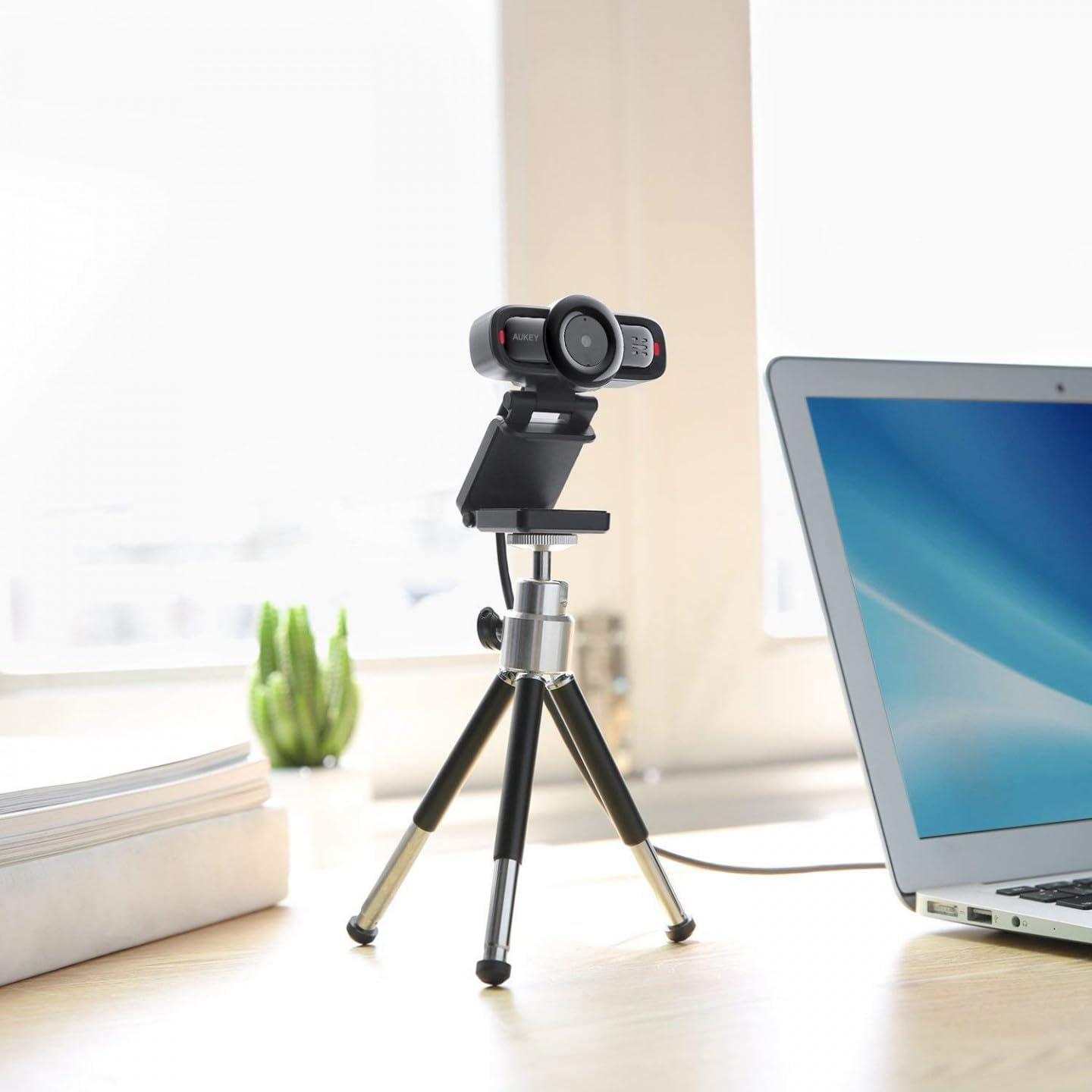
Image 2: AUKEY PC-LM3 Webcam in use, demonstrating its compact design and mounting flexibility on a tripod.
Awọn ẹya pataki:
- Full HD 1080p video recording
- CMOS sensor for clear images
- USB 2.0 connectivity for universal compatibility
- 5x optical zoom for detailed framing
- Integrated microphone for audio capture
- Adjustable clip for versatile mounting options
5. Eto
5.1 Placing the Webkamẹra
- Lori Atẹle: Unfold the clip and place the webcam on top of your monitor or laptop screen. Adjust the clip to secure it firmly.
- Lori Irin-ajo: Awọn webcam features a standard tripod thread. Mount it onto a compatible tripod for more flexible positioning.
- Lori Ilẹ Alapin: Fold the clip to form a stable stand and place the webcam on a desk or other flat surface.
5.2 Nsopọ si Kọmputa Rẹ
- Pulọọgi asopo USB ti awọn webKame.awo-ori sinu ibudo USB 2.0 tabi 3.0 ti o wa lori kọnputa rẹ.
- Kọmputa rẹ yẹ ki o ṣawari laifọwọyi ati fi awọn awakọ pataki sii. Ilana yii le gba awọn iṣẹju diẹ.
- Lọgan ti fi sori ẹrọ, awọn webcam will be ready for use with video conferencing software or recording applications.
Akiyesi: No additional software or drivers are typically required for Windows, macOS, or Linux operating systems.
6. Ṣiṣẹ awọn Webkamẹra
6.1 Using with Video Conferencing Software
To use the AUKEY PC-LM3 webcam with applications like Zoom, Skype, Microsoft Teams, or Google Meet:
- Ṣii ohun elo apejọ fidio ti o fẹ.
- Navigate to the application's settings or preferences (usually found under "Audio & Video" or "Devices").
- Select "AUKEY PC-LM3" as your video input device.
- Select "AUKEY PC-LM3 Microphone" (or similar) as your audio input device, if applicable.
- Adjust any video settings such as resolution or brightness within the application if available.
6.2 Gbigbasilẹ Video
To record video using the webcam, use your computer's built-in camera application (e.g., Camera app on Windows, Photo Booth on macOS) or third-party recording software. Ensure the AUKEY PC-LM3 is selected as the video source.
6.3 Opitika Sun
Awọn webcam features 5x optical zoom. This function is typically controlled via software. Check your video conferencing or recording application for zoom controls. If not available, third-party webcam control software may offer this functionality.
7. Itọju
7.1 Ninu awọn Webkamẹra
- Rii daju pe webcam is disconnected from your computer before cleaning.
- Lo aṣọ rirọ, ti ko ni awọ lati nu lẹnsi ati ara ti webKame.awo-ori.
- For stubborn smudges on the lens, slightly dampen the cloth with water or a lens cleaning solution, then wipe gently. Avoid excessive moisture.
- Ma ṣe lo awọn kẹmika ti o lewu, awọn olutọpa abrasive, tabi awọn nkanmimu.
7.2 Ibi ipamọ
Nigbati ko ba si ni lilo, tọju itaja naa webcam in a cool, dry place, away from direct sunlight and dust. Consider using a privacy cover (if included or purchased separately) to protect the lens and ensure privacy.
8. Laasigbotitusita
| Isoro | Ojutu |
|---|---|
| WebKame.awo-ori ko ṣe awari nipasẹ kọnputa. |
|
| Ko si abajade fidio. |
|
| Didara fidio ti ko dara. |
|
9. Awọn pato
| Ẹya ara ẹrọ | Ẹ̀kúnrẹ́rẹ́ |
|---|---|
| Awoṣe | PC-LM3 |
| Ipinnu fidio | 1920 x 1080 awọn piksẹli (1080p) |
| Ọna ẹrọ | CMOS |
| Asopọmọra | USB 2.0 |
| Sun-un Optical | 5x |
| Fidio Yaworan kika | MP4, AVI |
| Atilẹyin Audio kika | AAC, MP3 |
| Awọn iwọn (L x W x H) | 7.7 x 7.2 x 4.6 cm |
| Iwọn | 130 giramu |
| Àwọ̀ | Dudu |
10. Atilẹyin ọja ati Onibara Support
AUKEY products are covered by a limited warranty from the date of purchase. For specific warranty terms and conditions, please refer to the warranty card included with your product or visit the official AUKEY webojula.
If you encounter any issues or have questions regarding your AUKEY PC-LM3 Webcam, please contact AUKEY customer support for assistance. Contact information can typically be found on the official AUKEY webojula tabi lori kaadi atilẹyin ọja.