
1. Ifihan
The Kinhank Super Console X Cube is a compact retro gaming system designed to provide access to a vast library of classic games across multiple emulators. This device supports high-definition output, wireless controllers, and offers multiplayer capabilities for an engaging gaming experience. This manual provides essential information for setting up, operating, and maintaining your console.
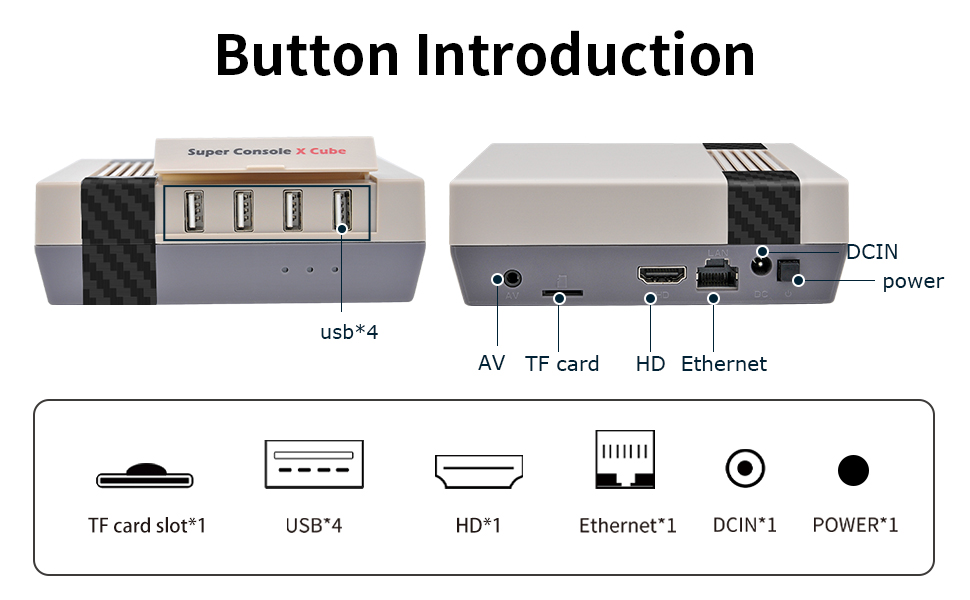
Image: The Super Console X Cube connected to a television, showcasing its dual function as a TV and game system.
The console comes pre-loaded with over 65,000 retro games and supports more than 50 emulators, allowing you to revisit many classic titles. It features an upgraded S905 chip for smooth performance and supports 4K TV output for clear visuals.

Image: The console connected to a TV, illustrating the vast library of over 65,000 built-in games and support for 50+ emulators.
2. Package Awọn akoonu
Jọwọ rii daju pe gbogbo awọn ohun ti a ṣe akojọ rẹ si isalẹ wa ninu package rẹ. Ti awọn ohun kan ba nsọnu tabi bajẹ, jọwọ kan si atilẹyin alabara.

Image: A visual representation of the items included in the package: Super Console X Cube, one controller, one HD cable, one 256GB card, one power adapter, and one user manual.
- Super Console X Cube Console x 1
- Wireless Controller x 1 (Note: Some packages may include two controllers. Check your specific product variant.)
- Okun HD x1
- 256GB Micro SD Card (pre-installed) x 1
- Adapter agbara x 1
- Ilana olumulo x 1

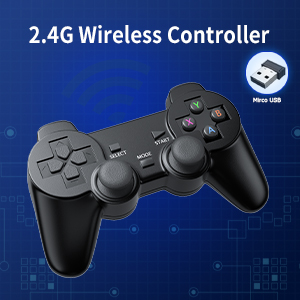
Image: A 2.4G wireless controller, typically included with the console, shown with its micro USB receiver.
3. Ọja Ipariview
Familiarize yourself with the ports and buttons on your Super Console X Cube for proper connection and operation.

Aworan: Oke view of the Super Console X Cube, highlighting the four USB ports for connecting controllers and other peripherals.
Aworan: Ẹyin view of the Super Console X Cube, detailing the AV port, TF card slot, HD (HDMI) port, Ethernet port, DCIN (power input), and power button.
Awọn apejuwe ibudo:
- Awọn ibudo USB (x4): For connecting wired controllers, wireless controller receivers, or other USB peripherals.
- Ibudo AV: For connecting to older televisions using an AV cable (not included).
- Iho Kaadi TF: Contains the pre-installed Micro SD card with games and system software. Do not remove during operation.
- HD (HDMI) Ibudo: For connecting to modern televisions or monitors via an HDMI cable for high-definition video and audio output.
- Àjọlò Port: Fun asopọ intanẹẹti ti a firanṣẹ.
- DCIN Port: Fun sisopọ ohun ti nmu badọgba agbara.
- Bọtini agbara: To turn the console on or off.
4. Eto Itọsọna
Follow these steps to set up your Kinhank Super Console X Cube:
- Sopọ si TV:
- For HD TVs: Connect one end of the included HDMI cable to the HD port on the console and the other end to an HDMI input on your television.
- For older TVs: Connect an AV cable (not included) to the AV port on the console and the corresponding inputs on your television.

Image: The console connected to a television, demonstrating HD output capability.
- So agbara: Insert the power adapter into the DCIN port on the console, then plug the adapter into a wall outlet.
- Fi kaadi Micro SD sii: Ensure the pre-installed Micro SD card is securely seated in the TF card slot. Do not remove it during operation.
- Awọn oludari asopọ:
- For wireless controllers: Insert the 2.4GHz USB receiver (usually found in the controller's battery compartment or included separately) into one of the USB ports on the console. Ensure batteries are installed in the controller(s).
- For wired controllers: Plug the USB cable of the wired controller directly into a USB port on the console.
- Agbara Tan: Press the power button on the console. The system will boot up and display the main menu on your TV.
- Asopọ Nẹtiwọọki (Aṣayan):
- Wi-Fi: Navigate to the system settings, select network options, and connect to your Wi-Fi network.
- Lan: Connect an Ethernet cable from your router to the Ethernet port on the console.

Image: Illustration of the console's WiFi and LAN connection capabilities.
5. Awọn ilana Iṣiṣẹ
5.1 Lilọ kiri ni System
Use your controller's D-pad or analog stick to navigate through the main menu and select emulators or games. The 'A' button (or equivalent) typically confirms selections, and the 'B' button (or equivalent) usually goes back.
5.2 Launching Games
From the main menu, select an emulator (e.g., "NES", "SNES", "PS1"). A list of available games for that emulator will appear. Select a game from the list to launch it. The system will automatically load the necessary emulator.
5.3 Saving and Loading Game Progress
Most emulators support "save states" which allow you to save your exact progress at any point in a game. The method to access this feature varies by emulator, but commonly involves pressing a combination of buttons (e.g., both joysticks down simultaneously, or a 'Hot Key' + 'Start' button). Refer to the on-screen prompts or the system's internal settings for specific key combinations.
- Save State: Select an empty slot and save your current game progress.
- Load State: Select a previously saved slot to resume gameplay from that exact point.
5.4 Multiplayer Gaming
The Super Console X Cube supports up to four players simultaneously. Connect additional controllers to the available USB ports. The system should automatically recognize them. Many classic games support local multiplayer, allowing you to share the experience with friends and family.

Image: Four individuals enjoying a multiplayer gaming session on the Super Console X Cube, demonstrating its support for multiple players.

Image: A collage depicting different groups of people, including adults and children, engaging in multiplayer gaming, highlighting the social aspect of the console.
6. Itọju
- Ninu: Use a soft, dry cloth to clean the console. Do not use liquid cleaners or abrasive materials.
- Ibi ipamọ: Tọju console ni itura, aye gbigbẹ kuro lati orun taara ati awọn iwọn otutu to gaju.
- Afẹfẹ: Ensure the console's ventilation openings are not blocked to prevent overheating.
- Kaadi SD Micro: Do not remove the Micro SD card while the console is powered on or operating, as this can corrupt data.
- Agbara Pa: Always power off the console properly before disconnecting power.
7. Laasigbotitusita
| Isoro | Owun to le Fa | Ojutu |
|---|---|---|
| Ko si ifihan lori TV |
|
|
| Adarí ko fesi |
|
|
| Games run slowly or freeze |
|
|
| Cannot save game progress |
|
|
8. Awọn pato
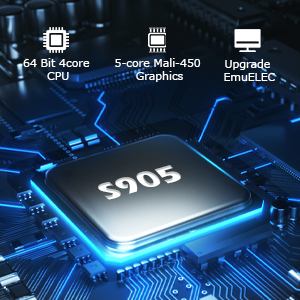
Image: Close-up of the S905 chip, highlighting its 64-bit 4-core CPU and 5-core Mali-450 Graphics for enhanced performance.
- Orukọ awoṣe: Super console X onigun
- Olupilẹṣẹ: Upgraded S905 Chip (64-bit 4-core CPU)
- Awọn aworan: 5-core Mali-450 Graphics
- Eto isesise: Linux-based (EmuELEC)
- Ibi ipamọ: 256GB Micro SD Card (pre-installed with 65,000+ games and 50+ emulators)
- Ijade fidio: HD (HDMI) / AV (1080P/720P)
- Asopọmọra: Wi-Fi, LAN (Ethernet)
- Awọn ibudo USB: 4 x USB 2.0
- Awọn oludari: Supports 2.4GHz wireless controllers and wired USB controllers
- Multiplayer Support: Titi di awọn oṣere 4
- Awọn iwọn: Isunmọ 8.62 x 6.77 x 4.61 inches
- Ìwúwo: Ni isunmọ 1.65 poun
- Olupese: Kinhank
9. Atilẹyin ọja ati Support
Kinhank products are designed for reliability and performance. For warranty information, please refer to the documentation included with your purchase or contact your retailer. If you encounter any issues or have questions regarding your Super Console X Cube, please contact Kinhank customer support through the official webojú òpó wẹ́ẹ̀bù tàbí pẹpẹ ìrajà rẹ fún ìrànlọ́wọ́.
Iṣẹ onibara: If you have any questions or require technical support, please reach out to our customer service team. We are committed to providing assistance.