
Ọrọ Iṣaaju
The Macally BTBLZKEYSG is a full-size backlit Bluetooth keyboard designed specifically for Mac and iOS devices. It features a MacOS-specific layout with 107 scissor-switch keys and 14 convenient shortcuts, enhancing workflow and productivity. This keyboard allows seamless pairing and switching between up to three Bluetooth-enabled devices, including MacBooks, iMacs, iPhones, and iPads. The integrated white LED backlighting offers three adjustable brightness levels for comfortable typing in various lighting conditions. Powered by a built-in 1500mAh rechargeable battery, it provides extended usage time between charges.
Package Awọn akoonu
- Macally BTBLZKEYSG Backlit Bluetooth Keyboard
- USB-C Ngba agbara Cable
- Ilana itọnisọna
Ọja Awọn ẹya ara ẹrọ
- Awọn bọtini Afẹyinti: Crisp white LEDs with 3 brightness levels for typing in low-light environments. Backlight can be turned off.
- MacOS Specific Layout: 107 scissor-switch keys with 14 macOS shortcuts for familiar and efficient use.
- Multi-Device Bluetooth: Easily pair and switch between up to 3 Bluetooth-enabled devices (Mac, iPhone, iPad) within a 30 ft wireless range.
- Batiri gbigba agbara: Built-in 1500mAh battery provides 1 to 4 weeks of runtime with backlighting on. USB-C charging cable included.
- Apẹrẹ ti o tẹẹrẹ ati itunu: Only 0.87 inches thin with an integrated kickstand for ergonomic typing.
Ṣeto
1. Ngba agbara si Keyboard
Before initial use, fully charge the keyboard. Connect the supplied USB-C charging cable to the keyboard's USB-C port and the other end to a USB power source (e.g., computer USB port, USB wall adapter). The LED indicator will show charging status.
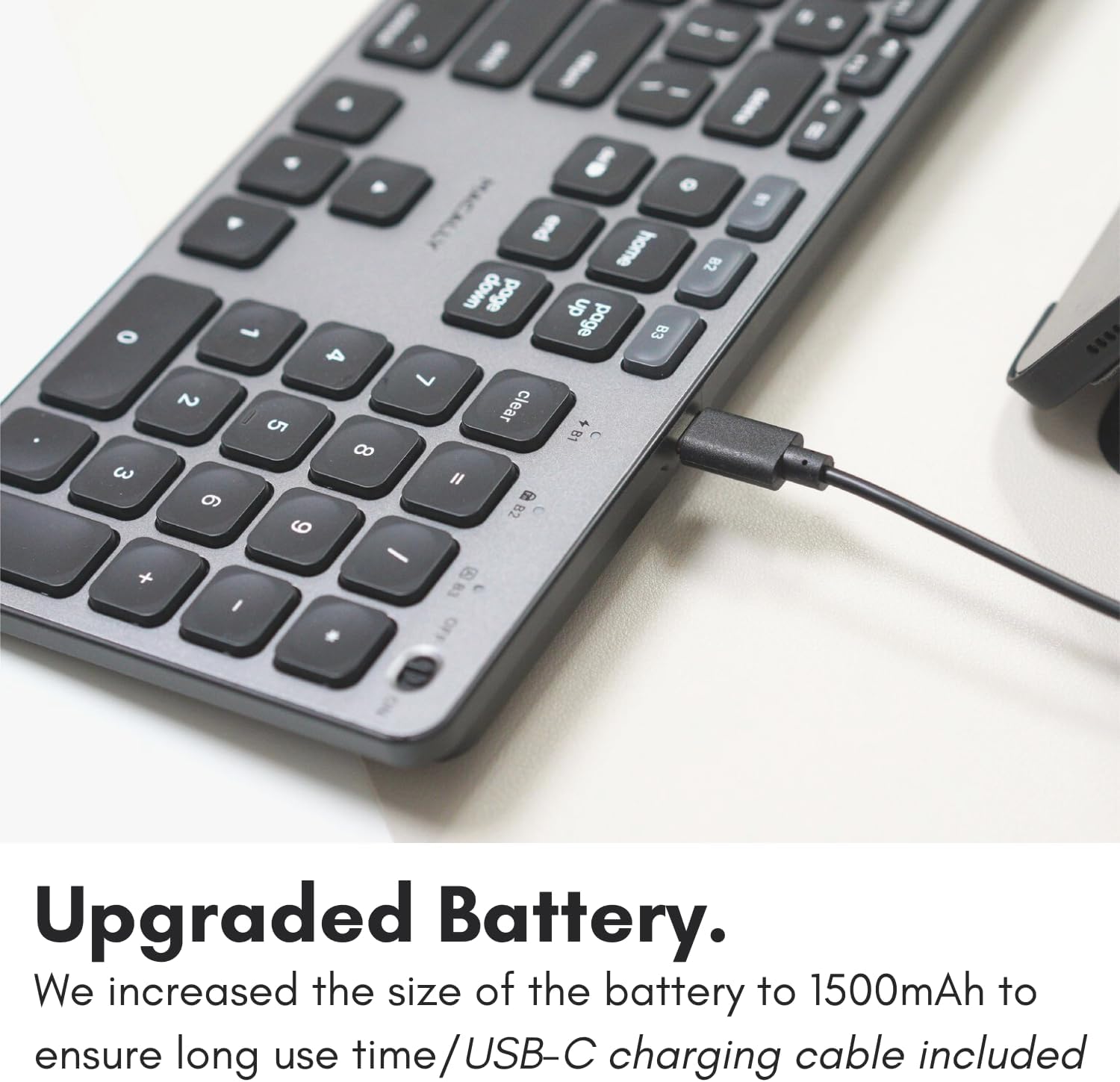
Image: The USB-C charging port on the side of the Macally BTBLZKEYSG keyboard, with the charging cable inserted.
2. Agbara Lori
Locate the power switch on the keyboard, usually on the top right edge. Slide the switch to the 'ON' position.
3. Sisopọ pẹlu Ẹrọ kan
- Rii daju pe keyboard ti wa ni titan.
- Press and hold one of the Bluetooth pairing keys (B1, B2, or B3) for 3-5 seconds until the corresponding LED indicator above the key starts blinking rapidly. This indicates the keyboard is in pairing mode.
- On your Mac or iOS device, go to Eto Eto (tabi Awọn ayanfẹ eto) > Bluetooth.
- Look for "Macally BTBLZKEYSG" (or similar name) in the list of available devices and click/tap to connect.
- Tí a bá ní kí o ṣe bẹ́ẹ̀, tẹ koodu ìsopọ̀ tí a fihàn lórí ìbòjú rẹ nípa lílo keyboard kí o sì tẹ Wọle.
- Once connected, the LED indicator for the selected Bluetooth channel will stop blinking and remain solid for a few seconds before turning off.

Image: The Macally BTBLZKEYSG keyboard shown with a MacBook and an iPad, illustrating its multi-device capability.
Awọn ilana Iṣiṣẹ
MacOS Specific Keys and Shortcuts
The keyboard features a standard MacOS layout, including function keys (F1-F12) that double as media and system control shortcuts. Use the Fn key in combination with these keys to access their secondary functions.
- Fn+F1: Din imọlẹ ifihan silẹ
- Fn+F2: Mu imọlẹ ifihan pọ si
- Fn+F3: Iṣakoso ise
- Fn+F4: Paadi ifilọlẹ
- Fn+F7: Ti tẹlẹ Track
- Fn+F8: Ṣiṣẹ / Sinmi
- Fn+F9: Next Track
- Fn+F10: Ohùn Iwọn didun
- Fn+F11: Din iwọn didun silẹ
- Fn+F12: Mu iwọn didun pọ si
Backlight Iṣakoso
The keyboard's backlight can be adjusted to three brightness levels or turned off completely. Use the dedicated backlight control keys, typically located near the function keys or arrow keys, to cycle through the brightness settings.

Image: The Macally BTBLZKEYSG keyboard with its white LED backlighting illuminated at different intensity levels.
Yipada Laarin Awọn ẹrọ Sopọ
To switch between your paired Bluetooth devices, simply press the corresponding Bluetooth pairing key (B1, B2, or B3) that your device is connected to. The keyboard will automatically connect to the selected device.
Itoju
Lati rii daju igbesi aye gigun ati iṣẹ to dara julọ ti keyboard rẹ, tẹle awọn itọnisọna itọju wọnyi:
- Ninu: Lo asọ asọ, ti ko ni lint die-die dampened with water or a mild cleaning solution to wipe the keyboard surface. Avoid harsh chemicals or abrasive materials.
- Yiyọ eruku kuro: Lo afẹfẹ fisinuirindigbindigbin lati yọ eruku ati idoti kuro laarin awọn bọtini.
- Ibi ipamọ: Nigbati o ko ba wa ni lilo fun awọn akoko ti o gbooro sii, tọju bọtini itẹwe si ibi gbigbẹ, ti o tutu.
- Yago fun Olomi: Do not expose the keyboard to excessive moisture or spill liquids on it.
Laasigbotitusita
| Isoro | Ojutu |
|---|---|
| Keyboard ko ṣiṣẹ lori. | Ensure the power switch is in the 'ON' position. Charge the keyboard using the supplied USB-C cable. |
| Kííbọọ̀dù kò sopọ̀ mọ́ ẹ̀rọ. | Ensure the keyboard is in pairing mode (LED blinking). Check your device's Bluetooth settings to ensure Bluetooth is enabled and the keyboard is visible. Try restarting both the keyboard and your device. |
| Keyboard ge asopọ nigbagbogbo. | Ensure the keyboard is within the 30 ft wireless range of your device. Check for interference from other wireless devices. Ensure the keyboard battery is sufficiently charged. |
| Imọlẹ ẹhin ko ṣiṣẹ. | Press the backlight control keys to cycle through brightness levels. Ensure the keyboard battery is charged, as low battery may disable backlighting. |
| Awọn bọtini ko dahun. | Check the Bluetooth connection. If connected, try restarting the keyboard. Ensure no debris is lodged under the keys. |
Awọn pato
| Ẹya ara ẹrọ | Ẹ̀kúnrẹ́rẹ́ |
|---|---|
| Nọmba awoṣe | BTBLZKEYSG |
| Asopọmọra | Bluetooth, Alailowaya |
| Awọn ẹrọ ibaramu | Mac Mini / Pro Studio, iMac, Macbook Air, MacBook Pro, iPhone, iPad |
| Apejuwe Keyboard | Backlit Keyboard for Mac |
| Pataki Awọn ẹya ara ẹrọ | Backlit, Multi-Device Bluetooth, Rechargeable |
| Àwọ̀ | Grẹy |
| Keyboard Backlighting | Single Color (White), 3 Brightness Levels |
| Ọja Mefa | 16.8"L x 4.6"W x 0.87"H |
| Nọmba ti Awọn bọtini | 107 |
| Orisun agbara | Battery Powered (1500mAh rechargeable) |
| Yipada Iru | Tactile Scissor Keys |
| Ifilelẹ bọtini itẹwe | QWERTY (MacOS) |
| Ohun elo | Aluminiomu |
| UPC | 701107500362 |
Official ọja Video
Fidio: Ipariview of the Macally Backlit Bluetooth Keyboard for Mac & iOS, highlighting its features and compatibility.
Atilẹyin ọja ati Support
The Macally BTBLZKEYSG Backlit Bluetooth Keyboard comes with a warranty of up to two years. For technical support, warranty claims, or further assistance, please visit the official Macally webojula tabi kan si wọn onibara iṣẹ Eka.