
Ọrọ Iṣaaju
This manual provides essential instructions for setting up, operating, maintaining, and troubleshooting your Nyko 86158 Core Wireless Controller for Xbox One. Please read this manual thoroughly before use to ensure optimal performance and longevity of your device.
Package Awọn akoonu
Daju pe gbogbo awọn nkan ti a ṣe akojọ rẹ si isalẹ wa ninu package rẹ:
- Nyko 86158 Core Wireless Controller
- USB Wireless Receiver Dongle
- Okun Ngba agbara USB
- Afowoyi Olumulo (iwe-ipamọ yii)
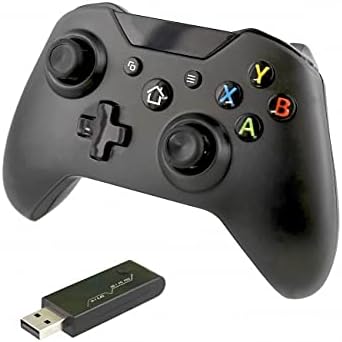
Image: Nyko 86158 Core Wireless Controller shown alongside its USB wireless receiver dongle. This illustrates the main components included in the package.

Aworan: Isunmọ view of the USB wireless receiver dongle. This dongle is essential for establishing a wireless connection between the controller and the Xbox One console or PC.

Image: The USB charging cable provided with the controller. This cable is used to recharge the controller's internal battery.
Adarí Ìfilélẹ
Familiarize yourself with the buttons and features of your Nyko Core Wireless Controller.
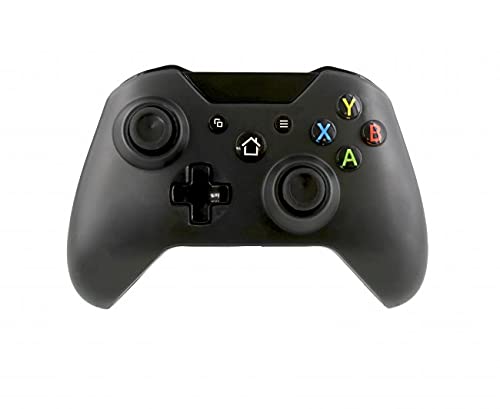
Aworan: Iwaju view of the Nyko 86158 Core Wireless Controller, showing the two analog sticks, D-pad, A/B/X/Y buttons, View button, Menu button, Xbox button, and Share button.
- Ọpá Analog Osi: Fun gbigbe ati iṣakoso kamẹra.
- Ọpá Analog Ọtun: Fun iṣakoso kamẹra ati ifojusi.
- D-Pad: Ìtẹ̀síwájú ìtọ́sọ́nà fún ìlọ kiri àkójọ àti àwọn ìgbésẹ̀ eré pàtó kan.
- Awọn bọtini A/B/X/Y: Awọn bọtini iṣẹ akọkọ.
- View Bọtini: Accesses additional in-game information or menus.
- Bọtini Akojọ: Ṣí àwọn àkójọ eré tàbí àwọn àṣàyàn ètò.
- Bọtini Xbox: Powers on the controller, accesses the Xbox Guide, or returns to the home screen.
- Bọtini Pipin: Captures screenshots or video clips (functionality may vary by console/game).

Aworan: Oke view of the Nyko 86158 Core Wireless Controller, highlighting the Left and Right Bumpers (LB, RB), Left and Right Triggers (LT, RT), and the micro-USB charging port located at the front.
- Left Bumper (LB) / Right Bumper (RB): Awọn bọtini ejika fun ọpọlọpọ awọn iṣe inu-ere.
- Left Trigger (LT) / Right Trigger (RT): Analog triggers for precise input, often used for acceleration or aiming.
- Ibudo USB Micro-USB: Used for charging the controller.

Aworan: Pada view of the Nyko 86158 Core Wireless Controller, showing the battery compartment cover. This is where the batteries are inserted or the rechargeable battery pack is housed.
Awọn ilana iṣeto
1. Ṣiṣe agbara Adarí
The Nyko 86158 Core Wireless Controller requires batteries to operate wirelessly. It is compatible with standard AA batteries or a rechargeable battery pack (sold separately).
- Wa yara batiri ni ẹhin oludari.
- Press down on the tab and slide the battery cover off.
- Insert two (2) AA batteries, ensuring correct polarity (+/-). If using a rechargeable pack, insert it as directed by the pack's instructions.
- Rọpo ideri batiri naa.
2. Connecting to Xbox One
To connect your wireless controller to an Xbox One console:
- Insert the USB Wireless Receiver Dongle into an available USB port on your Xbox One console.
- Tan console Xbox One rẹ.
- Tẹ mọlẹ Bọtini Xbox on the controller until it powers on. The Xbox button will flash.
- The controller will automatically attempt to pair with the USB receiver. Once connected, the Xbox button on the controller will glow solid.
- If the controller does not connect automatically, press the small pairing button on the USB receiver dongle, then press and hold the Bọtini Xbox on the controller until it pairs.
3. Connecting to PC (Optional)
The controller can also be used with a PC. Ensure your PC has an available USB port for the wireless receiver.
- Insert the USB Wireless Receiver Dongle into an available USB port on your PC.
- The PC should automatically install the necessary drivers. This may take a few moments.
- Tẹ mọlẹ Bọtini Xbox on the controller until it powers on.
- The controller will connect to the receiver. The Xbox button will glow solid once connected.
Awọn ilana Iṣiṣẹ
Titan/Pa a
- Lati Tan: Tẹ mọlẹ Bọtini Xbox until the controller vibrates and the light turns on.
- Lati Pa: Tẹ mọlẹ Bọtini Xbox for 5-10 seconds until the controller powers down. The controller will also automatically turn off after a period of inactivity to conserve battery life.
Gbigba agbara Alakoso
If using a rechargeable battery pack (not included) or if the controller has a built-in rechargeable battery:
- Connect the small end of the USB Charging Cable to the micro-USB port on the front of the controller.
- Connect the larger end of the USB Charging Cable to an available USB port on your Xbox One console or a USB wall adapter (5V, 1A recommended).
- The indicator light on the controller (usually the Xbox button) will show charging status (e.g., flashing while charging, solid when fully charged).
- Ge asopọ okun ni kete ti gbigba agbara ti pari.
Itoju
- Ninu: Lo aṣọ rírọrùn tí ó gbẹ láti nu ohun èlò ìdarí náà. Má ṣe lo àwọn kẹ́míkà líle tàbí àwọn ohun èlò ìpalára.
- Ibi ipamọ: Tọju olutọju naa ni itura, aye gbigbẹ kuro lati orun taara ati awọn iwọn otutu to gaju.
- Itọju Batiri: If not using the controller for an extended period, remove the AA batteries to prevent leakage.
- Yago fun awọn isọ silẹ: Dáàbò bo olùdarí náà kúrò lọ́wọ́ àwọn ìṣàn àti àwọn ìkọlù, èyí tí ó lè ba àwọn ẹ̀yà ara inú jẹ́.
Laasigbotitusita
Controller Not Turning On
- Rii daju pe awọn batiri ti wa ni fi sii bi o ti tọ pẹlu polarity to tọ.
- Replace old batteries with new ones, or fully charge the rechargeable battery pack.
Controller Not Connecting to Xbox One/PC
- Ensure the USB Wireless Receiver Dongle is securely plugged into an active USB port.
- Gbiyanju ibudo USB ti o yatọ.
- Rii daju pe oludari wa ni titan.
- Re-attempt the pairing process: press the pairing button on the dongle, then press and hold the Xbox button on the controller.
- Tun console Xbox One tabi PC rẹ bẹrẹ.
Input Lag or Disconnections
- Ensure the controller is within range of the USB receiver (typically up to 30 feet/9 meters).
- Din kikọlu silẹ lati awọn ẹrọ alailowaya miiran (fun apẹẹrẹ, awọn olulana Wi-Fi, awọn foonu alailowaya).
- Rí i dájú pé olùdarí náà ní agbára batiri tó tó.
Awọn pato
| Brand | Nyko |
| Nọmba awoṣe | 86158 |
| Awọn ẹrọ ibaramu | Xbox One, PC |
| Adarí Iru | Alailowaya Ere Adarí |
| Asopọmọra Technology | Wireless (2.4GHz via USB dongle) |
| Orisun agbara | Batteries (AA or rechargeable pack) |
| Awọn iwọn (L x W x H) | 8.3 x 18.4 x 15.2 cm (isunmọ 3.27 x 7.24 x 5.98 inches) |
| UPC | 743840861584 |
| ASIN | B09BD8813T |
Atilẹyin ọja ati Support
For warranty information or technical support, please refer to the documentation included with your purchase or visit the official Nyko webojula. Jeki ẹri rira rẹ fun awọn iṣeduro atilẹyin ọja.