
1. Ifihan
This instruction manual provides detailed information on the setup, operation, maintenance, and troubleshooting for your Aibecy withzoom 1080P 3X Optical Zoom Webcam. Please read this manual thoroughly before using the product to ensure proper functionality and to prevent damage.
2. Ọja Ipariview
2.1 Key Awọn ẹya ara ẹrọ
- 1080P Full HD Video Resolution
- 3X Opitika Sun lẹnsi
- 355° Horizontal Rotation and 90° Vertical Rotation
- Latọna Iṣakoso isẹ
- USB Asopọmọra
- Compatible with Windows, Mac, Linux, and Chromebook operating systems
- Infrared (IR) support
2.2 Package Awọn akoonu
Jẹrisi pe gbogbo awọn ohun kan wa ninu package:
- Aibecy withzoom Webkamẹra
- Isakoṣo latọna jijin
- Adaparọ Agbara AC
- Okun USB
- Oke Atẹgun
- Skru fun fifi sori

Nọmba 1: Awọn akoonu Package
2.3 ọja aworan atọka

olusin 2: Iwaju View ati irinše
- Lẹnsi HD: Ó gba fídíò tó ní ìtumọ̀ gíga.
- 355° Rotating Gimbal: Allows for wide-angle coverage and precise positioning.
- IR Infrared Receiver: Ngba awọn ifihan agbara lati isakoṣo latọna jijin.
- Atọka Agbara: O fihan ipo agbara ti ẹrọ naa.
- Remote Indicator: Lights up when a remote control signal is received.
3. Eto Itọsọna
3.1 fifi sori Awọn ọna
The Aibecy withzoom webKame.awo-ori nfunni ni awọn aṣayan fifi sori ẹrọ ti o rọ:
- Ibi tabili: Place the camera on a flat surface such as a desk or conference table.
- Oke Oke: Use the included mounting bracket and screws to attach the camera to the ceiling. Ensure the image flip function is enabled if mounting upside down.
- Oke akọmọ: Attach the camera to a tripod or other compatible bracket using the screw hole at the bottom.

Àwòrán 3: Àwọn Àṣàyàn Ìfisílé
3.2 Nsopọ kamẹra pọ
Follow these steps to connect your webkamẹra:
- Asopọ agbara: Connect the AC power adapter to the camera's 12V power input port and plug it into a power outlet.
- Asopọ USB: Connect the USB cable from the camera's USB port to an available USB port on your computer (Windows, Mac, Linux, or Chromebook). The camera is plug-and-play and does not require driver software.
- Optional RS232/RS422 Connection: If advanced control via RS232 or RS422 is required, connect the appropriate cable from the camera to your control device.

olusin 4: Asopọmọra aworan atọka
Once connected, open your video conferencing software (e.g., Zoom, Skype, Microsoft Teams) and select the Aibecy withzoom camera as your video input device.
4. Awọn ilana Iṣiṣẹ
4.1 Ipilẹ isẹ
- Agbara Tan: After connecting the power adapter, the camera will automatically power on. The Power Indicator light will illuminate.
- Agbara Pa: Disconnect the power adapter from the camera.
4.2 Lilo isakoṣo latọna jijin
The included remote control allows for easy adjustment of camera functions.

Nọmba 5: Webcam and Remote Control
- Camera Selection Buttons: If multiple cameras are connected, use these buttons to select the camera you wish to control.
- Iṣakoso Iyara Yiyi: Adjust the pan/tilt speed for smoother movements.
- Pan/Tilt/Zoom (PTZ) Controls: Use the directional arrows to pan (left/right) and tilt (up/down) the camera. Use the zoom in/out buttons to adjust the optical zoom.
- Preset Function Area: Save and recall specific camera positions and zoom levels using the preset buttons.
4.3 Camera Movement and Zoom
The camera supports wide-range movement for comprehensive coverage:
- Iyipo petele: Orí kámẹ́rà náà lè yípo ní ìwọ̀n 355 ní ìlà.
- Yiyi inaro: The camera head can tilt 90 degrees vertically.
- Sun-un Optical: Utilize the 3X optical zoom to focus on specific areas without loss of image quality.
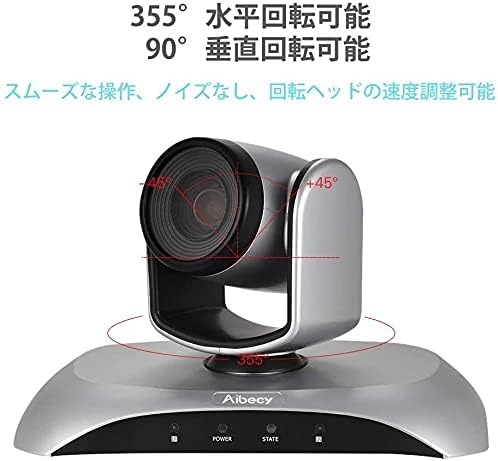
Figure 6: Camera Rotation Capabilities
4.4 Image Flip Function
If the camera is mounted upside down (e.g., on a ceiling), you can use the image flip function to correct the video orientation.

Figure 7: Image Flip Function in Use
Refer to the remote control instructions for the specific button to activate or deactivate the image flip function.
5. Itọju
Itọju to dara ṣe idaniloju gigun ati iṣẹ ṣiṣe ti o dara julọ ti rẹ webKame.awo-ori.
- Ninu: Lo aṣọ rírọrùn tí ó gbẹ láti nu ara kamera náà. Fún lẹ́ńsì náà, lo aṣọ ìfọmọ́ lẹ́ńsì pàtàkì àti omi ìfọmọ́ lẹ́ńsì. Yẹra fún àwọn ohun ìfọmọ́ tàbí àwọn ohun olómi.
- Ibi ipamọ: Nigbati o ko ba wa ni lilo fun awọn akoko ti o gbooro sii, tọju kamẹra ni itura, aye gbigbẹ kuro lati orun taara ati awọn iwọn otutu to gaju.
- Mimu: Yẹra fún jíjá tàbí fífi kámẹ́rà náà sí àwọn ìkọlù líle.
6. Laasigbotitusita
If you encounter issues with your Aibecy withzoom webcam, refer to the table below for common problems and solutions.
| Isoro | Owun to le Fa | Ojutu |
|---|---|---|
| No image or video output | Power not connected; USB cable loose; Incorrect camera selected in software. | Ensure power adapter is securely connected. Check USB cable connection. Select the Aibecy withzoom camera in your video conferencing software settings. |
| Isakoṣo latọna jijin ko ṣiṣẹ | Batteries low/dead; Obstruction between remote and camera; Remote not pointed at IR receiver. | Replace remote control batteries. Ensure a clear line of sight to the camera's IR receiver. Point the remote directly at the camera. |
| Image is upside down | Camera mounted upside down and image flip not activated. | Activate the image flip function using the remote control. |
| Didara fidio ti ko dara | Insufficient lighting; Dirty lens; Network bandwidth issues. | Ensure adequate lighting in the room. Clean the camera lens. Check your internet connection speed. |
7. Imọ ni pato
| Ẹya ara ẹrọ | Sipesifikesonu |
|---|---|
| Brand | Aibecy |
| Nọmba awoṣe | withzoom |
| Ipinnu Yaworan fidio | 1080p |
| Sun-un Optical | 3X |
| Petele Yiyi | 355° |
| Inaro Inaro | 90° |
| Asopọmọra Technology | USB |
| Awọn ẹrọ ibaramu | Windows, Mac, Linux, Chromebook |
| Pataki Awọn ẹya ara ẹrọ | Remote Control, Infrared |
| Iduroṣinṣin Aworan | Rara |
| Package Mefa | 29.7 x 22.4 x 19.9 cm |
| Iwọn Nkan | 1.51 kg |
8. Alaye atilẹyin
For further assistance or inquiries not covered in this manual, please refer to the official Aibecy support channels or contact your retailer. Keep your purchase receipt for warranty purposes.