
famishow SPJ430
Famishow Smart Projector User Manual
Model: SPJ430
Your ultimate home cinema and outdoor movie theater companion.
Ọrọ Iṣaaju
The Famishow Smart Projector SPJ430 is designed to transform your viewing experience with its built-in Android TV 10.0 system, offering direct access to a vast library of apps, games, and movies. Enjoy stunning 4K supported resolution, vibrant visuals, and versatile connectivity options for both home and outdoor entertainment.
Ohun ti o wa ninu Apoti
- Famishow Smart Projector SPJ430
- 2.4G Air Asin Iṣakoso latọna jijin
- Okun agbara
- HDMI Okun
- Afowoyi Olumulo (iwe-ipamọ yii)
Eto Itọsọna
1. Ibi ti ara ati Asopọ agbara
Place the projector on a stable, flat surface. Ensure adequate ventilation around the device. Connect the power cord to the projector's power input and then to a wall outlet.

Aworan: Iwaju view of the Famishow Smart Projector SPJ430, showing its compact design and lens.
2. Asopọmọra Agbeegbe
The projector offers multiple ports for various connections:
- HDMI: Connect external devices like laptops, gaming consoles, or TV sticks using the HDMI port.
- USB: Awọn ibudo USB meji wa fun sisopọ awọn awakọ USB lati mu media ṣiṣẹ files.
- RJ45 (Ẹ̀rọ ìbánisọ̀rọ̀): Fun asopọ intanẹẹti onirin iduroṣinṣin.
- Jack agbekọri 3.5mm: So awọn ẹrọ ohun tabi agbekọri ita pọ.

Aworan: Ẹyin view of the projector highlighting the HDMI, USB, RJ45, and audio output ports.
3. Idojukọ ati Keystone tolesese
Adjust the focus and keystone correction wheels located near the lens to achieve a clear and rectangular image. The projector supports manual keystone correction up to ±15° vertically.

Image: Close-up of the projector's lens area, showing the focus and keystone adjustment dials.
4. Asopọ nẹtiwọki (Wi-Fi)
The projector supports both 2.4G and 5G dual-band Wi-Fi for seamless internet access and wireless screen mirroring. Navigate to the settings menu to connect to your home Wi-Fi network.

Image: Projector displaying a screen mirroring interface, indicating Wi-Fi and Bluetooth capabilities.
5. Smart Air Mouse Setup
The included 2.4G Air Mouse features a built-in axis gyroscope and gravity acceleration sensor, functioning as a traditional remote, computer mouse, and gaming motion controller. Insert the USB dongle from the remote into one of the projector's USB ports for functionality.

Image: Hand holding the Smart Air Mouse remote control, with the projector displaying various app icons.
Awọn ilana Iṣiṣẹ
1. Agbara lori / Paa
Press the power button on the projector or the remote control to turn the device on or off. The LED indicator will illuminate when the projector is active.
2. Navigating the Android TV 10.0 Interface
Upon startup, the projector will display the Android TV 10.0 home screen. Use the Smart Air Mouse or the directional buttons on the projector to navigate through menus and select applications.

Image: The projector displaying the Android TV 10.0 interface with various streaming app icons.
3. Accessing Apps and Media
The projector comes pre-installed with popular streaming applications like YouTube, Netflix, and Prime Video. You can also download additional apps from the Google Play Store. Enjoy online videos, movies, music, and games directly from the projector without needing external devices.
Video: An official product video demonstrating the Android TV interface and app functionality of the Famishow Smart Projector.
4. Screen Mirroring and Bluetooth
Wirelessly mirror content from your smartphone or tablet using the dual-band Wi-Fi. For enhanced audio, connect your preferred Bluetooth speakers wirelessly to the projector. The built-in stereo surround speakers also provide clear sound.
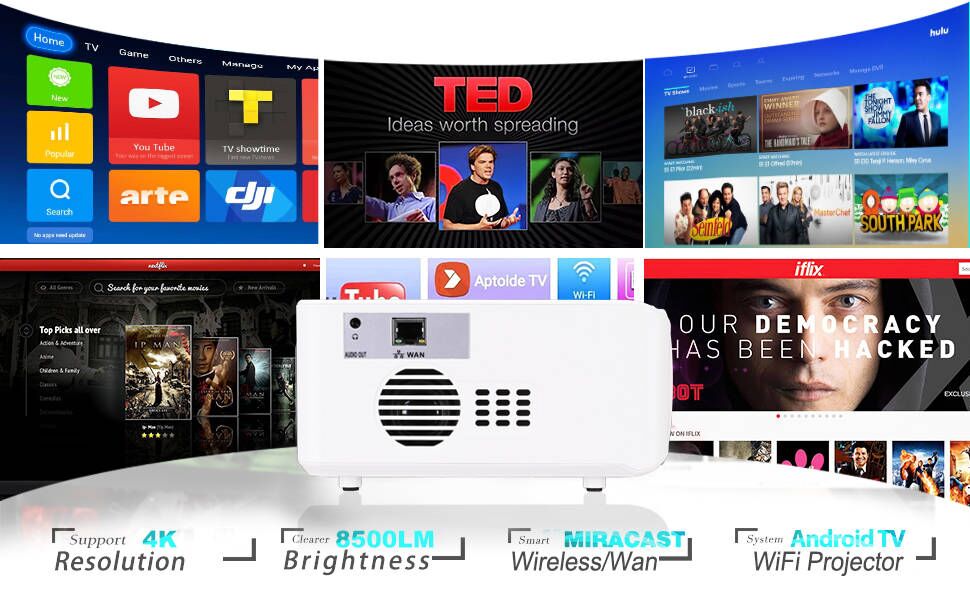
Image: A smartphone mirroring its screen to the projector, demonstrating the wireless screen mirroring feature.
5. Didara Ifihan
The projector supports 4K resolution with a native resolution of 1280x720. It features an 8500 Lumens LED light source and a 6000:1 contrast ratio for brighter and clearer images. The projection size ranges from 32" to 250".

Image: Comparison of image quality, highlighting the projector's 8500 Lumens brightness and 70000 hours lamp aye.
Itoju
1. Itọju lẹnsi
Always use the provided lens cover when the projector is not in use to protect the lens from dust and scratches. Clean the lens gently with a soft, lint-free cloth designed for optical surfaces.
2. itutu System
The projector is equipped with an innovative silent cooling system. Ensure that the ventilation vents are not blocked to maintain optimal performance and extend the lamp aye.
Laasigbotitusita
| Oro | Owun to le Fa / Solusan |
|---|---|
| Wi-Fi Ge asopọ | Ensure the projector is within range of your Wi-Fi router. Restart the projector and your router. Check for any network interference. |
| Isakoṣo latọna jijin Ko Ṣiṣẹ | Check if the USB dongle for the 2.4G Air Mouse is properly inserted into a USB port on the projector. Ensure the remote has fresh batteries. |
| Poor Picture Quality / Colors | Adjust the focus and keystone correction. Ensure the projection surface is smooth and clean. Check the input source resolution. |
| Ijade ohun kekere | Adjust the volume on the projector and any connected external audio devices. Ensure Bluetooth speakers are properly paired and connected. |
Awọn pato
| Ẹya ara ẹrọ | Ẹ̀kúnrẹ́rẹ́ |
|---|---|
| Brand | Famihow |
| Nọmba awoṣe | SPJ430 |
| Eto isesise | Android TV 10.0 |
| Ifihan ọna ẹrọ | LED |
| Ipinnu abinibi | 1280 x 720 |
| Ipinnu to pọju Ṣe atilẹyin | 4K |
| Imọlẹ | 8500 Lumens |
| Ipin Itansan | 6000:1 |
| Apakan Ipin | 16:9 |
| Iwọn Isọtẹlẹ | 32"-250" |
| Lamp Igbesi aye | wakati meji 70000 |
| Keystone Atunse | 4-point keystone, vertical ±15° adjustable |
| Wi-Fi | 2.4G & 5G Dual Band (802.11 a/b/g/n) |
| Bluetooth | Bluetooth 4.0 |
| Input / o wu Ports | USB (x2), 3.5mm Headphone Jack, HDMI, RJ45 |
| Iwọn Nkan | 4.2 iwon |
| Package Mefa | 12.17 x 11.89 x 5.16 inches |
Atilẹyin ọja ati Support
Famishow offers comprehensive support for your Smart Projector SPJ430:
- 30-Days Money Back or Exchange: Ti o ko ba ni itẹlọrun pẹlu rira rẹ.
- Atilẹyin ọja Ọdun 1: Covering manufacturing defects and malfunctions.
- Lifetime Technology Support: Access to technical assistance for the lifespan of your product.
- 7*24 Hours Customer Service: Dedicated support team available around the clock for any issues or questions.
Please contact Famishow customer service for any inquiries or support needs.
Ask a question about this manual
Ask about setup, troubleshooting, compatibility, parts, safety, or missing instructions. Manuals+ will review the question and use this page’s manual context to help answer it.