
MageGee Typewriter Mechanical Gaming Keyboard
Ìwé Àgbékalẹ̀ Olùlò Kííbọọ̀dù Ìtẹ̀wé MageGee
Model: Typewriter Mechanical Gaming Keyboard
Ọrọ Iṣaaju
This manual provides instructions for the MageGee Typewriter Mechanical Gaming Keyboard. It covers setup, operation, maintenance, and troubleshooting to ensure optimal performance and longevity of your device. Please read this manual thoroughly before using the keyboard.
Package Awọn akoonu
- MageGee Typewriter Mechanical Gaming Keyboard
- Isinmi Ọwọ Oofa
- Okun USB
- Afowoyi Olumulo (iwe-ipamọ yii)
Ṣeto
1. Nsopọ Keyboard
- Locate the USB cable provided with your keyboard.
- Connect the USB Type-A end of the cable to an available USB port on your computer (PC, Laptop, or Mac).
- Connect the other end of the USB cable to the port on the keyboard.
- The keyboard is plug-and-play; no additional drivers or software are required for basic functionality. Your operating system should automatically detect and configure the device.
2. So Isinmi Ọwọ
If your model includes a magnetic wrist rest, align it with the front edge of the keyboard. The magnets will help secure it in place, providing ergonomic support during use.
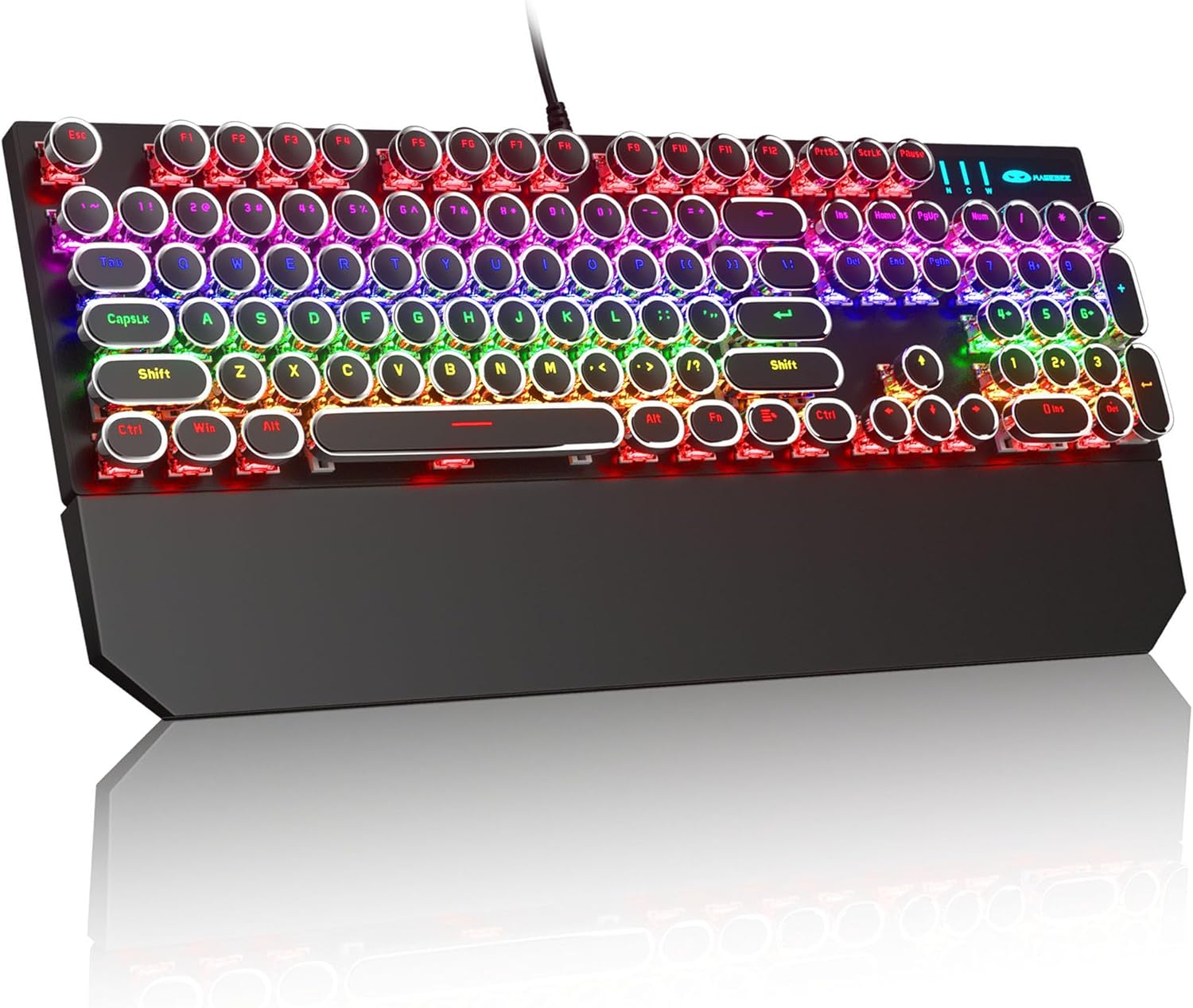
Image: The MageGee Typewriter Mechanical Gaming Keyboard connected via USB, with its magnetic wrist rest attached. The keyboard features retro round keycaps and vibrant RGB backlighting.
Awọn ilana Iṣiṣẹ
Ifilelẹ bọtini itẹwe
The MageGee Typewriter Mechanical Gaming Keyboard features a full-size 104-key layout, including a numeric keypad and dedicated function keys (F1-F12).

Aworan: Ohun oke view of the keyboard, highlighting the full 104-key layout and the LED backlighting effect.
Backlight Iṣakoso
The keyboard features multiple RGB rainbow backlit modes. Use the following key combinations to adjust the lighting effects:
- Fn + Ins: Cycle through various backlight modes.
- Fn + Ile: Ṣatunṣe imọlẹ ina ẹhin.
- Fn + PgUp: Mu iyara ina ẹhin pọ si.
- Fn + PgDn: Din iyara ina ẹhin ku.
- Fn + Del: Change backlight color (if applicable to the current mode).
- Fn + Ipari: Turn backlight on/off.

Aworan: A sunmọ-soke view of the keyboard's keys, illustrating the RGB backlighting and the visible blue mechanical switches beneath the round keycaps.
Multimedia ati Awọn bọtini iṣẹ
The F1-F12 keys can be used in conjunction with the Fn key to access multimedia and system functions. Specific functions may vary slightly depending on your operating system.
| Apapo bọtini | Išẹ |
|---|---|
| Fn + F1 | Media Player |
| Fn + F2 | Iwọn didun isalẹ |
| Fn + F3 | Iwọn didun soke |
| Fn + F4 | Pa ẹnu mọ́ |
| Fn + F5 | Duro |
| Fn + F6 | Ti tẹlẹ Track |
| Fn + F7 | Ṣiṣẹ / Sinmi |
| Fn + F8 | Next Track |
| Fn + F9 | Imeeli |
| Fn + F10 | Web Aṣàwákiri |
| Fn + F11 | Kọmputa mi |
| Fn + F12 | Ẹrọ iṣiro |
Itoju
Ninu Keyboard
- Ge asopọ keyboard kuro lati kọnputa rẹ ṣaaju ṣiṣe mimọ.
- Lo asọ asọ, ti ko ni lint die-die dampti a fi omi kun tabi ojutu mimọ kekere lati nu awọn bọtini bọtini ati dada keyboard.
- Fun eruku ati idoti laarin awọn bọtini, lo afẹfẹ fisinuirindigbindigbin.
- Yẹra fun lilo awọn kẹmika lile, awọn olutọpa abrasive, tabi sisọ awọn olomi fun taara sori keyboard.
Gbogbogbo Itọju
- Yẹra fún fífi àmì sí keyboard sí àwọn iwọn otutu tó le koko, ọriniinitutu, tàbí oòrùn tààrà.
- Do not drop the keyboard or subject it to strong impacts.
- Keep liquids away from the keyboard to prevent damage.
Laasigbotitusita
Keyboard Ko Dahun
- Rii daju pe okun USB ti sopọ ni aabo si keyboard mejeeji ati kọnputa naa.
- Gbiyanju lati so keyboard pọ mọ ibudo USB ti o yatọ lori kọnputa rẹ.
- Ṣe idanwo keyboard lori kọnputa miiran lati ṣe akoso ọrọ kan pato-kọmputa kan.
- Tun kọmputa rẹ bẹrẹ.
Ìmọ́lẹ̀ ẹ̀yìn kò ṣiṣẹ́ tàbí kò tọ́
- Ensure the backlight is not turned off (Fn + End).
- Adjust backlight brightness (Fn + Home).
- Cycle through different backlight modes (Fn + Ins) to see if the issue persists across all modes.
Keys Not Registering or Double Typing
- Fọ àwọn kọ́kọ́rọ́ tí ó ní ipa lórí pẹ̀lú afẹ́fẹ́ tí a fi ìfúnpọ̀ mú láti yọ àwọn ìdọ̀tí kúrò.
- If the issue persists, it may indicate a hardware fault. Contact customer support for assistance.
Awọn pato
| Ẹya ara ẹrọ | Ẹ̀kúnrẹ́rẹ́ |
|---|---|
| Awoṣe | Typewriter Mechanical Gaming Keyboard |
| Asopọmọra | Ti firanṣẹ USB 2.0 |
| Iru bọtini | Mechanical (Blue Switch) |
| Awọn bọtini itẹwe | Retro Round, Double-shot injection molded |
| Imọlẹ ẹhin | RGB Rainbow Backlit |
| Ìfilélẹ | 104-Key Full-Size, Anti-ghosting |
| Ibamu | Windows (2000, XP, ME, Vista, 7, 8), Linux, Mac |
| Awọn iwọn (L x W x H) | 17.1 x 4.9 x 1.3 inches (434mm x 130mm x 37mm) |
| Iwọn Nkan | 1.99 iwon |
| Ohun elo | Aluminum alloy metal panel |

Image: A diagram illustrating the physical dimensions of the keyboard and its detachable wrist rest.
Atilẹyin ọja ati Support
Alaye atilẹyin ọja
MageGee products are designed for quality and reliability. This product comes with a standard manufacturer's warranty against defects in materials and workmanship. Please refer to the product packaging or the official MageGee webaaye fun awọn ofin ati iye akoko atilẹyin ọja kan pato.
Onibara Support
If you encounter any issues or have questions regarding your MageGee Typewriter Mechanical Gaming Keyboard, please contact our customer support team:
- Imeeli: support@magegee.com
- Webojula: www.magegee.com
When contacting support, please provide your product model and a detailed description of the issue.