
Ọrọ Iṣaaju
This manual provides detailed instructions for the BINIZE Portable Carplay Screen Navigation system. It covers setup, operation, and maintenance to ensure optimal performance and user experience.
Alaye Aabo
- Rii daju pe ẹrọ naa ti gbe ni aabo ati pe ko ṣe idiwọ rẹ view tabi dabaru pẹlu awọn iṣakoso ọkọ.
- Connect the power cord only to a 12V cigarette lighter port.
- Ma ṣe gbiyanju lati tunto tabi yi ẹrọ naa pada.
- Máa fi ìwakọ̀ tó dáa sí ipò àkọ́kọ́ nígbà gbogbo. Má ṣe lo ẹ̀rọ náà lọ́nà tó máa pín ọkàn rẹ níyà kúrò lójú ọ̀nà.
Package Awọn akoonu
Jẹrisi pe gbogbo awọn ohun kan wa ninu package:
- BINIZE Portable Carplay Screen Navigation Unit
- Siga fẹẹrẹfẹ Power Cable
- USB Itẹsiwaju USB
- Okun Imujade Olohun (RCA)
- Mounting Bracket with 3M Adhesive
- Isakoṣo latọna jijin
- Afowoyi Olumulo (iwe-ipamọ yii)
Ṣeto
1. Iṣagbesori Device
Yan ipo ti o yẹ lori dasibodu rẹ ti ko ni di idiwọ rẹ. view tabi awọn iṣakoso ọkọ.

The base of the mounting bracket comes with 3M adhesive. Clean the dashboard surface thoroughly before attaching the base. Securely attach the unit to the bracket.

Ṣatunṣe igun iboju fun didara julọ viewing.
2. Asopọ agbara
Connect the cigarette lighter power cable to the device and insert it into your vehicle's 12V cigarette lighter port. The device will power on automatically.

Rii daju wipe awọn ọkọ ká voltage wa laarin 12V ati 14V.
This video demonstrates the initial power-up sequence of the BINIZE Portable Carplay Screen Navigation unit by connecting it to a cigarette lighter port. It shows the "welcome" screen appearing upon successful power-on.
Awọn ilana Iṣiṣẹ
1. Initial Setup and Language Selection
Upon first power-on, the device will display the home screen. Navigate to the "Settings" menu to select your preferred language.

2. Audio wu Aw
The monitor itself does not have internal speakers. Sound is routed through your original car audio system.
Atagba FM
To use the FM transmitter, set the device's FM frequency to match an unused FM channel on your car's stereo.

Ensure both the device and your car stereo are tuned to the same FM frequency for audio output.
RCA Audio wu
For additional audio requirements, such as connecting to a subwoofer or amplifier, use the two RCA ports (White: Audio Out Left, Red: Audio Out Right).
3. Asopọ Apple CarPlay
To use Apple CarPlay, connect your iPhone to the device using an original Apple data cable via the USB port on the right side of the player.
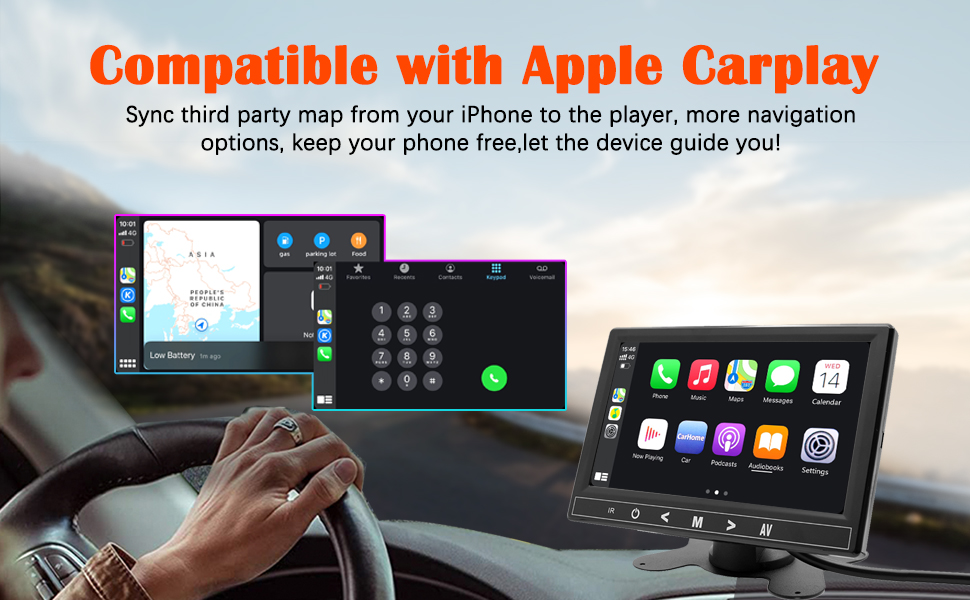
Select "i-Play" in the device settings. Grant any necessary permissions on your iPhone.
This video demonstrates how to connect an iPhone to the BINIZE Portable Carplay Screen Navigation for Apple CarPlay functionality. It shows the steps to select "i-Play" in settings and connect the original data cable.
4. Ìsopọ̀ Àdánidá Android
To use Android Auto, connect your Android phone to the device using an original data cable via the USB port on the right side of the player.

Select "A-Auto" in the device settings. Grant any necessary permissions on your Android phone.
This video illustrates the process of connecting an Android phone to the BINIZE Portable Carplay Screen Navigation for Android Auto. It guides the user to select "A-Auto" in settings and connect the data cable.
5. MirrorLink (iPhone)
To mirror your iPhone screen, connect your iPhone to the device using an original Apple data cable via the USB port on the right side of the player.
Select "i-Mirror" in the device settings. Grant permissions on your iPhone. The iPhone screen will be projected onto the player's screen.
This video demonstrates the MirrorLink function for iPhone, showing how to connect the device and mirror the phone's display.
6. MirrorLink (Android Phone)
To mirror your Android phone screen, connect your Android phone to the device using an original data cable via the USB port on the right side of the player.
Select "A-Link" in the device settings. Grant permissions on your Android phone. The Android phone screen will be projected onto the player's screen.
This video demonstrates the MirrorLink function for Android phones, showing how to connect the device and mirror the phone's display.
7. USB Flash Drive Reading
Insert a USB flash drive into the USB extension cable to play music or videos. The device supports various media formats.
8. Gbigba agbara foonu
The USB extension cable can also be used to charge your mobile phone.
Itoju
- Jeki iboju mọ nipa lilo asọ ti o gbẹ. Yago fun abrasive ose.
- Rii daju pe gbogbo awọn asopọ okun wa ni aabo.
- Yago fun ṣiṣafihan ẹrọ naa si awọn iwọn otutu to gaju tabi oorun taara fun awọn akoko gigun.
Laasigbotitusita
| Isoro | Owun to le Fa | Ojutu |
|---|---|---|
| Ẹrọ naa ko ṣiṣẹ. | No power from cigarette lighter. | Check vehicle's 12V port. Ensure power cable is securely connected. |
| Ko si ohun jade. | FM frequency not synchronized or incorrect RCA connection. | Match FM frequency on device and car stereo. Verify RCA cable connections. |
| CarPlay/Android Auto kò sopọ̀ mọ́ ara wọn. | Non-original data cable, incorrect settings, or phone permissions. | Use original data cable. Check "i-Play" or "A-Auto" settings. Grant all necessary phone permissions. |
| MirrorLink not working. | Incorrect settings or phone permissions. | Check "i-Mirror" or "A-Link" settings. Grant all necessary phone permissions. |
| Screen freezes or is unresponsive. | Ibùgbé software glitch. | Restart the device by unplugging and re-plugging the power cable. |
For further assistance, please contact BINIZE customer support.
Awọn pato
| Ẹya ara ẹrọ | Ẹ̀kúnrẹ́rẹ́ |
|---|---|
| Brand | BINIZE |
| Nọmba awoṣe | B09DSMJ59X |
| Asopọmọra Technology | Bluetooth, RCA, USB |
| Adarí Iru | Android, Olùrànlọ́wọ́ Google |
| Pataki Ẹya | Afi ika te |
| Awọn ẹrọ ibaramu | Foonuiyara |
| Ipo Ijade Ohun | Sitẹrio |
| Nọmba ti awọn ikanni | 4 |
| Fidio fifi koodu | H.264, H.265/HEVC |
| Ọna Iṣakoso | Fọwọkan |
| Alailowaya Technology | Bluetooth |
| Agbara Input | 12V (nípasẹ̀ iná sígá) |
Akiyesi: Awọn pato jẹ koko ọrọ si iyipada laisi akiyesi iṣaaju.
Atilẹyin ọja ati Support
BINIZE products come with a standard manufacturer's warranty. Please refer to the warranty card included in your package for specific terms and conditions.
For technical support, warranty claims, or any other inquiries, please visit the official BINIZE webojula tabi kan si wọn onibara iṣẹ egbe.