
Ọrọ Iṣaaju
This manual provides detailed instructions for the setup, operation, maintenance, and troubleshooting of your Macally UCSLIMKEYCA USB-C Compact Wired Keyboard. Please read this manual thoroughly before using the product to ensure optimal performance and longevity.

Aworan: Oke-isalẹ view of the Macally UCSLIMKEYCA USB-C Compact Wired Keyboard, highlighting its compact design and US layout.
Ṣeto
The Macally UCSLIMKEYCA keyboard is designed for simple plug-and-play functionality. No additional drivers or software are required for installation.
Nsopọ Keyboard
- Locate an available USB-C port on your computer (MacBook, iPad, PC, iMac, etc.).
- Plug the USB-C connector of the keyboard's 5-foot cable into the USB-C port on your device.
- Ẹ̀rọ ìṣiṣẹ́ rẹ yóò dá keyboard náà mọ̀ láìfọwọ́sí, yóò sì ṣetán fún lílò.
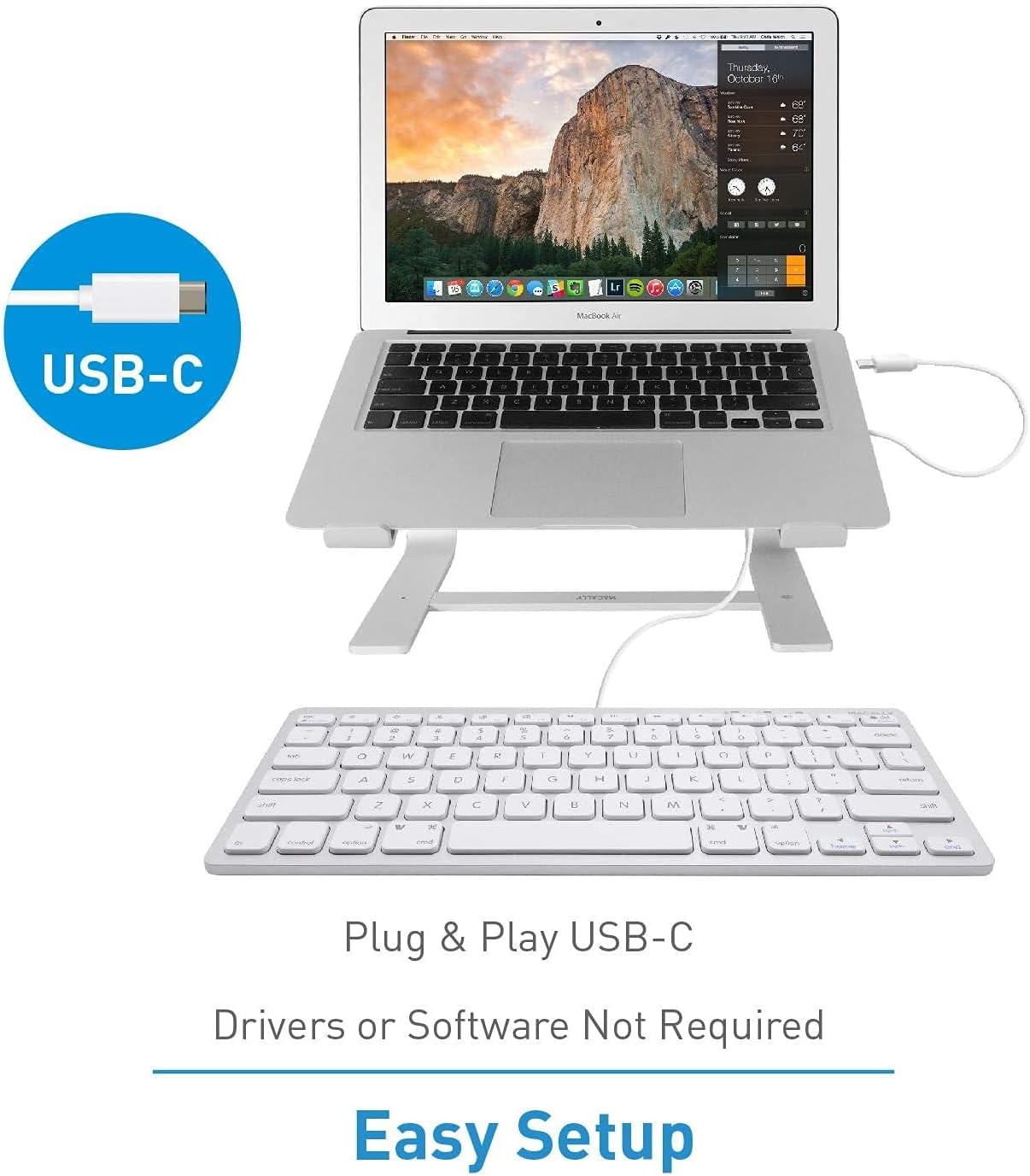
Image: A diagram illustrating the simple plug-and-play setup process using the USB-C connection, indicating no drivers or software are required.

Image: The Macally UCSLIMKEYCA keyboard connected to a laptop, demonstrating its use as an external input device.
Ibamu eto
- Mac OS X v10.6 tabi nigbamii
- Windows 7/8/10 tabi nigbamii

Image: Icons illustrating the broad operating system compatibility of the keyboard, including Mac, Windows, Android, iPadOS, and Chrome.
Awọn ilana Iṣiṣẹ
Key Awọn ẹya ara ẹrọ
- 78-Ipele bọtini: A compact yet full-featured layout for efficient typing.
- Scissor-Switch Keys: Provides a smooth, quiet, and responsive typing experience.
- 13 Shortcut Keys: Dedicated keys for enhanced productivity on both Mac and Windows systems.
- Awọn itọkasi LED: Visual cues for Fn Lock, Caps Lock, and Power status.

Image: A diagram illustrating the difference between a regular key mechanism and a scissor-key switch, highlighting the quiet operation of the scissor-switch.
Awọn bọtini ọna abuja
The keyboard includes 13 convenient shortcut keys to streamline your workflow. These keys are compatible with both Apple and Windows PC functions.
- Mac Functions: Includes shortcuts for brightness control (dim/brighten), cut, copy, paste, iTunes controls (play/pause, previous track, next track), volume control (mute, volume up/down), and eject.
- Windows PC Functions: Multimedia shortcuts are also supported.

Image: A visual representation of the keyboard highlighting the 13 Apple shortcut keys and their corresponding functions, such as brightness, cut, copy, paste, media playback, and volume control.
LED Ifi
The keyboard features LED indicators located above the function keys to provide status information:
- Titiipa Fn: Indicates when the Function (Fn) key is locked, allowing direct access to F1-F12 keys without pressing Fn.
- Ideri ti: Indicates when Caps Lock is active.
- Agbara: Indicates power status (for some models, may also indicate connection).

Aworan: A sunmọ-soke view of the keyboard's upper right section, showing the LED indicators for Fn Lock, Caps Lock, and Power.
Itoju
Láti rí i dájú pé keyboard rẹ pẹ́ tó àti pé ó ń ṣiṣẹ́ dáadáa, tẹ̀lé àwọn ìlànà ìtọ́jú wọ̀nyí:
- Ninu: Lo asọ asọ, ti ko ni lint die-die dampfi omi tàbí omi ìwẹ̀nùmọ́ díẹ̀ pa ojú kọ̀ǹpútà náà. Yẹra fún àwọn kẹ́míkà líle tàbí àwọn ohun èlò ìfọ́mọ́ra.
- Yiyọ eruku kuro: Lo afẹfẹ fisinuirindigbindigbin lati yọ eruku ati idoti kuro laarin awọn bọtini.
- Ibi ipamọ: Tí o kò bá lò ó, tọ́jú kọ̀ǹpútà náà sí ibi tí ó mọ́ tónítóní tí ó sì gbẹ, kí ó má baà sí ooru líle tàbí oòrùn tààrà.
- Yago fun Idasonu: Jeki awọn olomi kuro ni keyboard lati ṣe idiwọ ibajẹ si awọn paati inu.
Laasigbotitusita
If you encounter issues with your Macally UCSLIMKEYCA keyboard, please refer to the following common solutions:
Keyboard Ko Dahun
- Ṣayẹwo Asopọmọra: Ensure the USB-C cable is securely plugged into both the keyboard and your computer's USB-C port.
- Try Another Port: Connect the keyboard to a different USB-C port on your computer to rule out a faulty port.
- Tun Kọmputa bẹrẹ: Sometimes, a simple restart of your computer can resolve connectivity issues.
- Idanwo lori Ẹrọ miiran: If possible, test the keyboard on another compatible computer to determine if the issue is with the keyboard or your original device.
Awọn bọtini Ko Ṣiṣẹ ni deede
- Awọn bọtini mimọ: Ensure there is no debris or foreign objects lodged under the affected keys. Refer to the Maintenance section for cleaning instructions.
- Awọn ọrọ sọfitiwia: Check your operating system's keyboard settings to ensure no custom key mappings or accessibility features are interfering with normal operation.
Shortcut Keys Not Working
- OS ibaramu: Verify that your operating system version is supported for the specific shortcut functions.
- Ohun elo Idojukọ: Ensure the application you are using supports the multimedia or system control shortcuts.
Awọn pato
| Brand | Macally |
| Nọmba awoṣe | UCSLIMKEYCA |
| Asopọmọra Technology | USB-C (Ti firanṣẹ) |
| Awọn ẹrọ ibaramu | PC (Mac, Windows, iPad, iMac, MacBook) |
| Apejuwe Keyboard | Multifunction, Compact |
| Niyanju Lilo | Business, General Use |
| Pataki Ẹya | Silent Scissor-Switch Keys |
| Àwọ̀ | Fadaka |
| Awọn iwọn Ọja (L x W x H) | 33 cm x 14 cm x 2 cm (13 x 5.5 x 0.8 inches approx.) |
| Ohun elo | Ṣiṣu |
| Ẹ̀yà OS tó kéré jùlọ tí a nílò | Mac OS X 10.6 Snow Leopard, Windows 7 |
| Nọmba ti Awọn bọtini | 78 |
| Ifilelẹ bọtini itẹwe | QWERTY (US Layout) |
| Yipada Iru | Tactile (Scissor-Switch) |
| Ọwọ Iṣalaye | Ambidextrous |
| Iwọn Nkan | 0.34 kilo |
| Awọn irinše to wa | Okun USB |
| Ilu isenbale | China |

Image: A diagram illustrating the physical dimensions of the Macally UCSLIMKEYCA keyboard, showing its length, width, and height.
Alaye atilẹyin ọja
The Macally UCSLIMKEYCA USB-C Compact Wired Keyboard comes with a 2-odun lopin atilẹyin ọja from the date of purchase. This warranty covers defects in materials and workmanship under normal use. It does not cover damage caused by accidents, misuse, unauthorized modifications, or external causes such as liquid damage or power surges.
For warranty claims, please retain your proof of purchase and contact customer support.
Onibara Support
If you require further assistance or have questions not covered in this manual, please contact Macally customer support through the following channels:
- Webojula: Visit the official Macally webojú òpó wẹ́ẹ̀bù fún àwọn ìbéèrè tó ń fa ìbéèrè, àwọn ohun èlò ìrànlọ́wọ́, àti àwọn fọ́ọ̀mù ìbánisọ̀rọ̀.
- Imeeli: Tọkasi apoti ọja rẹ tabi osise naa webojú-òpó wẹ́ẹ̀bù fún àwọn àdírẹ́sì ìmeeli ìrànlọ́wọ́ àwọn oníbàárà.
- Foonu: Check the official Macally webojula fun agbegbe onibara iṣẹ awọn nọmba foonu.
Please have your product model number (UCSLIMKEYCA) and proof of purchase ready when contacting support.