
Ọrọ Iṣaaju
Thank you for choosing the Acer GPHDS1100T Over-Ear Headset. This manual provides essential information for setting up, operating, and maintaining your headset. Designed for comfort and clear communication, this headset features an omnidirectional microphone, 94 dB sensitivity, and a 3.5 mm jack for plug-and-play connectivity across various devices.

Nọmba 1: Acer GPHDS1100T Over-Ear Headset. This image shows the headset from a front-angled perspective, highlighting the over-ear design and the Acer logo on the earcup.
Package Awọn akoonu
Rii daju pe gbogbo awọn nkan wa ninu package:
- Acer GPHDS1100T Over-Ear Headset (with integrated cable)
Ṣeto
- So Agbekọri pọ: Locate the 3.5 mm audio jack on your computer, laptop, tablet, or smartphone. Insert the headset's 3.5 mm plug firmly into the audio jack. This headset is designed for plug-and-play functionality, requiring no additional drivers for basic operation.
- Ṣatunṣe Agbekọri: Gently extend or retract the headband slides on both sides of the headset until the earcups rest comfortably over your ears.
- Gbe gbohungbohun: The headset features a flexible, omnidirectional microphone. Adjust the microphone boom so that the microphone is positioned approximately 2-3 centimeters (1 inch) from your mouth for optimal voice clarity.
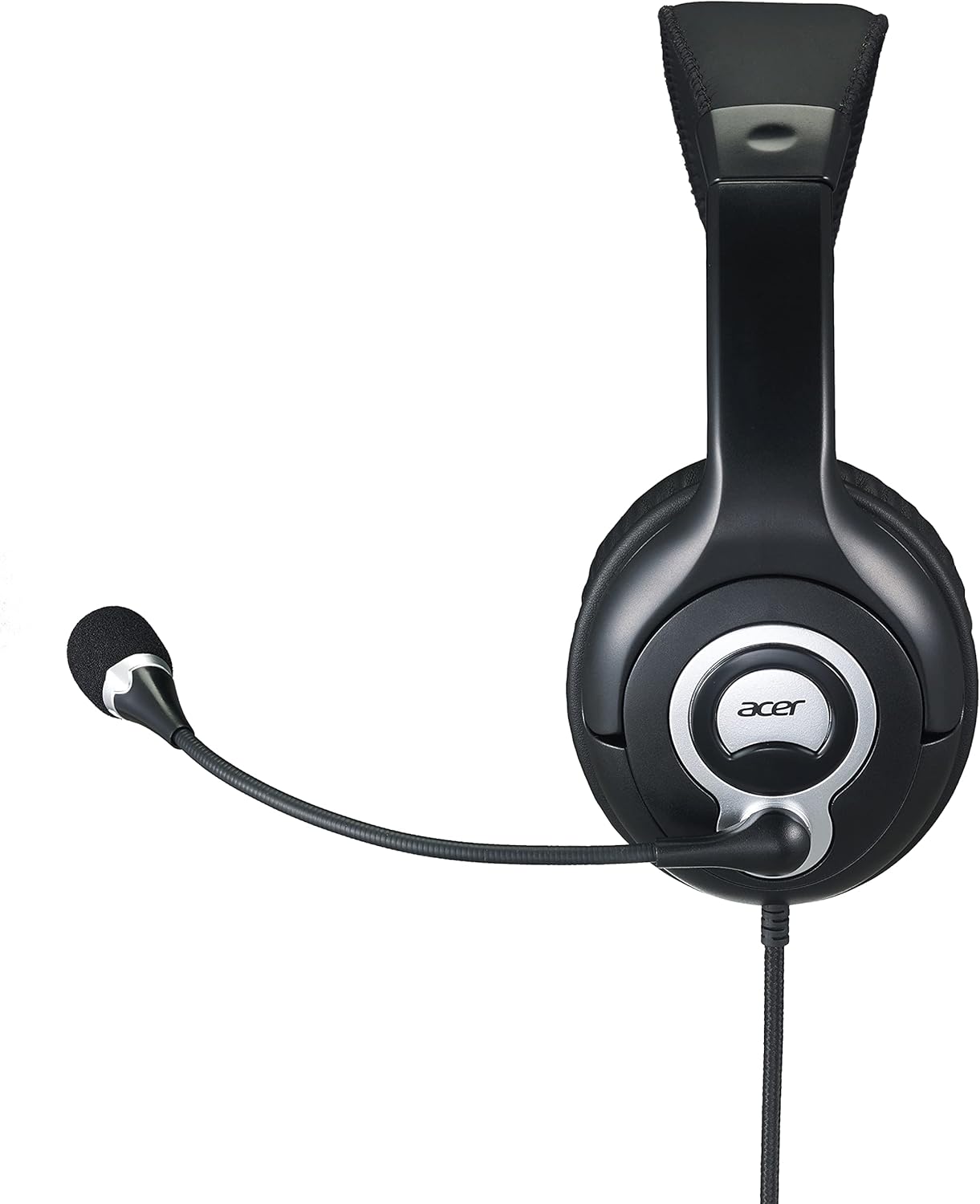
Nọmba 2: Apa view of the Acer GPHDS1100T headset with the microphone extended, illustrating proper microphone positioning.
Awọn ilana Iṣiṣẹ
Sisisẹsẹhin ohun
Once connected, your headset should automatically be recognized by your device. You can then play audio from any application. Adjust the volume using your device's system volume controls.
Gbohungbohun Lilo
The omnidirectional microphone is suitable for voice calls, online meetings, and gaming. Ensure the microphone is enabled in your device's sound settings if you experience issues. Some applications may have their own microphone volume settings.
Touch Control (If Applicable)
While the specifications mention "Touch Control," specific functions are device-dependent. Refer to your device's audio settings or application documentation for details on how touch controls might interact with your system. Common touch controls on headsets may include volume adjustment or microphone mute/unmute.
Itoju
- Ninu: Use a soft, dry cloth to wipe the earcups and headband. For the leather material, a slightly damp cloth can be used, followed by a dry cloth. Avoid harsh chemicals or abrasive cleaners.
- Ibi ipamọ: Tọju agbekari ni ibi ti o mọ, ti o gbẹ kuro ni iwọn otutu ti o ga julọ ati imọlẹ orun taara. Yago fun tangling okun.
- Itọju USB: Do not pull the cable forcefully or bend it sharply. This can damage the internal wiring. The cable is retractable, so ensure it retracts smoothly without kinks.

Nọmba 3: Oke view of the Acer GPHDS1100T headset, showing the headband and earcup design, useful for understanding cleaning areas.
Laasigbotitusita
| Isoro | Owun to le Fa | Ojutu |
|---|---|---|
| Ko si ohun lati agbekari |
|
|
| Gbohungbohun ko ṣiṣẹ |
|
|
| Didara ohun afetigbọ |
|
|
Awọn pato
| Brand | acer |
| Nọmba awoṣe | GP.HDS11.00T |
| Gbigbe Eti | Lori Eti |
| Asopọmọra Technology | Ti firanṣẹ |
| Jack agbekọri | 3.5 mm Jack |
| Gbohungbohun Iru | Omnidirectional |
| Ifamọ | 94 dB |
| Idahun Igbohunsafẹfẹ | 20 Hz - 20 kHz |
| USB Ipari | 2.4 m |
| Ariwo Iṣakoso | Ti nṣiṣe lọwọ Noise Ifagile |
| Iṣakoso Iru | Iṣakoso ifọwọkan |
| Ohun elo | Awọ (awọn ago etí) |
| Awọn ẹrọ ibaramu | Laptops, Desktops, Tablets, Telephones, Smart Speaker, Television, Cellphones |

Nọmba 4: Igun view of the Acer GPHDS1100T headset, showcasing the overall design and the flexible microphone.
Atilẹyin ọja ati Support
Fun alaye atilẹyin ọja ati atilẹyin imọ-ẹrọ, jọwọ tọka si Acer osise webojula tabi kan si alagbata rẹ. Tọju iwe-ẹri rira rẹ fun awọn ẹtọ atilẹyin ọja.
Optional protection plans may be available for extended coverage. Please check with your retailer for details on available plans.